

Most Windows 10 monitor issues come from four things: a loose cable or wrong input, Windows not detecting the display, a crashed or outdated graphics driver, or the wrong resolution and refresh rate. Check the cable and input first, press Windows + Ctrl + Shift + B to restart the driver, then use Detect in Display settings.
By Technical Support · Urlicenses · Published November 6, 2026 · Last reviewed: November 6, 2026
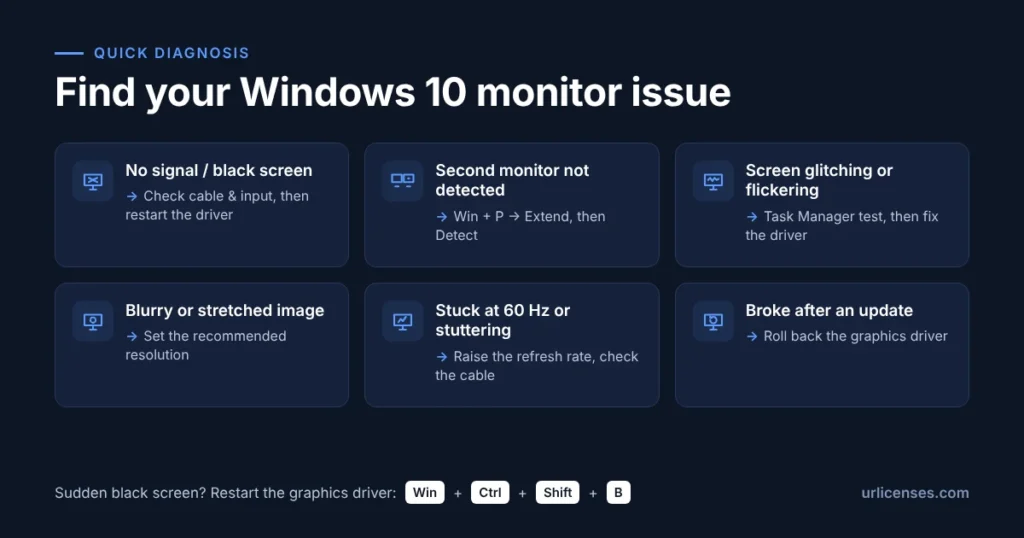
A monitor that stays black, flickers, or vanishes from Display settings is one of the most common Windows 10 support questions. The good news: most monitor problems Windows 10 users run into are fixed in under 15 minutes without new hardware. This guide follows the order a technician would use to fix Windows 10 monitor issues, from the cheapest check to the most involved, and links to Microsoft’s official instructions for each step.
All fixes for Windows 10 monitor issues in this guide apply to version 22H2, the final version of Windows 10. Most also work on Windows 11, though menu names differ slightly.
Table of Contents
What causes Windows 10 monitor issues?
Windows 10 monitor issues almost always fall into one of six patterns. Find your symptom in the table, then jump to the fix it points to.
| Symptom | Most likely cause | Start with |
|---|---|---|
| “No signal” or black screen | Loose cable, wrong input, or a crashed graphics driver | Cable and input check, then driver restart |
| Second monitor not detected | Projection mode set to “PC screen only”, or detection failed | Windows + P, then Detect |
| Screen glitching or flickering | Graphics driver, or an incompatible app | Task Manager test, then driver fixes |
| Blurry text or stretched image | Resolution is not the monitor’s native one, or wrong scaling | Recommended resolution and scaling |
| Stutter, tearing, or stuck at 60 Hz | Wrong refresh rate or a cable that lacks bandwidth | Advanced display settings |
| Problem started after an update | New driver or Windows update | Roll back the driver, then install updates |
If none of these fixes solves your Windows 10 monitor issues and the fault shows on other computers too, the monitor itself is likely faulty. The signs are listed near the end of this guide.
Is the cable, port or input source the problem?
Start here, because it takes two minutes and fixes more “no signal” cases and other Windows 10 monitor issues than any software change. Microsoft’s own troubleshooting guide begins with the same hardware checks (Microsoft Support).
- Reseat the cable at both ends. Unplug it from the PC and the monitor, then push it back in firmly. A cable that is half out can still light up the monitor but carry no picture.
- Select the right input. Use the monitor’s own buttons to choose the input you are plugged into (HDMI 1, HDMI 2, DisplayPort). Many monitors do not switch automatically.
- Use the graphics card’s ports. On a desktop with a separate graphics card, plug the monitor into the card’s ports, not the motherboard’s. The motherboard ports are often disabled when a card is installed.
- Remove docks, adapters and splitters. Connect the monitor directly. Microsoft notes that docks, dongles and adapters can cause conflicts, and that a splitter only duplicates one signal, so it cannot extend your desktop to two screens.
- Swap the cable, then the port. If a different cable works, the old one was faulty. Try each video port your PC has (HDMI, DisplayPort, DVI, VGA).
Still black after a cable swap? Connect the monitor to another computer or a laptop. If it works there, your Windows 10 monitor issues are on the PC side, and the next sections will fix them.
How do I force Windows 10 to detect a monitor?
Detection failures are among the most common Windows 10 monitor issues. Set the projection mode to Extend, then run Detect. If the screen is still missing, restart the graphics driver with a keyboard shortcut. These three steps solve most “second monitor not detected” cases.
1. Check the projection mode
Press Windows + P and choose Extend. If “PC screen only” was selected, Windows was ignoring the second monitor on purpose. Microsoft lists this as the first thing to check when an external monitor is not working (Microsoft Support).
2. Run Detect in Display settings
- Press Windows + R, type
ms-settings:displayand press Enter. - Scroll to Multiple displays and select Detect.
- Select Identify to see which number belongs to which screen, then drag the screens to match their real positions on your desk.
3. Restart the graphics driver
Press Windows + Ctrl + Shift + B. The screen goes black for a second and you may hear a beep. Microsoft says this key sequence resets the graphics driver and can fix a monitor that suddenly stopped working (Microsoft Support). If it does not help, restart the PC fully from Start › Power › Restart.
Only one external monitor works, never two? This is one of the monitor problems Windows 10 cannot fix in software. Your graphics card may not support more than one external display, or your laptop may have a single video output. A USB-C port with DisplayPort support or a docking station can add an output; check your PC maker’s specifications first.
How do I update, roll back or reinstall the graphics driver?
A faulty graphics driver is behind most Windows 10 monitor issues that appear after an update. Update the driver if it is old, roll it back if the problem started after an update, and reinstall it cleanly if neither works. All three are done in Device Manager.
Update the driver
- Press Windows + R, type
devmgmt.mscand press Enter. - Expand Display adapters, right-click your graphics card and select Update driver.
- Select Search automatically for drivers.
Windows Update does not always have the newest driver. For gaming monitors and high refresh rates, download the current driver directly from the graphics card maker (NVIDIA, AMD or Intel).
Roll back the driver after an update
In Device Manager, right-click the display adapter, select Properties › Driver › Roll Back Driver. If the button is greyed out, there is no earlier driver to return to, so reinstall instead. These are Microsoft’s documented steps (Microsoft Support).
Reinstall the driver
- In Device Manager, right-click the display adapter and select Uninstall device.
- Tick Attempt to remove the driver for this device, then select Uninstall.
- Restart the PC. Windows loads a basic driver, then you install the latest one from Windows Update or the card maker.
Warning: if Device Manager shows Microsoft Basic Display Adapter, no real graphics driver is installed. Resolution and refresh rate will be limited until you install the proper one, which causes several Windows 10 monitor issues at once.
Why is my screen blurry or the wrong size?
Blurriness is one of the monitor problems Windows 10 often creates by itself. A blurry or stretched picture almost always means Windows is not using the monitor’s native resolution. Every flat-panel monitor has one resolution it displays sharply; anything else is scaled and looks soft.
- Open
ms-settings:display, select the blurry monitor, and set Display resolution to the option marked (Recommended). - Set Scale so text is comfortable: 100% is typical for a 24-inch 1080p screen, 125–150% for 27-inch 1440p, and 150–200% for 4K.
- If some apps still look fuzzy, open Advanced scaling settings and turn on Let Windows try to fix apps so they’re not blurry.
- If “(Recommended)” is missing or the native resolution is not offered, the graphics driver is the problem. Go back to the driver section.
How do I set the right refresh rate for my monitor?
A wrong refresh rate causes Windows 10 monitor issues that look like hardware faults: stutter, tearing or a black screen. Windows often defaults to 60 Hz, even on a 144 Hz or 165 Hz monitor. Set it manually, and use a cable that can carry it.
- Open
ms-settings:displayand select Advanced display settings. - Choose the monitor at the top, then pick the highest value under Refresh rate.
- If the higher rate is not listed, check the cable and port. DisplayPort, or HDMI 2.0 or newer, is usually needed for high refresh rates at 1440p and above. Then update the graphics driver.
| What you see | What it means | What to do |
|---|---|---|
| Only 60 Hz listed on a 144 Hz monitor | Cable, port or driver cannot carry the higher rate | Use DisplayPort or a newer HDMI cable; update the driver |
| Higher rate listed but screen goes black | Monitor or cable cannot hold that rate | Step down one refresh rate; try another cable |
| Tearing during games | Frame rate and refresh rate are out of sync | Turn on G-Sync or FreeSync in the graphics card’s control panel |
Why is my Windows 10 screen glitching or flickering?
Flicker is one of the monitor problems Windows 10 users report most often, and one test tells you where it comes from. Open Task Manager with Ctrl + Shift + Esc and watch it for a minute. If Task Manager flickers too, the graphics driver is the cause. If everything flickers except Task Manager, an app is the cause.
- Task Manager flickers: restart the driver with Windows + Ctrl + Shift + B, then update or roll it back as described above.
- Task Manager does not flicker: uninstall recently added apps one at a time, starting with anything that adds overlays, screen recording or system “optimisation”.
- Colour or brightness shifts: turn off Night light and HDR in Display settings to rule them out.
- Lines, blocks or random coloured pixels: these “artifacts” point to hardware. See the faulty-monitor section below.
Why does my monitor show “no signal” after shutdown or sleep?
Some Windows 10 monitor issues only appear after a shutdown or sleep. Windows 10’s fast startup saves part of the system state when you shut down. Sometimes the display does not wake correctly from that state. Turning fast startup off fixes it for many PCs, at the cost of a few seconds of boot time.
- Open Control Panel › Power Options › Choose what the power buttons do.
- Select Change settings that are currently unavailable.
- Untick Turn on fast startup and select Save changes.
Alternatively, open Command Prompt as administrator and run powercfg /h off. This turns off hibernation and fast startup together. Run powercfg /h on to undo it.
Also install any pending updates: Settings › Update & Security › Windows Update, including View optional updates › Driver updates.
How do I tell if my monitor is faulty?
If the problem follows the monitor to another computer, the monitor is faulty. If it stays with your PC, the cause is the PC, cable or graphics card. These signs point to failing hardware rather than software-side Windows 10 monitor issues:
- Vertical or horizontal lines, dead pixels or dark patches that appear on every input and every computer.
- Lines or garbled colours in the BIOS/UEFI screen or the monitor’s own on-screen menu, before Windows has even loaded.
- The monitor turns off by itself, clicks, buzzes or smells hot.
- The power light is on but the on-screen menu will not open.
Check the warranty before buying a replacement; many monitors carry a 2–3 year manufacturer warranty that covers dead pixels and backlight failure.
Should I fix Windows 10 or upgrade to Windows 11?
Fix the monitor first: every step above works on Windows 10, and most monitor problems Windows 10 users report do not need a new operating system. But Windows 10 no longer receives normal updates, and new display driver fixes increasingly target Windows 11, so plan your upgrade.
| Date | What happened or happens |
|---|---|
| October 14, 2025 | Windows 10 reached end of support: no more feature updates, quality fixes or standard security updates |
| June 25, 2026 | Microsoft extended the consumer Extended Security Updates (ESU) program by one year |
| October 12, 2027 | Consumer ESU ends: last security updates for enrolled Windows 10 Home and Pro PCs |
Consumers can enrol in ESU for free by backing up Windows settings, by redeeming 1,000 Microsoft Rewards points, or by paying $30 USD plus tax (Microsoft ESU page). ESU only provides security patches; it does not fix Windows 10 monitor issues or other display bugs.
If your PC meets the Windows 11 hardware requirements, upgrading is the longer-term fix. An upgrade will not repair a faulty cable, monitor or graphics card, so only upgrade once the hardware checks above pass.
Need a licence? See our Windows 11 licences, or Windows 10 licences if you must stay on Windows 10 for compatibility reasons.
Urlicenses is an Authorized Microsoft Reseller, and our Windows and Office licences are sourced through official distribution channels. If you’re not sure which licence fits your PC, see our FAQs or contact our tech support team before you buy.
What is the fastest way to fix Windows 10 monitor issues?
Work through these steps in order. Each one takes under five minutes, and together they solve most Windows 10 monitor issues without new hardware.
| Step | Action | Fixes |
|---|---|---|
| 1 | Reseat the cable, choose the right input, remove adapters | No signal, black screen |
| 2 | Press Windows + P and choose Extend, then Detect | Second monitor not detected |
| 3 | Press Windows + Ctrl + Shift + B | Sudden black or frozen screen |
| 4 | Update, roll back or reinstall the graphics driver | Flicker, missing resolutions, problems after updates |
| 5 | Set the recommended resolution and scaling | Blurry or stretched image |
| 6 | Set the highest refresh rate in Advanced display settings | Stutter, tearing, stuck at 60 Hz |
| 7 | Turn off fast startup and install pending updates | No signal after shutdown or sleep |
| 8 | Test the monitor on another computer | Confirms a faulty monitor |
If the monitor fails step 8, no setting will help: the monitor problems Windows 10 shows are coming from the hardware, so check the warranty.
Frequently asked questions
Why isn’t Windows 10 detecting my monitors?
The most common Windows 10 monitor issues behind detection failures are the projection mode set to “PC screen only”, a loose cable, the wrong input on the monitor, or a crashed graphics driver. Press Windows + P and choose Extend, run Detect in Display settings, then press Windows + Ctrl + Shift + B to restart the driver.
Why is my Windows 10 screen glitching?
Most glitching comes from software-side Windows 10 monitor issues. Open Task Manager. If it glitches too, the graphics driver is at fault, so update or roll it back. If it does not, a recently installed app is the cause. Lines or coloured blocks that also appear in the BIOS point to failing hardware.
How do I tell if my monitor is faulty?
Connect it to another computer. If the same lines, dead pixels or flicker appear there, or in the monitor’s own menu, the monitor is faulty. If it works fine elsewhere, the monitor problems Windows 10 shows come from your PC, cable or graphics card.
Why are both my monitors working, but not at the same time?
This is one of the Windows 10 monitor issues caused by hardware limits: your graphics card or laptop may support only one external display at once, or you are using a splitter, which can only duplicate one signal. Check the projection mode is set to Extend, and confirm how many displays your graphics card supports.
Why does my computer suddenly not recognize my monitor?
Sudden monitor problems Windows 10 users see usually follow a Windows or driver update, a cable that has worked loose, or the monitor switching to another input. Restart the driver with Windows + Ctrl + Shift + B. If the problem began after an update, roll back the graphics driver in Device Manager.
How do I force Windows to detect a monitor?
To fix Windows 10 monitor issues with detection, press Windows + R, type ms-settings:display, then select Detect under Multiple displays. If that fails, press Windows + P and choose Extend, restart the graphics driver with Windows + Ctrl + Shift + B, and reconnect the cable.
Urlicenses is not affiliated with NVIDIA, AMD or Intel. Microsoft, Windows and Windows 11 are trademarks of Microsoft Corporation.