
Looking for a Microsoft Office 2024 Professional Plus download that actually works? You are in the right place. Setting up Office 2024 Professional Plus takes about 10 minutes from download to activation, and you only do it once, because this is a lifetime license, not a subscription.
This guide walks you through every step: checking your PC, removing older Office versions, getting the official office 2024 professional plus download, installing the suite, and activating it with your product key (online or by phone). It is written for regular users, with no technical experience needed
Don’t have your license yet? Get your Microsoft Office 2024 Professional Plus key here delivered to your email within minutes.
What You’ll Need Before Starting
Your 25-character product key (sent to your email after purchase)
A Windows 10 or Windows 11 PC with administrator rights
An internet connection for the download and activation
About 10 minutes of your time
What’s Included in Office 2024 Professional Plus
Office 2024 Professional Plus is Microsoft’s newest one-time-purchase Office suite. You get the full desktop versions of:
| Application | What it’s for |
|---|---|
 Microsoft Word 2024 Microsoft Word 2024 | Draft crisp corporate documentation using advanced formatting tools and upgraded system crash recovery protocols to keep your data secure. |
 Microsoft Excel 2024 Microsoft Excel 2024 | Execute high-level dataset analysis. Leverages dynamic arrays, XLOOKUP, and native image rendering tags within complex cell layers. |
 Microsoft PowerPoint 2024 Microsoft PowerPoint 2024 | Design professional slide decks with smooth presentation vectors, live video Cameo frames, and custom caption formatting properties. |
 Microsoft Outlook 2024 Microsoft Outlook 2024 | Keep communication loops organized. Efficiently manage business emails, team calendars, dynamic contacts, and tasks within an upgraded interface. |
 Microsoft OneNote 2024 Microsoft OneNote 2024 | Log concepts, collect meeting data, track project scopes, and organize digital notes seamlessly across local machines. |
 Microsoft Access 2024 Microsoft Access 2024 | Structure high-capacity business databases. Run local inventory networks, relational tracking forms, and operational query scripts cleanly. |
 Microsoft Project 2024 Professional Microsoft Project 2024 Professional | Build complex execution timelines, manage corporate resources efficiently, track project budgets, and evaluate delivery pipelines precisely. |
 Microsoft Visio 2024 Professional Microsoft Visio 2024 Professional | Transform complex data into professional diagrams. Easily create flowcharts, network maps, organizational charts, and floor plans. |
Everything works fully offline after activation there’s no monthly fee and your apps never expire.
Good to know: Microsoft Publisher is not part of Office 2024, as Microsoft is retiring it in October 2026. If a store advertises Office 2024 “with Publisher,” that’s a red flag.
System Requirements for Microsoft Office 2024 Professional Plus
| Requirement | Minimum |
|---|---|
| Operating System | Windows 11 (recommended) or Windows 10 |
| Processor | 1.6 GHz, 2-core (64-bit recommended) |
| RAM | 4 GB |
| Hard Disk Space | 4 GB free |
| Display | 1280 × 768 resolution or higher |
| Graphics | DirectX 10 compatible GPU (for hardware acceleration) |
| Internet Connection | Required for installation, product activation, and regular updates |
Almost any PC made in the last 10 years meets these requirements. Note that Office 2024 does not run on Windows 7 or Windows 8.1 and since Microsoft ended Windows 10 support in October 2025, we recommend installing on Windows 11 for the best long-term experience.
Step 1: Uninstall Older Versions of Office
Before you installMicrosoft Office 2024, it’s important to uninstall any other version of Microsoft Office already installed on your computer. Having multiple versions can cause activation errors or prevent installation.
1→ Close Office Applications: Before uninstalling Office, make sure all Office applications are closed.
If you have another version you need to uninstall it→ Follow these instructions
2- Open Control panel–> Programs and Features→ Uninstall program–>Locate Microsoft Office→ After selecting Microsoft Office, click on the “Uninstall→ Follow Uninstallation Wizard → Wait for Uninstallation to Complete and Restart Your Computer
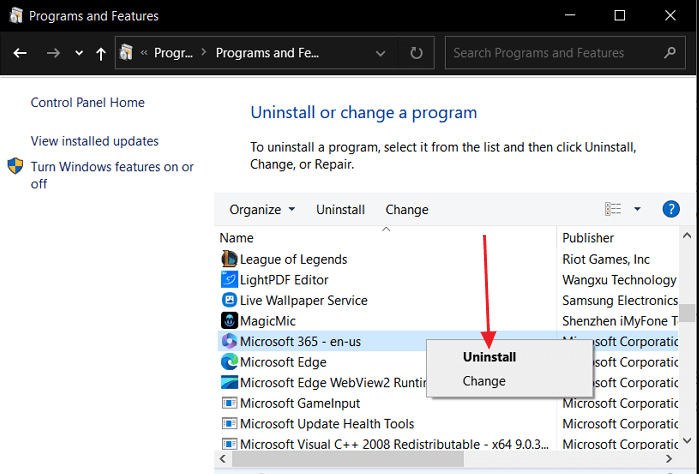
Don’t worry uninstalling Office does not delete your documents. Your Word, Excel, and PowerPoint files stay safely on your PC and will open in Office 2024.
Tip: If a normal uninstall fails or leaves leftovers, Microsoft’s free SaRA tool (Support and Recovery Assistant) removes Office completely in one click.
Step 2: Download Office 2024 Professional Plus
You’ll need the official Office 2024 installation files:
Use the buttons below to start your Microsoft Office 2024 Professional Plus download. Both files are the genuine Microsoft installer, so your office 2024 pro plus download is safe, clean, and ready to activate with the key from your order.
Download Office 2024 Pro Plus (64-bit)
Download Office 2024 Pro Plus (32-bit)
Most users want the 64-bit version. Choose 32-bit only on older PCs or for legacy add-in compatibility.
Browser warning? Windows sometimes shows a SmartScreen notice for downloaded installers. This is normal. Click More info, then Run anyway to continue.
Click the download link and save the file to your PC (it goes to your Downloads folder by default).
Purchase your Office 2024 Professional Plus license from our store.
Within minutes, you’ll receive an email with your product key and a secure download link to the official installer.
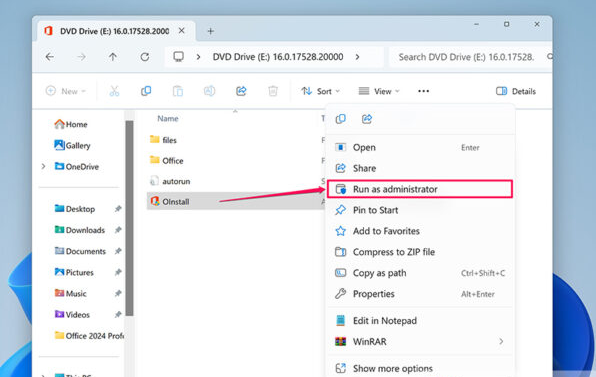
Browser warning? Windows sometimes shows a SmartScreen notice for downloaded installers. This is normal. Click More info → Run anyway to continue
Step 3: Install Office 2024 Professional Plus
- Open your Downloads folder and find the Office 2024 setup file.
- Right-click it and choose Run as administrator.
- Click Yes if Windows asks for permission.
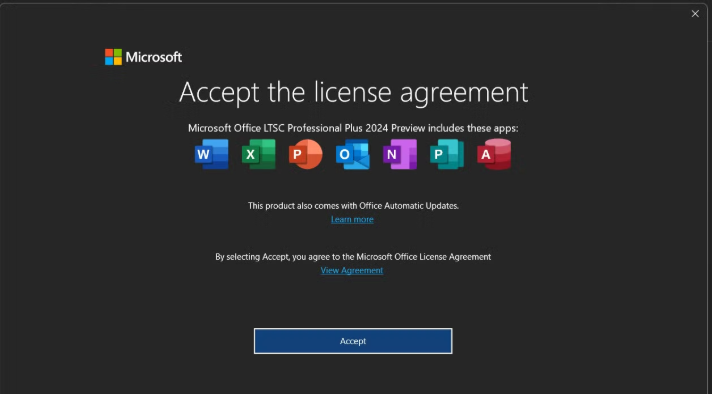
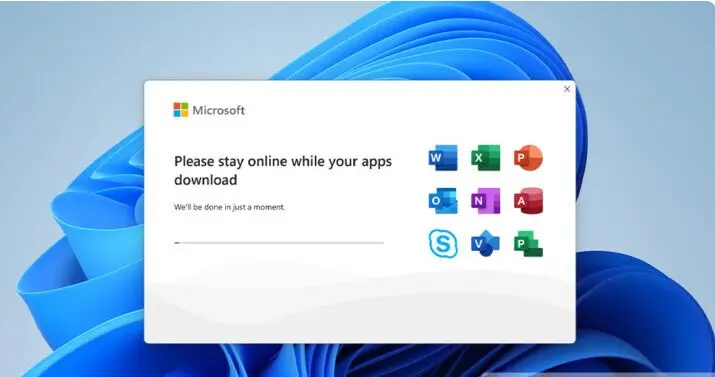
- The installer will begin extracting and installing Office 2024. Stay connected to the internet and let it run this usually takes 5–15 minutes depending on your connection speed. When you see “You’re all set! Office is installed now”, click Close
Step 4: Activate Office 2024 with Your Product Key
Open any Office app Word is easiest.
If the activation wizard appears automatically, enter your 25-character product key and click Next.
If no prompt appears, go to File → Account → Change Product Key (or Activate Product), then enter your key.
Choose Activate via the Internet and wait a few seconds while Office contacts Microsoft’s servers.
You’ll see a confirmation that activation was successful. Restart the app, and you’re done.
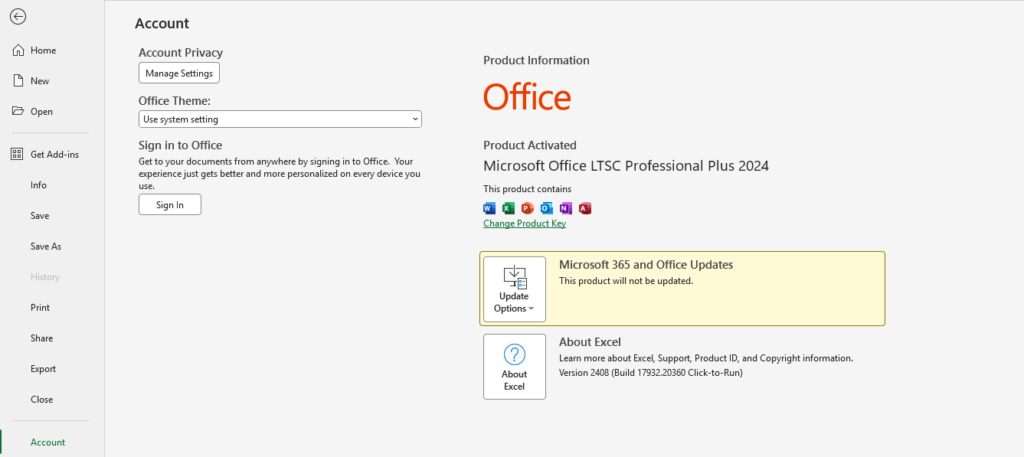
Alternative: Activate Office 2024 by Phone (Confirmation ID)
Some Office 2024 license types activate by telephone instead of online. This is a standard, official Microsoft activation method and it’s faster than it sounds:
- Open Word, go to File → Account → Activate Product, and choose I want to activate the software by telephone.
- Select your country. The wizard displays your Installation ID a long number in groups of 6 digits.
- Use our free Get Your Confirmation ID (CID) tool — paste your Installation ID and receive your Confirmation ID instantly, no phone call needed.
- Paste your Installation ID and receive your Confirmation ID instantly, no phone call needed.
- Type the Confirmation ID into the activation wizard and click Activate.
Your Office 2024 is now permanently activated, even on PCs with limited internet access.
Troubleshooting Common Issues
“This product key has already been used.” Make sure you removed all older Office installations (Step 1), restart your PC, and try again. If it persists, contact our support we respond fast.
Antivirus blocks the installer. Some third-party antivirus tools flag any .exe downloaded from the internet. Temporarily pause the antivirus, install Office, then turn it back on.
Installation freezes or fails. Check you have at least 4 GB of free disk space and a stable connection, then run the installer again as administrator. Running Microsoft’s SaRA cleanup tool first fixes most stubborn cases.
Activation error after entering the key. Double-check the key for typos (the letters and numbers are case-insensitive, but it’s easy to confuse B/8 or O/0). If the error continues, use the phone activation method above it bypasses most online activation errors.
Still stuck? Contact our support team we help with installation and activation for free, 24/7.
Frequently Asked Questions
Is Office 2024 Professional Plus a one-time purchase or a subscription?
One-time purchase. You pay once and own it for life no monthly fees, no renewal, no expiration date.
Can I install Office 2024 Professional Plus on a Mac?
No. Office 2024 Professional Plus is Windows-only. Mac users should choose Office 2024 Home & Business for Mac instead.
Will installing Office 2024 delete my documents?
No. Your files are stored separately from the Office applications. Uninstalling an old version and installing Office 2024 leaves all your documents untouched.
Does Office 2024 work offline?
Yes. After the one-time activation, all apps work fully offline. You only need internet for the initial download, activation, and security updates.
Does Office 2024 include Microsoft Copilot or AI features?
No. Copilot and cloud-based AI features are exclusive to Microsoft 365 subscriptions. Many users actually prefer Office 2024 for exactly this reason a stable, distraction-free suite.
Can I upgrade from Office 2019 or Office 2021 to Office 2024?
Yes. Uninstall your current version (Step 1 above), then install and activate Office 2024. Your documents and settings carry over automatically.
How many PCs can I install it on?
One product key activates Office 2024 on one PC. Need it on multiple computers? Check our multi-device offers on the product page.
Get Office 2024 Professional Plus Today
A genuine lifetime license, instant email delivery, the official Microsoft installer, and free activation support whenever you need it.