
Now that Windows 10 has reached the end of its free support, the Windows 11 upgrade is the move most people need to make to stay secure. A supported operating system is the foundation of a safe PC, and Windows 11 is the version Microsoft keeps patching from here on.
The good news is that the Windows 11 upgrade is simpler than its reputation suggests. This guide covers everything in plain English: whether your PC qualifies, whether the upgrade is free, the exact steps to follow, what to do if you hit a “can’t upgrade” or TPM error, and how to move from Home to Pro or buy a genuine license if you need one.
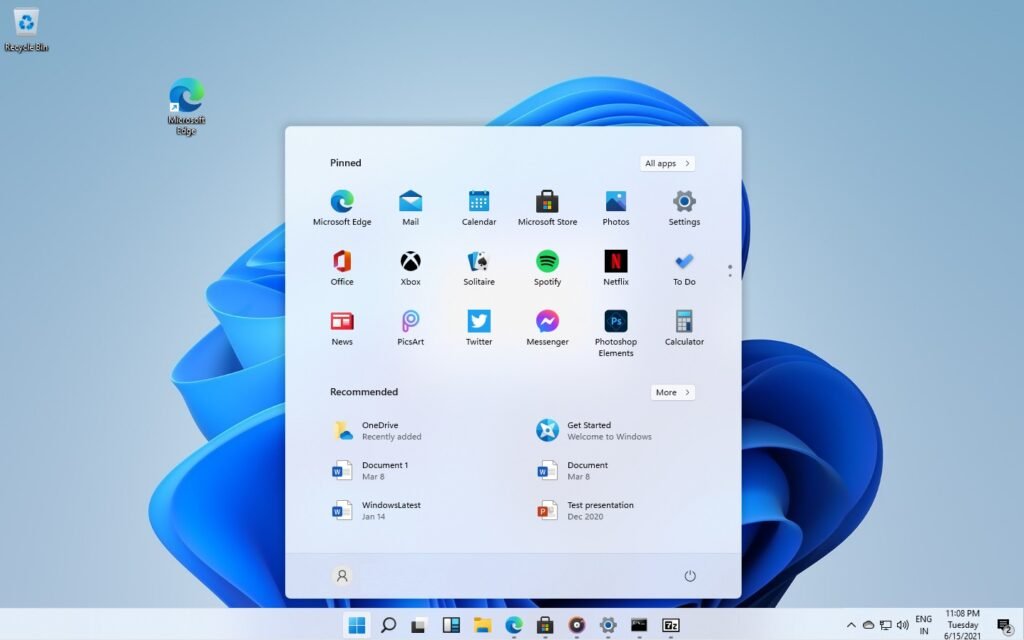
Should You Upgrade to Windows 11?
For a compatible PC, the answer is usually yes. Beyond the security reasons, Windows 11 brings real day-to-day improvements over Windows 10:
- Snap Layouts and Snap Groups make multitasking faster. Hover the maximize button, drop windows into a tidy grid, and switch between whole groups from the taskbar.
- A cleaner, centered Start menu and taskbar that feels more focused, with quicker search.
- A stronger security baseline thanks to hardware-backed protections like TPM and Windows Hello sign-in.
- Better multi-monitor handling so your windows remember where they belong when you reconnect a display.
- Gaming gains through DirectX 12 Ultimate and Auto HDR on modern hardware.
If your machine meets the requirements, upgrading is a low-effort way to get a safer, smoother, more modern PC.
Can Your PC Run the Windows 11 Upgrade?
This is the first thing to check, and it is where most “why can’t I upgrade to Windows 11” questions come from. Windows 11 has stricter hardware requirements than Windows 10:
- TPM 2.0 (Trusted Platform Module) enabled
- UEFI firmware with Secure Boot capability
- A compatible 64-bit processor (1 GHz or faster, 2 or more cores) on Microsoft’s supported list
- 4 GB RAM minimum and 64 GB storage or more
- DirectX 12 compatible graphics and a display larger than 9 inches at 720p
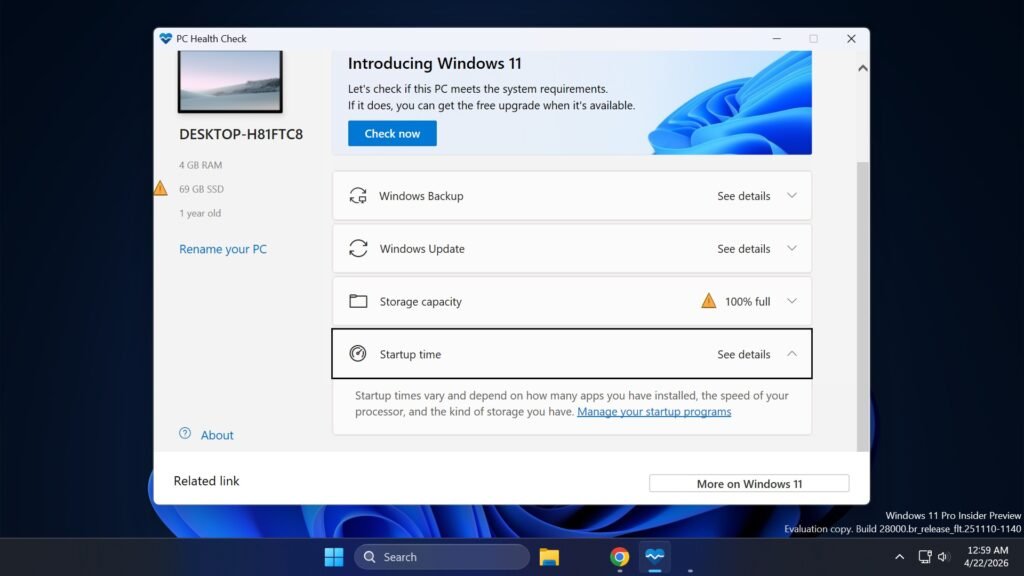
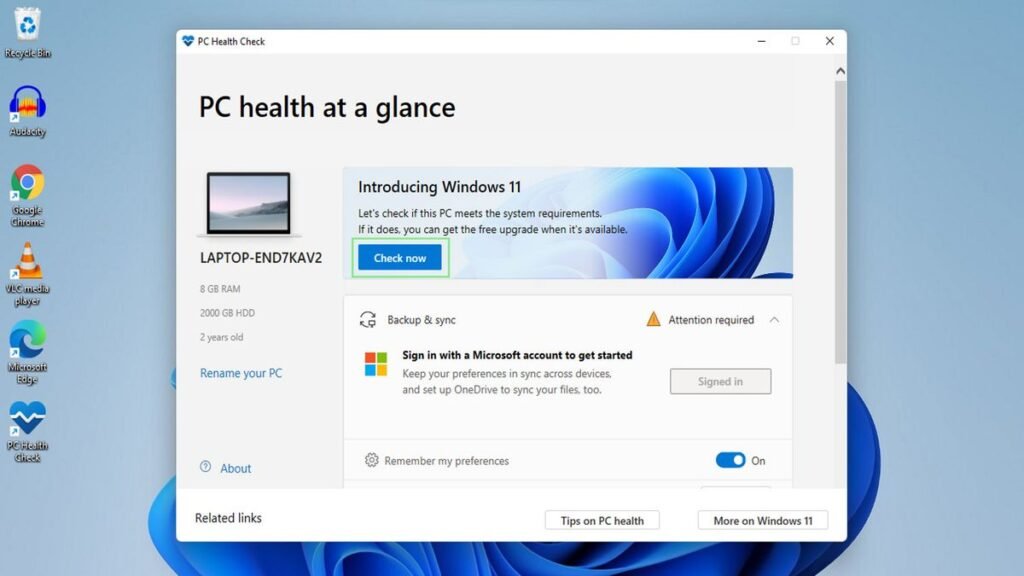
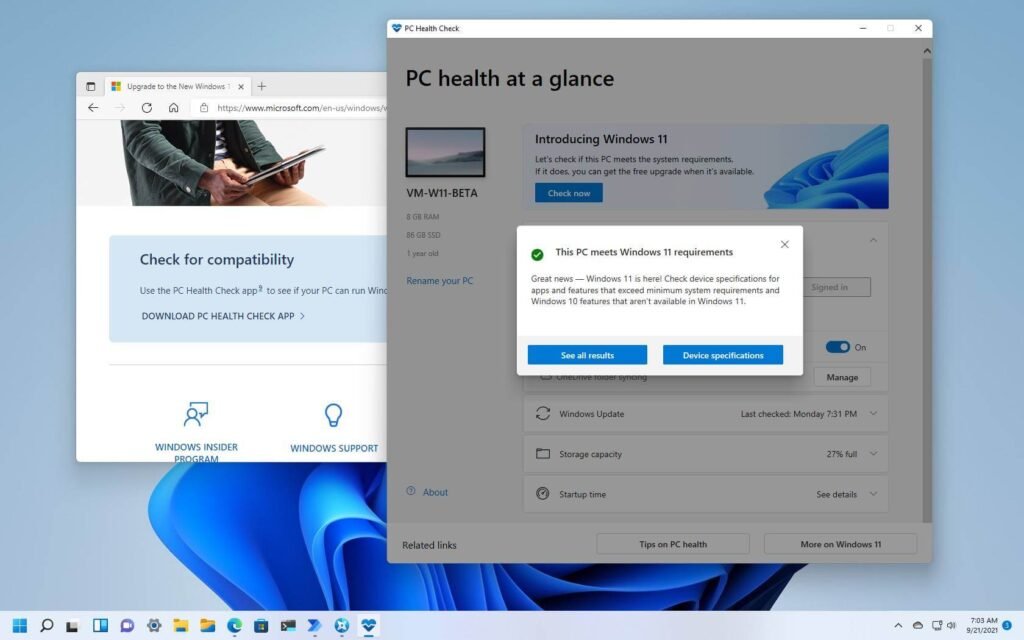
The fastest way to check is the PC Health Check app from Microsoft, which tells you in one click whether your device qualifies and, if not, exactly which requirement is missing.
If You Can’t Upgrade to Windows 11
Most “can’t upgrade” cases come down to TPM 2.0 or Secure Boot being switched off in the BIOS rather than truly missing. Restart into your UEFI or BIOS settings and look for TPM (sometimes labelled PTT on Intel or fTPM on AMD) and Secure Boot, then enable both and try again.
If your processor genuinely is not on the supported list, your clean options are to keep the PC on a supported setup until you replace it, or move to newer hardware. Unofficial registry workarounds to bypass the TPM 2.0 check exist, but Microsoft treats those installs as unsupported, so they may miss updates and are not recommended for a primary machine.
Is the Windows 11 Upgrade Free?
This is one of the most searched questions, so here is the honest answer. If you have a genuine, activated copy of Windows 10 on hardware that meets the requirements, the upgrade to Windows 11 is free through Windows Update. Your existing digital license carries over.
You will need to buy a Windows 11 license in these cases:
- You are building a new PC with no prior Windows license
- You are doing a clean install on a machine that was never activated
- You want to move from Home to Pro for features like BitLocker or Remote Desktop
In other words, the upgrade itself is free for eligible Windows 10 users, but a fresh install or an edition change to Windows 11 Pro needs a valid key.
How to Upgrade to Windows 11 (Step by Step)
For most people, upgrading from Windows 10 to Windows 11 takes one path and keeps your files and apps in place. Back up anything important first, then:
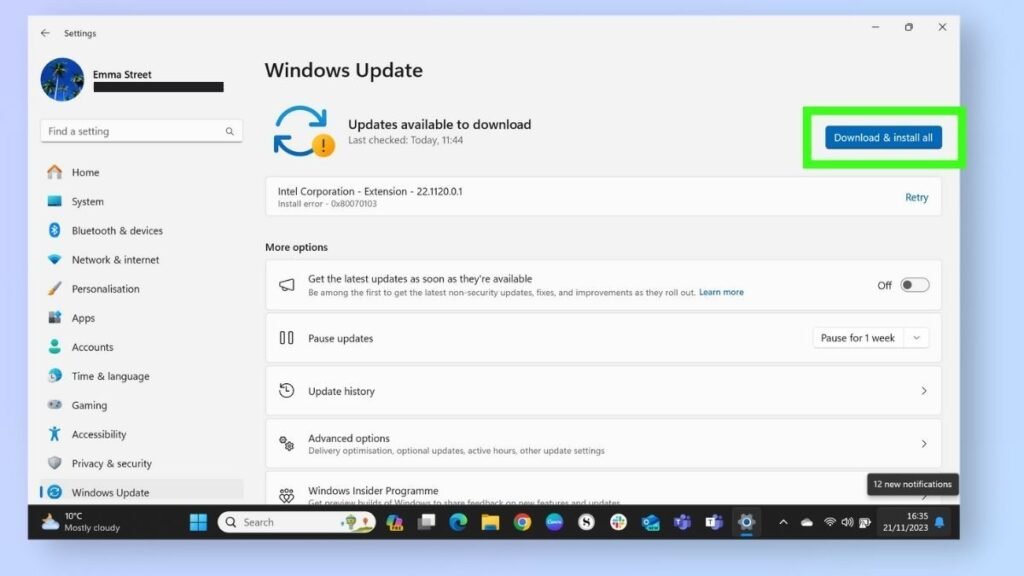
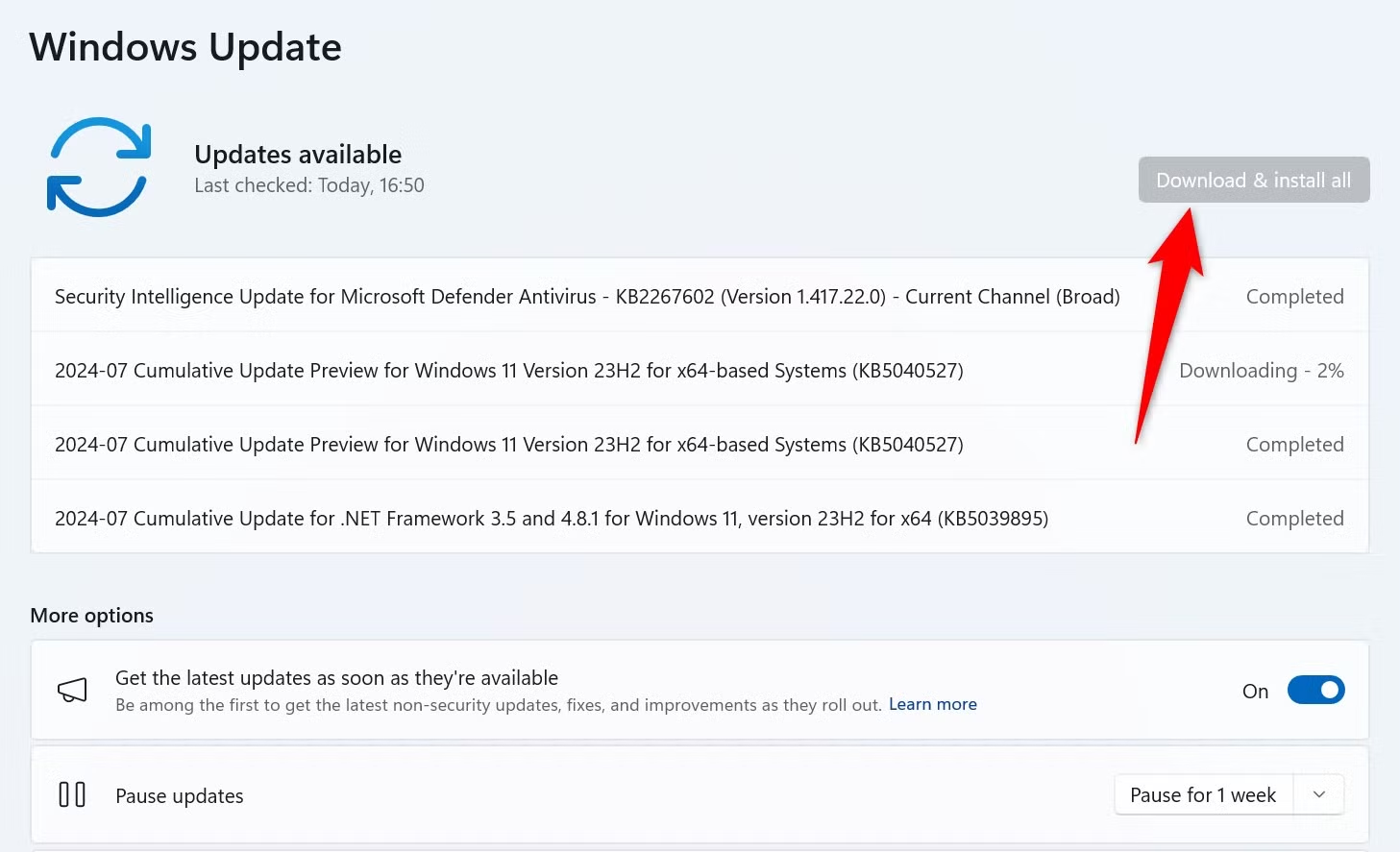
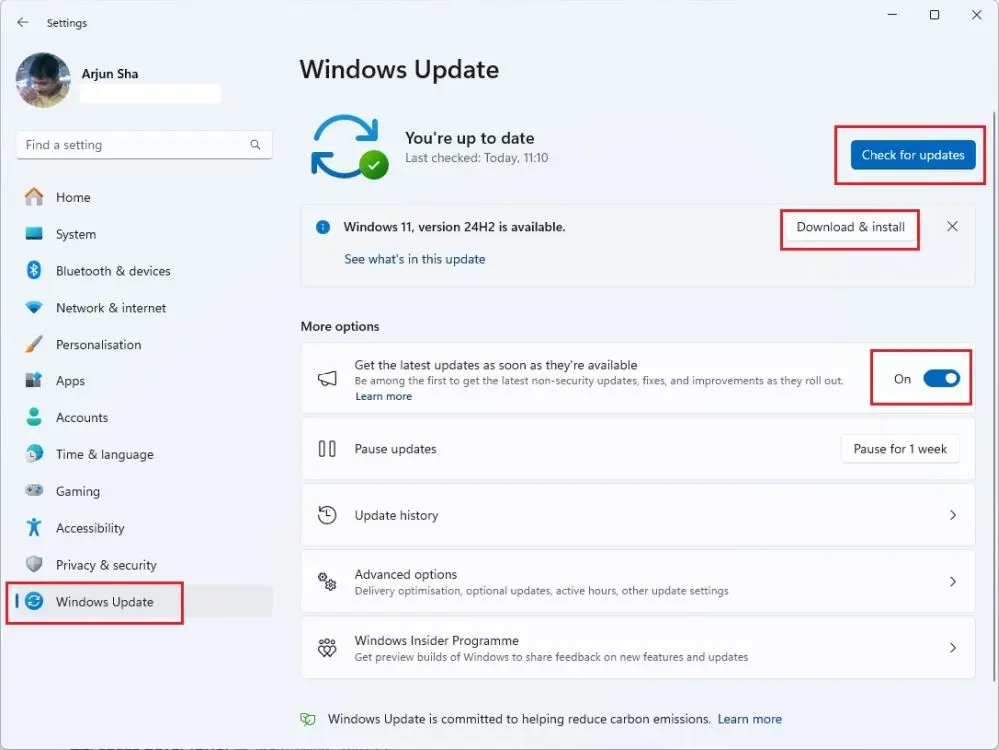
- Check for the upgrade. Go to Start, Settings, Update and Security, Windows Update and select Check for updates. If your PC is eligible, the Windows 11 upgrade is offered here. Click Download and install.
- Use the Installation Assistant if it is not offered yet. Microsoft rolls the upgrade out in waves. If Windows Update does not show it, download the official Windows 11 Installation Assistant from Microsoft and run it to upgrade immediately.
- Let it install and restart. The process runs largely in the background, then restarts a few times. On most modern hardware it takes roughly 30 to 90 minutes depending on your drive and internet speed.
- Confirm you are activated. After it finishes, go to Settings, System, Activation and check that Windows shows as activated
Your documents, photos, and installed programs remain after an in-place upgrade. A backup is still smart insurance in case anything goes wrong mid-process.
How to Upgrade Windows 11 Home to Pro
If you already run Windows 11 Home and need professional features, you do not reinstall anything. You change the edition with a Pro key:
- Open Settings, System, Activation.
- Select Upgrade your edition of Windows, then Change product key.
- Enter your 25-character Windows 11 Pro key and select Next, then Start the upgrade.
Windows switches to Pro in a couple of minutes and unlocks the Pro feature set without touching your files.
Windows 11 Home vs Pro: Which Edition Do You Need?
The Home-to-Pro question comes down to security and control. The table below shows where they differ.
| Feature | Windows 11 Home | Windows 11 Pro |
|---|---|---|
| Everyday apps, browsing, gaming | Yes | Yes |
| Snap Layouts and modern interface | Yes | Yes |
| BitLocker drive encryption | No | Yes |
| Remote Desktop (host) | No | Yes |
| Group Policy and domain join | No | Yes |
| Hyper-V virtual machines | No | Yes |
Choose Windows 11 Home if you browse, stream, study, and run everyday apps, and you do not need encryption or remote access.
Choose Windows 11 Pro if the PC handles client work, finances, private data, or business operations, where BitLocker, Remote Desktop, and Group Policy earn their small price difference.
Where to Buy a Genuine Windows 11 License ?
If you need a license for a new build, a clean install, or a Home to Pro upgrade, the market is full of listings that look genuine until they deactivate. The real cost of a bad key is not the price, it is the lost time and the risk of being left with no support or replacement. Watch for reused or unauthorized keys, undisclosed region locks, and sellers with no invoice and no replacement process.
As an authorized Microsoft reseller, Urlicenses provides genuine Windows 11 licenses delivered by email within minutes, with clear activation steps and real support:
- Windows 11 Pro lifetime license (1 PC) for professionals who need BitLocker and Remote Desktop
- Windows 11 Home lifetime license (1 PC) for everyday home and study use
- Windows 11 Pro for 5 PCs for households or small teams
Each is a one-time purchase with no subscription and instant digital delivery.
Frequently Asked Questions
If I upgrade to Windows 11, will I lose anything?
No. An in-place upgrade from Windows 10 keeps your files, settings, and installed apps. A backup is still recommended in case something interrupts the process.
How long does the Windows 11 upgrade take?
On most modern PCs it takes about 30 to 90 minutes, depending on your storage speed and internet connection. Older drives take longer.
Can I upgrade to Windows 11 for free?
Yes, if you have a genuine activated copy of Windows 10 on compatible hardware. The upgrade comes through Windows Update at no cost. A new PC or clean install needs a valid license.
Why can’t I upgrade to Windows 11?
The most common reason is TPM 2.0 or Secure Boot being disabled in the BIOS, or an unsupported processor. Run the PC Health Check app to see exactly which requirement is failing.
Do I need a new key to go from Home to Pro?
Yes. Moving from Windows 11 Home to Pro is an edition change that requires a Windows 11 Pro key, entered under Settings, System, Activation
The Bottom Line
With Windows 10 support over, the Windows 11 upgrade is a smart, low-effort step for any compatible PC: stronger security, cleaner multitasking, and a modern experience. Check your requirements with PC Health Check, upgrade for free if your Windows 10 is genuine, and pick the right edition for how you use the machine.
When you need a license for a new build, a clean install, or a Home to Pro move, get a genuine, instantly delivered key: Windows 11 Pro or Windows 11 Home.