Microsoft Windows Server 2016 Datacenter Installation guide
This free, step-by-step guide walks you through downloading, installing and activating Microsoft Windows Server 2016 Datacenter — with real screenshots for every step, in 12 languages.
Get the installer
Download the desired version with the following download link.
Available in 5 languages —
Read this very carefully
- 1,4 GHz 64-bit CPU or faster with NX/DEP
- 2 gigabyte (GB) RAM
- 60 GB of available hard disk space
- Graphic device with resolution of 1024 × 768 Pixels
Step-by-step install
We suggest finishing the installation and activation of the product first, and only then signing in with your Microsoft account.
When the download finishes, write the ISO file to a DVD or copy it to a USB stick. Start your PC or laptop from that DVD or USB drive and the setup program launches automatically. Work through the on-screen steps to finish the installation.
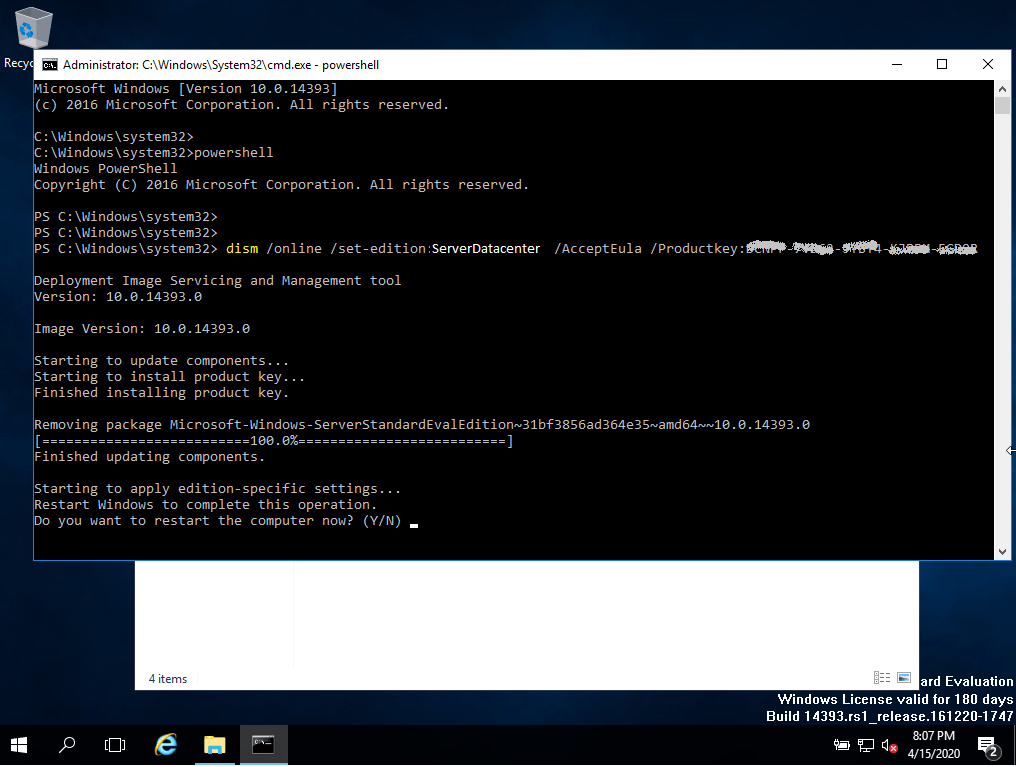
The Microsoft installation provided here comes with a 180-day trial period. Run this command to switch to the full version:
(Replace the Xs with your product key)
Activate your licence
Follow these 5 short steps — the whole sequence takes under two minutes.
Open Server Manager and click "Activate Windows" in the dashboard.
Pick your language
The installation media is available in 5 languages. Each is the original media — only the UI language is preset.
| Language | 64-bit | 32-bit |
|---|---|---|
 EnglishYour language | Download | Download |
 Deutsch | Herunterladen | Herunterladen |
 Français | Télécharger | Télécharger |
 Italiano | Scarica | Scarica |
 Español | Descargar | Descargar |
Common questions
Can I install Windows Server on consumer hardware?
+
Yes — Windows Server runs on most modern x64 hardware. For Hyper-V or domain controller roles, ECC RAM is recommended. For standalone file servers or test environments, any 64-bit PC with 4 GB+ RAM works.
What is the difference between Standard and Datacenter editions?
+
Standard allows 2 virtual machines per licence. Datacenter allows unlimited VMs and adds features like Storage Spaces Direct and Software-Defined Networking. For most small businesses, Standard is enough.
Do I need separate CAL (Client Access Licences)?
+
Yes. Server licences cover the OS only. Every user or device that connects to the server needs a CAL. RDS deployments need an additional RDS CAL on top.
Can I activate over the phone?
+
No. Microsoft has phased out telephone activation for most products. All activation now goes through Microsoft's online servers — make sure the server has internet access during activation.
Need a hand?
Microsoft no longer offers phone activation
ISO files are original Microsoft Volume Licence media. Evaluation editions expire after 180 days. Ensure you have the correct edition licence before activation.
Files are hosted on our secure CDN. Click Download to start — your browser will handle the rest.