Microsoft Visio 2024 Standard Installatiegids
Deze gratis stap-voor-stap handleiding helpt je Microsoft Visio 2024 Standard te downloaden, installeren en activeren — met echte screenshots bij elke stap, in 12 talen.
Installer downloaden
Download de gewenste versie via de volgende downloadlink.
Beschikbaar in 22 talen —
Lees dit zeer zorgvuldig
- 1,6 gigahertz (GHz) of snellere 32-bits (x86) of 64-bits (x64) processor
- 2 gigabyte (GB) RAM (32 bit) of 4 GB RAM (64 bit)
- 4 GB beschikbare ruimte op de harde schijf
- Schermresolutie 1280 × 768
- DirectX 10 grafisch apparaat met WDDM 1.1 of hoger stuurprogramma
Stap-voor-stap installatie
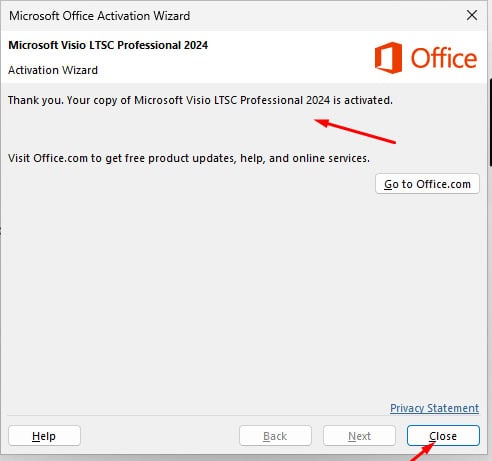
When the download has finished, go through these steps:
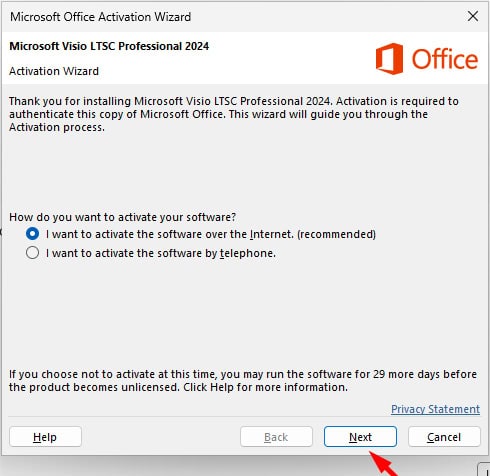
We suggest finishing the installation and activation of the product first, and only then signing in with your Microsoft account.
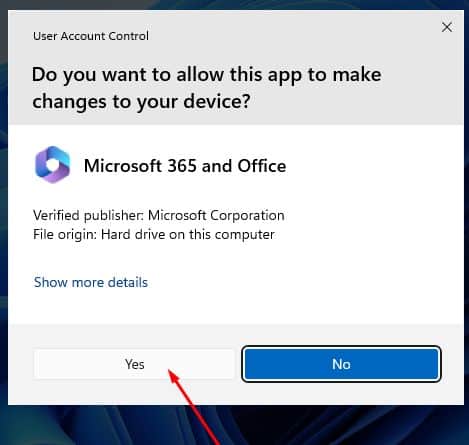
Locate the installer you downloaded (normally in your Downloads folder). Double-click it, then press the “Install” button. When Windows asks whether the app may make changes to your device, choose “Yes”. Note: stay connected to the Internet, because the installer fetches the required files straight from Microsoft.
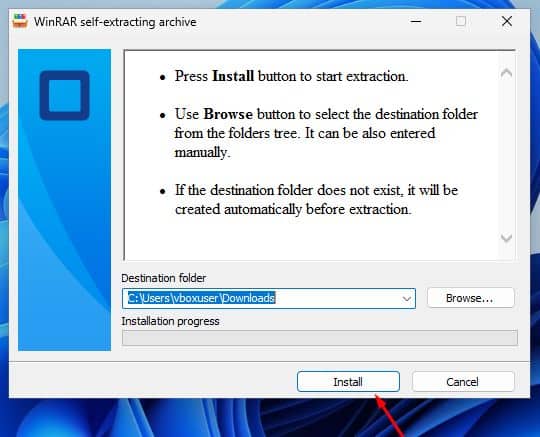
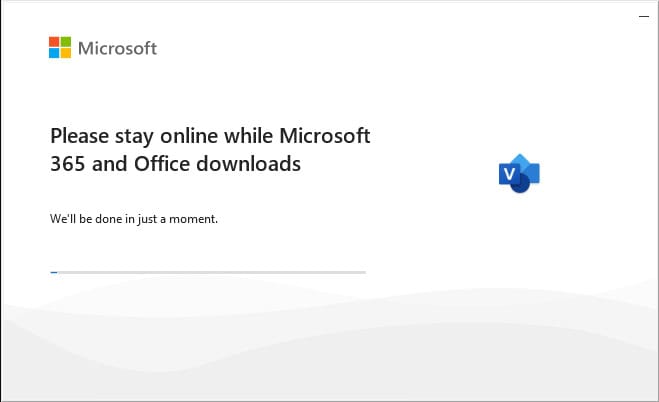
Once you have allowed the changes, the installation of your product begins.
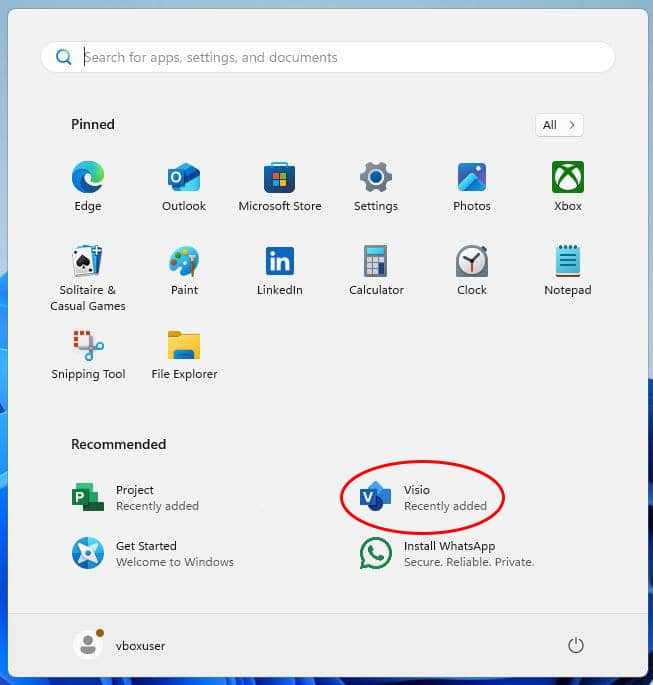
When setup has finished, launch Visio 2024: Press the Start button (the Windows logo at the bottom left). Choose “All apps” to see everything installed on your PC. Scroll to the Microsoft Office folder or to Visio 2024. Typing the app name into the Windows search bar is a quicker alternative. (Optional) For quicker access later, right-click the app and select “Pin to Start” or “Pin to taskbar”.
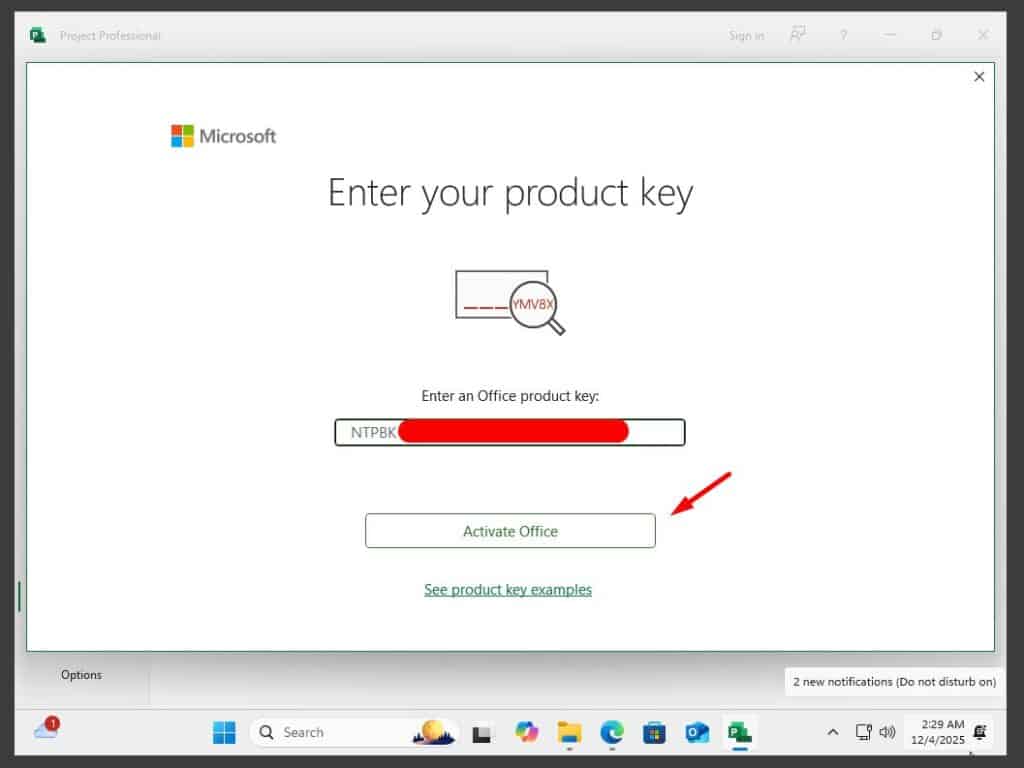
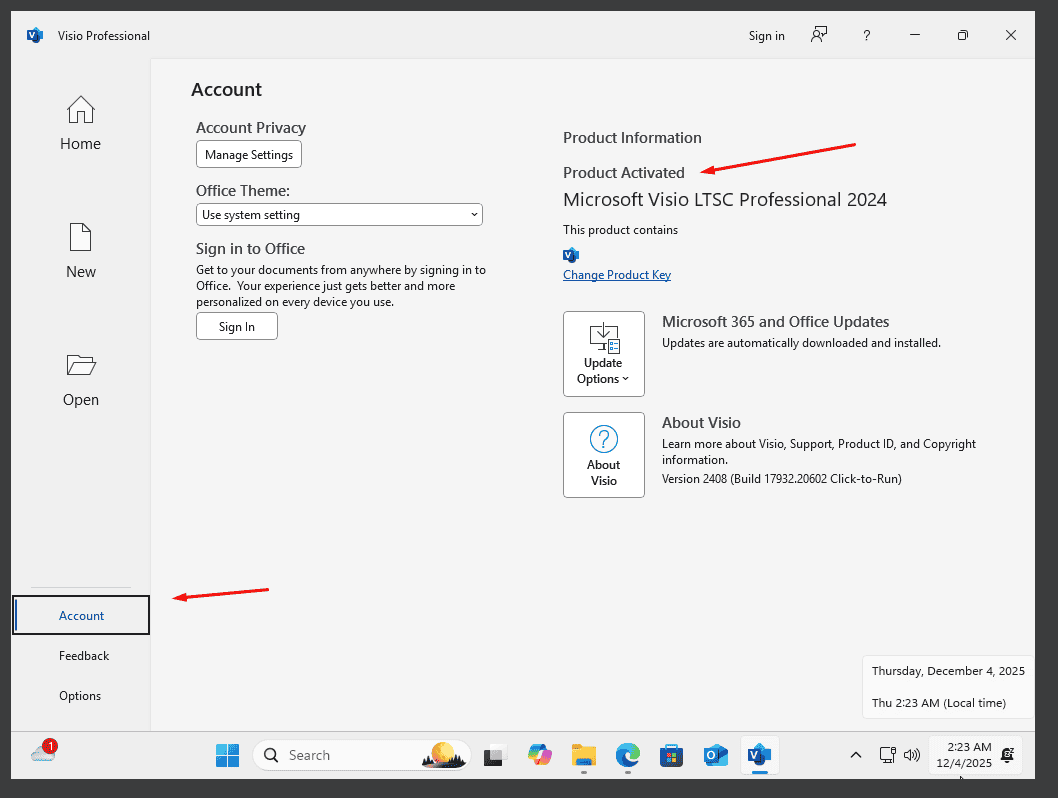
With the application open, select Account at the bottom left. On the right, beneath the Office icons, choose Change Product Key.
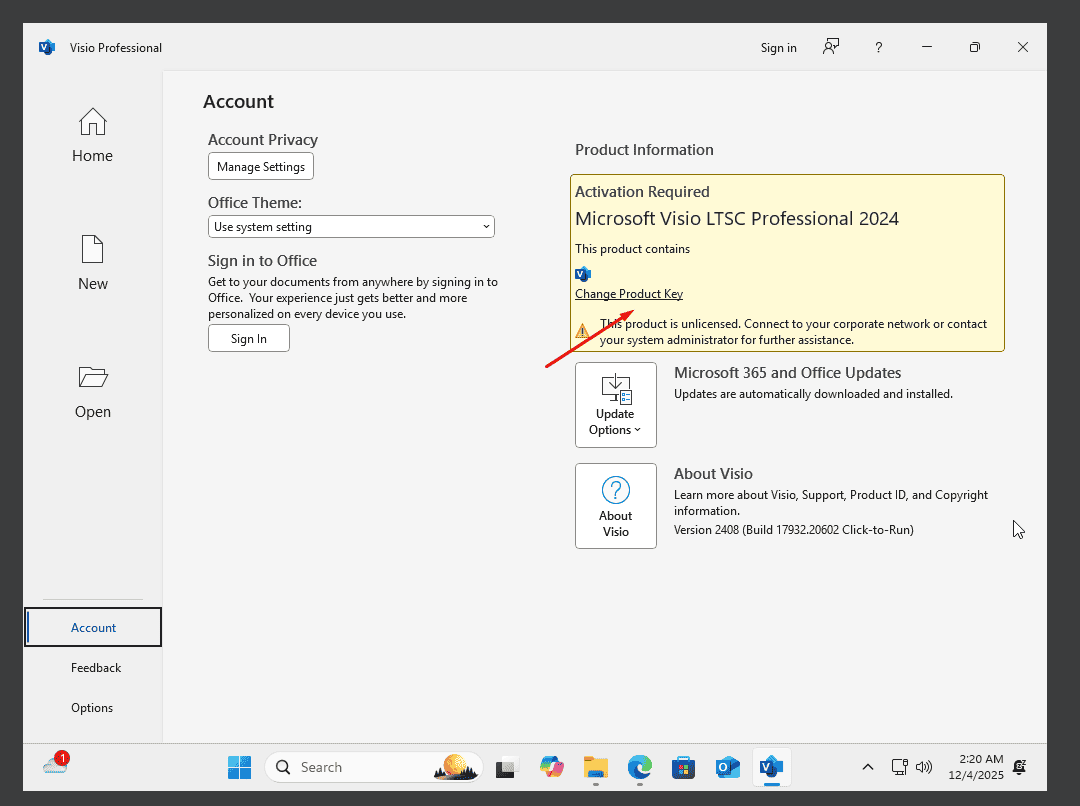
Type in the activation key that was sent to you by email and complete the prompts. Visio 2024 is now activated on your computer.
Activeer je licentie
Kies je taal
De installatiemedia zijn beschikbaar in 22 talen. Elk is het originele medium — alleen de interfacetaal is vooringesteld.
| Taal | 64-bit | 32-bit |
|---|---|---|
 NederlandsUw taal | Downloaden | Downloaden |
 Deutsch | Herunterladen | Herunterladen |
 English | Download | Download |
 Français | Télécharger | Télécharger |
 Italiano | Scarica | Scarica |
 Español | Descargar | Descargar |
 Português | Transferir | Transferir |
 Suomi | Lataa | Lataa |
 Norsk | Last ned | Last ned |
 Svenska | Ladda ner | Ladda ner |
 Dansk | Hent | Hent |
 Ελληνικά | Λήψη | Λήψη |
Veelgestelde vragen
Moet ik mijn oude Office verwijderen voor het installeren van de nieuwe?
+
Ja — verwijder altijd eerdere Microsoft Office-versies en herstart je computer voor de installatie. Sla je dit over, dan wordt je gekochte Office een proefversie van 30 dagen.
Verloopt mijn Office-licentie?
+
Nee. Dit is een eeuwigdurende licentie — die verloopt niet. Je bezit deze versie voor altijd. Je moet echter binnen 30 dagen na installatie activeren, anders schakelt het terug naar proefmodus.
Kan ik Office Pro Plus op een Mac installeren?
+
Nee. Office Pro Plus en Standard zijn alleen voor Windows. Voor macOS bekijk je de specifieke "Office voor Mac"-edities in de Microsoft Office-categorie.
Op hoeveel apparaten kan ik activeren met één sleutel?
+
Standaard retail-licenties activeren één apparaat tegelijk. Om de licentie te verplaatsen, deactiveer hem eerst op de oude machine via het Microsoft-accountportaal, activeer dan op de nieuwe.
Hoe voer ik de activeringssleutel in na de installatie?
+
Open een Office-app (Word, Excel, PowerPoint). Klik linksonder op Bestand → Account. Klik op "Productsleutel wijzigen" en voer je 25-cijferige sleutel in.
Hulp nodig?
Microsoft biedt geen telefonische activering meer
Microsoft is stap voor stap gestopt met de ondersteuning van een aantal oudere producten, waardoor activeren per telefoon niet meer kan. Loop je tijdens de installatie tegen problemen aan of heb je vragen, dan helpt ons supportteam je graag verder.
Wil je sneller geholpen worden? Gebruik dan de livechat op onze website om ons rechtstreeks te bereiken.
Bestanden worden gehost op ons beveiligde CDN. Klik op Downloaden om te beginnen.