Microsoft Visio 2024 Standard Guia de instalação
Este guia gratuito passo a passo mostra como descarregar, instalar e ativar Microsoft Visio 2024 Standard — com capturas de ecrã reais em cada passo, em 12 idiomas.
Obter o instalador
Baixe a versão desejada com o seguinte link de download.
Disponível em 22 idiomas —
Leia isto com muita atenção
- Processador de 1,6 gigahertz (GHz) ou mais rápido de 32 bits (x86) ou 64 bits (x64)
- 2 gigabytes (GB) de RAM (32 bits) ou 4 GB de RAM (64 bits)
- 4 GB de espaço disponível no disco rígido
- Resolução do ecrã 1280 × 768
- Dispositivo gráfico DirectX 10 com controlador WDDM 1.1 ou superior
Instalação passo a passo
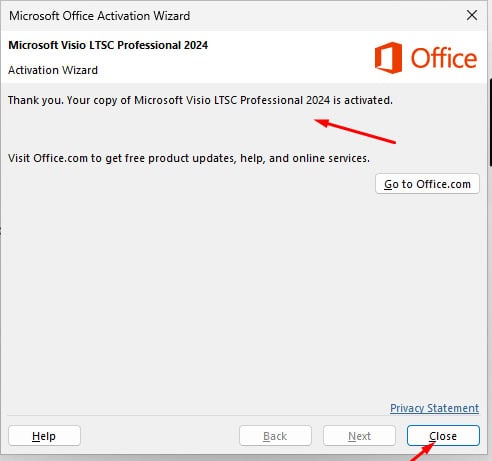
When the download has finished, go through these steps:
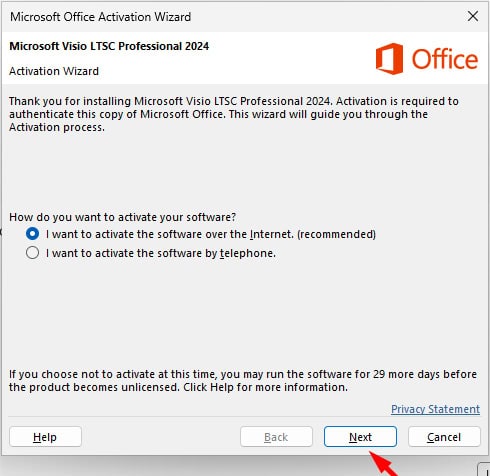
We suggest finishing the installation and activation of the product first, and only then signing in with your Microsoft account.
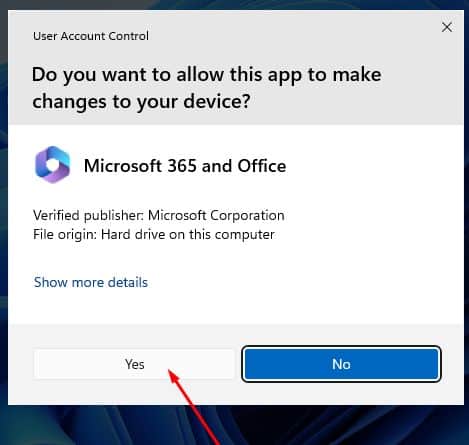
Locate the installer you downloaded (normally in your Downloads folder). Double-click it, then press the “Install” button. When Windows asks whether the app may make changes to your device, choose “Yes”. Note: stay connected to the Internet, because the installer fetches the required files straight from Microsoft.
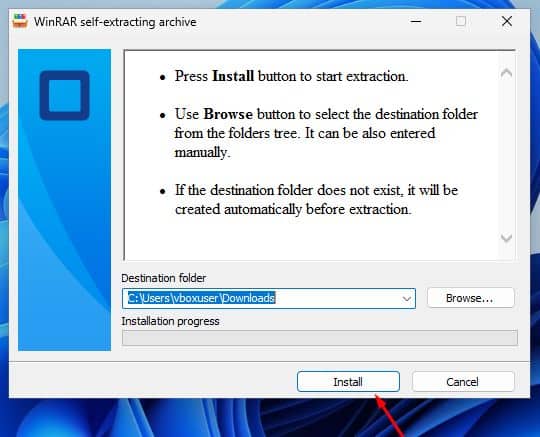
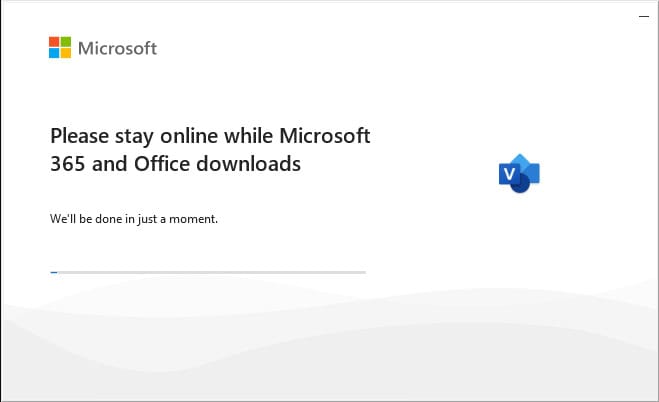
Once you have allowed the changes, the installation of your product begins.
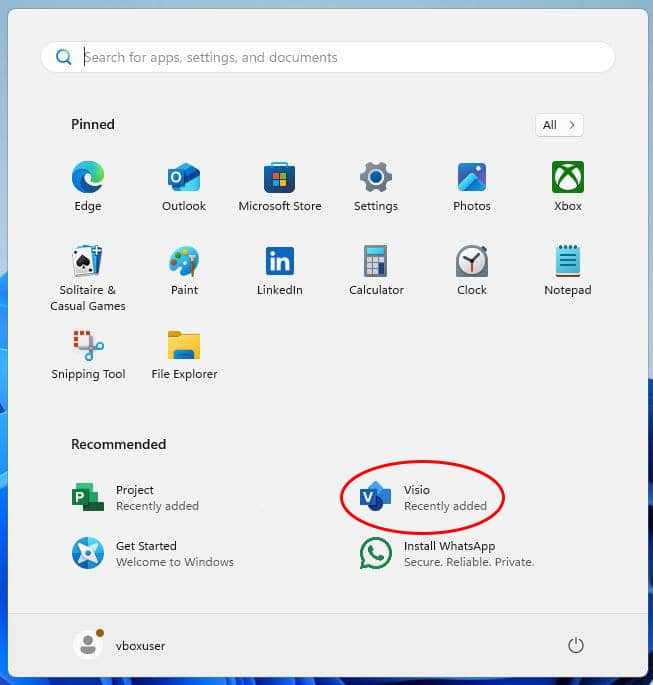
When setup has finished, launch Visio 2024: Press the Start button (the Windows logo at the bottom left). Choose “All apps” to see everything installed on your PC. Scroll to the Microsoft Office folder or to Visio 2024. Typing the app name into the Windows search bar is a quicker alternative. (Optional) For quicker access later, right-click the app and select “Pin to Start” or “Pin to taskbar”.
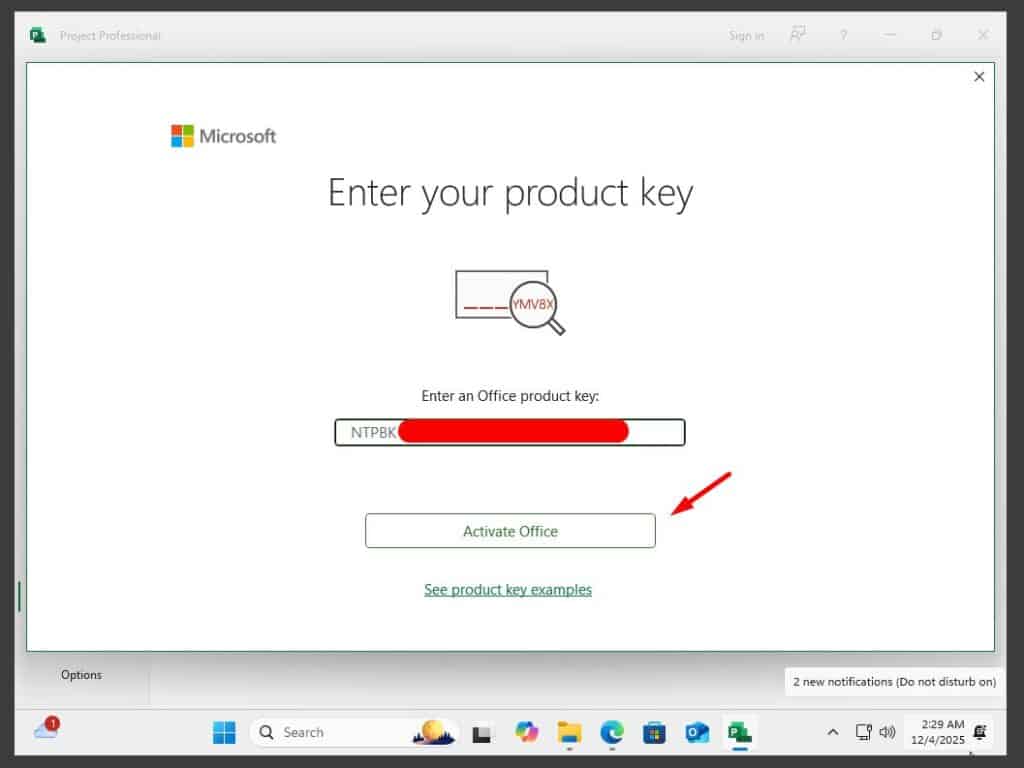
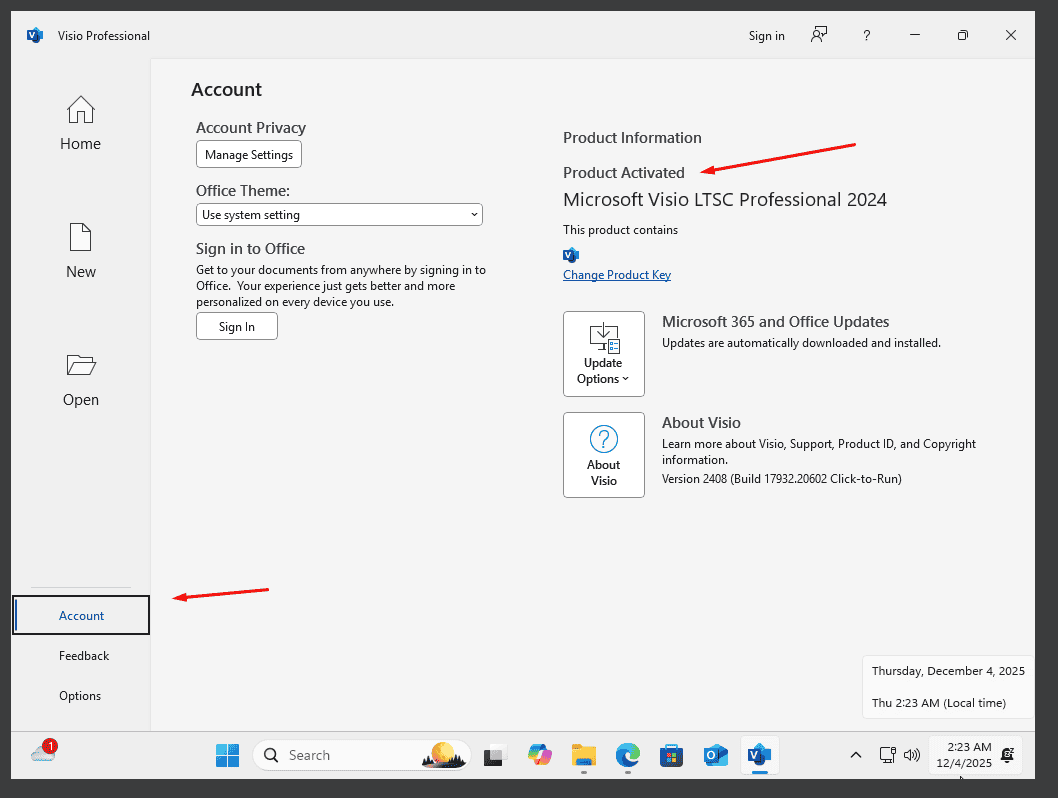
With the application open, select Account at the bottom left. On the right, beneath the Office icons, choose Change Product Key.
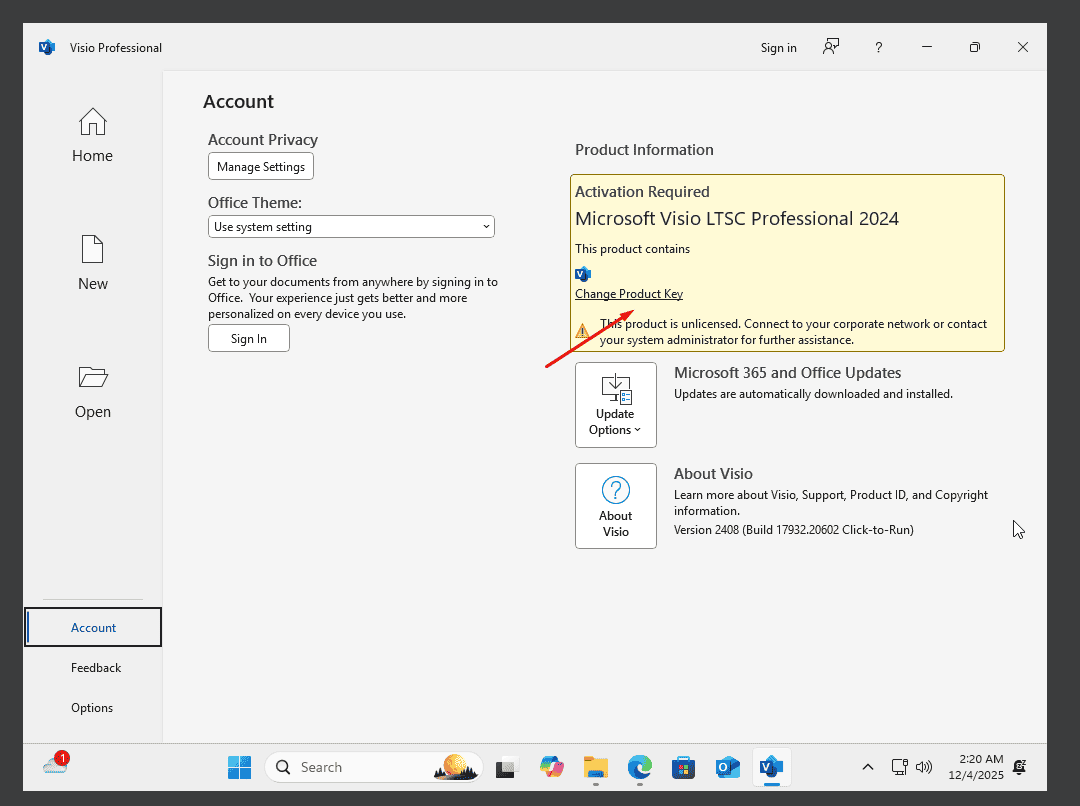
Type in the activation key that was sent to you by email and complete the prompts. Visio 2024 is now activated on your computer.
Ativa a tua licença
Escolhe o teu idioma
A mídia de instalação está disponível em 22 idiomas. Cada uma é a mídia original — apenas o idioma da interface está predefinido.
| Idioma | 64-bit | 32-bit |
|---|---|---|
 PortuguêsSeu idioma | Transferir | Transferir |
 Deutsch | Herunterladen | Herunterladen |
 English | Download | Download |
 Français | Télécharger | Télécharger |
 Italiano | Scarica | Scarica |
 Español | Descargar | Descargar |
 Nederlands | Downloaden | Downloaden |
 Suomi | Lataa | Lataa |
 Norsk | Last ned | Last ned |
 Svenska | Ladda ner | Ladda ner |
 Dansk | Hent | Hent |
 Ελληνικά | Λήψη | Λήψη |
Perguntas frequentes
Preciso de desinstalar o meu Office antigo antes de instalar o novo?
+
Sim — desinstala sempre qualquer versão anterior do Microsoft Office e reinicia o computador antes de instalar. Se saltares este passo, o teu Office comprado torna-se uma versão experimental de 30 dias.
A minha licença Office expira?
+
Não. É uma licença perpétua — não expira. És dono desta versão para sempre. No entanto, deves ativar nos 30 dias após a instalação, caso contrário passa para o modo experimental.
Posso instalar o Office Pro Plus num Mac?
+
Não. O Office Pro Plus e Standard são apenas para Windows. Para macOS, consulta as edições dedicadas "Office para Mac" na categoria Microsoft Office.
Em quantos dispositivos posso ativar com uma chave?
+
As licenças retail standard ativam um dispositivo de cada vez. Para mover a licença, desativa-a primeiro na máquina antiga através do portal da conta Microsoft, depois ativa na nova.
Como introduzo a chave de ativação após a instalação?
+
Abre qualquer aplicação Office (Word, Excel, PowerPoint). Clica em Ficheiro → Conta no canto inferior esquerdo. Clica em "Alterar chave de produto" e introduz a tua chave de 25 caracteres.
Precisas de ajuda?
A Microsoft já não oferece ativação por telefone
A Microsoft tem vindo a retirar, aos poucos, o suporte a alguns produtos mais antigos, pelo que já não é possível ativar por telefone. Se surgir alguma dúvida ou dificuldade durante a instalação, fale com a nossa equipa de suporte.
Se preferir uma resposta mais rápida, escreva-nos através do chat ao vivo do nosso site.
Os ficheiros estão alojados no nosso CDN seguro. Clique em Descarregar para começar.