Microsoft Office 365 Professional Plus Installationsanleitung
Diese kostenlose Schritt-für-Schritt-Anleitung führt Sie durch Download, Installation und Aktivierung von Microsoft Office 365 Professional Plus — mit echten Screenshots für jeden Schritt, in 12 Sprachen.
Installer herunterladen
Laden Sie die gewünschte Version über den folgenden Download-Link herunter.
Verfügbar in 1 Sprachen —
Lesen Sie dies sehr sorgfältig
- macOS 10.12: Sierra (Fuji), macOS 10.13: High Sierra (Lobo), macOS 10.14: Mojave (Liberty)
- Microsoft Windows 7 (SP1) 8, 10, Microsoft Windows Server 2008, 2012 R2. .NET Framework 3.5
- 1 Gigahertz (GHz) oder schneller 32-Bit (x86) oder 64-Bit (x64) Prozessor
- 1 Gigabyte (GB) RAM (32 Bit) oder 4 GB RAM (64 Bit)
- 4 GB verfügbarer Festplattenspeicher
- DirectX 9-Grafikgerät mit WDDM 1.0 oder höherem Treiber
Schritt für Schritt installieren
Click the link, then sign in with the account details and password we emailed you.
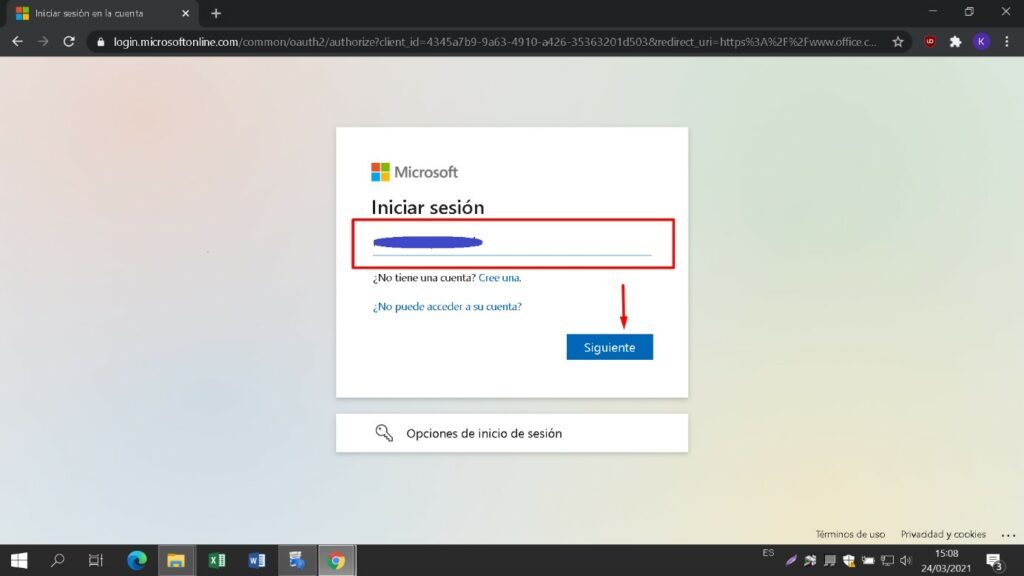
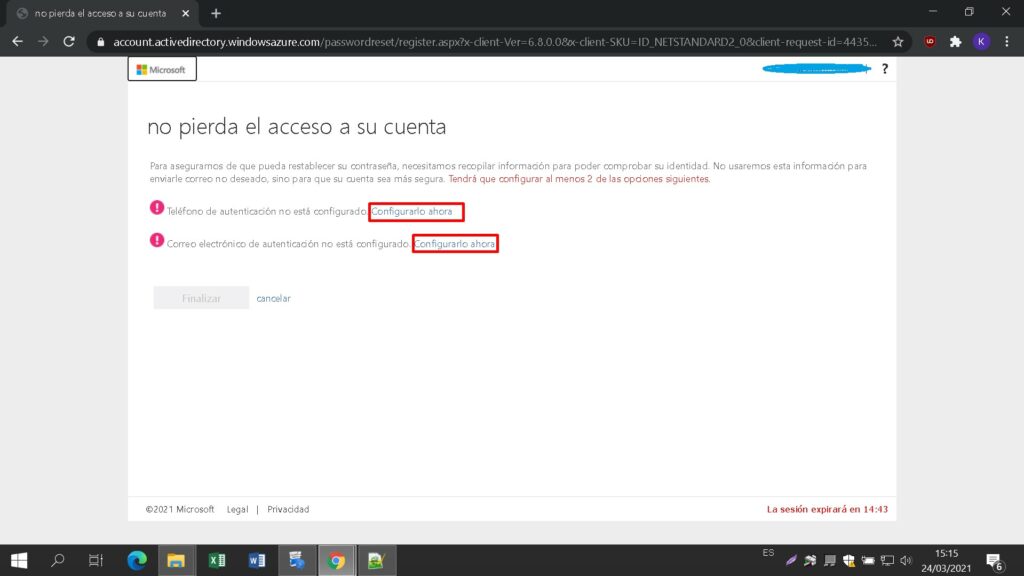
Set a new password so the product becomes yours. Type the password from your email in the first field, then enter your chosen new password in the other two. It needs at least 8 characters, including at least one uppercase letter.
Locate the installer you downloaded (normally in your Downloads folder). Right-click it and pick “Run as administrator”. When Windows asks whether the app may make changes to your device, choose “Yes”.
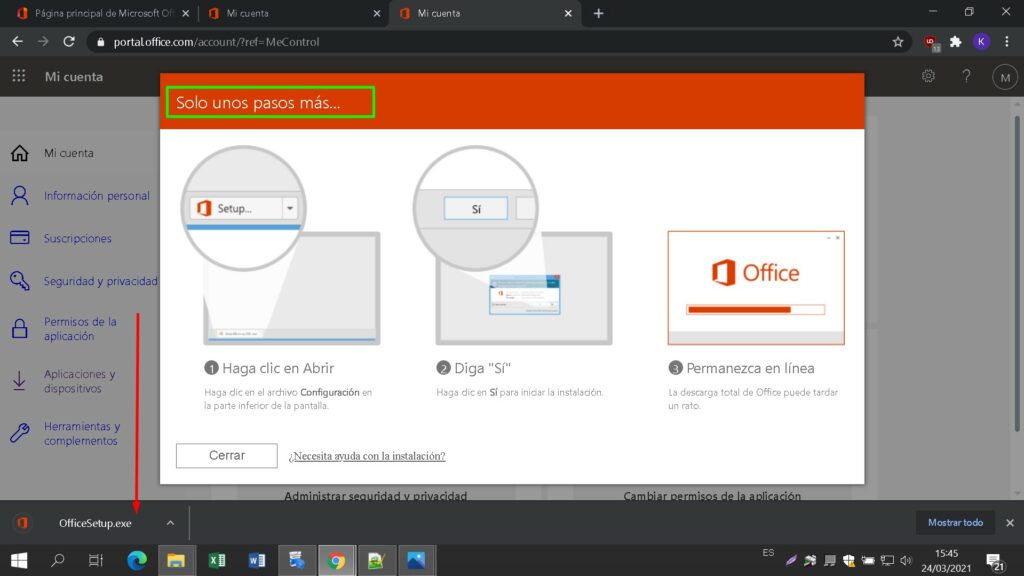
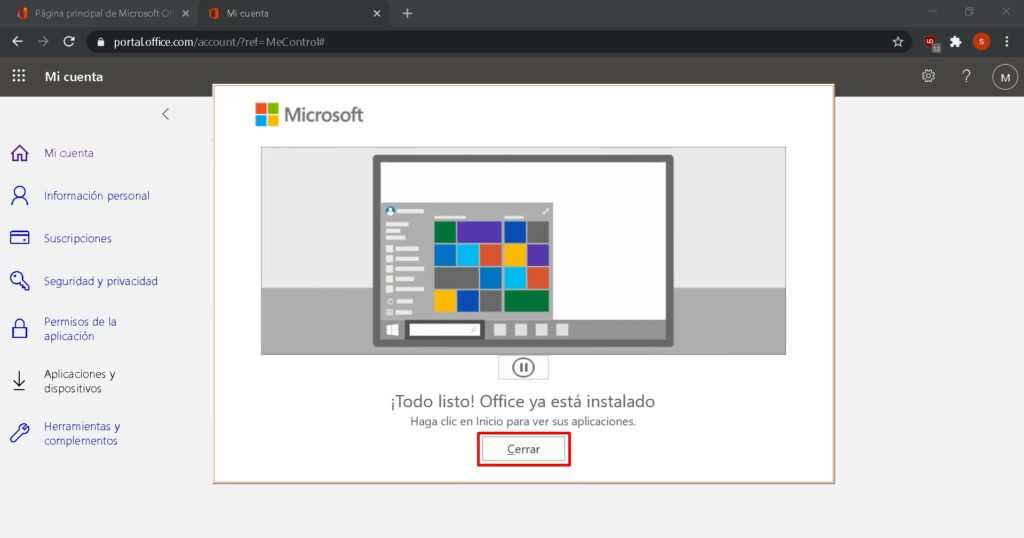
A progress bar shows how far the installation has come.
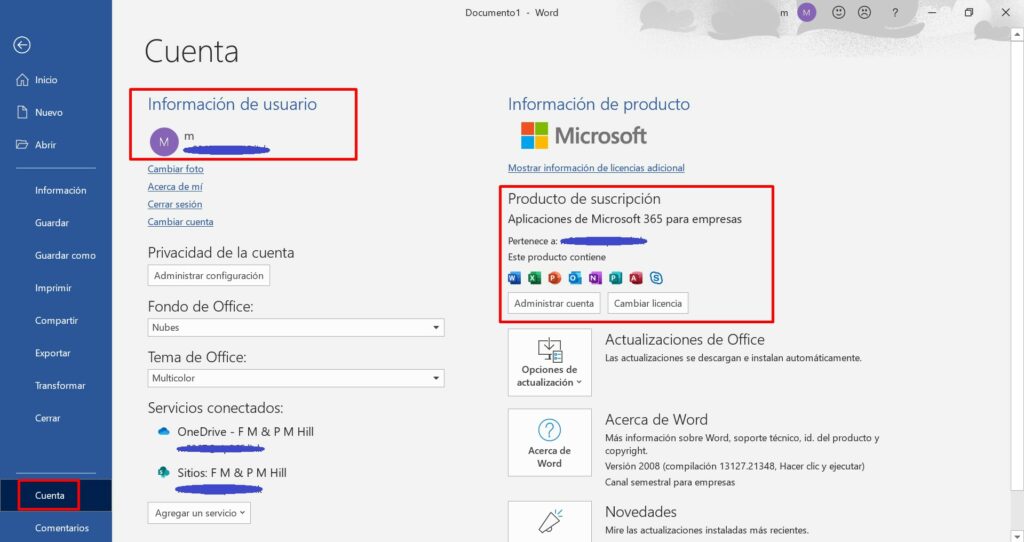
To confirm that activation was successful, launch any Microsoft Office app, for example Excel, and open File-> Account ”. The Microsoft account linked to the product is displayed there.
Lizenz aktivieren
Sprache wählen
Die Installationsmedien sind in 1 Sprachen verfügbar. Jedes ist das Originalmedium – nur die Benutzeroberfläche ist voreingestellt.

Häufige Fragen
Muss ich mein altes Office vor der Installation deinstallieren?
+
Ja — deinstalliere immer jede vorherige Microsoft Office-Version und starte deinen Rechner neu, bevor du installierst. Überspringst du diesen Schritt, wird dein gekauftes Office zu einer 30-Tage-Testversion.
Läuft meine Office-Lizenz ab?
+
Nein. Es handelt sich um eine Dauerlizenz — sie läuft nicht ab. Du besitzt diese Version dauerhaft. Du musst jedoch innerhalb von 30 Tagen nach der Installation aktivieren, sonst wechselt sie in den Testmodus.
Kann ich Office Pro Plus auf einem Mac installieren?
+
Nein. Office Pro Plus und Standard sind ausschließlich für Windows. Für macOS schau dir die "Office für Mac"-Editionen in der Microsoft Office-Kategorie an.
Auf wie vielen Geräten kann ich mit einem Schlüssel aktivieren?
+
Standard-Retail-Lizenzen aktivieren je ein Gerät. Um die Lizenz zu verschieben, deaktiviere sie zuerst auf dem alten Rechner über das Microsoft-Kontoportal und aktiviere dann den neuen.
Wie gebe ich den Aktivierungsschlüssel nach der Installation ein?
+
Öffne eine beliebige Office-App (Word, Excel, PowerPoint). Klicke unten links auf Datei → Konto. Klicke auf "Product Key ändern" und gib deinen 25-stelligen Schlüssel ein.
Brauchst du Hilfe?
Microsoft bietet keine Telefonaktivierung mehr
Microsoft has been steadily ending support for certain older products, so activation by phone is no longer available. Should you run into problems or have questions while installing, please contact our support team. If you need help quickly, you can also use the live chat on our website.
Dateien werden auf unserem sicheren CDN gehostet. Klicken Sie auf Herunterladen – Ihr Browser erledigt den Rest.