Microsoft Office 365 Professional Plus Installasjonsveiledning
Denne gratis trinn-for-trinn-guiden hjelper deg med å laste ned, installere og aktivere Microsoft Office 365 Professional Plus — med ekte skjermbilder ved hvert trinn, på 12 språk.
Last ned installasjonsprogrammet
Last ned ønsket versjon med følgende nedlastingslenke.
Tilgjengelig på 1 språk —
Les dette svært nøye
- MacOS 10.12: Sierra (Fuji), macOS 10.13: High Sierra (Lobo), macOS 10.14: Mojave (Liberty)
- Microsoft Windows 7 (SP1) 8, 10, Microsoft Windows Server 2008, 2012 R2. .NET Framework 3.5
- 1 gigahertz (GHz) eller raskere 32-biters (x86) eller 64-biters (x64) prosessor
- 1 gigabyte (GB) RAM (32 bit) eller 4 GB RAM (64 bit)
- 4 GB tilgjengelig plass på harddisken
- DirectX 9-grafikkenhet med WDDM 1.0 eller høyere driver
Trinn-for-trinn installasjon
Click the link, then sign in with the account details and password we emailed you.
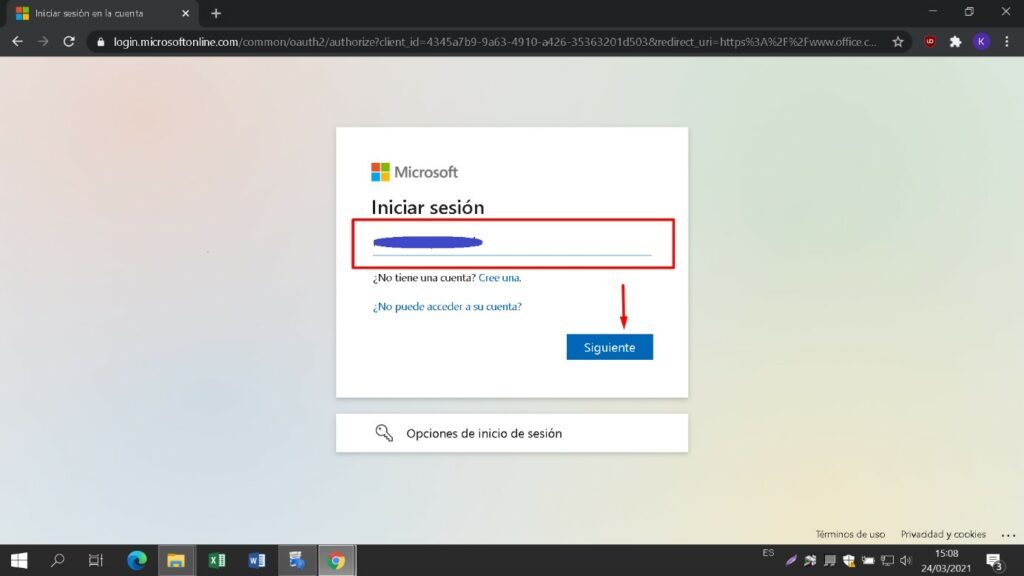
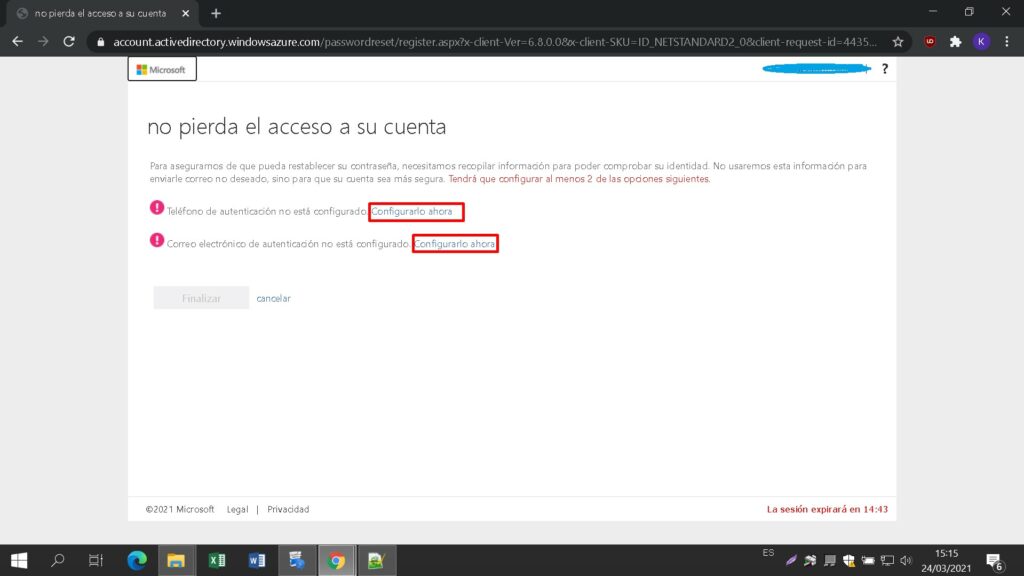
Set a new password so the product becomes yours. Type the password from your email in the first field, then enter your chosen new password in the other two. It needs at least 8 characters, including at least one uppercase letter.
Locate the installer you downloaded (normally in your Downloads folder). Right-click it and pick “Run as administrator”. When Windows asks whether the app may make changes to your device, choose “Yes”.
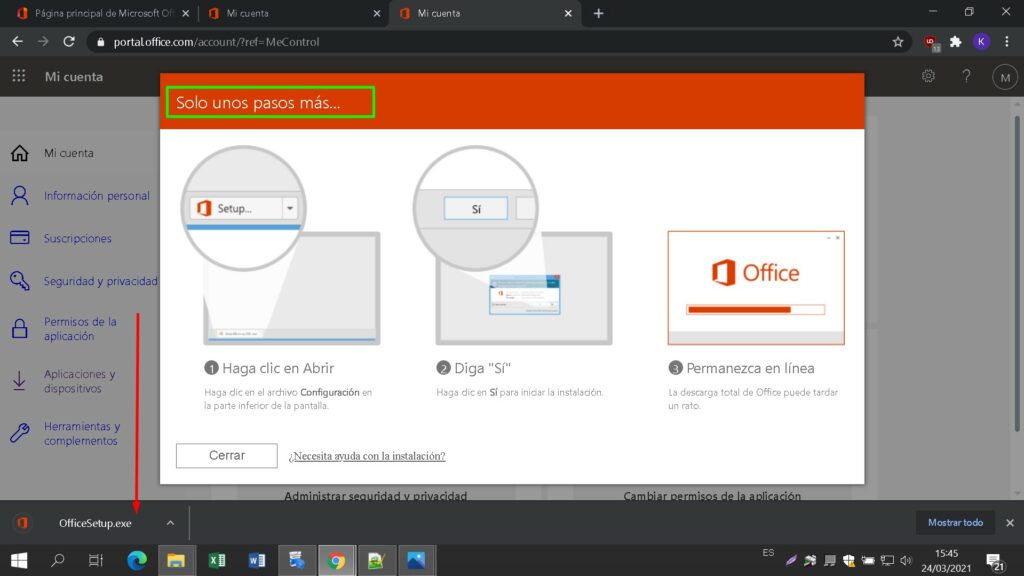
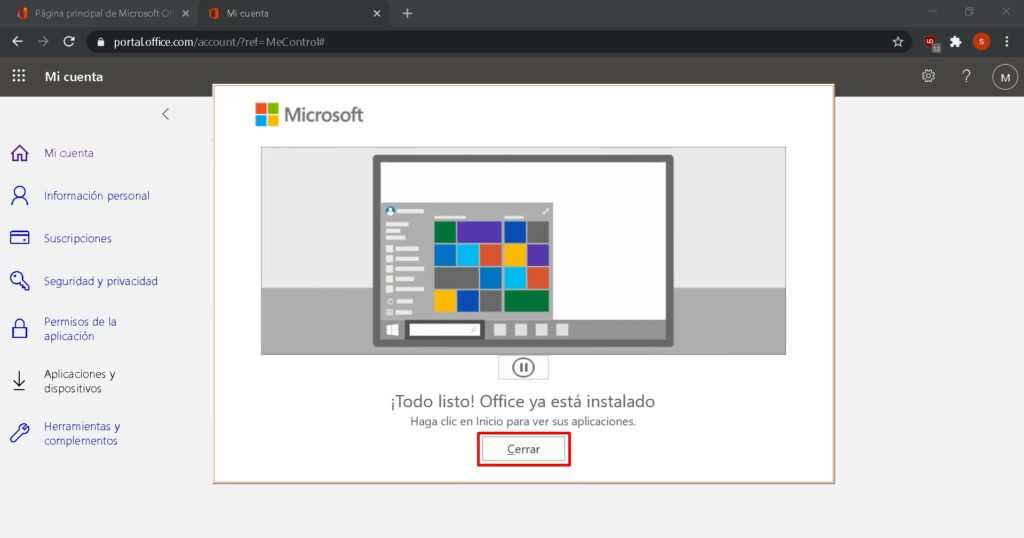
A progress bar shows how far the installation has come.
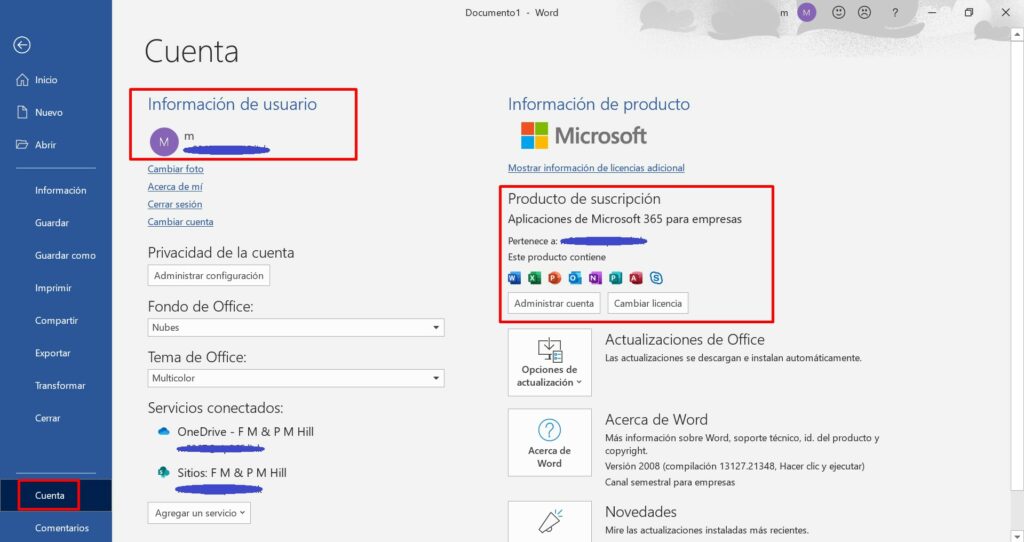
To confirm that activation was successful, launch any Microsoft Office app, for example Excel, and open File-> Account ”. The Microsoft account linked to the product is displayed there.
Aktiver lisensen din
Velg språk
Installasjonsmedieen er tilgjengelig på 1 språk. Hvert er originalmediet — bare grensesnittspråket er forhåndsinnstilt.

Ofte stilte spørsmål
Må jeg avinstallere mitt gamle Office før jeg installerer det nye?
+
Ja — avinstaller alltid enhver tidligere versjon av Microsoft Office og start datamaskinen på nytt før installasjon. Hopper du over dette, blir det kjøpte Office en 30-dagers prøveversjon.
Utløper Office-lisensen min?
+
Nei. Det er en permanent lisens — den utløper ikke. Du eier denne versjonen for alltid. Du må imidlertid aktivere innen 30 dager etter installasjon, ellers går den tilbake til prøvemodus.
Kan jeg installere Office Pro Plus på en Mac?
+
Nei. Office Pro Plus og Standard er kun for Windows. For macOS, se de dedikerte "Office for Mac"-utgavene i Microsoft Office-kategorien.
Hvor mange enheter kan jeg aktivere med én nøkkel?
+
Standard retail-lisenser aktiverer én enhet om gangen. For å flytte lisensen, deaktiver den først på den gamle maskinen via Microsoft-kontoportalen, og aktiver deretter på den nye.
Hvordan skriver jeg inn aktiveringsnøkkelen etter installasjon?
+
Åpne en hvilken som helst Office-app (Word, Excel, PowerPoint). Klikk på Fil → Konto i nedre venstre hjørne. Klikk på "Endre produktnøkkel" og skriv inn din 25-tegns nøkkel.
Trenger du hjelp?
Microsoft tilbyr ikke lenger telefonaktivering
Microsoft has been steadily ending support for certain older products, so activation by phone is no longer available. Should you run into problems or have questions while installing, please contact our support team. If you need help quickly, you can also use the live chat on our website.
Filer lagres på vårt sikre CDN. Klikk Last ned for å starte.