Microsoft Office 365 Professional Plus Installationsguide
Den här gratis steg-för-steg-guiden hjälper dig att ladda ner, installera och aktivera Microsoft Office 365 Professional Plus — med riktiga skärmbilder vid varje steg, på 12 språk.
Hämta installationsprogrammet
Ladda ner önskad version med följande nedladdningslänk.
Tillgänglig på 1 språk —
Läs detta mycket noggrant
- MacOS 10.12: Sierra (Fuji), macOS 10.13: High Sierra (Lobo), macOS 10.14: Mojave (Liberty)
- Microsoft Windows 7 (SP1) 8, 10, Microsoft Windows Server 2008, 2012 R2. .NET-ramverk 3.5
- 1 gigahertz (GHz) eller snabbare 32-bitars (x86) eller 64-bitars (x64) processor
- 1 gigabyte (GB) RAM-minne (32 bit) eller 4 GB RAM-minne (64 bit)
- 4 GB ledigt utrymme på hårddisken
- DirectX 9-grafikenhet med WDDM 1.0 eller högre drivrutin
Steg-för-steg-installation
Click the link, then sign in with the account details and password we emailed you.
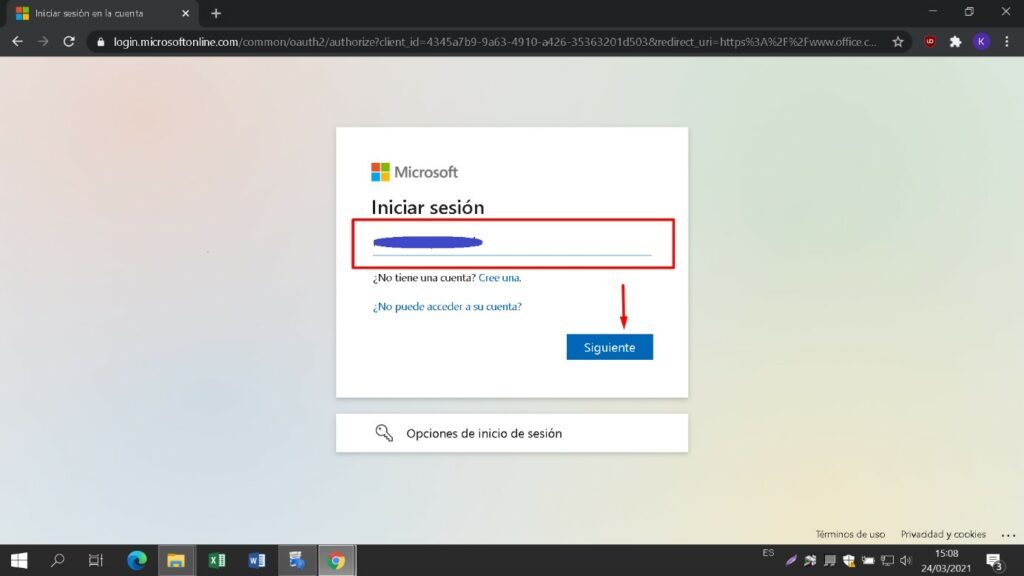
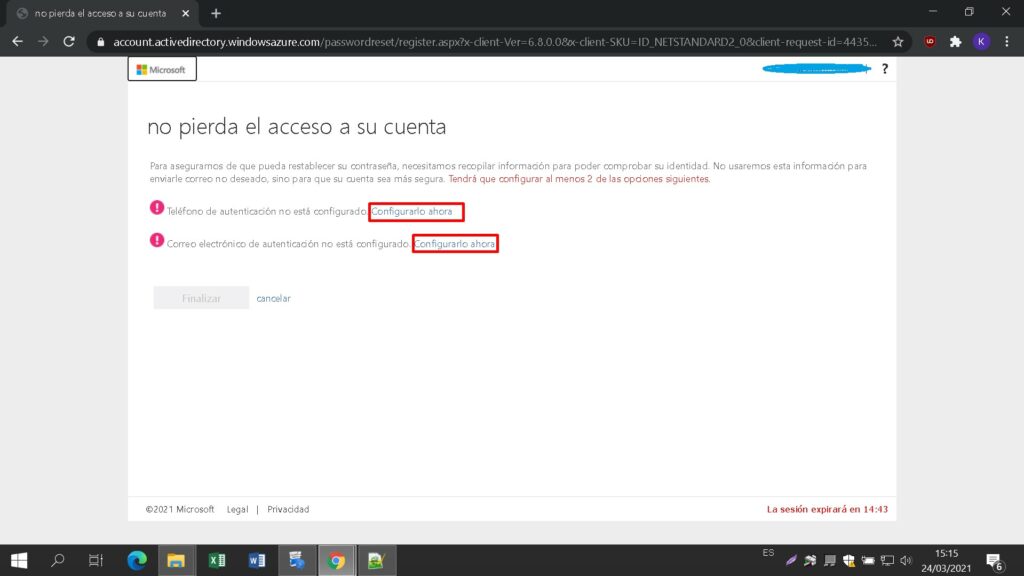
Set a new password so the product becomes yours. Type the password from your email in the first field, then enter your chosen new password in the other two. It needs at least 8 characters, including at least one uppercase letter.
Locate the installer you downloaded (normally in your Downloads folder). Right-click it and pick “Run as administrator”. When Windows asks whether the app may make changes to your device, choose “Yes”.
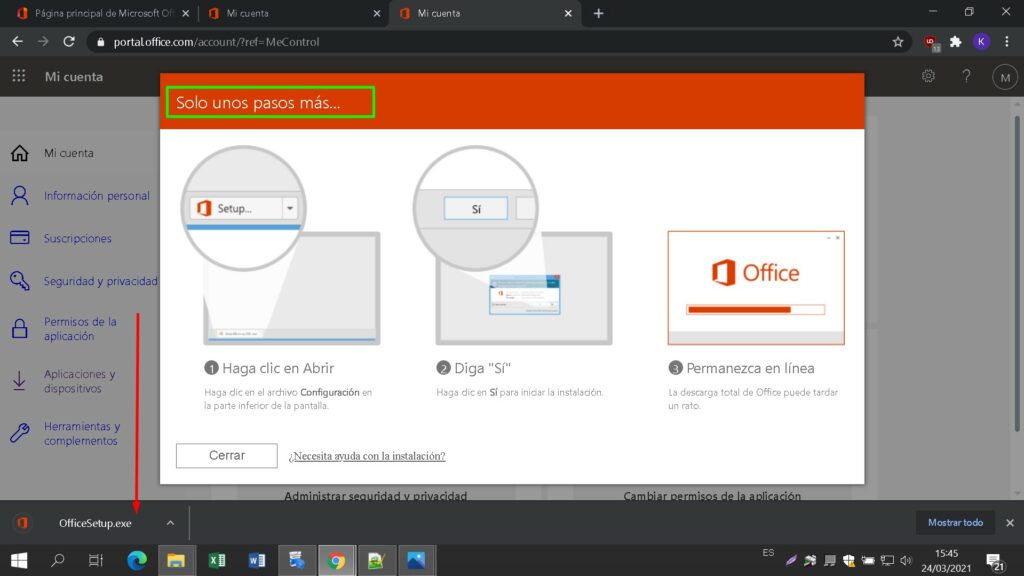
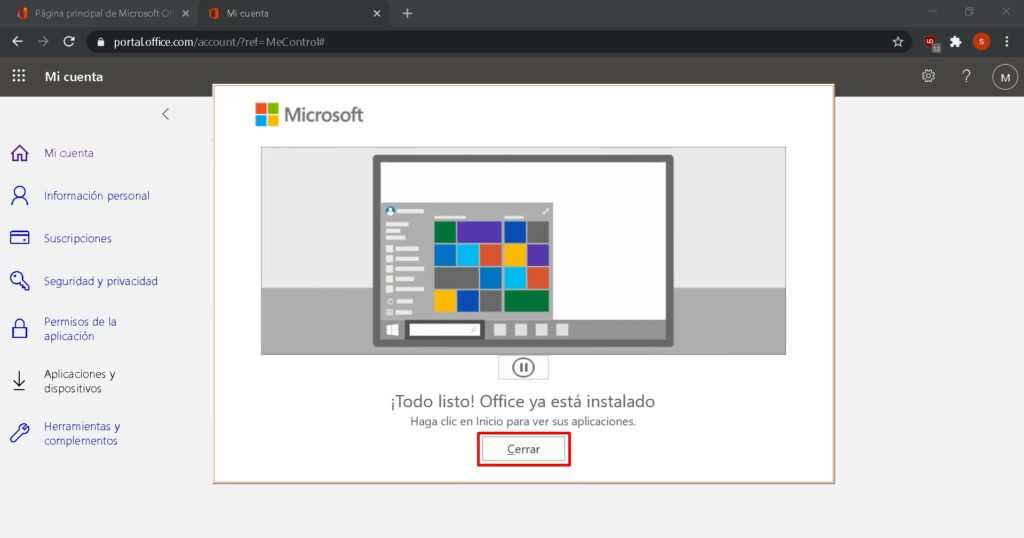
A progress bar shows how far the installation has come.
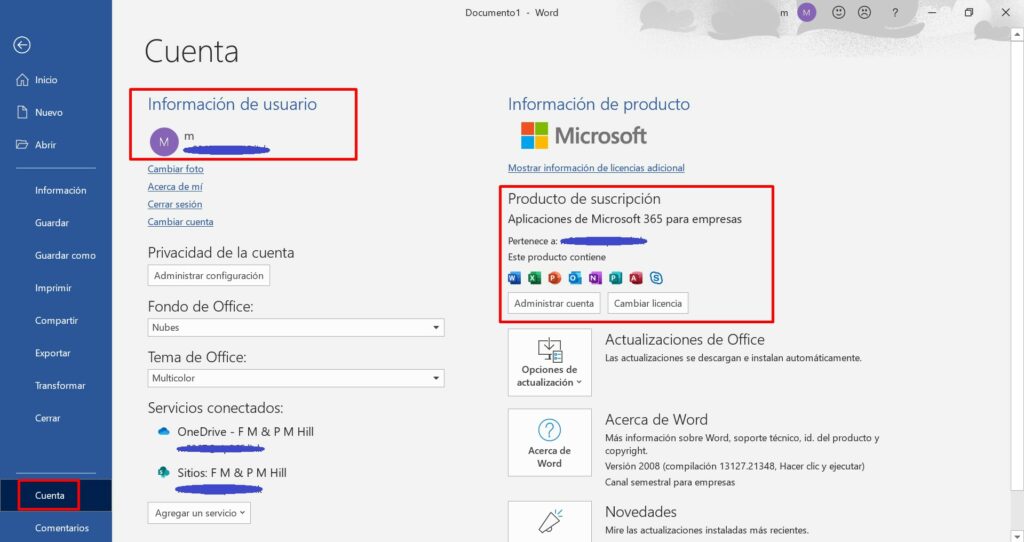
To confirm that activation was successful, launch any Microsoft Office app, for example Excel, and open File-> Account ”. The Microsoft account linked to the product is displayed there.
Aktivera din licens
Välj ditt språk
Installationsmedierna är tillgängliga på 1 språk. Var och en är det ursprungliga mediet — bara gränssnittsspråket är förinställt.

Vanliga frågor
Behöver jag avinstallera mitt gamla Office innan jag installerar det nya?
+
Ja — avinstallera alltid alla tidigare Microsoft Office-versioner och starta om datorn före installation. Hoppar du över detta steg blir ditt köpta Office en 30-dagars provversion.
Upphör min Office-licens?
+
Nej. Det är en evig licens — den upphör inte. Du äger denna version för alltid. Du måste dock aktivera inom 30 dagar efter installation, annars går den tillbaka till provläge.
Kan jag installera Office Pro Plus på en Mac?
+
Nej. Office Pro Plus och Standard är endast för Windows. För macOS, kolla de dedikerade "Office för Mac"-utgåvorna i Microsoft Office-kategorin.
På hur många enheter kan jag aktivera med en nyckel?
+
Standard retail-licenser aktiverar en enhet i taget. För att flytta licensen, avaktivera den först på den gamla maskinen via Microsoft-kontoportalen och aktivera sedan på den nya.
Hur anger jag aktiveringsnyckeln efter installation?
+
Öppna valfri Office-app (Word, Excel, PowerPoint). Klicka på Arkiv → Konto i nedre vänstra hörnet. Klicka på "Ändra produktnyckel" och ange din 25-teckens nyckel.
Behöver du hjälp?
Microsoft erbjuder inte längre telefonaktivering
Microsoft has been steadily ending support for certain older products, so activation by phone is no longer available. Should you run into problems or have questions while installing, please contact our support team. If you need help quickly, you can also use the live chat on our website.
Filer lagras på vårt säkra CDN. Klicka på Ladda ned för att börja.