Microsoft Windows 11 Professional Installationsanleitung
Diese kostenlose Schritt-für-Schritt-Anleitung führt Sie durch Download, Installation und Aktivierung von Microsoft Windows 11 Professional — mit echten Screenshots für jeden Schritt, in 12 Sprachen.
Installer herunterladen
Laden Sie die gewünschte Version über den folgenden Download-Link herunter.
Verfügbar in 7 Sprachen —
Lesen Sie dies sehr sorgfältig
- Dies sind die Mindestsystemanforderungen für die Installation von Microsoft Windows 11 auf einem PC. Wenn Ihr Gerät diese Anforderungen nicht erfüllt, können Sie Microsoft Windows 11 möglicherweise nicht installieren.
- Sie können die Anwendung PC Health Check herunterladen die Ihnen sagt, ob Ihr Gerät Microsoft Windows 11 unterstützt.
Upgrade Home auf Pro
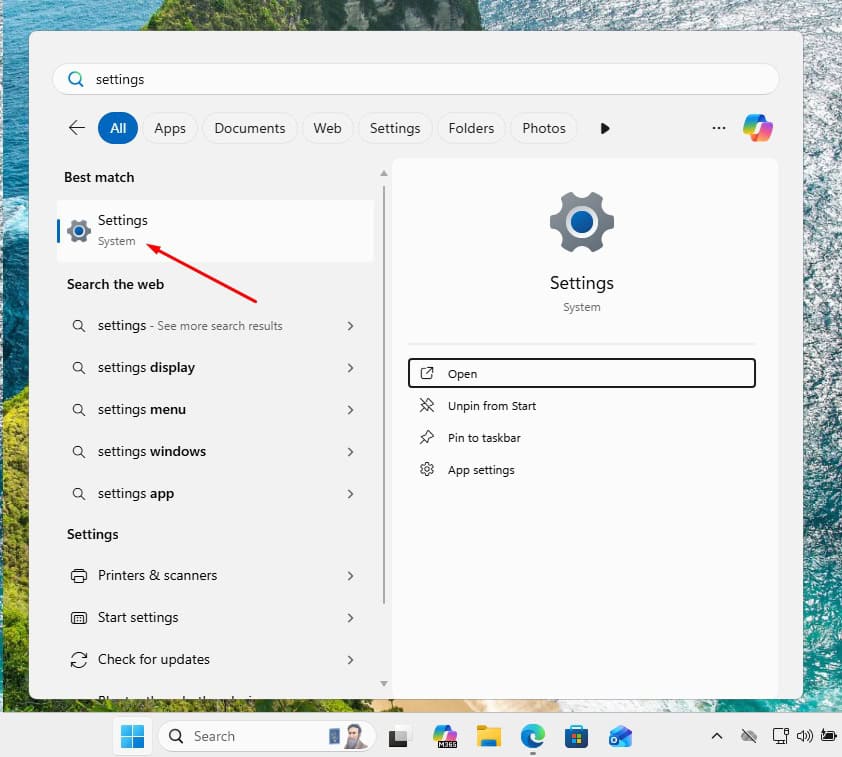
Open Settings and go to System -> Activation.
Now select 'Change product key'. Typing in Microsoft's generic upgrade key VK7JG-NPHTM-C97JM-9MPGT-3V66T and pressing Next converts the Home edition into Pro.
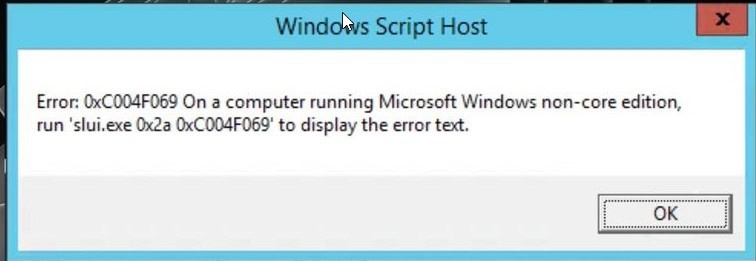
When the switch to Windows 11 Pro is done, head back to Settings -> System -> Activation, select 'Change product key' once more and enter the Windows 11 Pro key you bought.
When Windows asks you to, restart the computer so every change takes effect.
Upgrade von Win 10
Check that your PC can run Windows 11 (TPM 2.0, Secure Boot, a supported CPU): download the PC Health Check app from aka.ms/GetPCHealthCheckApp and run it.
Microsoft offers the Windows 11 Installation Assistant for free at microsoft.com/software-download/windows11 — download it from there.
Accept the licence terms after opening Windows11InstallationAssistant.exe. From that point on, the assistant fetches everything it needs and moves the system to Windows 11 Pro without further input.
Your PC restarts at the end of the upgrade. Should Windows then ask for a licence key, you'll find the field under Settings -> System -> Activation: enter your Windows 11 Pro key there.
Schritt für Schritt installieren
First get Microsoft's Media Creation Tool with the Download button on this page, and launch it when the download completes.
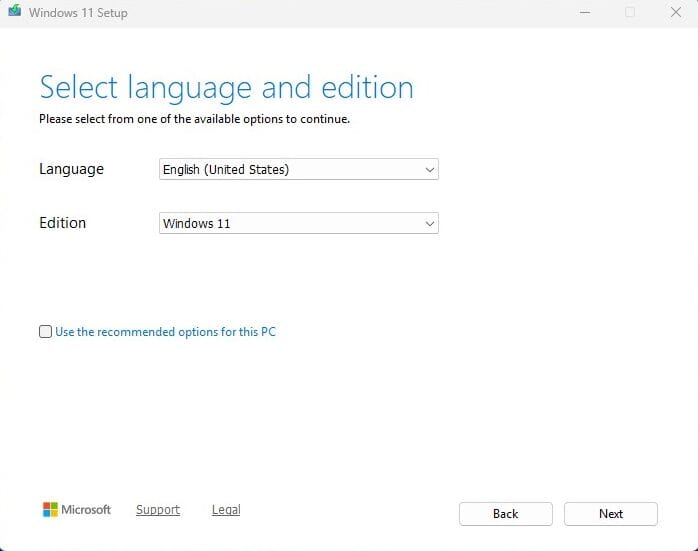
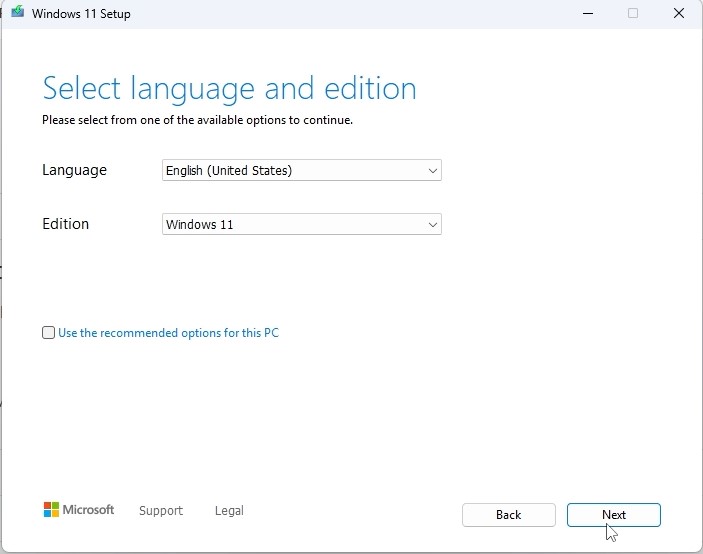
In the tool, the option you want is 'Create installation media (USB flash drive, DVD, or ISO file) for another PC'; press Next. On the following screen set language, edition and the 64-bit architecture.
Plug in your USB stick (8 GB+), pick 'USB flash drive' and select your drive in the list. The tool then downloads Windows 11 and copies it onto the stick for you.
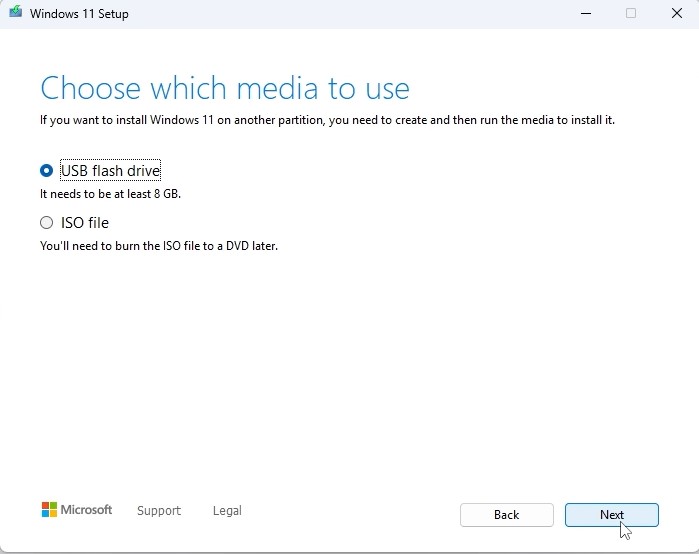
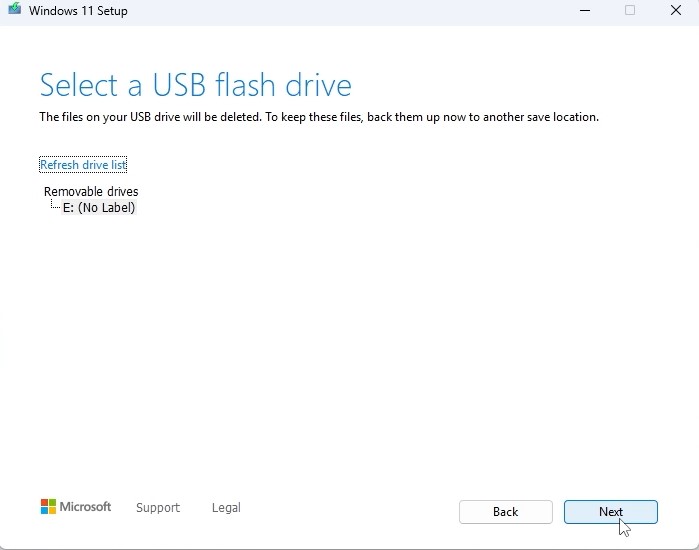
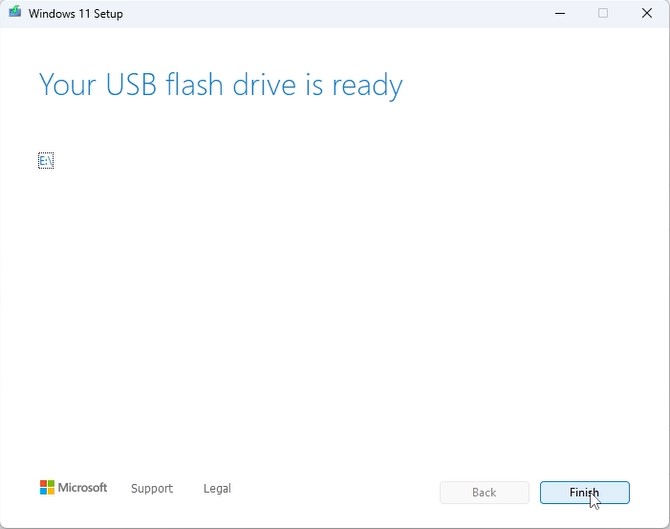
Plug the USB stick into the computer you're installing on. Open the BIOS with F2, F12 or Del, make the USB drive the first boot device, then save and reboot.
Set the language of the operating system and the 64-bit architecture, then press Next.
After pressing 'Install now', either enter your product key straight away or choose 'I don't have a product key' and activate later.
In the setup type screen, go for 'Custom: Install Windows only (advanced)'. Delete the old partitions so only unallocated space remains, select it and press Next.
Setup runs for roughly 15-25 minutes and reboots the PC a few times. To finish, choose your region and keyboard layout, then sign in with your Microsoft account.
Lizenz aktivieren
Folgen Sie diesen 5 kurzen Schritten — die gesamte Abfolge dauert unter zwei Minuten.
Nach Erhalt Ihrer Lizenz aktivieren Sie Ihr Windows-Betriebssystem mit den folgenden Schritten.
Sprache wählen
Die Installationsmedien sind in 7 Sprachen verfügbar. Jedes ist das Originalmedium – nur die Benutzeroberfläche ist voreingestellt.
| Sprache | 64-bit | 32-bit |
|---|---|---|
 DeutschIhre Sprache | Herunterladen | Herunterladen |
 English | Download | Download |
 Français | Télécharger | Télécharger |
 Italiano | Scarica | Scarica |
 Español | Descargar | Descargar |
 Nederlands | Downloaden | Downloaden |
 Svenska | Ladda ner | Ladda ner |
Häufige Fragen
Wie lange dauert die Installation?
+
Plane etwa 30–60 Minuten ein: 10–20 Min Download, 6–10 Min USB-Vorbereitung, 15–25 Min Installation + erster Start sowie 5–10 Min für die Ersteinrichtung.
Werden meine Dateien bei einer Neuinstallation gelöscht?
+
Ja — eine Neuinstallation löscht die Zielpartition. Sichere vorher alles auf einer externen Festplatte oder in der Cloud. Ein In-Place-Upgrade behält Dateien, aber ein Backup ist trotzdem dringend empfohlen.
Ich bekomme "TPM 2.0 nicht erkannt" bei Windows 11. Was tun?
+
Starte ins BIOS/UEFI (F2 oder Entf beim Herstellerlogo) und suche nach "Intel PTT", "AMD fTPM" oder einfach "TPM". Aktiviere die Option, speichere und starte neu. Die meisten Boards der letzten 8 Jahre haben Firmware-TPM 2.0 — es muss nur eingeschaltet werden.
Kann ich ohne Microsoft-Konto installieren?
+
Ja. Bei Windows 11 Home drücke beim Anmeldebildschirm Umschalt+F10, um die Eingabeaufforderung zu öffnen, tippe "start ms-cxh:localonly" und drücke Enter — du kannst dann ein lokales Konto erstellen.
Mein Product Key wird nicht akzeptiert. Was prüfen?
+
Prüfe, dass die Edition genau passt — ein Pro-Key aktiviert Home nicht und umgekehrt. Achte darauf, den Schlüssel ohne Leerzeichen einzugeben. Stimmt beides, kontaktiere den Urlicenses-Support mit deiner Bestellnummer für einen Ersatzkey.
Brauchst du Hilfe?
Microsoft bietet keine Telefonaktivierung mehr
Microsoft has been steadily ending support for certain older products, so activation by phone is no longer available. Should you run into problems or have questions while installing, please contact our support team.
If you need help quickly, you can also use the live chat on our website.
Dateien werden auf unserem sicheren CDN gehostet. Klicken Sie auf Herunterladen – Ihr Browser erledigt den Rest.