Microsoft Windows 11 Professional Installationsguide
Den här gratis steg-för-steg-guiden hjälper dig att ladda ner, installera och aktivera Microsoft Windows 11 Professional — med riktiga skärmbilder vid varje steg, på 12 språk.
Hämta installationsprogrammet
Ladda ner önskad version med följande nedladdningslänk.
Tillgänglig på 7 språk —
Läs detta mycket noggrant
- Detta är de lägsta systemkraven för att installera Microsoft Windows 11 på en dator. Om din enhet inte uppfyller dessa krav kanske du inte kan installera Microsoft Windows 11.
- Du kan ladda ner programmet PC Health Check som talar om för dig om din enhet stöder Microsoft Windows 11.
Uppgradera Home till Pro
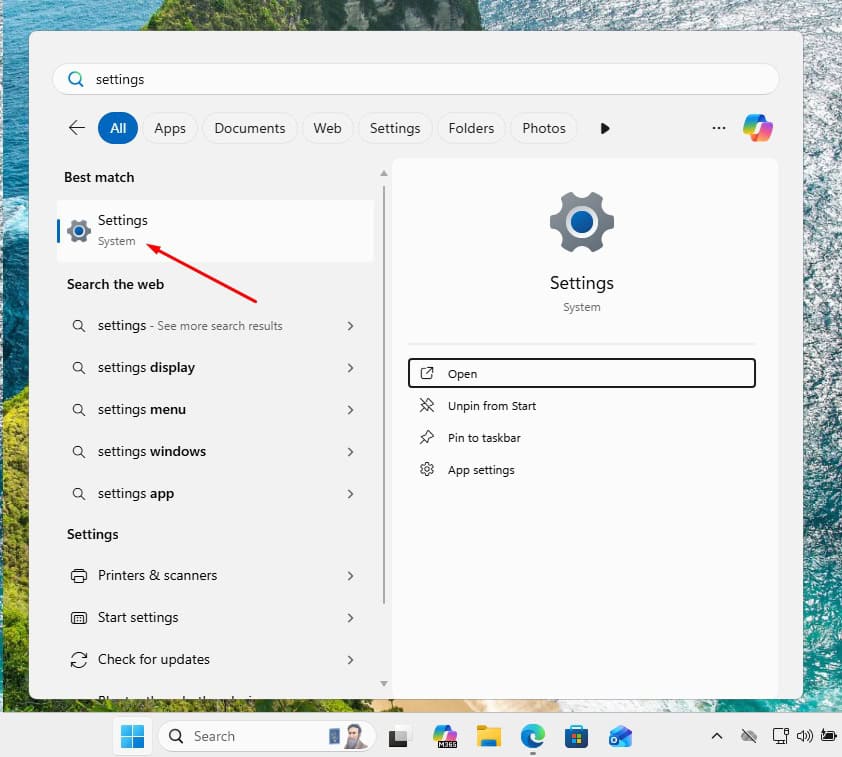
Open Settings and go to System -> Activation.
Now select 'Change product key'. Typing in Microsoft's generic upgrade key VK7JG-NPHTM-C97JM-9MPGT-3V66T and pressing Next converts the Home edition into Pro.
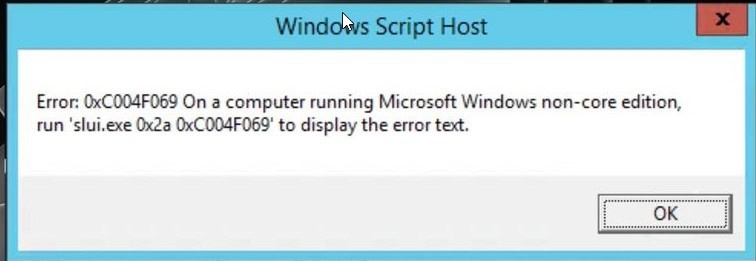
When the switch to Windows 11 Pro is done, head back to Settings -> System -> Activation, select 'Change product key' once more and enter the Windows 11 Pro key you bought.
When Windows asks you to, restart the computer so every change takes effect.
Uppgradera från Win 10
Check that your PC can run Windows 11 (TPM 2.0, Secure Boot, a supported CPU): download the PC Health Check app from aka.ms/GetPCHealthCheckApp and run it.
Microsoft offers the Windows 11 Installation Assistant for free at microsoft.com/software-download/windows11 — download it from there.
Accept the licence terms after opening Windows11InstallationAssistant.exe. From that point on, the assistant fetches everything it needs and moves the system to Windows 11 Pro without further input.
Your PC restarts at the end of the upgrade. Should Windows then ask for a licence key, you'll find the field under Settings -> System -> Activation: enter your Windows 11 Pro key there.
Steg-för-steg-installation
First get Microsoft's Media Creation Tool with the Download button on this page, and launch it when the download completes.
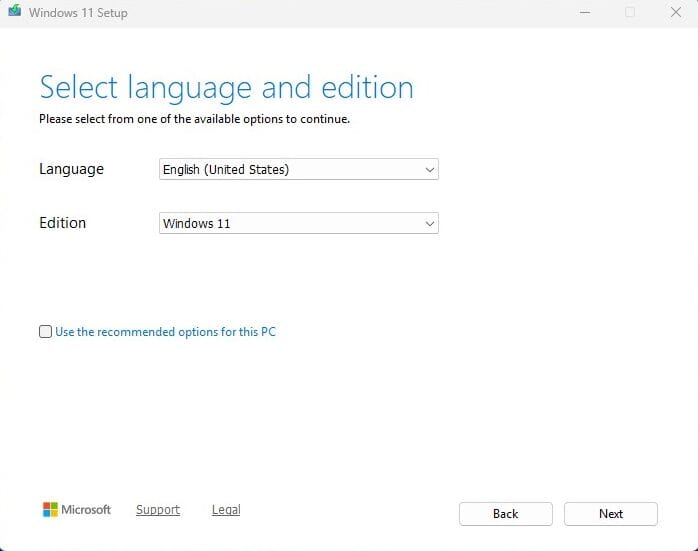
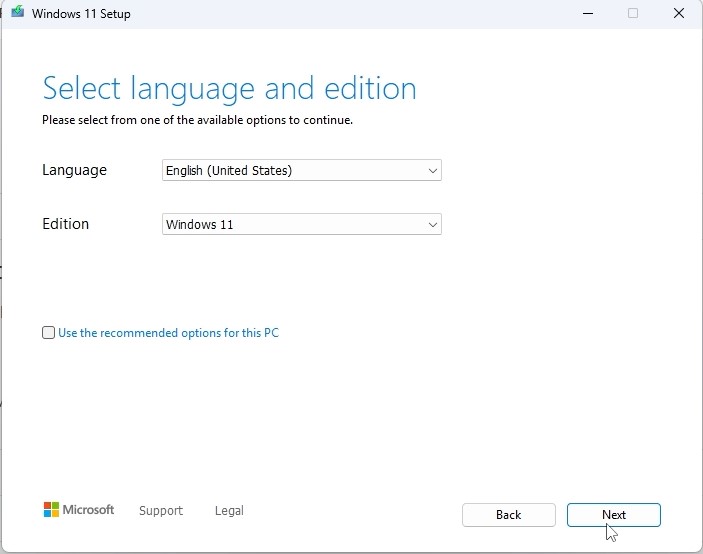
In the tool, the option you want is 'Create installation media (USB flash drive, DVD, or ISO file) for another PC'; press Next. On the following screen set language, edition and the 64-bit architecture.
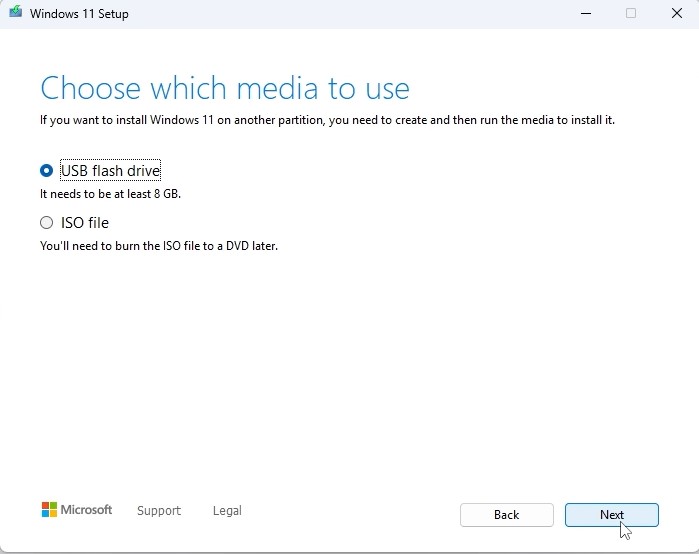
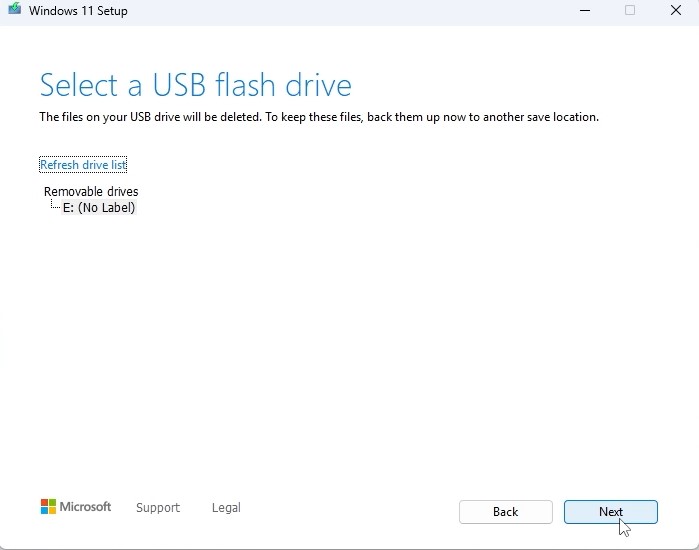
Plug in your USB stick (8 GB+), pick 'USB flash drive' and select your drive in the list. The tool then downloads Windows 11 and copies it onto the stick for you.
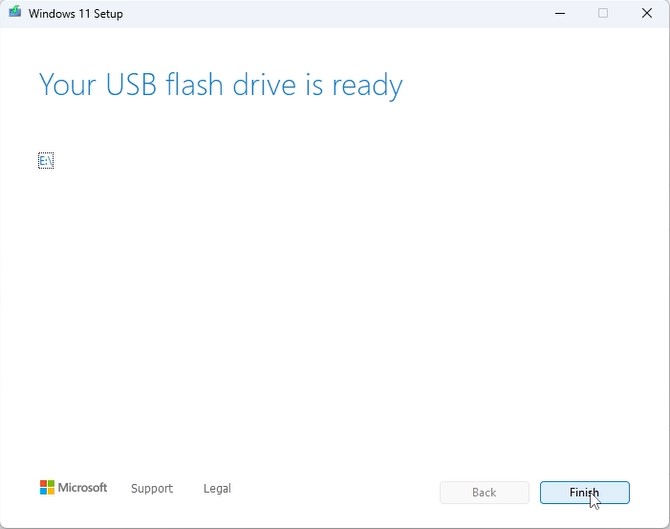
Plug the USB stick into the computer you're installing on. Open the BIOS with F2, F12 or Del, make the USB drive the first boot device, then save and reboot.
Set the language of the operating system and the 64-bit architecture, then press Next.
After pressing 'Install now', either enter your product key straight away or choose 'I don't have a product key' and activate later.
In the setup type screen, go for 'Custom: Install Windows only (advanced)'. Delete the old partitions so only unallocated space remains, select it and press Next.
Setup runs for roughly 15-25 minutes and reboots the PC a few times. To finish, choose your region and keyboard layout, then sign in with your Microsoft account.
Aktivera din licens
Följ dessa 5 korta steg — hela sekvensen tar mindre än två minuter.
Har du fått licensen aktiverar du Windows med hjälp av stegen nedan.
Välj ditt språk
Installationsmedierna är tillgängliga på 7 språk. Var och en är det ursprungliga mediet — bara gränssnittsspråket är förinställt.
| Språk | 64-bit | 32-bit |
|---|---|---|
 SvenskaDitt språk | Ladda ner | Ladda ner |
 English | Download | Download |
 Deutsch | Herunterladen | Herunterladen |
 Français | Télécharger | Télécharger |
 Italiano | Scarica | Scarica |
 Español | Descargar | Descargar |
 Nederlands | Downloaden | Downloaden |
Vanliga frågor
Hur lång tid tar installationen?
+
Räkna med cirka 30–60 minuter totalt: 10–20 min nedladdning, 6–10 min USB-förberedelse, 15–25 min installation + första start, plus 5–10 min för förstagångsinställning.
Raderas mina filer vid en ren installation?
+
Ja — en ren installation rensar målpartitionen. Säkerhetskopiera först allt till en extern disk eller molnet. En in-place uppgradering behåller filer, men säkerhetskopiering rekommenderas ändå starkt.
Jag får "TPM 2.0 hittades inte" på Windows 11. Vad nu?
+
Starta om i BIOS/UEFI (F2 eller Del vid tillverkarens logo) och leta efter "Intel PTT", "AMD fTPM" eller bara "TPM". Aktivera det, spara och avsluta. De flesta moderkort från de senaste 8 åren har firmware-TPM 2.0 — det behöver bara slås på.
Kan jag installera utan ett Microsoft-konto?
+
Ja. På Windows 11 Home, vid "Logga in på ditt Microsoft-konto"-skärmen, tryck Shift+F10 för att öppna kommandotolken, skriv "start ms-cxh:localonly" och tryck Enter — då kan du skapa ett lokalt konto.
Min produktnyckel accepteras inte. Vad ska jag kolla?
+
Kontrollera att utgåvan matchar exakt — en Pro-nyckel aktiverar inte Home och vice versa. Se till att du angett nyckeln utan mellanslag. Om allt stämmer, kontakta Urlicenses-support med ditt order-ID för en ersättningsnyckel.
Behöver du hjälp?
Microsoft erbjuder inte längre telefonaktivering
Microsoft has been steadily ending support for certain older products, so activation by phone is no longer available. Should you run into problems or have questions while installing, please contact our support team.
If you need help quickly, you can also use the live chat on our website.
Filer lagras på vårt säkra CDN. Klicka på Ladda ned för att börja.