Microsoft Windows 11 Professional Installatiegids
Deze gratis stap-voor-stap handleiding helpt je Microsoft Windows 11 Professional te downloaden, installeren en activeren — met echte screenshots bij elke stap, in 12 talen.
Installer downloaden
Download de gewenste versie via de volgende downloadlink.
Beschikbaar in 7 talen —
Lees dit zeer zorgvuldig
- Dit zijn de minimale systeemvereisten voor het installeren van Microsoft Windows 11 op een pc. Als uw apparaat niet aan deze vereisten voldoet, kunt u Microsoft Windows 11 mogelijk niet installeren.
- U kunt de toepassing PC Health Check downloaden die je vertelt of je apparaat Microsoft Windows 11 ondersteunt.
Upgrade Home naar Pro
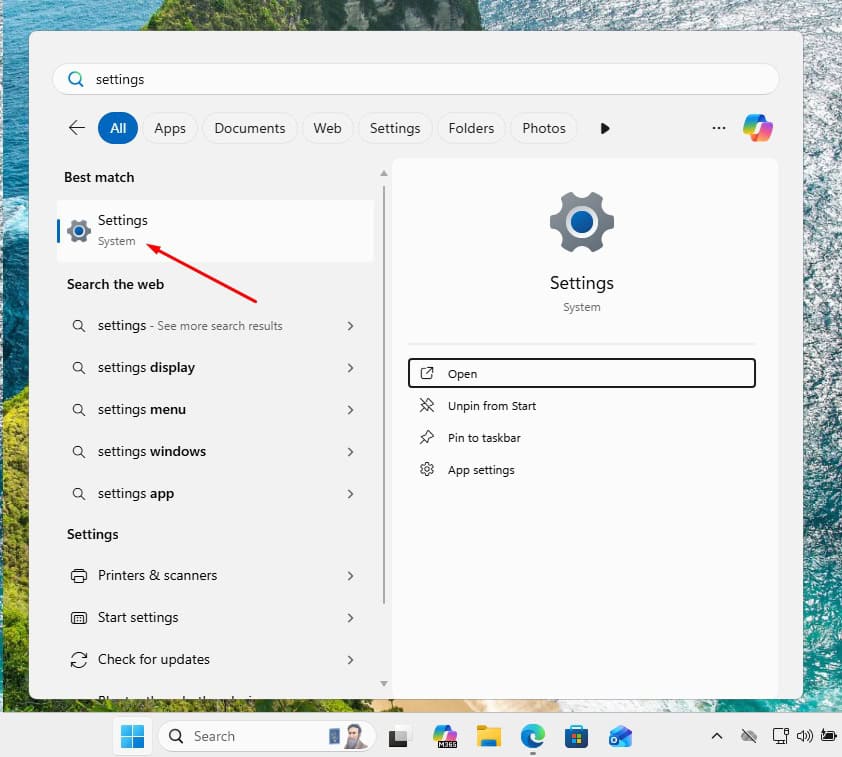
Open Settings and go to System -> Activation.
Now select 'Change product key'. Typing in Microsoft's generic upgrade key VK7JG-NPHTM-C97JM-9MPGT-3V66T and pressing Next converts the Home edition into Pro.
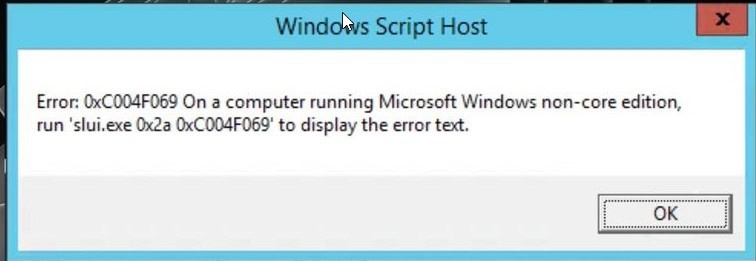
When the switch to Windows 11 Pro is done, head back to Settings -> System -> Activation, select 'Change product key' once more and enter the Windows 11 Pro key you bought.
When Windows asks you to, restart the computer so every change takes effect.
Upgrade vanuit Win 10
Check that your PC can run Windows 11 (TPM 2.0, Secure Boot, a supported CPU): download the PC Health Check app from aka.ms/GetPCHealthCheckApp and run it.
Microsoft offers the Windows 11 Installation Assistant for free at microsoft.com/software-download/windows11 — download it from there.
Accept the licence terms after opening Windows11InstallationAssistant.exe. From that point on, the assistant fetches everything it needs and moves the system to Windows 11 Pro without further input.
Your PC restarts at the end of the upgrade. Should Windows then ask for a licence key, you'll find the field under Settings -> System -> Activation: enter your Windows 11 Pro key there.
Stap-voor-stap installatie
First get Microsoft's Media Creation Tool with the Download button on this page, and launch it when the download completes.
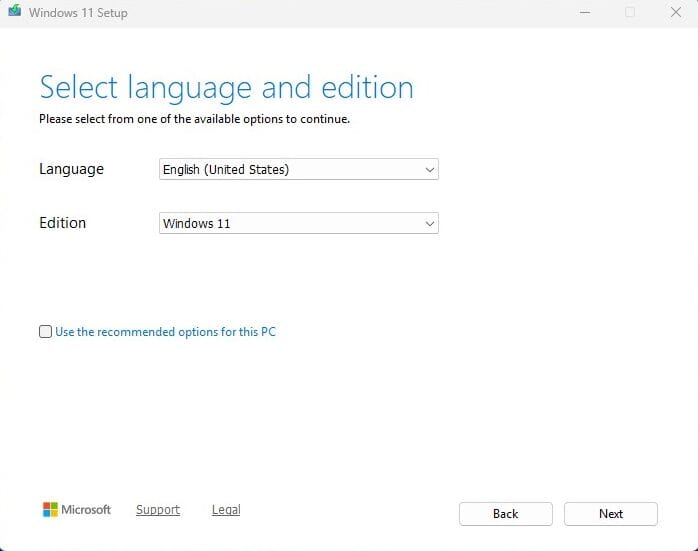
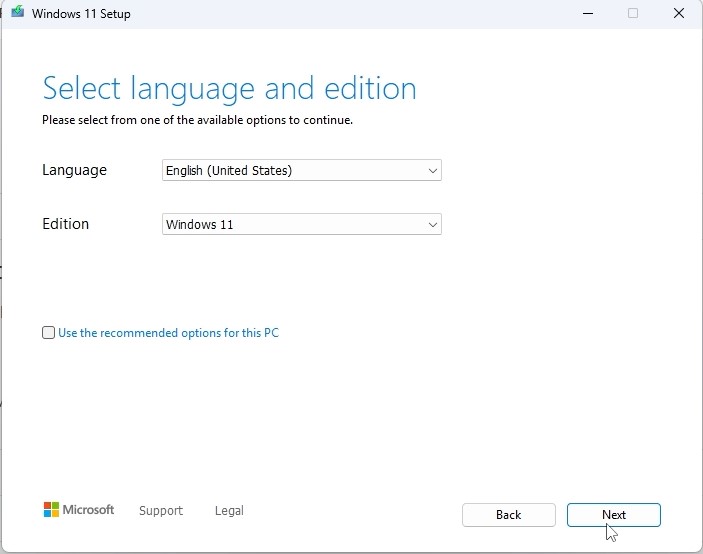
In the tool, the option you want is 'Create installation media (USB flash drive, DVD, or ISO file) for another PC'; press Next. On the following screen set language, edition and the 64-bit architecture.
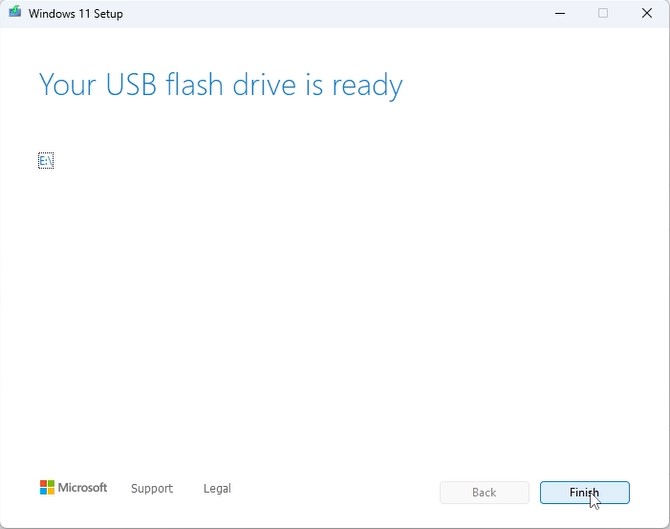
Plug in your USB stick (8 GB+), pick 'USB flash drive' and select your drive in the list. The tool then downloads Windows 11 and copies it onto the stick for you.
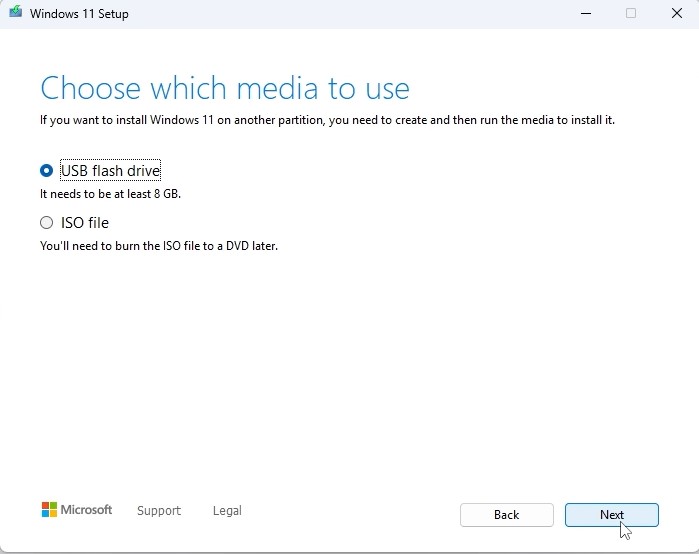
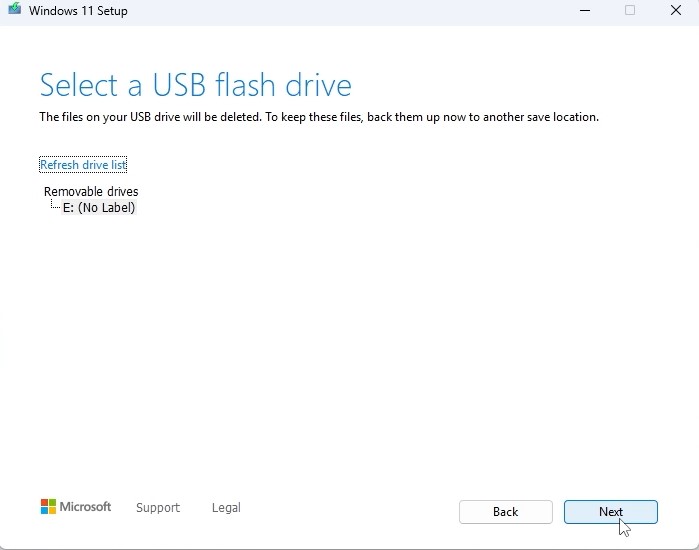
Plug the USB stick into the computer you're installing on. Open the BIOS with F2, F12 or Del, make the USB drive the first boot device, then save and reboot.
Set the language of the operating system and the 64-bit architecture, then press Next.
After pressing 'Install now', either enter your product key straight away or choose 'I don't have a product key' and activate later.
In the setup type screen, go for 'Custom: Install Windows only (advanced)'. Delete the old partitions so only unallocated space remains, select it and press Next.
Setup runs for roughly 15-25 minutes and reboots the PC a few times. To finish, choose your region and keyboard layout, then sign in with your Microsoft account.
Activeer je licentie
Volg deze 5 korte stappen — de hele reeks duurt minder dan twee minuten.
Heb je de licentie ontvangen? Activeer Windows dan op de manier die hieronder staat beschreven.
Kies je taal
De installatiemedia zijn beschikbaar in 7 talen. Elk is het originele medium — alleen de interfacetaal is vooringesteld.
| Taal | 64-bit | 32-bit |
|---|---|---|
 NederlandsUw taal | Downloaden | Downloaden |
 English | Download | Download |
 Deutsch | Herunterladen | Herunterladen |
 Français | Télécharger | Télécharger |
 Italiano | Scarica | Scarica |
 Español | Descargar | Descargar |
 Svenska | Ladda ner | Ladda ner |
Veelgestelde vragen
Hoe lang duurt de installatie?
+
Reken op ongeveer 30–60 minuten in totaal: 10–20 min download, 6–10 min USB-voorbereiding, 15–25 min installatie + eerste opstart, plus 5–10 min voor de eerste configuratie.
Worden mijn bestanden gewist bij een schone installatie?
+
Ja — een schone installatie wist de doelpartitie. Maak eerst een back-up op een externe schijf of in de cloud. Een in-place upgrade behoudt bestanden, maar een back-up wordt sterk aangeraden.
Ik krijg "TPM 2.0 niet gedetecteerd" op Windows 11. Wat nu?
+
Start opnieuw op in BIOS/UEFI (F2 of Del bij het fabrikantenlogo) en zoek naar "Intel PTT", "AMD fTPM" of gewoon "TPM". Schakel het in, sla op en sluit af. De meeste moederborden van de laatste 8 jaar hebben firmware-TPM 2.0 — het moet alleen aan staan.
Kan ik installeren zonder Microsoft-account?
+
Ja. Op Windows 11 Home, op het "Aanmelden bij je Microsoft-account" scherm, druk Shift+F10 om de opdrachtprompt te openen, typ "start ms-cxh:localonly" en druk op Enter — je kunt dan een lokaal account aanmaken.
Mijn productsleutel wordt niet geaccepteerd. Wat moet ik controleren?
+
Controleer of de editie exact overeenkomt — een Pro-sleutel activeert geen Home en omgekeerd. Zorg dat je de sleutel zonder spaties invoert. Als alles klopt, neem contact op met Urlicenses-ondersteuning met je orderID voor een vervangsleutel.
Hulp nodig?
Microsoft biedt geen telefonische activering meer
Microsoft is stap voor stap gestopt met de ondersteuning van een aantal oudere producten, waardoor activeren per telefoon niet meer kan. Loop je tijdens de installatie tegen problemen aan of heb je vragen, dan helpt ons supportteam je graag verder.
Wil je sneller geholpen worden? Gebruik dan de livechat op onze website om ons rechtstreeks te bereiken.
Bestanden worden gehost op ons beveiligde CDN. Klik op Downloaden om te beginnen.