Microsoft Windows 11 Home Guida all'installazione
Questa guida gratuita passo passo ti accompagna nel download, nell'installazione e nell'attivazione di Microsoft Windows 11 Home — con screenshot reali per ogni passaggio, in 12 lingue.
Scarica l'installer
Scarica la versione desiderata con il seguente link di download.
Disponibile in 7 lingue —
Leggi questo molto attentamente
- Questi sono i requisiti minimi di sistema per installare Microsoft Windows 11 su un PC. Se il vostro dispositivo non soddisfa questi requisiti, potrebbe non essere possibile installare Microsoft Windows 11.
- È possibile scaricare l'applicazione PC Health Check che vi dirà se il vostro dispositivo supporta Microsoft Windows 11.
Aggiorna da Win 10
Check that your PC can run Windows 11 (TPM 2.0, Secure Boot, a supported CPU): download the PC Health Check app from aka.ms/GetPCHealthCheckApp and run it.
Microsoft offers the Windows 11 Installation Assistant for free at microsoft.com/software-download/windows11 — download it from there.
Accept the licence terms after opening Windows11InstallationAssistant.exe. Without further input it moves Windows 10 Home to Windows 11 Home, keeping your installed programs and personal files.
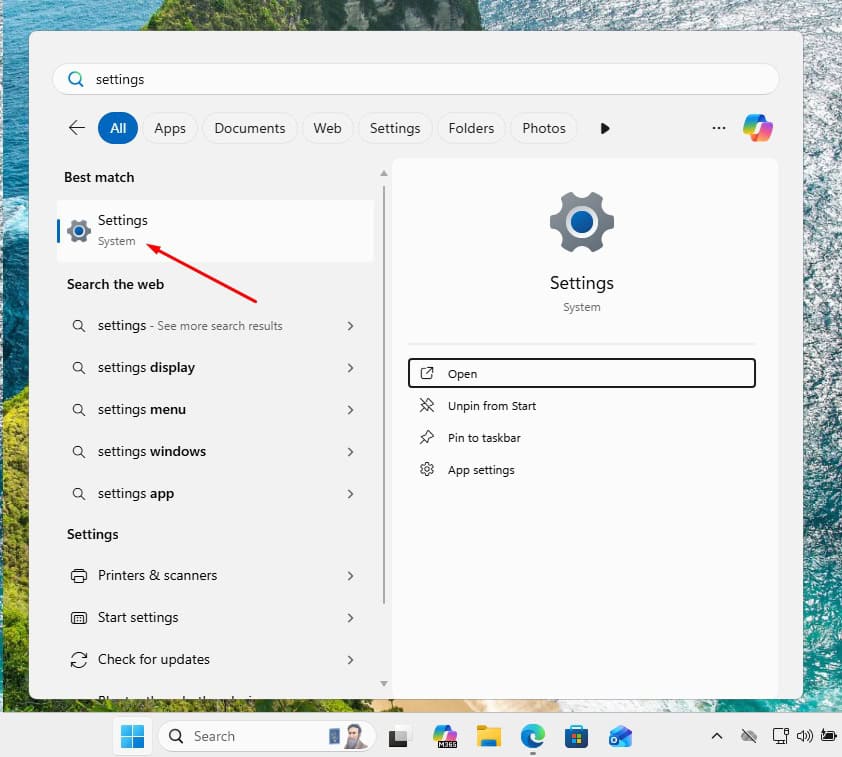
Your PC restarts at the end of the upgrade. Should Windows then ask for a licence key, you'll find the field under Settings -> System -> Activation: enter your Windows 11 Home key there.
Installazione passo passo
First get Microsoft's Media Creation Tool with the Download button on this page, and launch it when the download completes.
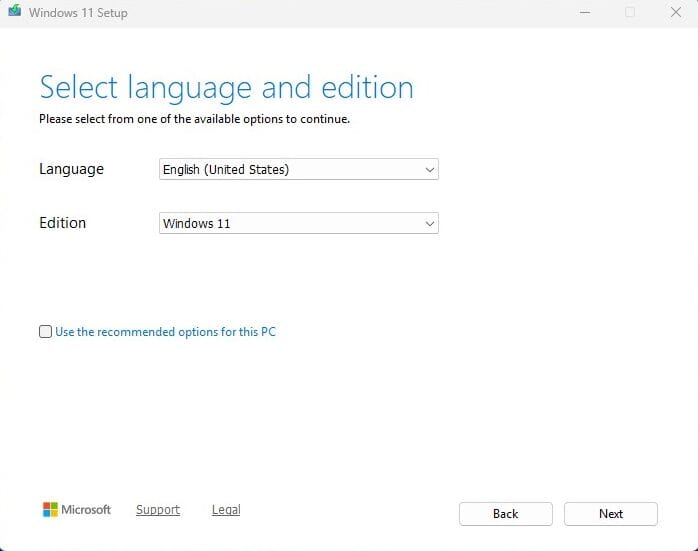
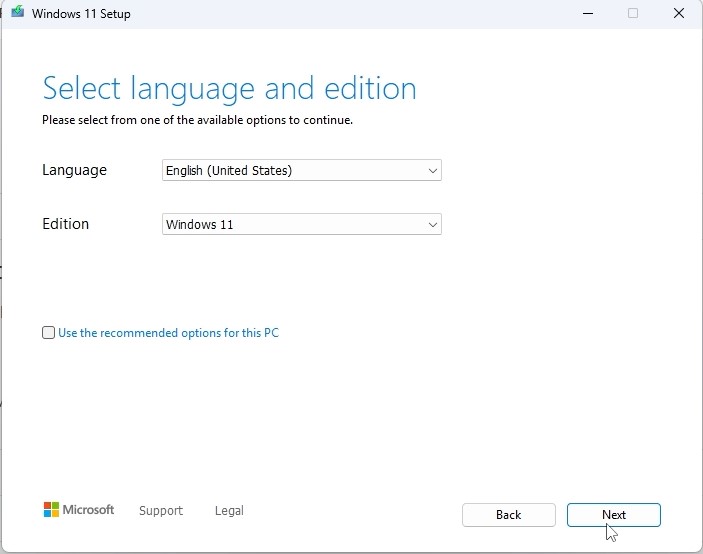
In the tool, the option you want is 'Create installation media (USB flash drive, DVD, or ISO file) for another PC'; press Next. On the following screen set language, edition and the 64-bit architecture.
Plug in your USB stick (8 GB+), pick 'USB flash drive' and select your drive in the list. The tool then downloads Windows 11 and copies it onto the stick for you.
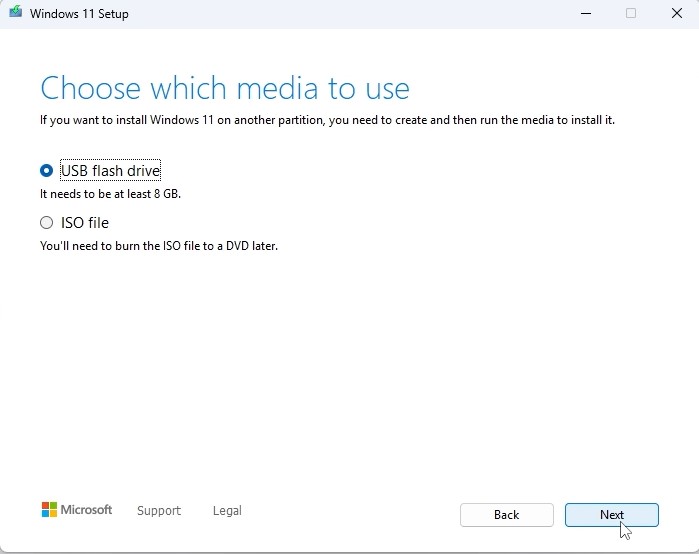
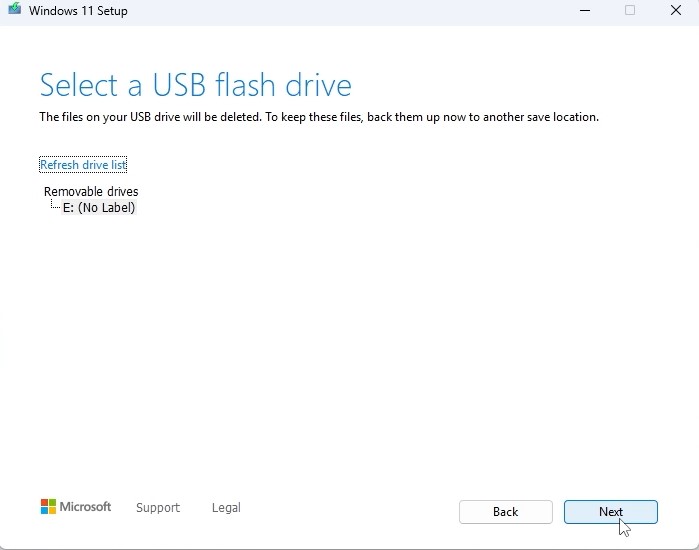
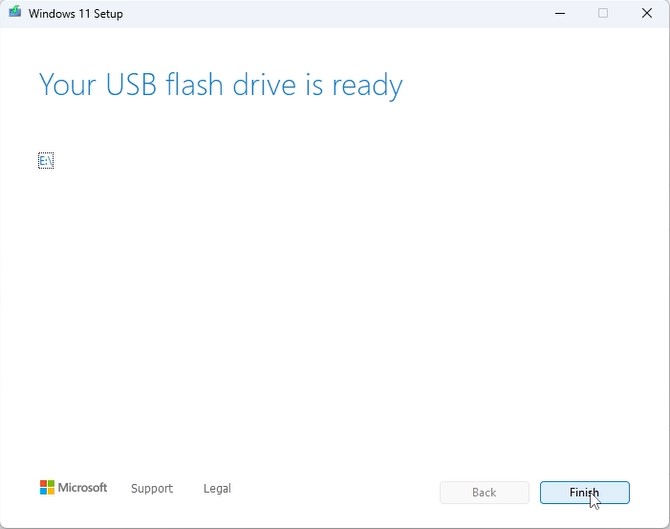
Plug the USB stick into the computer you're installing on. Open the BIOS with F2, F12 or Del, make the USB drive the first boot device, then save and reboot.
Set the language of the operating system and the 64-bit architecture, then press Next.
After pressing 'Install now', either enter your product key straight away or choose 'I don't have a product key' and activate later.
In the setup type screen, go for 'Custom: Install Windows only (advanced)'. Delete the old partitions so only unallocated space remains, select it and press Next.
Setup runs for roughly 15-25 minutes and reboots the PC a few times. Windows 11 Home setup can't be completed without signing in to a Microsoft account.
Attiva la tua licenza
Segui questi 5 passaggi — l'intera sequenza richiede meno di due minuti.
Quando avrai ricevuto la licenza, attiva Windows procedendo come descritto qui sotto.
Scegli la tua lingua
I supporti di installazione sono disponibili in 7 lingue. Ognuno è il supporto originale — solo la lingua dell'interfaccia è preimpostata.
| Lingua | 64-bit | 32-bit |
|---|---|---|
 ItalianoLa tua lingua | Scarica | Scarica |
 English | Download | Download |
 Deutsch | Herunterladen | Herunterladen |
 Français | Télécharger | Télécharger |
 Español | Descargar | Descargar |
 Nederlands | Downloaden | Downloaden |
 Svenska | Ladda ner | Ladda ner |
Domande frequenti
Quanto dura l'installazione?
+
Calcola circa 30–60 minuti totali: 10–20 min di download, 6–10 min di preparazione USB, 15–25 min di installazione e primo avvio, più 5–10 min per la configurazione iniziale.
I miei file verranno eliminati durante un'installazione pulita?
+
Sì — un'installazione pulita cancella la partizione di destinazione. Esegui prima il backup di tutto su un disco esterno o nel cloud. Un aggiornamento in-place conserva i file, ma il backup è comunque fortemente consigliato.
Ricevo "TPM 2.0 non rilevato" su Windows 11. Cosa fare?
+
Riavvia nel BIOS/UEFI (F2 o Canc al logo del produttore) e cerca "Intel PTT", "AMD fTPM" o semplicemente "TPM". Attivalo, salva ed esci. La maggior parte delle schede madri degli ultimi 8 anni ha TPM 2.0 firmware — basta abilitarlo.
Posso installare senza un account Microsoft?
+
Sì. Su Windows 11 Home, nella schermata "Accedi al tuo account Microsoft", premi Maiusc+F10 per aprire il prompt dei comandi, digita "start ms-cxh:localonly" e premi Invio — puoi creare un account locale.
La mia chiave non viene accettata. Cosa controllare?
+
Verifica che l'edizione corrisponda esattamente — una chiave Pro non attiva Home e viceversa. Assicurati di inserire la chiave senza spazi. Se tutto corrisponde, contatta il supporto Urlicenses con il tuo ID ordine per una chiave sostitutiva.
Ti serve una mano?
Microsoft non offre più l'attivazione telefonica
Microsoft ha via via interrotto l'assistenza per alcuni prodotti meno recenti, perciò non è più possibile effettuare l'attivazione per telefono. Se durante l'installazione hai dubbi o incontri difficoltà, rivolgiti al nostro team di supporto.
Se ti serve una risposta più veloce, scrivici dalla chat dal vivo presente sul nostro sito web.
I file sono ospitati sul nostro CDN sicuro. Clicca su Scarica per iniziare.