Microsoft Windows 7 Home Premium Installatiegids
Deze gratis stap-voor-stap handleiding helpt je Microsoft Windows 7 Home Premium te downloaden, installeren en activeren — met echte screenshots bij elke stap, in 12 talen.
Installer downloaden
Download de gewenste versie via de volgende downloadlink.
Beschikbaar in 10 talen —
Lees dit zeer zorgvuldig
- 1 gigahertz (GHz) of snellere 32-bits (x86) of 64-bits (x64) processor
- 1 gigabyte (GB) RAM (32 bit) of 2 GB RAM (64 bit)
- 16 GB beschikbare ruimte op de harde schijf (32-bits) of 20 GB (64-bits)
- DirectX 9 grafisch apparaat met WDDM 1.0 of hoger stuurprogramma
Stap-voor-stap installatie
When the download finishes, write the ISO file to a DVD or copy it to a USB stick. Start your PC or laptop from that DVD or USB drive and the setup program launches automatically. Work through the on-screen steps to finish the installation.
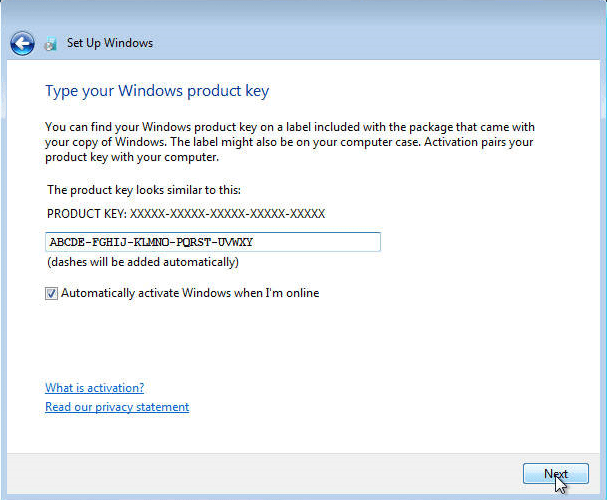
Activeer je licentie
Volg deze 5 korte stappen — de hele reeks duurt minder dan twee minuten.
Open the system properties: on the desktop, right-click 'My Computer' (on newer versions it's 'This PC') and pick 'Properties' from the menu.
Kies je taal
De installatiemedia zijn beschikbaar in 10 talen. Elk is het originele medium — alleen de interfacetaal is vooringesteld.
| Taal | 64-bit | 32-bit |
|---|---|---|
 Deutsch | Herunterladen | Herunterladen |
 English | Download | Download |
 Français | Télécharger | Télécharger |
 Italiano | Scarica | Scarica |
 Español | Descargar | Descargar |
Veelgestelde vragen
Hoe lang duurt de installatie?
+
Reken op ongeveer 30–60 minuten in totaal: 10–20 min download, 6–10 min USB-voorbereiding, 15–25 min installatie + eerste opstart, plus 5–10 min voor de eerste configuratie.
Worden mijn bestanden gewist bij een schone installatie?
+
Ja — een schone installatie wist de doelpartitie. Maak eerst een back-up op een externe schijf of in de cloud. Een in-place upgrade behoudt bestanden, maar een back-up wordt sterk aangeraden.
Ik krijg "TPM 2.0 niet gedetecteerd" op Windows 11. Wat nu?
+
Start opnieuw op in BIOS/UEFI (F2 of Del bij het fabrikantenlogo) en zoek naar "Intel PTT", "AMD fTPM" of gewoon "TPM". Schakel het in, sla op en sluit af. De meeste moederborden van de laatste 8 jaar hebben firmware-TPM 2.0 — het moet alleen aan staan.
Kan ik installeren zonder Microsoft-account?
+
Ja. Op Windows 11 Home, op het "Aanmelden bij je Microsoft-account" scherm, druk Shift+F10 om de opdrachtprompt te openen, typ "start ms-cxh:localonly" en druk op Enter — je kunt dan een lokaal account aanmaken.
Mijn productsleutel wordt niet geaccepteerd. Wat moet ik controleren?
+
Controleer of de editie exact overeenkomt — een Pro-sleutel activeert geen Home en omgekeerd. Zorg dat je de sleutel zonder spaties invoert. Als alles klopt, neem contact op met Urlicenses-ondersteuning met je orderID voor een vervangsleutel.
Hulp nodig?
Microsoft biedt geen telefonische activering meer
Microsoft is stap voor stap gestopt met de ondersteuning van een aantal oudere producten, waardoor activeren per telefoon niet meer kan. Loop je tijdens de installatie tegen problemen aan of heb je vragen, dan helpt ons supportteam je graag verder.
Bestanden worden gehost op ons beveiligde CDN. Klik op Downloaden om te beginnen.