Microsoft Windows 10 Home Installasjonsveiledning
Denne gratis trinn-for-trinn-guiden hjelper deg med å laste ned, installere og aktivere Microsoft Windows 10 Home — med ekte skjermbilder ved hvert trinn, på 12 språk.
Last ned installasjonsprogrammet
Last ned ønsket versjon med følgende nedlastingslenke.
Tilgjengelig på 12 språk —
Les dette svært nøye
- Dette er minimumssystemkravene for å installere Microsoft Windows 10 på en PC. Hvis enheten din ikke oppfyller disse kravene, kan det hende at du ikke kan installere Microsoft Windows 10.
Oppgrader fra Win 10
Check that your PC can run Windows 11 (TPM 2.0, Secure Boot, a supported CPU): download the PC Health Check app from aka.ms/GetPCHealthCheckApp and run it.
Microsoft offers the Windows 11 Installation Assistant for free at microsoft.com/software-download/windows11 — download it from there.
Accept the licence terms after opening Windows11InstallationAssistant.exe. Without further input it moves Windows 10 Home to Windows 11 Home, keeping your installed programs and personal files.
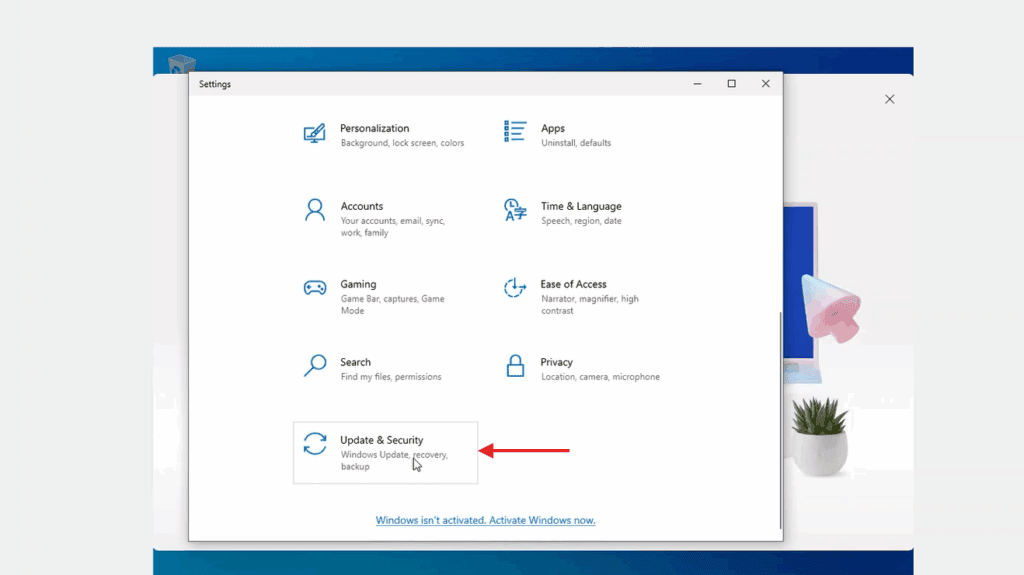
Your PC restarts at the end of the upgrade. Should Windows then ask for a licence key, you'll find the field under Settings -> System -> Activation: enter your Windows 11 Home key there.
Trinn-for-trinn installasjon
First get Microsoft's Media Creation Tool with the Download button on this page, and launch it when the download completes.
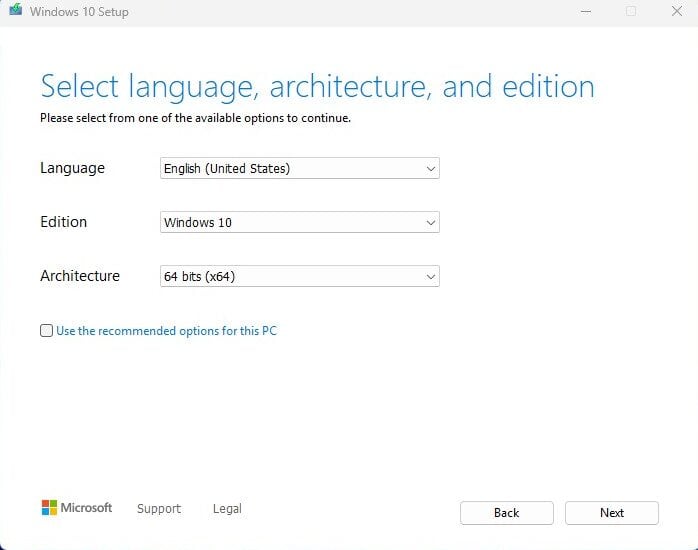
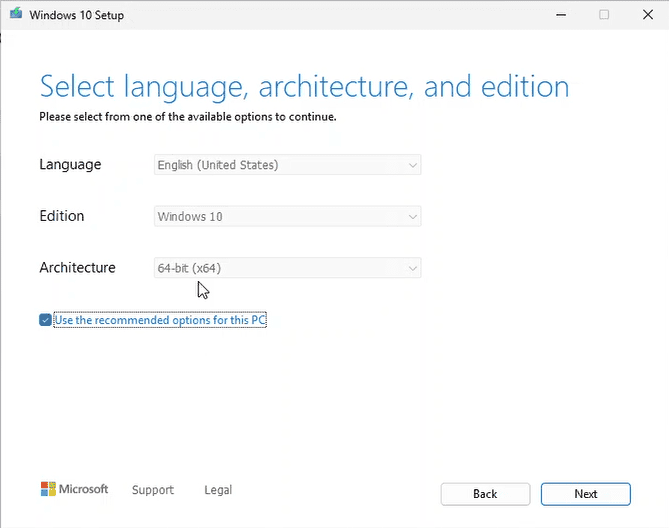
In the tool, the option you want is 'Create installation media (USB flash drive, DVD, or ISO file) for another PC'; press Next. On the following screen set language, the Windows 10 Home edition and the 64-bit architecture.
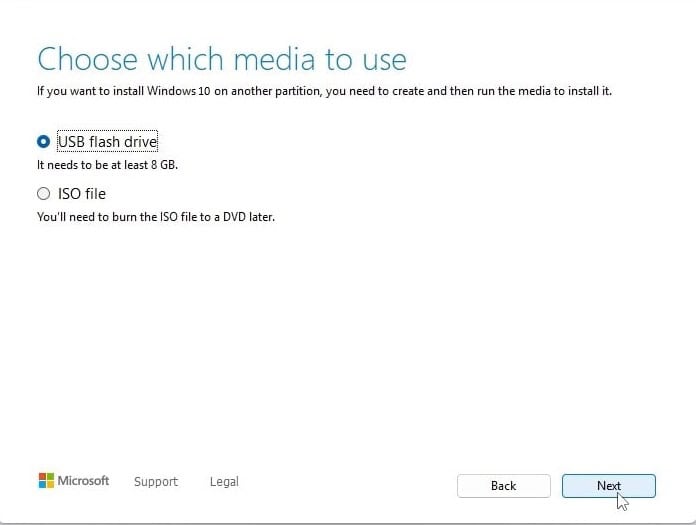
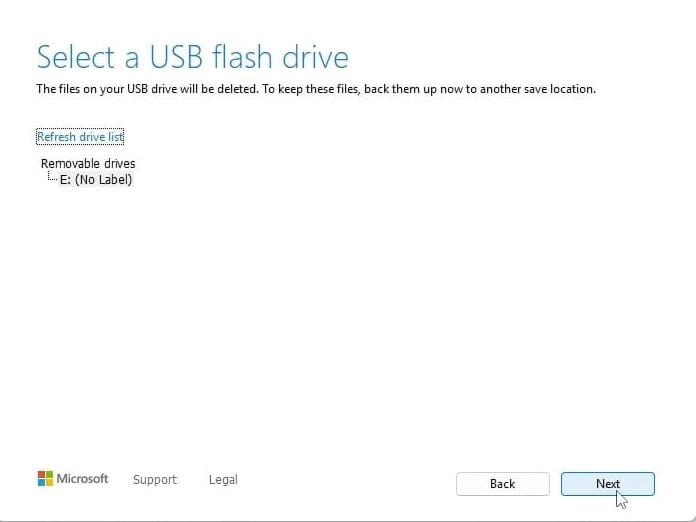
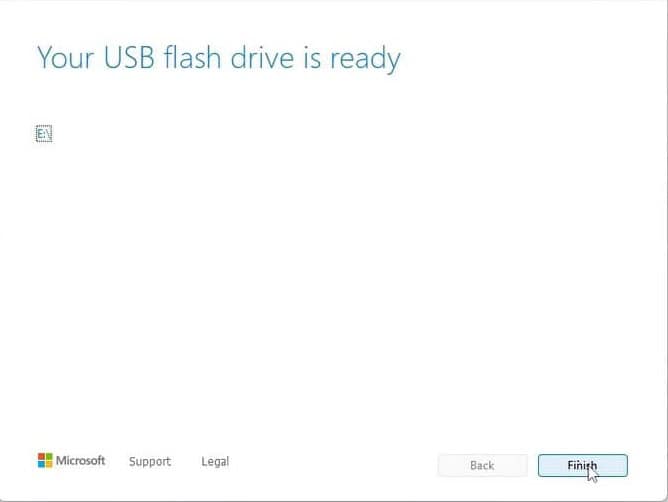
Plug in your USB stick (8 GB+), pick 'USB flash drive' and select your drive in the list. The tool then downloads Windows 10 and copies it onto the stick for you.
Plug the USB stick into the computer you're installing on. Open the BIOS with F2, F12 or Del, make the USB drive the first boot device, then save and reboot.
Set the language of the operating system and the 64-bit architecture, then press Next.
After pressing 'Install now', either enter your product key straight away or choose 'I don't have a product key' and activate later.
In the setup type screen, go for 'Custom: Install Windows only (advanced)'. Delete the old partitions so only unallocated space remains, select it and press Next.
Setup runs for roughly 15-25 minutes and reboots the PC a few times. Windows 10 Home setup asks you to sign in to a Microsoft account to continue.
Aktiver lisensen din
Følg disse 5 korte trinnene — hele sekvensen tar under to minutter.
Så snart du har fått lisensen, aktiverer du Windows ved å gjøre som beskrevet nedenfor.
Velg språk
Installasjonsmedieen er tilgjengelig på 12 språk. Hvert er originalmediet — bare grensesnittspråket er forhåndsinnstilt.
| Språk | 64-bit | 32-bit |
|---|---|---|
 NorskDitt språk | Last ned | Last ned |
 English | Download | Download |
 Deutsch | Herunterladen | Herunterladen |
 Français | Télécharger | Télécharger |
 Italiano | Scarica | Scarica |
 Español | Descargar | Descargar |
 Nederlands | Downloaden | Downloaden |
 Svenska | Ladda ner | Ladda ner |
 Dansk | Hent | Hent |
 Suomi | Lataa | Lataa |
 Português | Transferir | Transferir |
 Ελληνικά | Λήψη | Λήψη |
Ofte stilte spørsmål
Hvor lang tid tar installasjonen?
+
Regn med ca. 30–60 minutter totalt: 10–20 min nedlasting, 6–10 min USB-forberedelse, 15–25 min installasjon + første oppstart, pluss 5–10 min for førstegangsoppsett.
Blir filene mine slettet ved en ren installasjon?
+
Ja — en ren installasjon sletter målpartisjonen. Ta først en sikkerhetskopi til en ekstern disk eller skyen. En in-place oppgradering beholder filer, men sikkerhetskopi anbefales likevel sterkt.
Jeg får "TPM 2.0 ikke funnet" på Windows 11. Hva nå?
+
Start om i BIOS/UEFI (F2 eller Del ved produsentens logo) og se etter "Intel PTT", "AMD fTPM" eller bare "TPM". Aktiver det, lagre og avslutt. De fleste hovedkort fra de siste 8 årene har firmware-TPM 2.0 — det må bare slås på.
Kan jeg installere uten en Microsoft-konto?
+
Ja. På Windows 11 Home, ved "Logg på Microsoft-kontoen din"-skjermen, trykk Shift+F10 for å åpne kommandolinjen, skriv "start ms-cxh:localonly" og trykk Enter — da kan du lage en lokal konto.
Produktnøkkelen min godtas ikke. Hva sjekker jeg?
+
Sjekk at utgaven stemmer eksakt — en Pro-nøkkel aktiverer ikke Home og omvendt. Sørg for at nøkkelen er skrevet uten mellomrom. Hvis alt stemmer, kontakt Urlicenses-støtte med ordre-ID for en erstatningsnøkkel.
Trenger du hjelp?
Microsoft tilbyr ikke lenger telefonaktivering
Microsoft has been steadily ending support for certain older products, so activation by phone is no longer available. Should you run into problems or have questions while installing, please contact our support team.
If you need help quickly, you can also use the live chat on our website.
Filer lagres på vårt sikre CDN. Klikk Last ned for å starte.