Microsoft Windows 10 Home Installation guide
This free, step-by-step guide walks you through downloading, installing and activating Microsoft Windows 10 Home — with real screenshots for every step, in 12 languages.
Get the installer
Download the desired version with the following download link.
Available in 12 languages —
Read this very carefully
- These are the minimum system requirements for installing Microsoft Windows 10 on a PC. If your device does not meet these requirements, you may not be able to install Microsoft Windows 10.
Upgrade from Win 10
Check that your PC can run Windows 11 (TPM 2.0, Secure Boot, a supported CPU): download the PC Health Check app from aka.ms/GetPCHealthCheckApp and run it.
Microsoft offers the Windows 11 Installation Assistant for free at microsoft.com/software-download/windows11 — download it from there.
Accept the licence terms after opening Windows11InstallationAssistant.exe. Without further input it moves Windows 10 Home to Windows 11 Home, keeping your installed programs and personal files.
Your PC restarts at the end of the upgrade. Should Windows then ask for a licence key, you'll find the field under Settings -> System -> Activation: enter your Windows 11 Home key there.
Step-by-step install
First get Microsoft's Media Creation Tool with the Download button on this page, and launch it when the download completes.
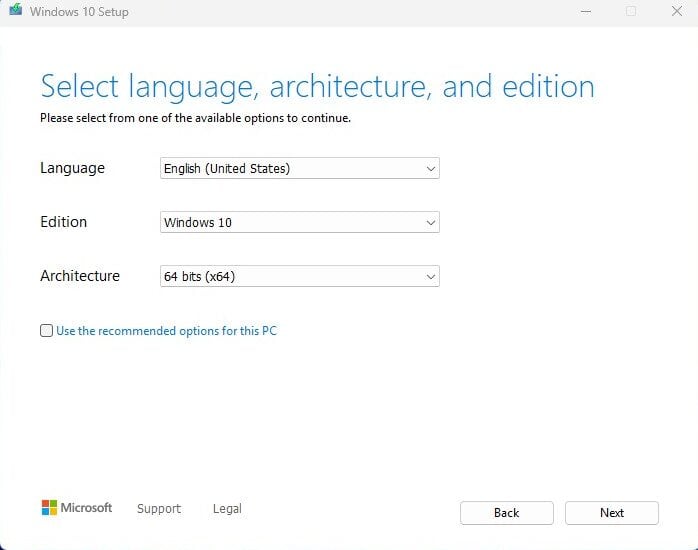
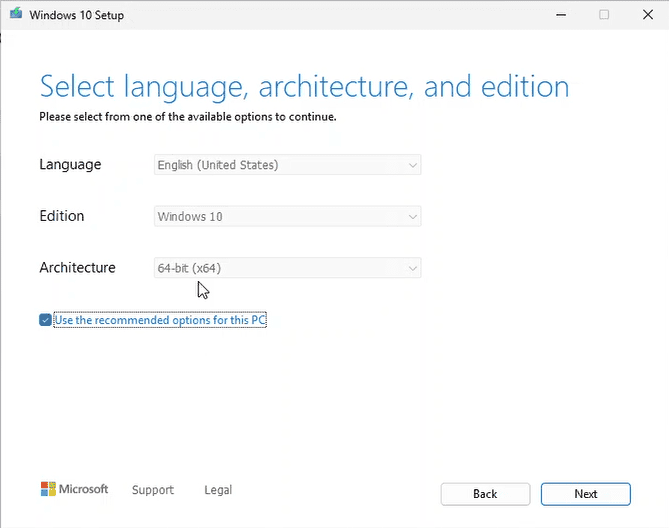
In the tool, the option you want is 'Create installation media (USB flash drive, DVD, or ISO file) for another PC'; press Next. On the following screen set language, the Windows 10 Home edition and the 64-bit architecture.
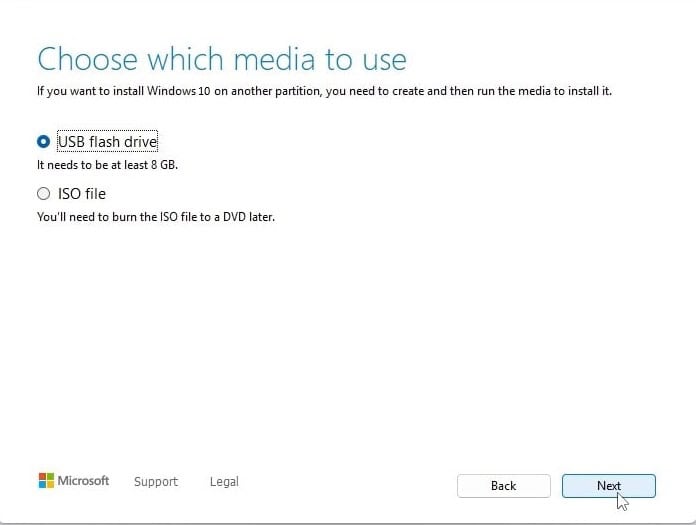
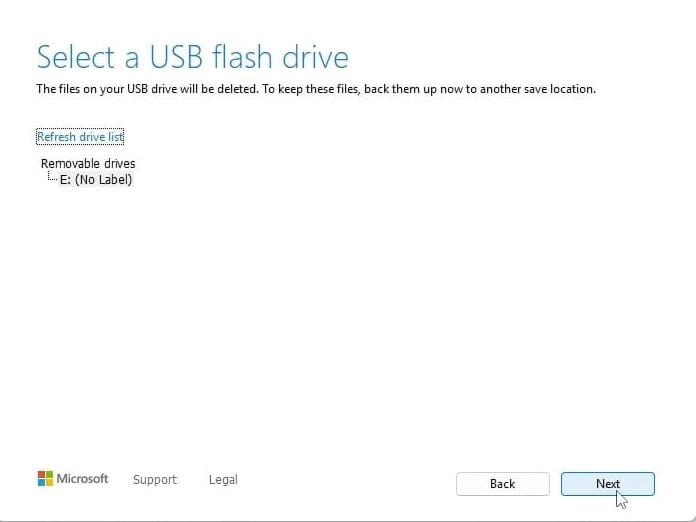
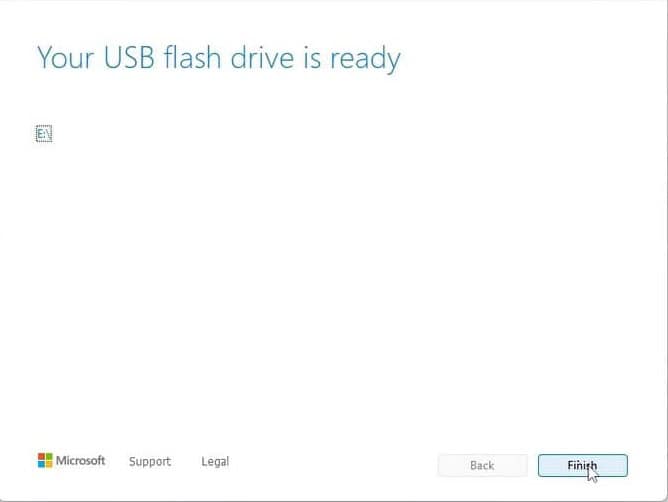
Plug in your USB stick (8 GB+), pick 'USB flash drive' and select your drive in the list. The tool then downloads Windows 10 and copies it onto the stick for you.
Plug the USB stick into the computer you're installing on. Open the BIOS with F2, F12 or Del, make the USB drive the first boot device, then save and reboot.
Set the language of the operating system and the 64-bit architecture, then press Next.
After pressing 'Install now', either enter your product key straight away or choose 'I don't have a product key' and activate later.
In the setup type screen, go for 'Custom: Install Windows only (advanced)'. Delete the old partitions so only unallocated space remains, select it and press Next.
Setup runs for roughly 15-25 minutes and reboots the PC a few times. Windows 10 Home setup asks you to sign in to a Microsoft account to continue.
Activate your licence
Follow these 5 short steps — the whole sequence takes under two minutes.
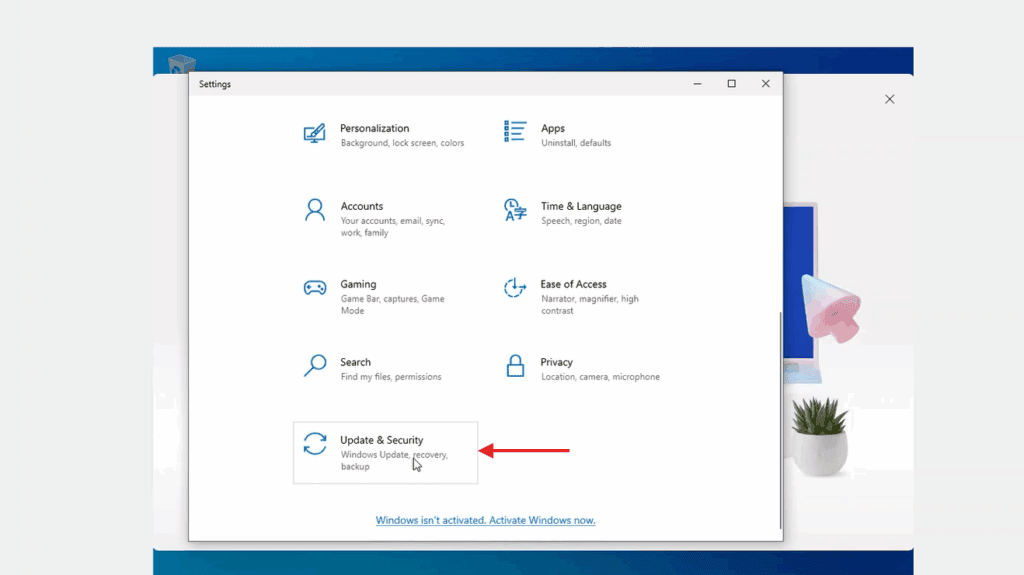
In Windows Settings, the activation page lives under Update & Security — open it from there.
Pick your language
The installation media is available in 12 languages. Each is the original media — only the UI language is preset.
| Language | 64-bit | 32-bit |
|---|---|---|
 EnglishYour language | Download | Download |
 Deutsch | Herunterladen | Herunterladen |
 Français | Télécharger | Télécharger |
 Italiano | Scarica | Scarica |
 Español | Descargar | Descargar |
 Nederlands | Downloaden | Downloaden |
 Svenska | Ladda ner | Ladda ner |
 Dansk | Hent | Hent |
 Norsk | Last ned | Last ned |
 Suomi | Lataa | Lataa |
 Português | Transferir | Transferir |
 Ελληνικά | Λήψη | Λήψη |
Common questions
How long does the installation take?
+
Allow about 30–60 minutes end-to-end on a typical machine: 10–20 min download, 6–10 min USB prep, 15–25 min install + first boot, plus 5–10 min for first-time setup.
Will my files be deleted during a clean install?
+
Yes — a clean install wipes the target partition. Back up everything first to an external drive or cloud storage. An in-place upgrade preserves files, but a backup is still strongly recommended.
I get "TPM 2.0 not detected" on Windows 11. What now?
+
Reboot into BIOS/UEFI (F2 or Del at the manufacturer logo) and look for "Intel PTT", "AMD fTPM", or simply "TPM". Enable it, save and exit. Most boards from the last 8 years have firmware TPM 2.0 — it just needs turning on.
Can I install without a Microsoft account?
+
Yes. On Windows 11 Home, at the "Sign in to your Microsoft account" screen, press Shift+F10 to open a command prompt, type "start ms-cxh:localonly" and press Enter — you can then create a local account.
My product key is not accepted. What should I check?
+
Verify the edition matches exactly — a Pro key will not activate Home and vice versa. Make sure you entered the key without spaces. If both match, contact Urlicenses support with your order ID for a replacement key.
Need a hand?
Microsoft no longer offers phone activation
Microsoft has been steadily ending support for certain older products, so activation by phone is no longer available. Should you run into problems or have questions while installing, please contact our support team.
If you need help quickly, you can also use the live chat on our website.
Files are hosted on our secure CDN. Click Download to start — your browser will handle the rest.