Microsoft Windows 10 Home Guia de instalação
Este guia gratuito passo a passo mostra como descarregar, instalar e ativar Microsoft Windows 10 Home — com capturas de ecrã reais em cada passo, em 12 idiomas.
Obter o instalador
Baixe a versão desejada com o seguinte link de download.
Disponível em 12 idiomas —
Leia isto com muita atenção
- Estes são os requisitos mínimos do sistema para instalar o Microsoft Windows 10 num PC. Se o seu dispositivo não cumprir estes requisitos, poderá não conseguir instalar o Microsoft Windows 10.
Atualizar a partir do Win 10
Check that your PC can run Windows 11 (TPM 2.0, Secure Boot, a supported CPU): download the PC Health Check app from aka.ms/GetPCHealthCheckApp and run it.
Microsoft offers the Windows 11 Installation Assistant for free at microsoft.com/software-download/windows11 — download it from there.
Accept the licence terms after opening Windows11InstallationAssistant.exe. Without further input it moves Windows 10 Home to Windows 11 Home, keeping your installed programs and personal files.
Your PC restarts at the end of the upgrade. Should Windows then ask for a licence key, you'll find the field under Settings -> System -> Activation: enter your Windows 11 Home key there.
Instalação passo a passo
First get Microsoft's Media Creation Tool with the Download button on this page, and launch it when the download completes.
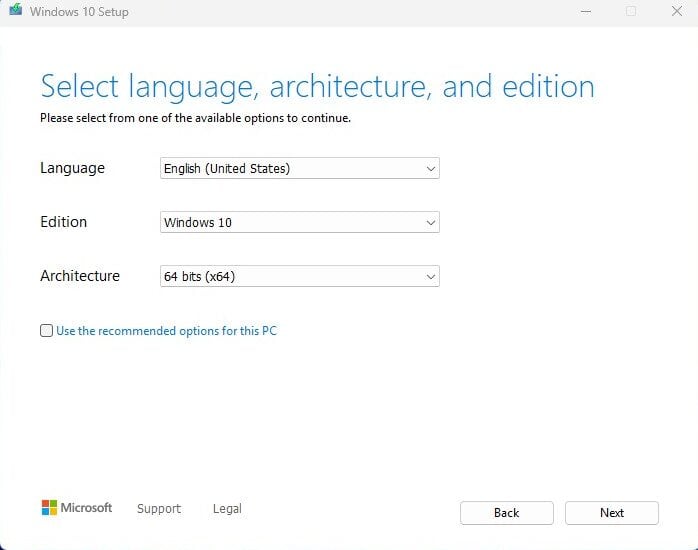
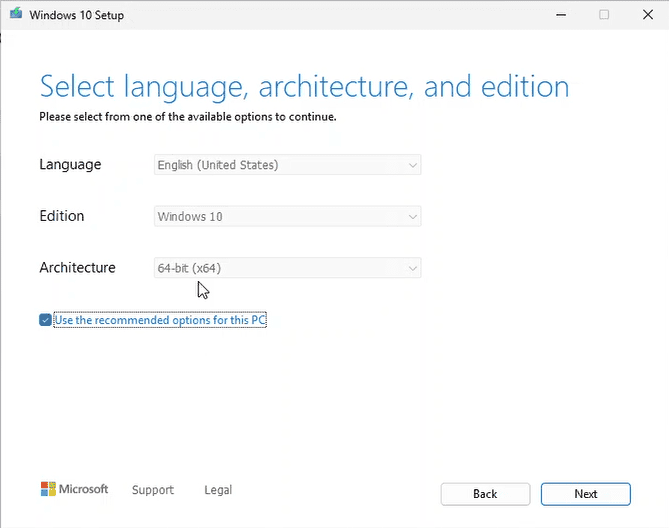
In the tool, the option you want is 'Create installation media (USB flash drive, DVD, or ISO file) for another PC'; press Next. On the following screen set language, the Windows 10 Home edition and the 64-bit architecture.
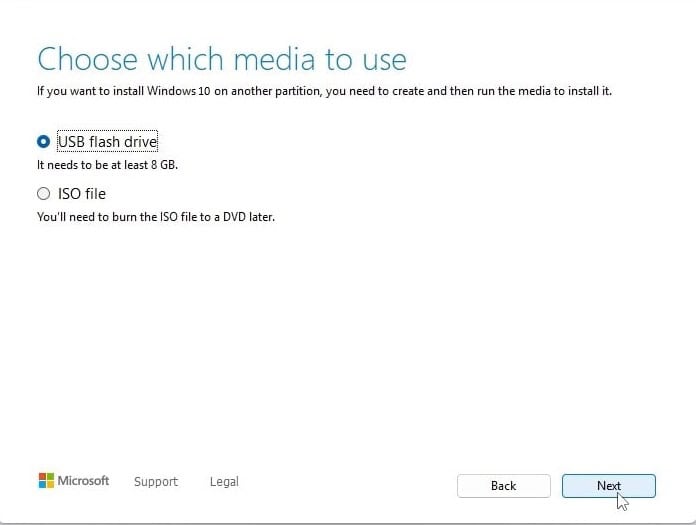
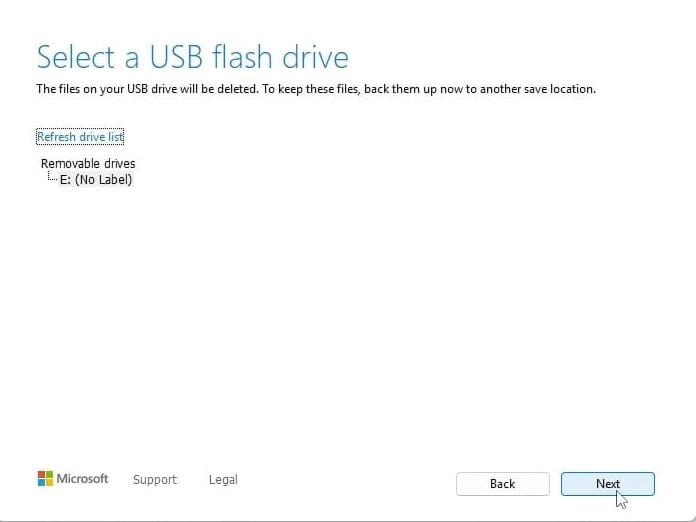
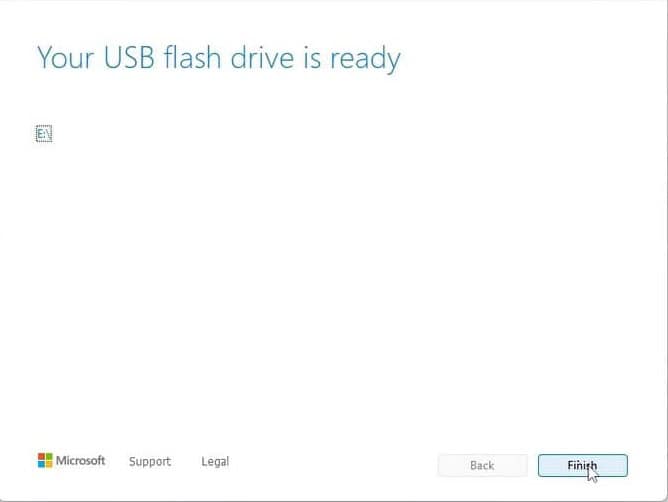
Plug in your USB stick (8 GB+), pick 'USB flash drive' and select your drive in the list. The tool then downloads Windows 10 and copies it onto the stick for you.
Plug the USB stick into the computer you're installing on. Open the BIOS with F2, F12 or Del, make the USB drive the first boot device, then save and reboot.
Set the language of the operating system and the 64-bit architecture, then press Next.
After pressing 'Install now', either enter your product key straight away or choose 'I don't have a product key' and activate later.
In the setup type screen, go for 'Custom: Install Windows only (advanced)'. Delete the old partitions so only unallocated space remains, select it and press Next.
Setup runs for roughly 15-25 minutes and reboots the PC a few times. Windows 10 Home setup asks you to sign in to a Microsoft account to continue.
Ativa a tua licença
Segue estes 5 passos — toda a sequência demora menos de dois minutos.
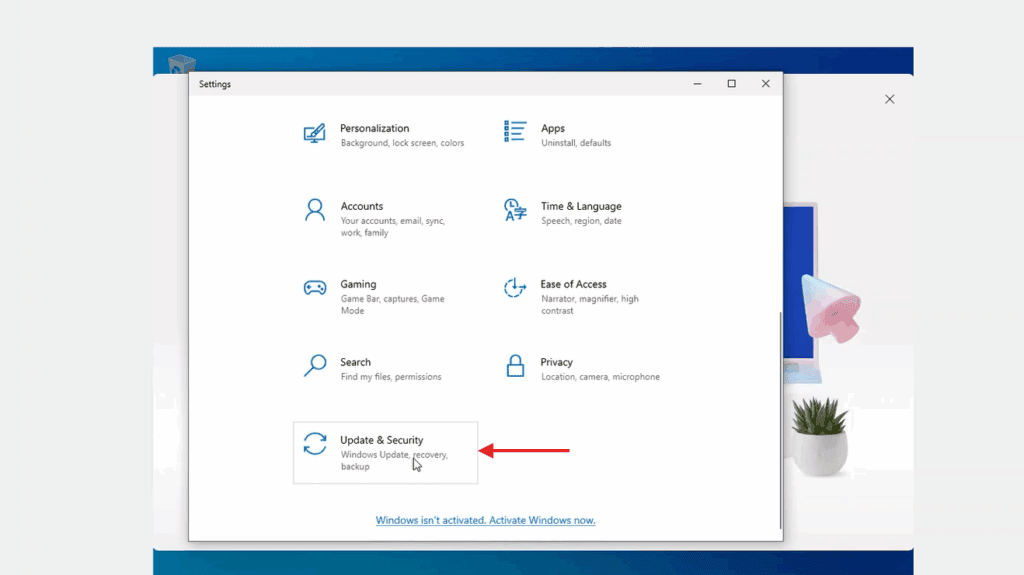
In Windows Settings, the activation page lives under Update & Security — open it from there.
Escolhe o teu idioma
A mídia de instalação está disponível em 12 idiomas. Cada uma é a mídia original — apenas o idioma da interface está predefinido.
| Idioma | 64-bit | 32-bit |
|---|---|---|
 PortuguêsSeu idioma | Transferir | Transferir |
 English | Download | Download |
 Deutsch | Herunterladen | Herunterladen |
 Français | Télécharger | Télécharger |
 Italiano | Scarica | Scarica |
 Español | Descargar | Descargar |
 Nederlands | Downloaden | Downloaden |
 Svenska | Ladda ner | Ladda ner |
 Dansk | Hent | Hent |
 Norsk | Last ned | Last ned |
 Suomi | Lataa | Lataa |
 Ελληνικά | Λήψη | Λήψη |
Perguntas frequentes
Quanto tempo demora a instalação?
+
Reserva cerca de 30–60 minutos no total: 10–20 min de descarga, 6–10 min de preparação USB, 15–25 min de instalação + primeiro arranque, mais 5–10 min para a configuração inicial.
Os meus ficheiros serão eliminados numa instalação limpa?
+
Sim — uma instalação limpa apaga a partição de destino. Faz primeiro uma cópia de segurança para um disco externo ou para a nuvem. Uma atualização in-place mantém ficheiros, mas a cópia de segurança continua a ser muito recomendada.
Recebo "TPM 2.0 não detetado" no Windows 11. O que fazer?
+
Reinicia na BIOS/UEFI (F2 ou Del no logótipo do fabricante) e procura por "Intel PTT", "AMD fTPM" ou simplesmente "TPM". Ativa, guarda e sai. A maioria das placas-mãe dos últimos 8 anos tem TPM 2.0 por firmware — só é preciso ligar.
Posso instalar sem conta Microsoft?
+
Sim. No Windows 11 Home, no ecrã "Inicia sessão na tua conta Microsoft", prime Shift+F10 para abrir a linha de comandos, escreve "start ms-cxh:localonly" e prime Enter — podes então criar uma conta local.
A minha chave de produto não é aceite. O que verificar?
+
Verifica se a edição corresponde exatamente — uma chave Pro não ativa Home e vice-versa. Garante que introduzes a chave sem espaços. Se tudo corresponder, contacta o suporte Urlicenses com o teu ID de encomenda para uma chave de substituição.
Precisas de ajuda?
A Microsoft já não oferece ativação por telefone
A Microsoft tem vindo a retirar, aos poucos, o suporte a alguns produtos mais antigos, pelo que já não é possível ativar por telefone. Se surgir alguma dúvida ou dificuldade durante a instalação, fale com a nossa equipa de suporte.
Se preferir uma resposta mais rápida, escreva-nos através do chat ao vivo do nosso site.
Os ficheiros estão alojados no nosso CDN seguro. Clique em Descarregar para começar.