Microsoft Windows 10 Professional Guide d'installation
Ce guide gratuit, étape par étape, vous accompagne pour télécharger, installer et activer Microsoft Windows 10 Professional — avec de vraies captures d'écran à chaque étape, en 12 langues.
Télécharger l'installateur
Téléchargez la version souhaitée avec le lien de téléchargement suivant.
Disponible en 12 langues —
Lisez ceci très attentivement
- These are the minimum system requirements for installing Microsoft Windows 10 on a PC. If your device does not meet these requirements, you may not be able to install Microsoft Windows 10.
- You can download the application PC Health Check that will tell you if your device supports Microsoft Windows 10.
Mise à niveau Home vers Pro
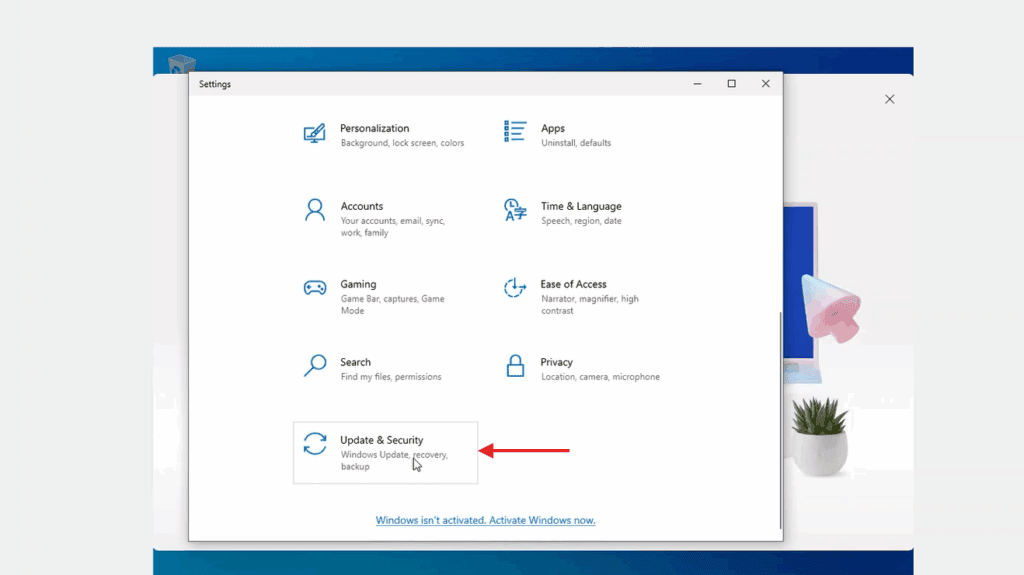
In Windows Settings, the activation page lives under Update & Security — open it from there.
Now select 'Change product key'. Typing in Microsoft's generic upgrade key VK7JG-NPHTM-C97JM-9MPGT-3V66T and pressing Next converts Windows 10 Home into Windows 10 Pro.
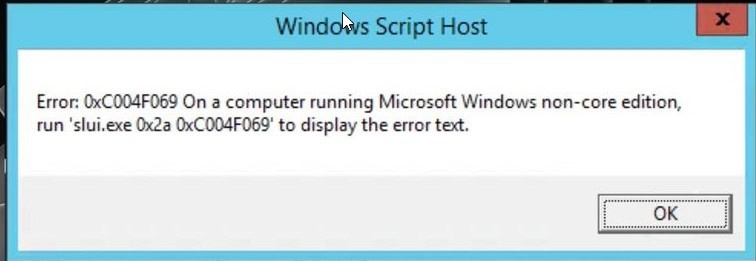
After the upgrade to Windows 10 Pro, open the activation page again (Settings -> Update & Security -> Activation), pick 'Change product key' a second time and type the Windows 10 Pro key from your purchase.
When Windows asks you to, restart the computer so every change takes effect.
Installation pas à pas
First get Microsoft's Media Creation Tool with the Download button on this page, and launch it when the download completes.
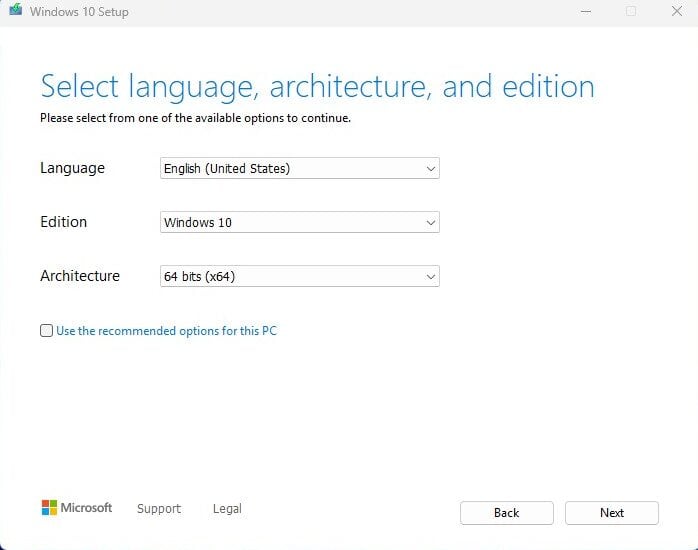
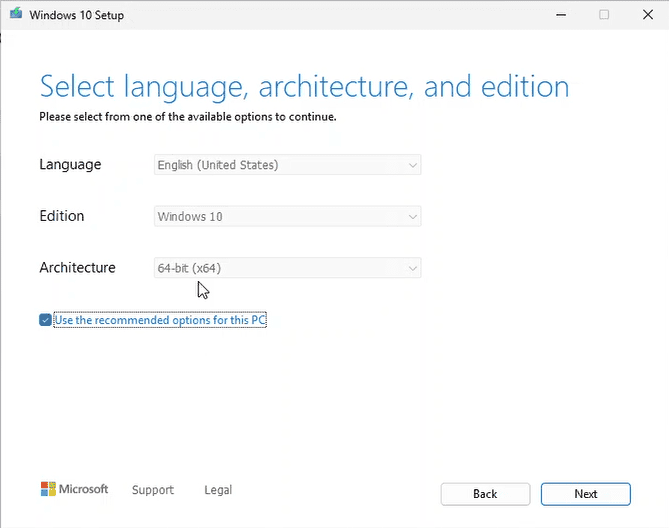
In the tool, the option you want is 'Create installation media (USB flash drive, DVD, or ISO file) for another PC'; press Next. On the following screen set language, the Windows 10 edition and the 64-bit architecture.
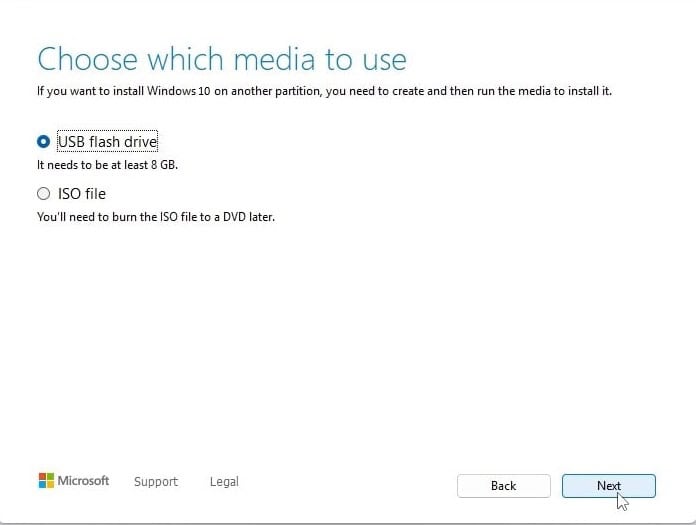
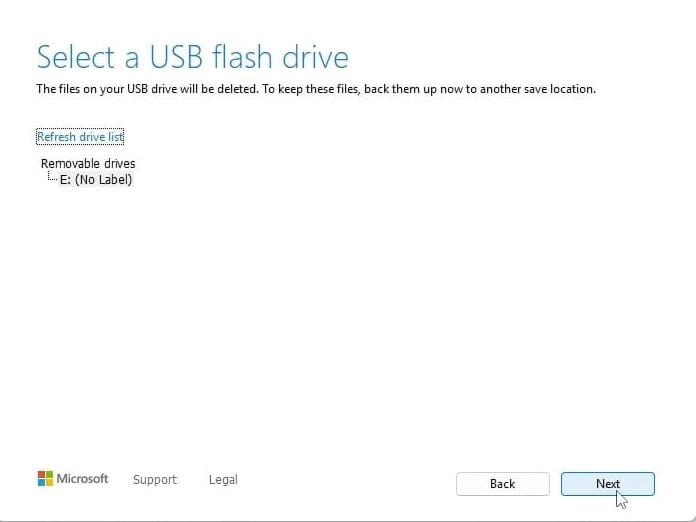
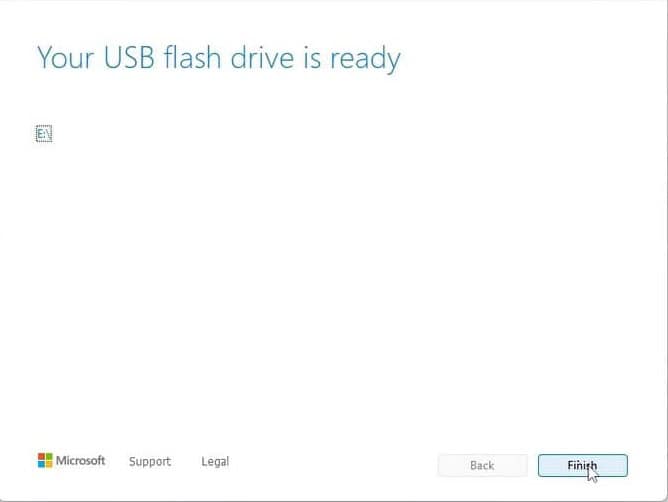
Plug in your USB stick (8 GB+), pick 'USB flash drive' and select your drive in the list. The tool then downloads Windows 10 and copies it onto the stick for you.
Plug the USB stick into the computer you're installing on. Open the BIOS with F2, F12 or Del, make the USB drive the first boot device, then save and reboot.
Set the language of the operating system and the 64-bit architecture, then press Next.
After pressing 'Install now', either enter your product key straight away or choose 'I don't have a product key' and activate later.
In the setup type screen, go for 'Custom: Install Windows only (advanced)'. Delete the old partitions so only unallocated space remains, select it and press Next.
Setup runs for roughly 15-25 minutes and reboots the PC a few times. To finish, choose your region and keyboard layout; signing in with a Microsoft account is optional.
Activez votre licence
Suivez ces 5 étapes — toute la séquence prend moins de deux minutes.
Dès que vous disposez de la licence, procédez comme indiqué ci-dessous pour activer Windows.
Choisir une langue
Les médias d'installation sont disponibles en 12 langues. Chacun est le média original — seule la langue de l'interface est prédéfinie.
| Langue | 64-bit | 32-bit |
|---|---|---|
 FrançaisVotre langue | Télécharger | Télécharger |
 English | Download | Download |
 Deutsch | Herunterladen | Herunterladen |
 Italiano | Scarica | Scarica |
 Español | Descargar | Descargar |
 Nederlands | Downloaden | Downloaden |
 Svenska | Ladda ner | Ladda ner |
 Dansk | Hent | Hent |
 Norsk | Last ned | Last ned |
 Suomi | Lataa | Lataa |
 Português | Transferir | Transferir |
 Ελληνικά | Λήψη | Λήψη |
Questions fréquentes
Combien de temps prend l'installation ?
+
Prévoyez environ 30 à 60 minutes au total : 10–20 min de téléchargement, 6–10 min de préparation USB, 15–25 min d'installation + premier démarrage, plus 5–10 min pour la configuration initiale.
Mes fichiers seront-ils supprimés lors d'une installation propre ?
+
Oui — une installation propre efface la partition cible. Sauvegardez tout d'abord sur un disque externe ou dans le cloud. Une mise à niveau sur place conserve les fichiers, mais une sauvegarde reste fortement recommandée.
J'ai "TPM 2.0 non détecté" sur Windows 11. Que faire ?
+
Redémarrez dans le BIOS/UEFI (F2 ou Suppr au logo du fabricant) et cherchez "Intel PTT", "AMD fTPM" ou simplement "TPM". Activez-le, sauvegardez et quittez. La plupart des cartes mères des 8 dernières années ont un TPM 2.0 firmware — il suffit de l'activer.
Puis-je installer sans compte Microsoft ?
+
Oui. Sur Windows 11 Home, à l'écran "Se connecter à votre compte Microsoft", appuyez sur Maj+F10 pour ouvrir l'invite de commandes, tapez "start ms-cxh:localonly" et appuyez sur Entrée — vous pouvez créer un compte local.
Ma clé de produit est refusée. Que vérifier ?
+
Vérifiez que l'édition correspond exactement — une clé Pro n'activera pas Home et inversement. Assurez-vous que la clé est saisie sans espaces. Si tout correspond, contactez le support Urlicenses avec votre ID de commande pour une clé de remplacement.
Besoin d'aide ?
Microsoft ne propose plus l'activation téléphonique
Microsoft a peu à peu cessé de prendre en charge certains produits anciens, si bien que l'activation par téléphone n'est plus proposée. En cas de difficulté ou de question pendant l'installation, contactez notre équipe d'assistance.
Pour obtenir une réponse plus rapidement, utilisez le chat en direct sur notre site.
Les fichiers sont hébergés sur notre CDN sécurisé. Cliquez sur Télécharger pour commencer.