Microsoft Windows 10 Professional Asennusopas
Tämä ilmainen vaiheittainen opas opastaa sinut lataamaan, asentamaan ja aktivoimaan Microsoft Windows 10 Professional — aitojen kuvakaappausten avulla joka vaiheessa, 12 kielellä.
Lataa asennusohjelma
Lataa haluamasi versio seuraavasta latauslinkistä.
Saatavilla 12 kielellä —
Lue tämä erittäin huolellisesti
- Nämä ovat vähimmäisjärjestelmävaatimukset Microsoft Windows 10:n asentamiseksi tietokoneeseen. Jos laitteesi ei täytä näitä vaatimuksia, et ehkä pysty asentamaan Microsoft Windows 10:tä.
- Voit lataa sovellus PC Health Check joka kertoo, tukeeko laitteesi Microsoft Windows 10:tä.
Päivitä Home Prohon
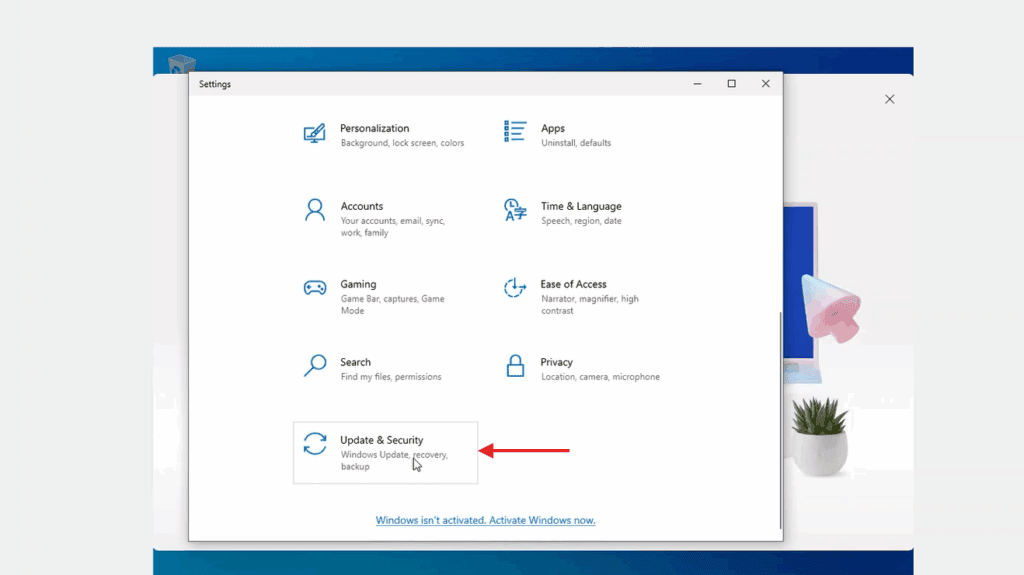
In Windows Settings, the activation page lives under Update & Security — open it from there.
Now select 'Change product key'. Typing in Microsoft's generic upgrade key VK7JG-NPHTM-C97JM-9MPGT-3V66T and pressing Next converts Windows 10 Home into Windows 10 Pro.
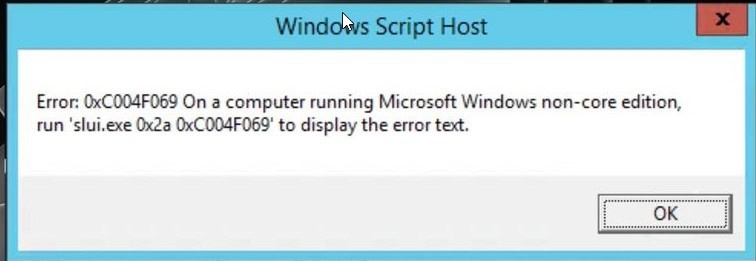
After the upgrade to Windows 10 Pro, open the activation page again (Settings -> Update & Security -> Activation), pick 'Change product key' a second time and type the Windows 10 Pro key from your purchase.
When Windows asks you to, restart the computer so every change takes effect.
Vaiheittainen asennus
First get Microsoft's Media Creation Tool with the Download button on this page, and launch it when the download completes.
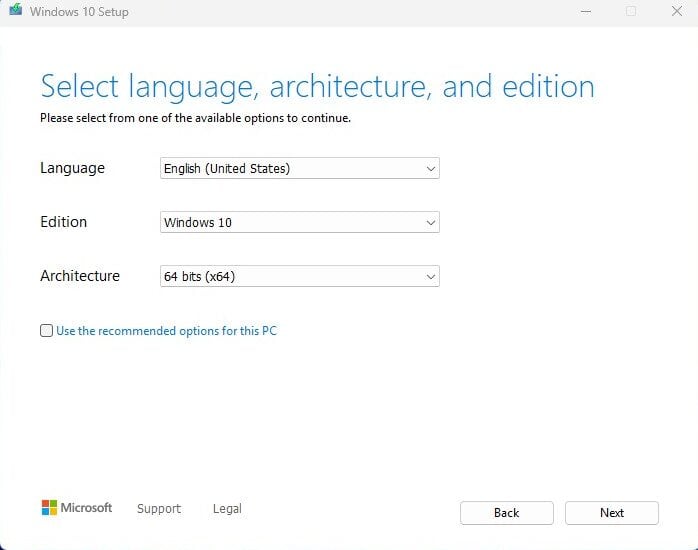
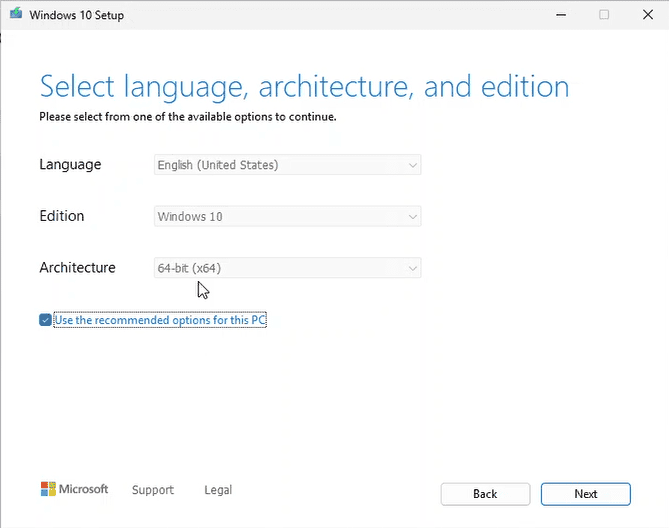
In the tool, the option you want is 'Create installation media (USB flash drive, DVD, or ISO file) for another PC'; press Next. On the following screen set language, the Windows 10 edition and the 64-bit architecture.
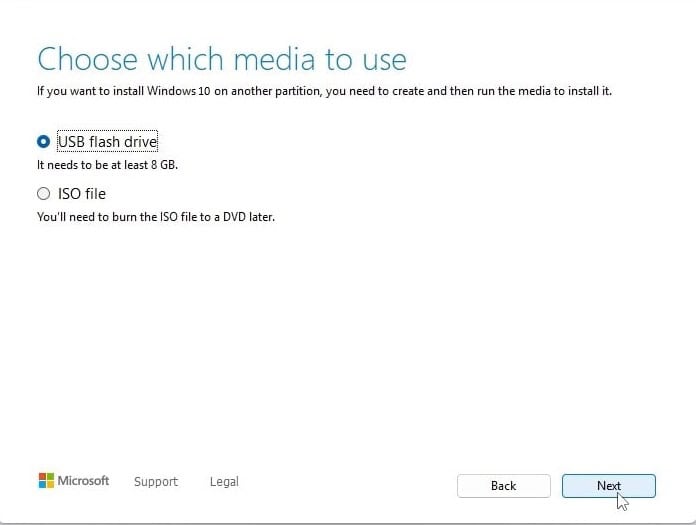
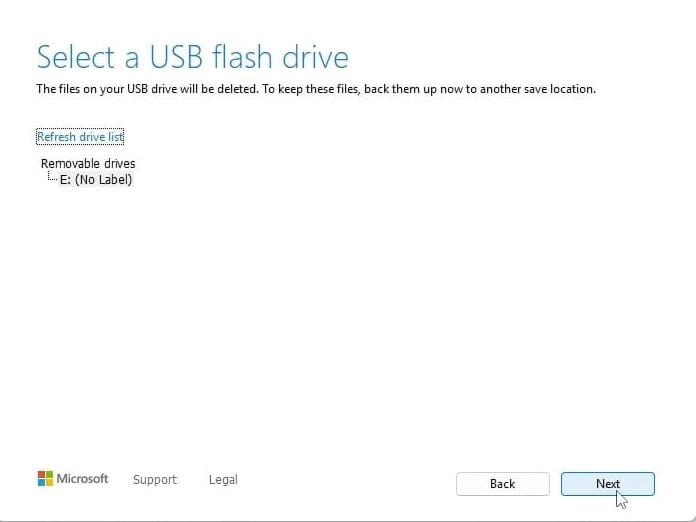
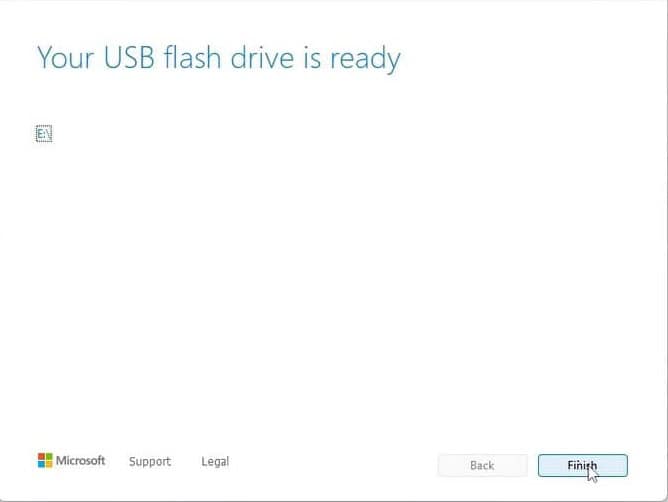
Plug in your USB stick (8 GB+), pick 'USB flash drive' and select your drive in the list. The tool then downloads Windows 10 and copies it onto the stick for you.
Plug the USB stick into the computer you're installing on. Open the BIOS with F2, F12 or Del, make the USB drive the first boot device, then save and reboot.
Set the language of the operating system and the 64-bit architecture, then press Next.
After pressing 'Install now', either enter your product key straight away or choose 'I don't have a product key' and activate later.
In the setup type screen, go for 'Custom: Install Windows only (advanced)'. Delete the old partitions so only unallocated space remains, select it and press Next.
Setup runs for roughly 15-25 minutes and reboots the PC a few times. To finish, choose your region and keyboard layout; signing in with a Microsoft account is optional.
Aktivoi lisenssisi
Seuraa näitä 5 lyhyttä vaihetta — koko sarja kestää alle kaksi minuuttia.
Kun olet saanut lisenssin, aktivoi Windows alla kuvatulla tavalla.
Valitse kielesi
Asennusmedia on saatavilla 12 kielellä. Jokainen on alkuperäinen media — vain käyttöliittymän kieli on esiasetettu.
| Kieli | 64-bit | 32-bit |
|---|---|---|
 SuomiKielesi | Lataa | Lataa |
 English | Download | Download |
 Deutsch | Herunterladen | Herunterladen |
 Français | Télécharger | Télécharger |
 Italiano | Scarica | Scarica |
 Español | Descargar | Descargar |
 Nederlands | Downloaden | Downloaden |
 Svenska | Ladda ner | Ladda ner |
 Dansk | Hent | Hent |
 Norsk | Last ned | Last ned |
 Português | Transferir | Transferir |
 Ελληνικά | Λήψη | Λήψη |
Usein kysyttyä
Kuinka kauan asennus kestää?
+
Varaa noin 30–60 minuuttia kokonaisuudessaan: 10–20 min lataus, 6–10 min USB-valmistelu, 15–25 min asennus + ensimmäinen käynnistys, sekä 5–10 min ensimmäistä määritystä varten.
Häviävätkö tiedostoni puhtaassa asennuksessa?
+
Kyllä — puhdas asennus pyyhkii kohdelevyosion. Varmuuskopioi kaikki ensin ulkoiselle levylle tai pilveen. Päivitys päälle säilyttää tiedostot, mutta varmuuskopiointi on silti voimakkaasti suositeltavaa.
Saan "TPM 2.0 ei havaittu" Windows 11 -asennuksessa. Mitä teen?
+
Käynnistä BIOSiin/UEFIin (F2 tai Del valmistajan logon kohdalla) ja etsi "Intel PTT", "AMD fTPM" tai pelkkä "TPM". Ota se käyttöön, tallenna ja poistu. Useimmissa viimeisten 8 vuoden emolevyissä on firmware-TPM 2.0 — se vain pitää kytkeä päälle.
Voinko asentaa ilman Microsoft-tiliä?
+
Kyllä. Windows 11 Homessa "Kirjaudu Microsoft-tilillesi" -näytöllä paina Shift+F10 avataksesi komentokehotteen, kirjoita "start ms-cxh:localonly" ja paina Enter — voit sitten luoda paikallisen tilin.
Tuoteavaintani ei hyväksytä. Mitä tarkistan?
+
Tarkista että versio täsmää tarkalleen — Pro-avain ei aktivoi Homea ja päinvastoin. Varmista että avain on syötetty ilman välilyöntejä. Jos kaikki täsmää, ota yhteyttä Urlicenses-tukeen tilausnumerollasi vaihtoavaimen saamiseksi.
Tarvitsetko apua?
Microsoft ei enää tarjoa puhelinaktivointia
Microsoft on asteittain lakkauttanut tuen osalle vanhemmista tuotteistaan, minkä vuoksi aktivointi puhelimitse ei enää onnistu. Jos asennuksessa ilmenee ongelmia tai kysyttävää, tukitiimimme auttaa mielellään.
Nopeimmin saat apua verkkosivustomme live-chatista, jonka kautta tavoitat meidät suoraan.
Tiedostot on tallennettu suojatulle CDN:llemme. Aloita napsauttamalla Lataa.