Microsoft Office 2024 Professional Plus Guida all'installazione
Questa guida gratuita passo passo ti accompagna nel download, nell'installazione e nell'attivazione di Microsoft Office 2024 Professional Plus — con screenshot reali per ogni passaggio, in 12 lingue.
Scarica l'installer
Scarica la versione desiderata con il seguente link di download.
Disponibile in 22 lingue —
Leggi questo molto attentamente
- Processore da 1 gigahertz (GHz) o più veloce a 32 bit (x86) o 64 bit (x64)
- 1 gigabyte (GB) di RAM (32 bit) o 4 GB di RAM (64 bit)
- 4 GB di spazio disponibile su disco rigido
- Dispositivo grafico DirectX 9 con driver WDDM 1.0 o superiore
Installazione passo passo
When the download has finished, go through the steps below or follow along with our video tutorial:
We suggest finishing the installation and activation of the product first, and only then signing in with your Microsoft account.
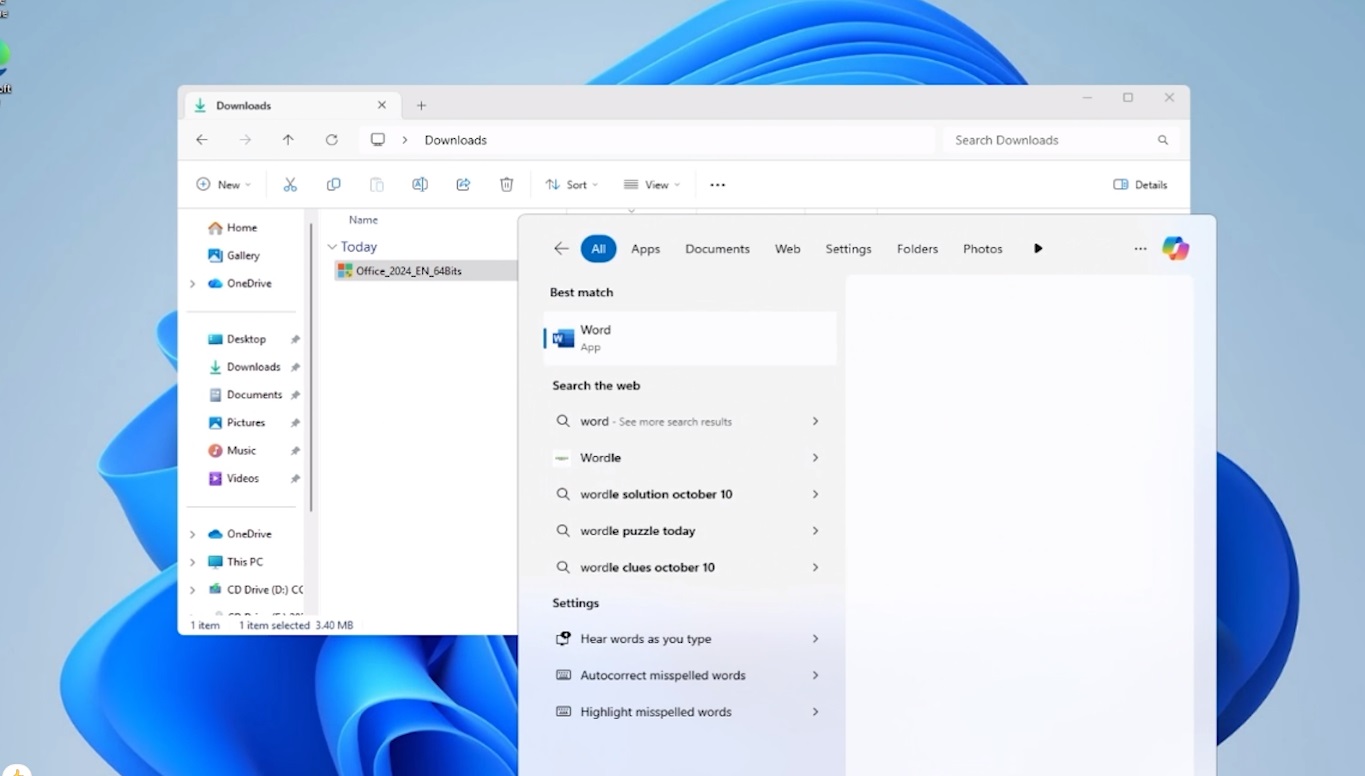
Locate the installer you downloaded (normally in your Downloads folder). Right-click it and pick “Run as administrator”. When Windows asks whether the app may make changes to your device, choose “Yes”. Note: stay connected to the Internet, because the installer fetches the required files straight from Microsoft.
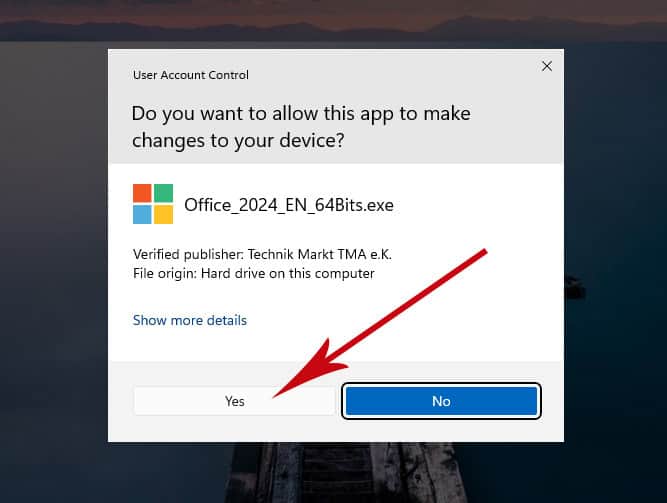
Once you have allowed the changes, the installation of your product begins.
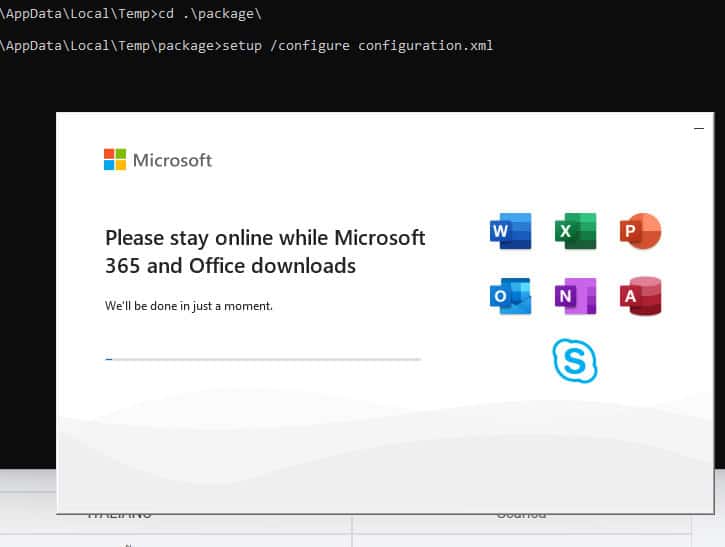
When setup has finished, launch any of the installed Office apps: Press the Start button (the Windows logo at the bottom left). Choose “All apps” to see everything installed on your PC. Scroll to the Microsoft Office folder or to the app you want (for example Word 2024, Excel 2024, PowerPoint 2024). Typing the app name into the Windows search bar is a quicker alternative. (Optional) For quicker access later, right-click the app and select “Pin to Start” or “Pin to taskbar”.
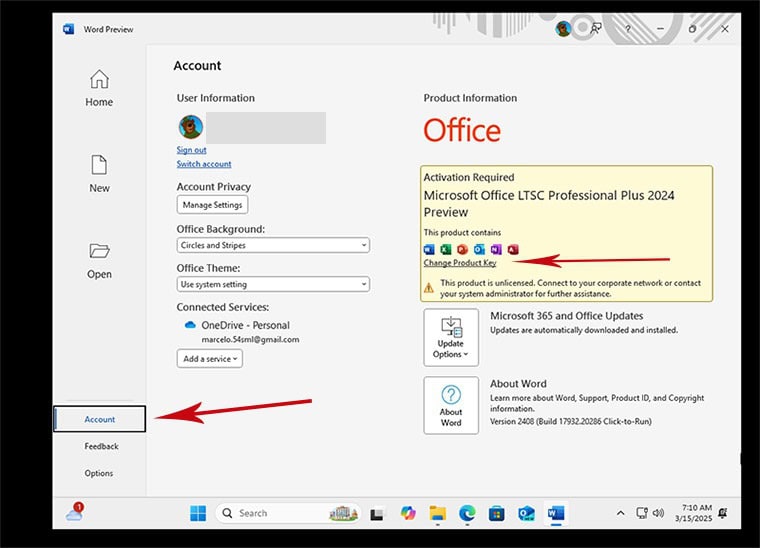
With the Office app open, select Account at the bottom left. On the right, beneath the Office icons, choose Change Product Key.
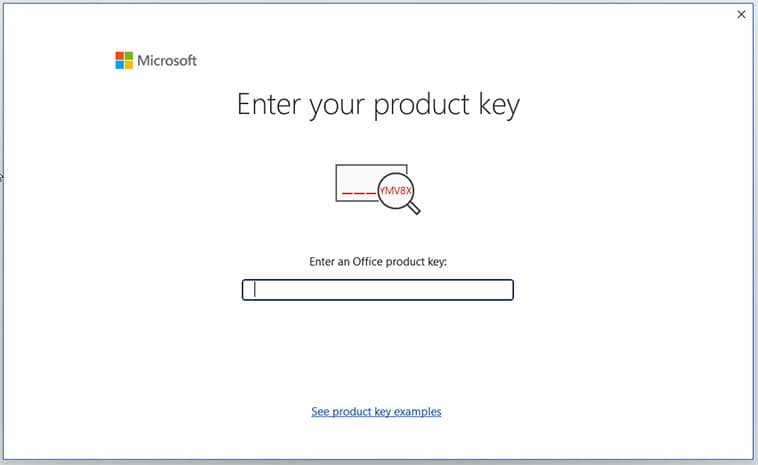
Type in the activation key that was sent to you by email. Microsoft Office 2024 is now activated on your computer.
Attivare Office per telefono
Alcuni tipi di licenza di Office si attivano per telefono anziché online. È un metodo Microsoft ufficiale e standard, ed è più veloce di quanto sembri:
Apri un'app di Office e avvia l'attivazione, quindi scegli l'attivazione telefonica quando richiesto.
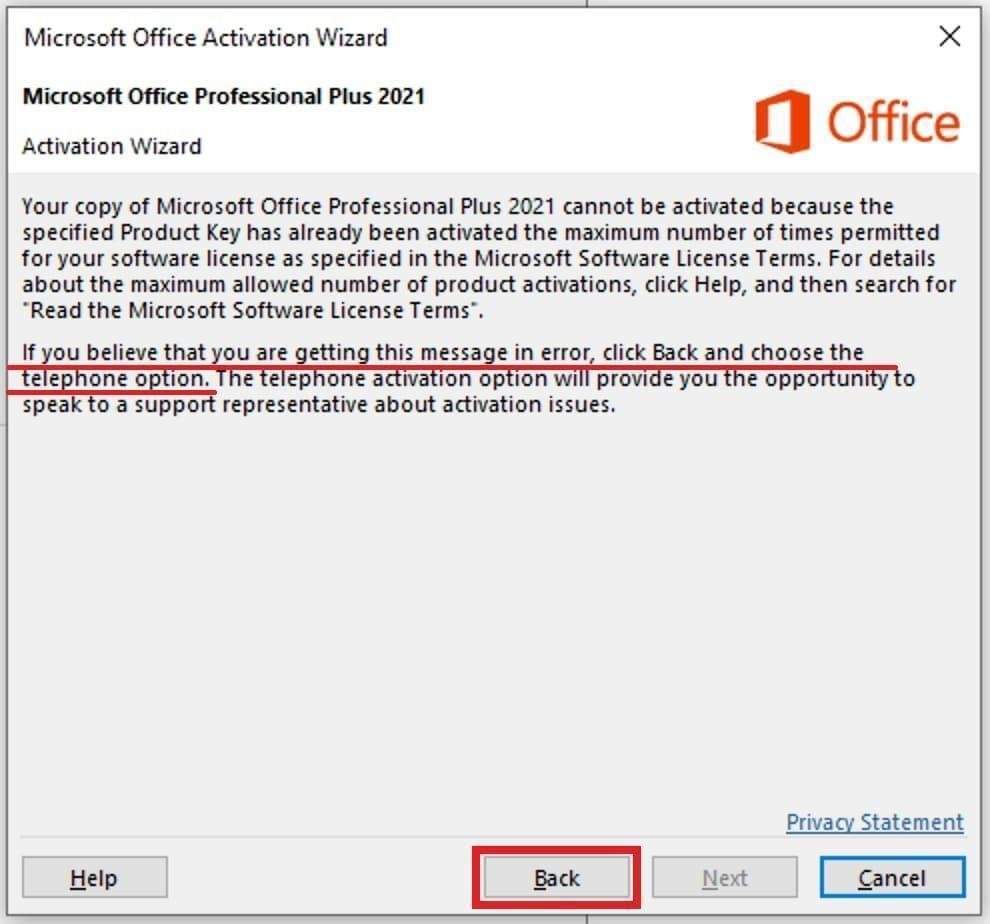
Office mostra sullo schermo un lungo ID di installazione.
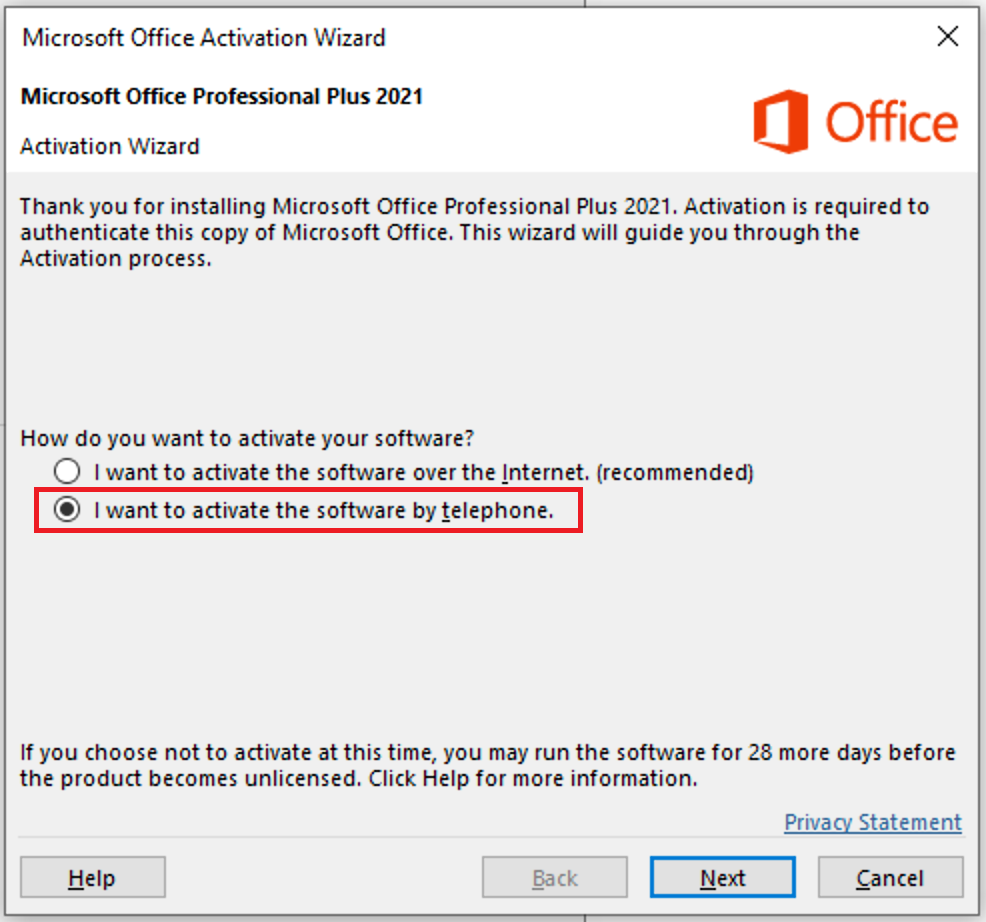
Inserisci quell'ID di installazione nel nostro strumento gratuito ID di conferma Microsoft (CID) per ottenere subito il tuo ID di conferma.
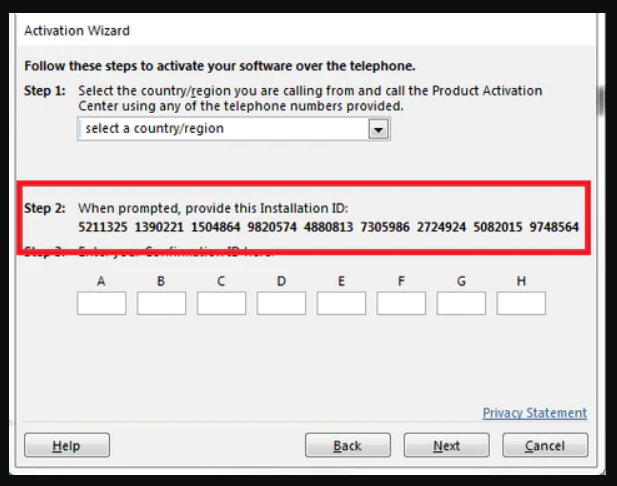
Digita di nuovo l'ID di conferma nella finestra di attivazione e fai clic su Avanti.
Scegli la tua lingua
I supporti di installazione sono disponibili in 22 lingue. Ognuno è il supporto originale — solo la lingua dell'interfaccia è preimpostata.
| Lingua | 64-bit | 32-bit |
|---|---|---|
 ItalianoLa tua lingua | Scarica | Scarica |
 Deutsch | Herunterladen | Herunterladen |
 English | Download | Download |
 Français | Télécharger | Télécharger |
 Español | Descargar | Descargar |
 Nederlands | Downloaden | Downloaden |
 Português | Transferir | Transferir |
 Suomi | Lataa | Lataa |
 Norsk | Last ned | Last ned |
 Svenska | Ladda ner | Ladda ner |
 Dansk | Hent | Hent |
 Ελληνικά | Λήψη | Λήψη |
Domande frequenti
Devo disinstallare il vecchio Office prima di installare quello nuovo?
+
Sì — disinstalla sempre qualsiasi versione precedente di Microsoft Office e riavvia il computer prima di installare. Se salti questo passaggio, il tuo Office acquistato diventerà una versione di prova di 30 giorni.
La mia licenza Office scadrà?
+
No. È una licenza perpetua — non scade. Possiedi questa versione per sempre. Tuttavia, devi attivare entro 30 giorni dall'installazione, altrimenti passerà alla modalità di prova.
Posso installare Office Pro Plus su un Mac?
+
No. Office Pro Plus e Standard sono solo per Windows. Per macOS, guarda le edizioni dedicate "Office per Mac" nella categoria Microsoft Office.
Su quanti dispositivi posso attivare con una chiave?
+
Le licenze retail standard attivano un dispositivo alla volta. Per spostare la licenza, disattivala prima sulla vecchia macchina tramite il portale dell'account Microsoft, poi attiva sulla nuova.
Come inserisco la chiave di attivazione dopo l'installazione?
+
Apri qualsiasi app Office (Word, Excel, PowerPoint). Clicca su File → Account nell'angolo in basso a sinistra. Clicca su "Modifica chiave di prodotto" e inserisci la tua chiave di 25 caratteri.
Ti serve una mano?
Microsoft non offre più l'attivazione telefonica
Microsoft has been steadily ending support for certain older products, so activation by phone is no longer available. Should you run into problems or have questions while installing, please contact our support team.
If you need help quickly, you can also use the live chat on our website.
I file sono ospitati sul nostro CDN sicuro. Clicca su Scarica per iniziare.