Microsoft Office 2024 Professional Plus Guía de instalación
Esta guía gratuita paso a paso te muestra cómo descargar, instalar y activar Microsoft Office 2024 Professional Plus — con capturas de pantalla reales en cada paso, en 12 idiomas.
Obtener el instalador
Descargue la versión deseada con el siguiente enlace de descarga.
Disponible en 22 idiomas —
Lea esto muy atentamente
- Procesador de 1 gigahercio (GHz) o más rápido de 32 bits (x86) o 64 bits (x64)
- 1 gigabyte (GB) de RAM (32 bits) o 4 GB de RAM (64 bits)
- 4 GB de espacio disponible en el disco duro
- Dispositivo gráfico DirectX 9 con controlador WDDM 1.0 o superior
Instalación paso a paso
When the download has finished, go through the steps below or follow along with our video tutorial:
We suggest finishing the installation and activation of the product first, and only then signing in with your Microsoft account.
Locate the installer you downloaded (normally in your Downloads folder). Right-click it and pick “Run as administrator”. When Windows asks whether the app may make changes to your device, choose “Yes”. Note: stay connected to the Internet, because the installer fetches the required files straight from Microsoft.
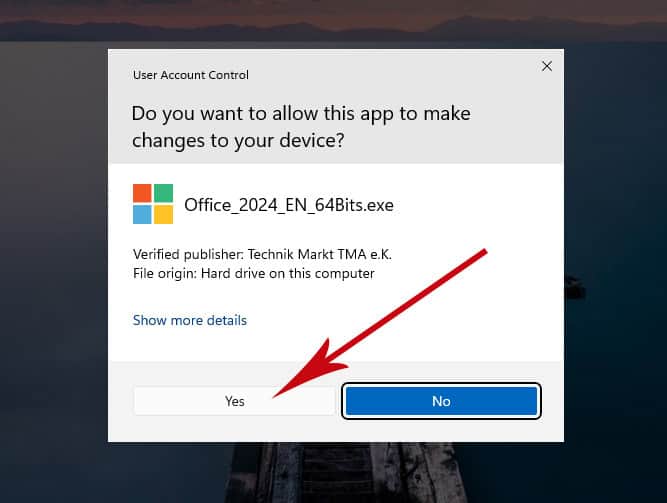
Once you have allowed the changes, the installation of your product begins.
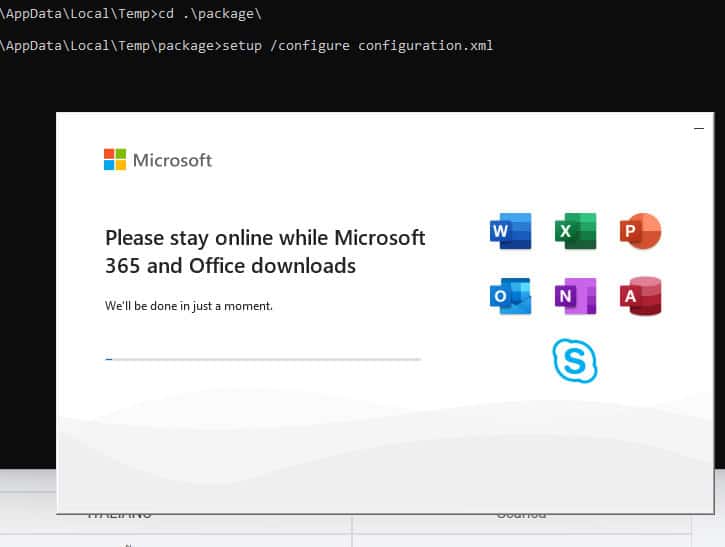
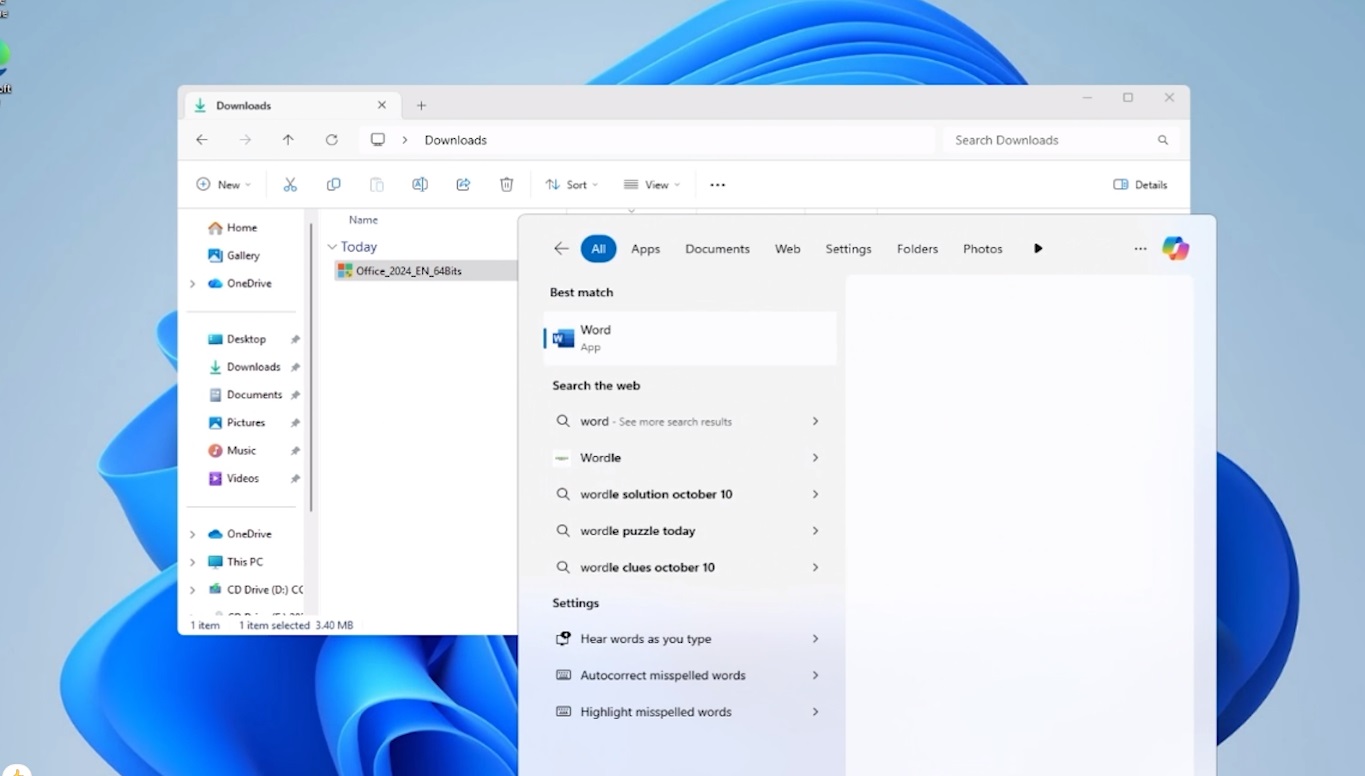
When setup has finished, launch any of the installed Office apps: Press the Start button (the Windows logo at the bottom left). Choose “All apps” to see everything installed on your PC. Scroll to the Microsoft Office folder or to the app you want (for example Word 2024, Excel 2024, PowerPoint 2024). Typing the app name into the Windows search bar is a quicker alternative. (Optional) For quicker access later, right-click the app and select “Pin to Start” or “Pin to taskbar”.
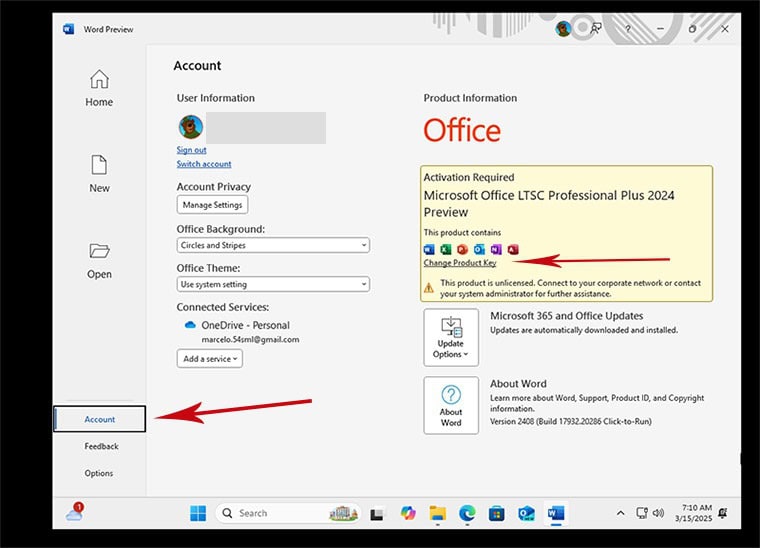
With the Office app open, select Account at the bottom left. On the right, beneath the Office icons, choose Change Product Key.
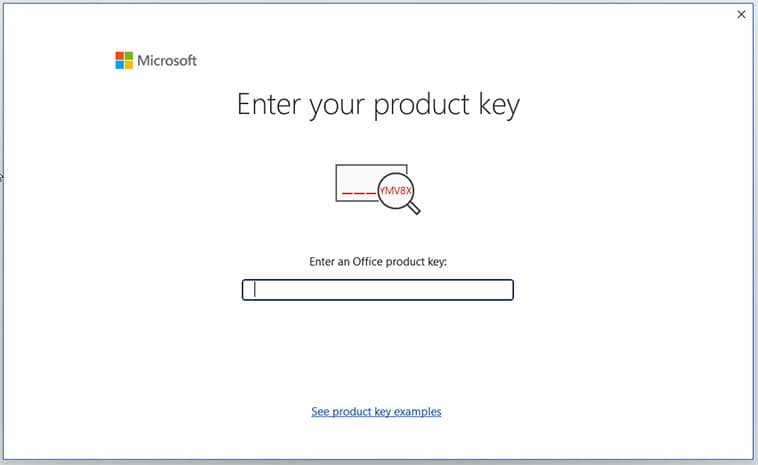
Type in the activation key that was sent to you by email. Microsoft Office 2024 is now activated on your computer.
Activar Office por teléfono
Algunos tipos de licencia de Office se activan por teléfono en lugar de en línea. Es un método oficial y estándar de Microsoft, y es más rápido de lo que parece:
Abra una aplicación de Office e inicie la activación; cuando se le pregunte, elija la activación por teléfono.
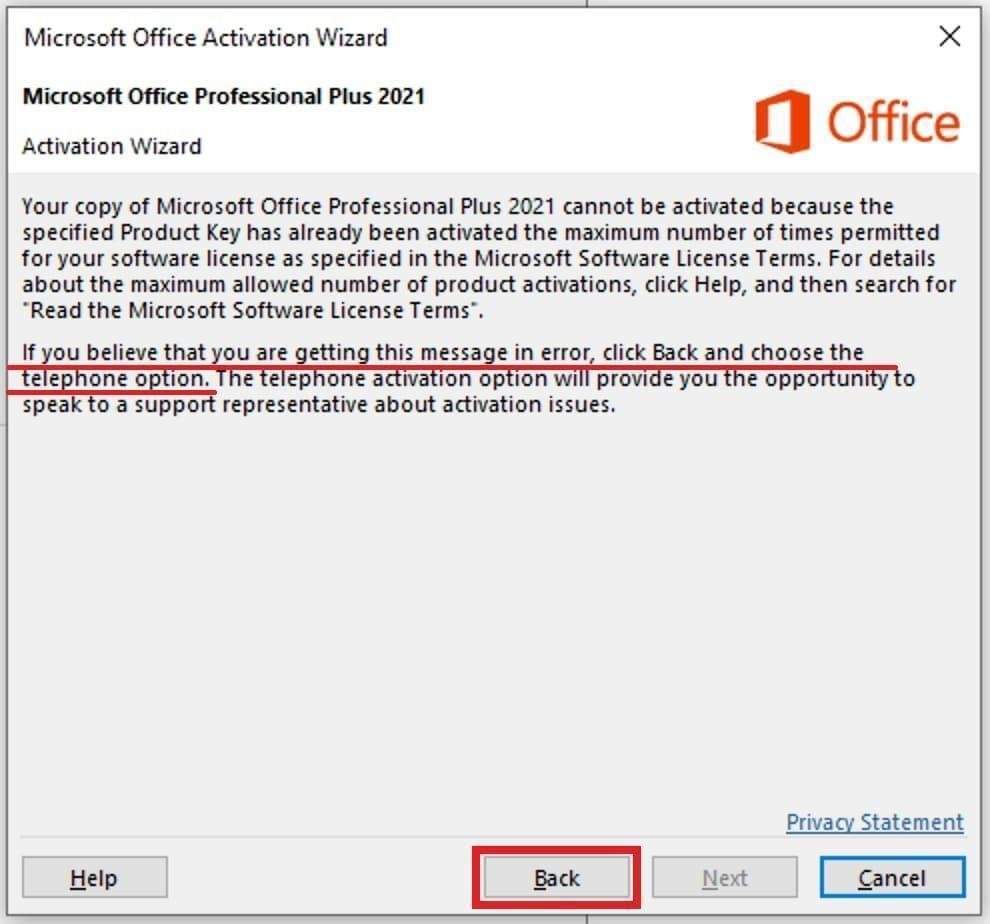
Office le muestra un ID de instalación largo en la pantalla.
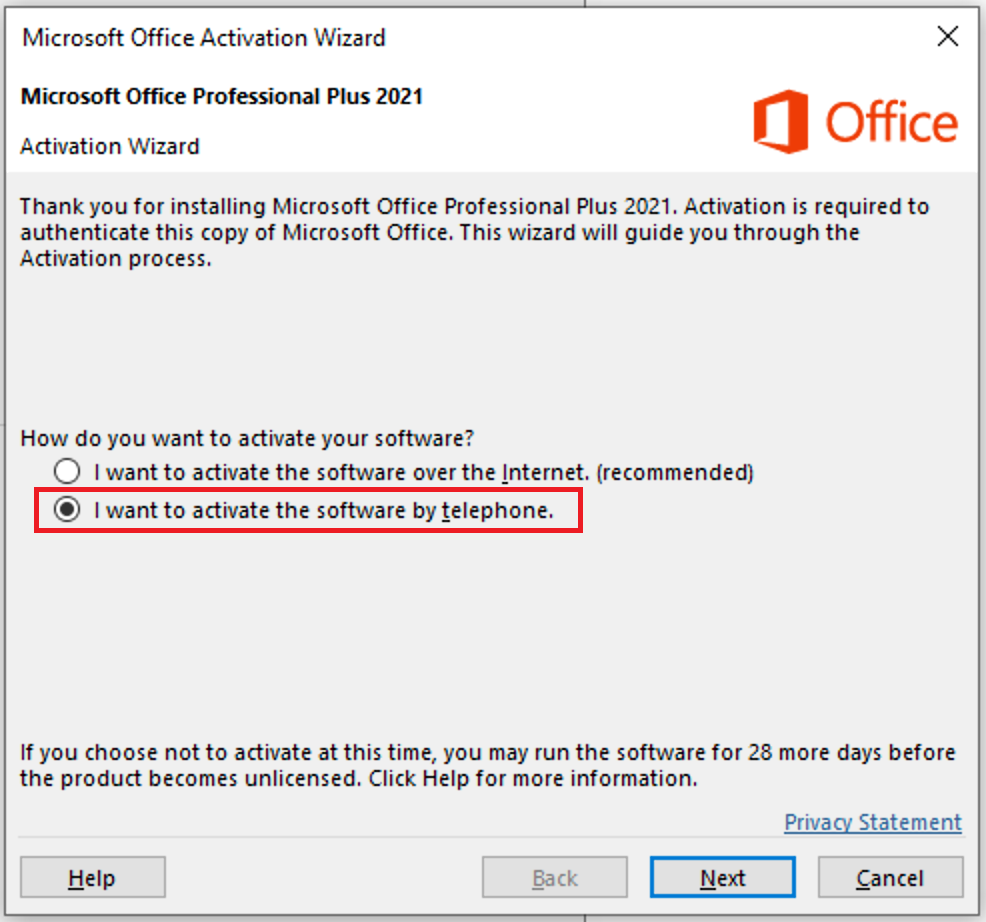
Introduzca ese ID de instalación en nuestra herramienta gratuita de ID de confirmación de Microsoft (CID) para obtener su ID de confirmación al instante.
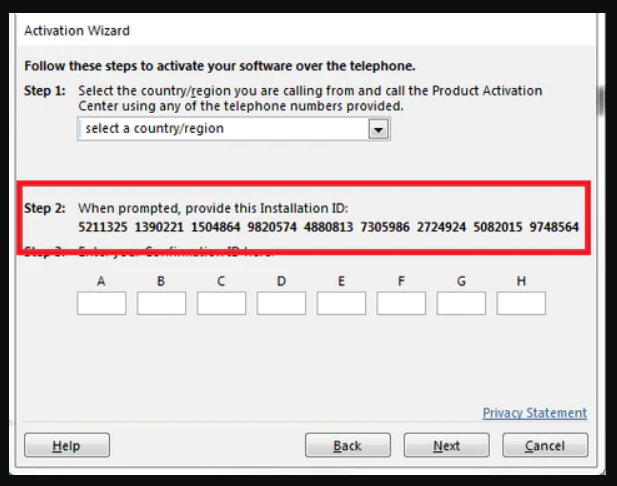
Escriba de nuevo el ID de confirmación en la ventana de activación y haga clic en Siguiente.
Elige tu idioma
Los medios de instalación están disponibles en 22 idiomas. Cada uno es el medio original; solo el idioma de la interfaz está preestablecido.
| Idioma | 64-bit | 32-bit |
|---|---|---|
 EspañolTu idioma | Descargar | Descargar |
 Deutsch | Herunterladen | Herunterladen |
 English | Download | Download |
 Français | Télécharger | Télécharger |
 Italiano | Scarica | Scarica |
 Nederlands | Downloaden | Downloaden |
 Português | Transferir | Transferir |
 Suomi | Lataa | Lataa |
 Norsk | Last ned | Last ned |
 Svenska | Ladda ner | Ladda ner |
 Dansk | Hent | Hent |
 Ελληνικά | Λήψη | Λήψη |
Preguntas frecuentes
¿Necesito desinstalar mi antiguo Office antes de instalar el nuevo?
+
Sí — desinstala siempre cualquier versión anterior de Microsoft Office y reinicia el ordenador antes de instalar. Si saltas este paso, tu Office comprado se convertirá en una versión de prueba de 30 días.
¿Caducará mi licencia de Office?
+
No. Es una licencia perpetua — no caduca. Posees esta versión para siempre. No obstante, debes activarla dentro de los 30 días tras la instalación o pasará a modo de prueba.
¿Puedo instalar Office Pro Plus en un Mac?
+
No. Office Pro Plus y Standard son solo para Windows. Para macOS, revisa las ediciones específicas "Office para Mac" en la categoría de Microsoft Office.
¿En cuántos dispositivos puedo activar con una clave?
+
Las licencias retail estándar activan un dispositivo a la vez. Para mover la licencia, desactívala primero en el equipo antiguo mediante el portal de cuenta de Microsoft y luego actívala en el nuevo.
¿Cómo introduzco la clave de activación tras la instalación?
+
Abre cualquier aplicación de Office (Word, Excel, PowerPoint). Haz clic en Archivo → Cuenta en la esquina inferior izquierda. Haz clic en "Cambiar clave de producto" e introduce tu clave de 25 caracteres.
¿Necesitas ayuda?
Microsoft ya no ofrece activación por teléfono
Microsoft has been steadily ending support for certain older products, so activation by phone is no longer available. Should you run into problems or have questions while installing, please contact our support team.
If you need help quickly, you can also use the live chat on our website.
Los archivos están alojados en nuestro CDN seguro. Haz clic en Descargar para comenzar.