Microsoft Office 2016 for Mac Installationsvejledning
Denne gratis trin-for-trin-guide hjælper dig med at downloade, installere og aktivere Microsoft Office 2016 for Mac — med rigtige skærmbilleder ved hvert trin, på 12 sprog.
Hent installationsprogrammet
Download den ønskede version med følgende downloadlink.
Tilgængelig på 0 sprog —
Læs dette meget omhyggeligt
- MacOS 10.12: Sierra (Fuji), macOS 10.13: High Sierra (Lobo), macOS 10.14: Mojave (Liberty)
- Microsoft Windows 7 (SP1) 8, 10, Microsoft Windows Server 2008, 2012 R2. .NET Framework 3.5
- 1 gigahertz (GHz) eller hurtigere 32-bit (x86) eller 64-bit (x64) processor
- 1 gigabyte (GB) RAM (32 bit) eller 4 GB RAM (64 bit)
- 4 GB ledig plads på harddisken
- DirectX 9-grafikenhed med WDDM 1.0 eller højere driver
Trin-for-trin installation
Click the link, then sign in with the account details and password we emailed you.
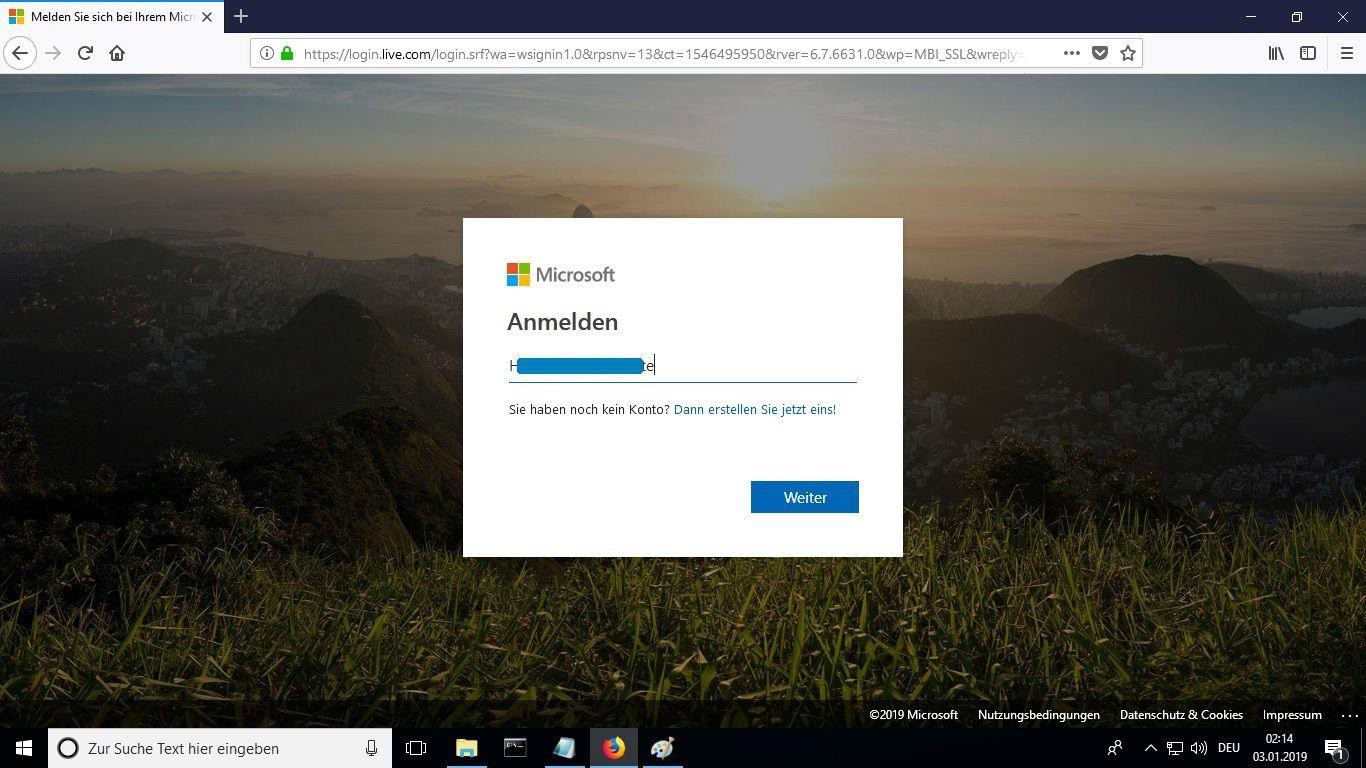
Set a new password so the product becomes yours. Type the password from your email in the first field, then enter your chosen new password in the other two. It needs at least 8 characters, including at least one uppercase letter.
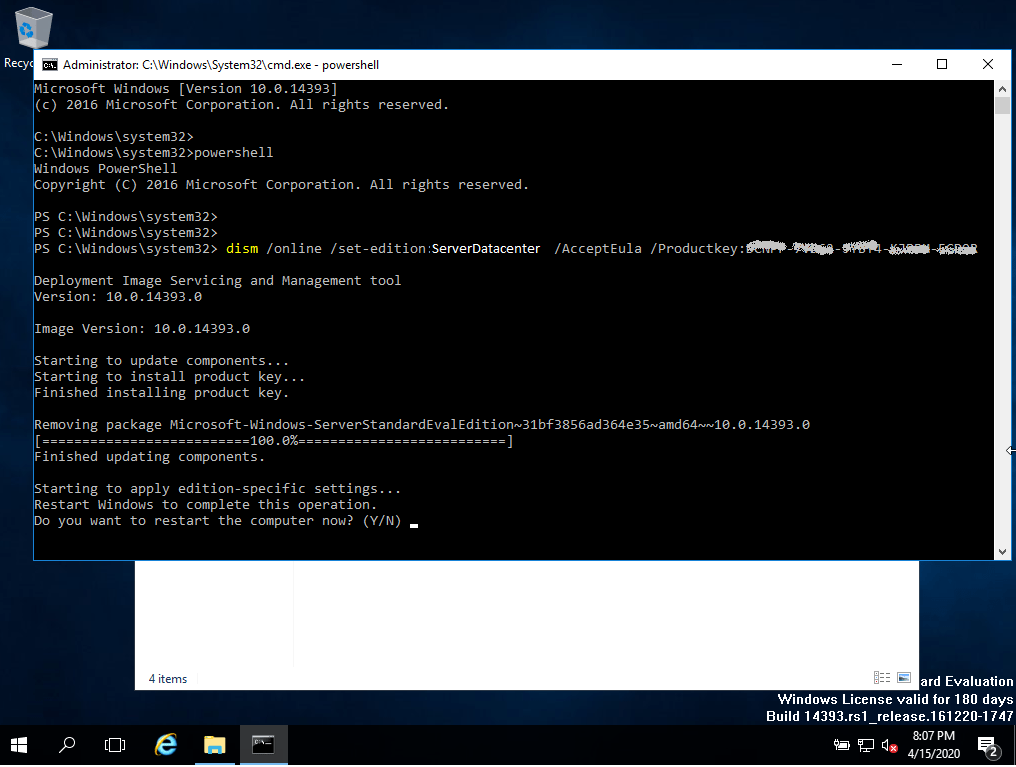
After signing in, go to the “My Account” section and select “Manage Installations” to start installing.
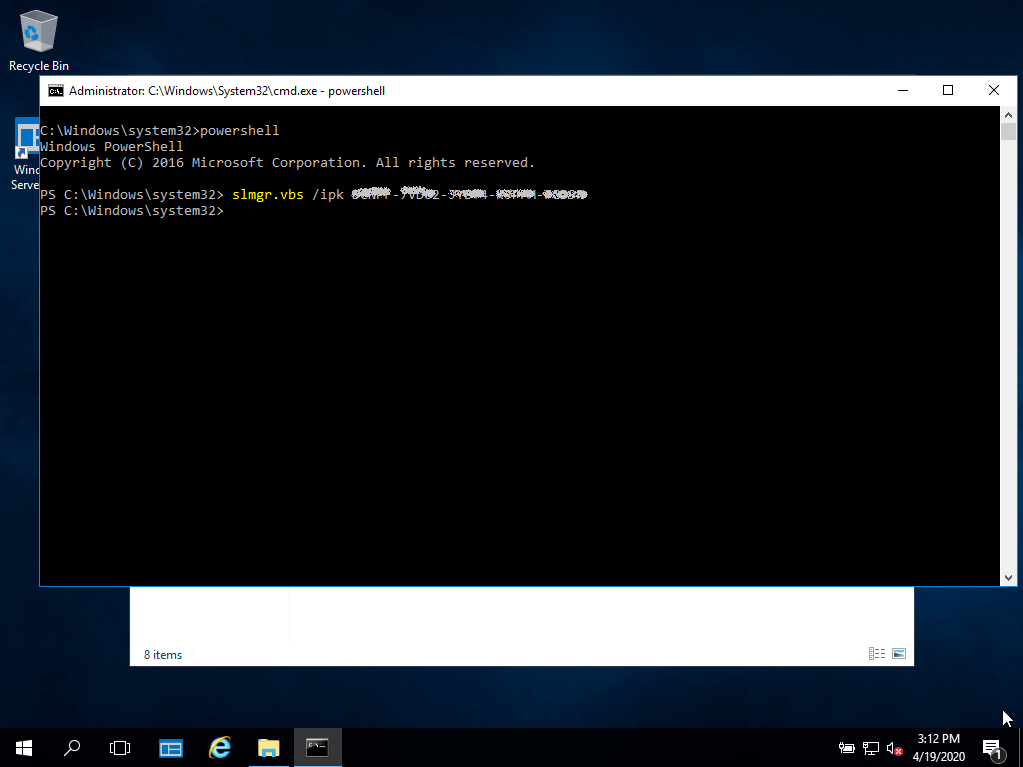
Locate the installer you downloaded (normally in your Downloads folder). Right-click it and pick “Run as administrator”. When Windows asks whether the app may make changes to your device, choose “Yes”.
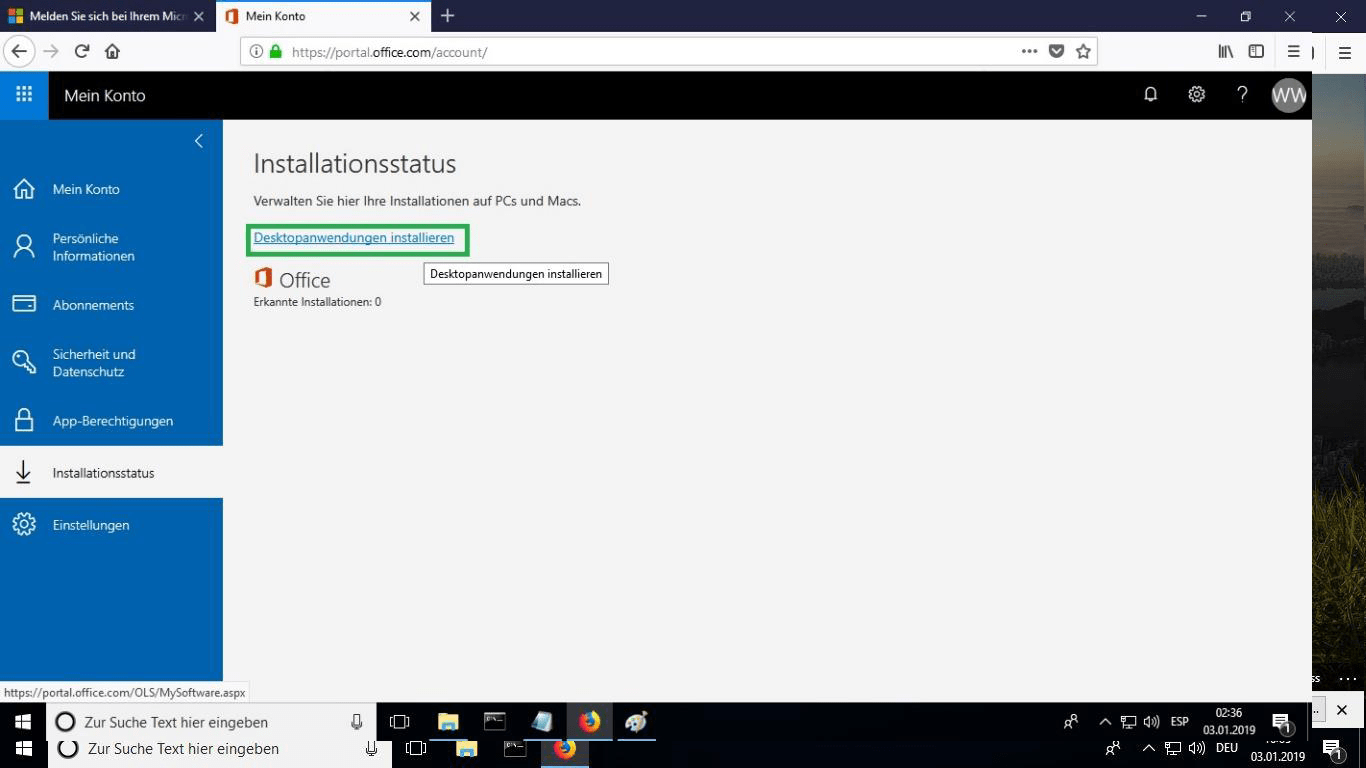
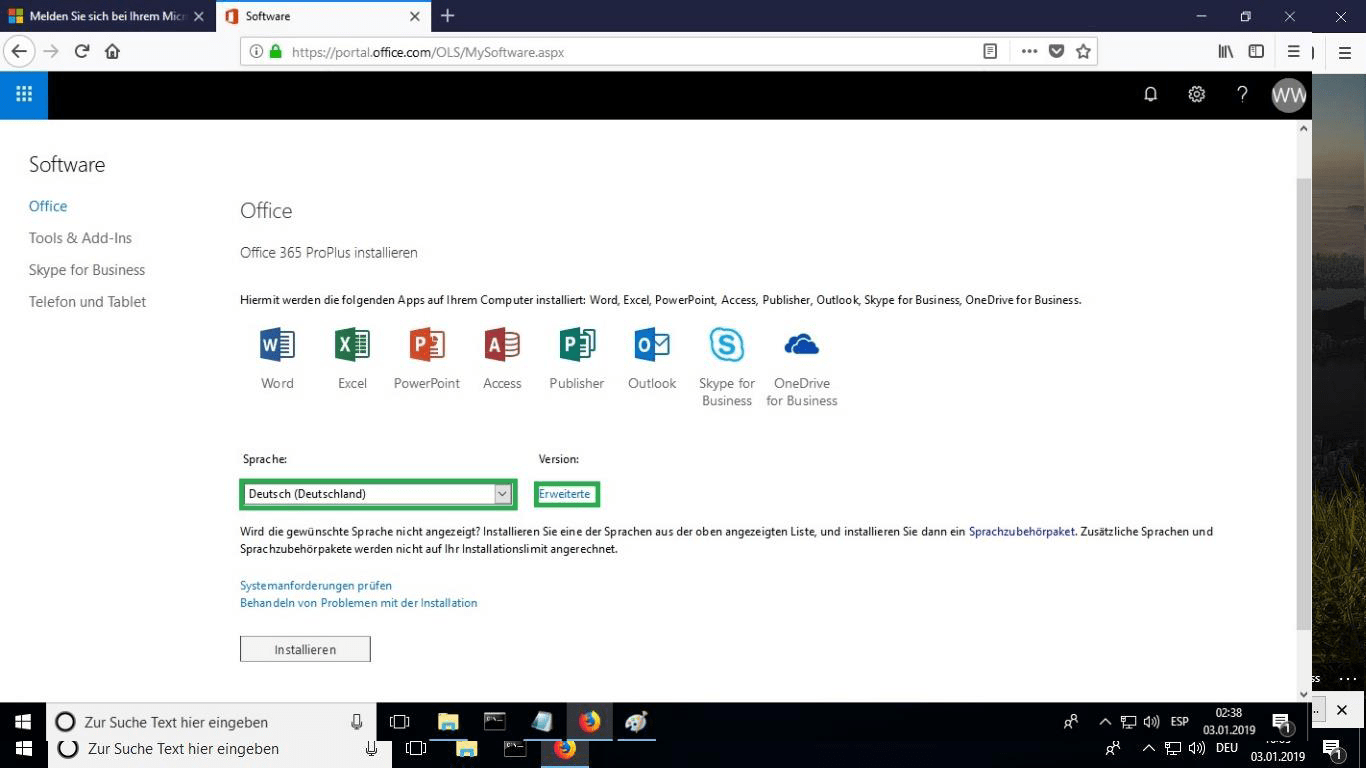
Pick your preferred language from the “language” drop-down list. By default, the 32-bit version is installed; to get the 64-bit version instead, select the “advanced” option.
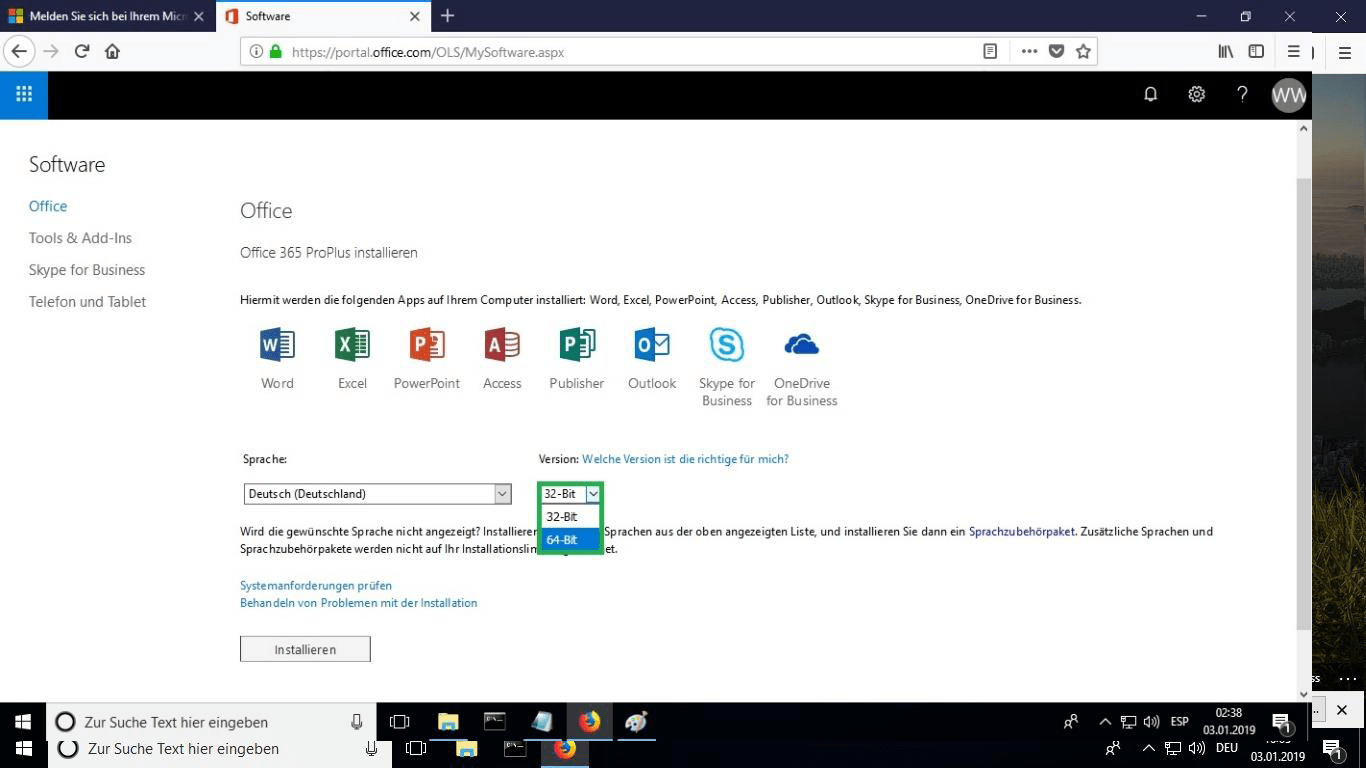
Choose whether you want the 32 or 64 bits version.
We suggest finishing the installation and activation of the product first, and only then signing in with your Microsoft account.
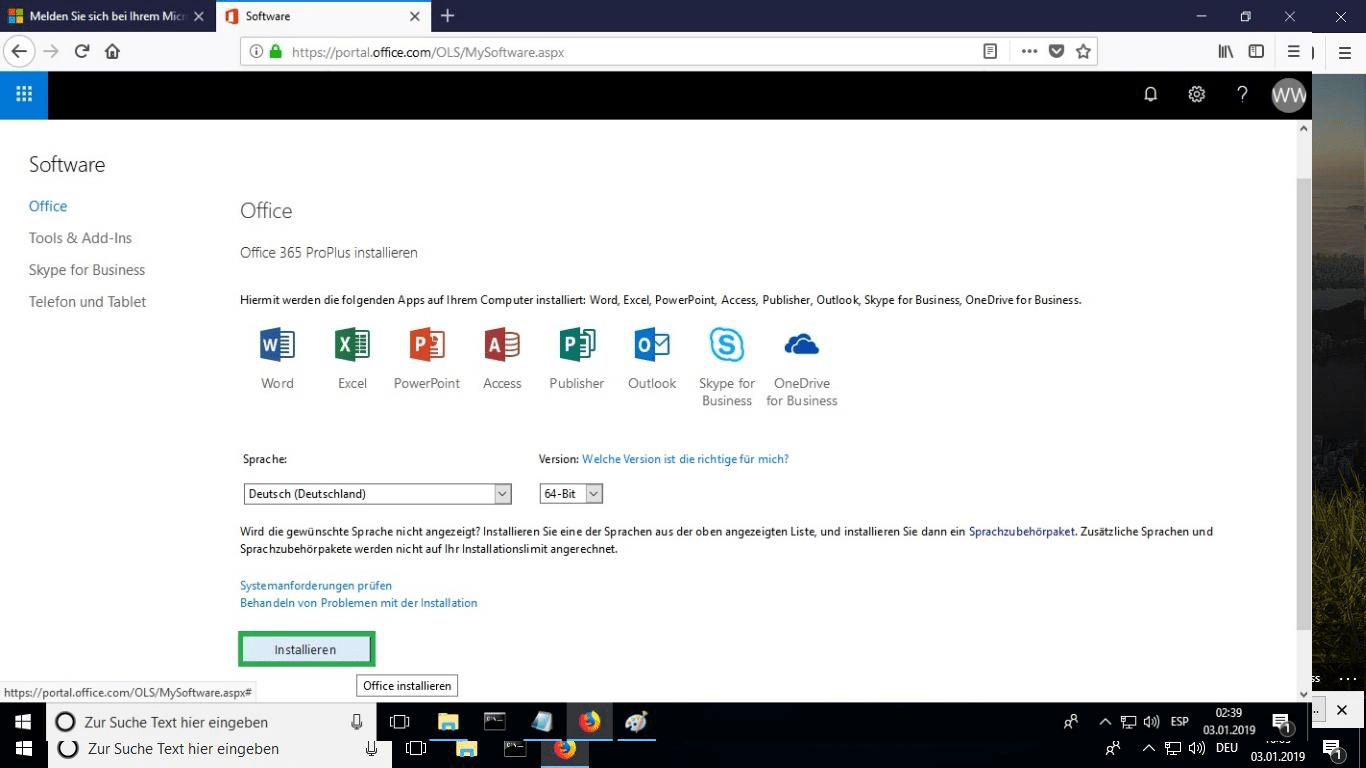
The setup file is downloaded; when prompted, select “burn file”.
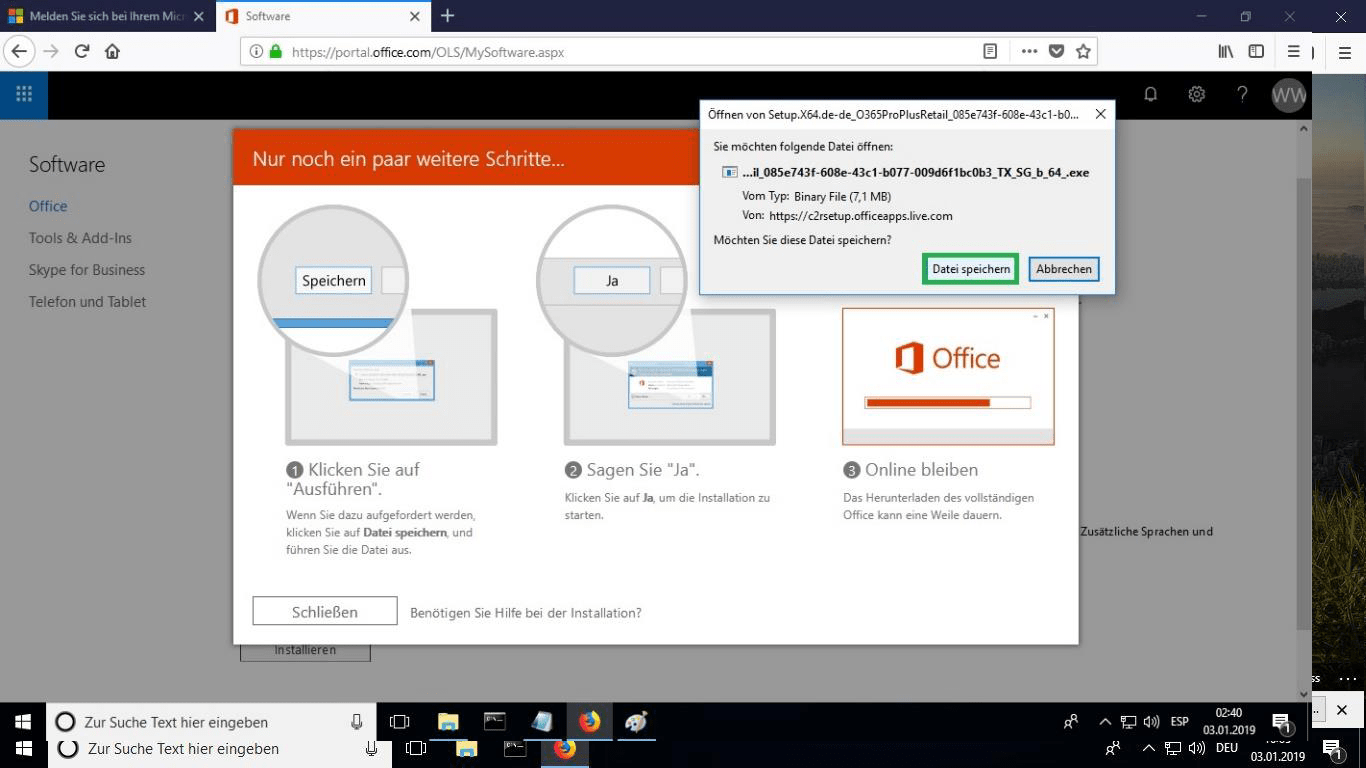
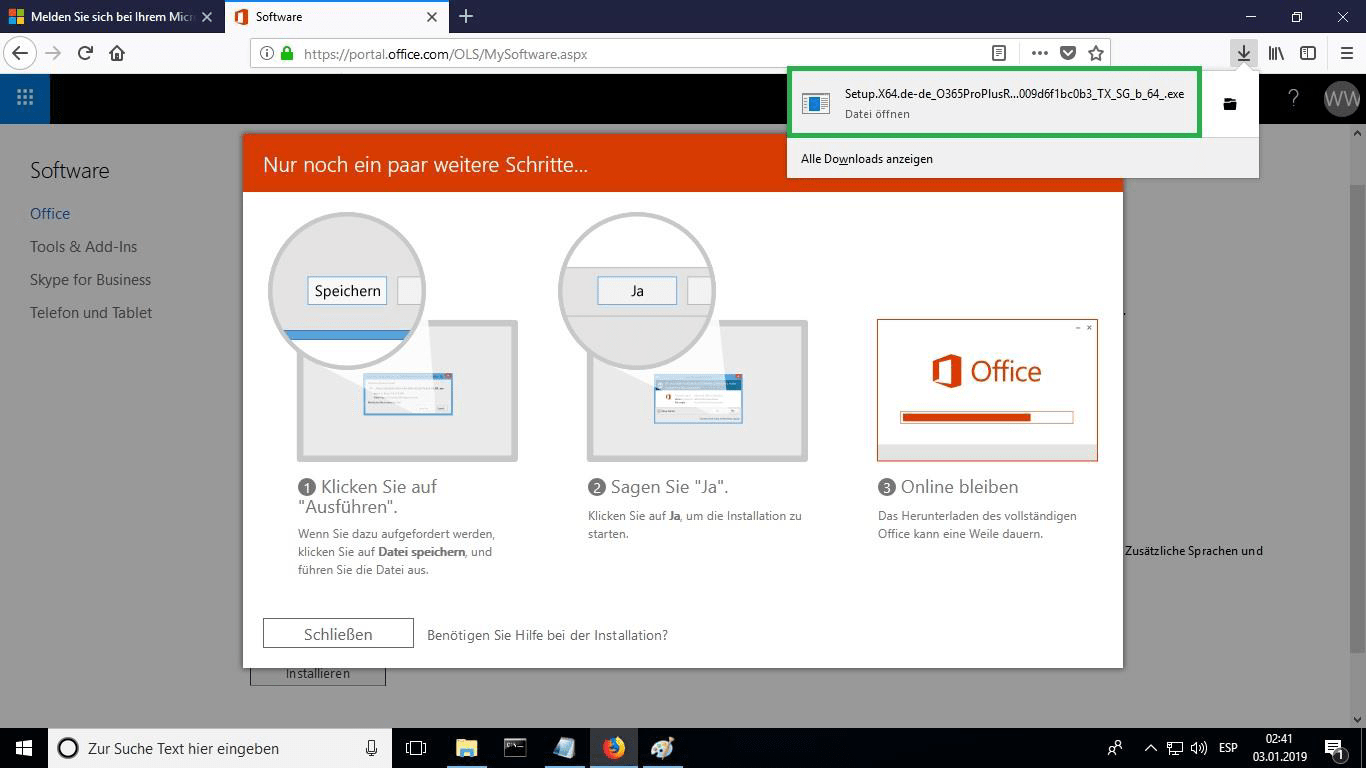
When the download is done, double-click the file to launch it. Where it is saved depends on the browser you use.
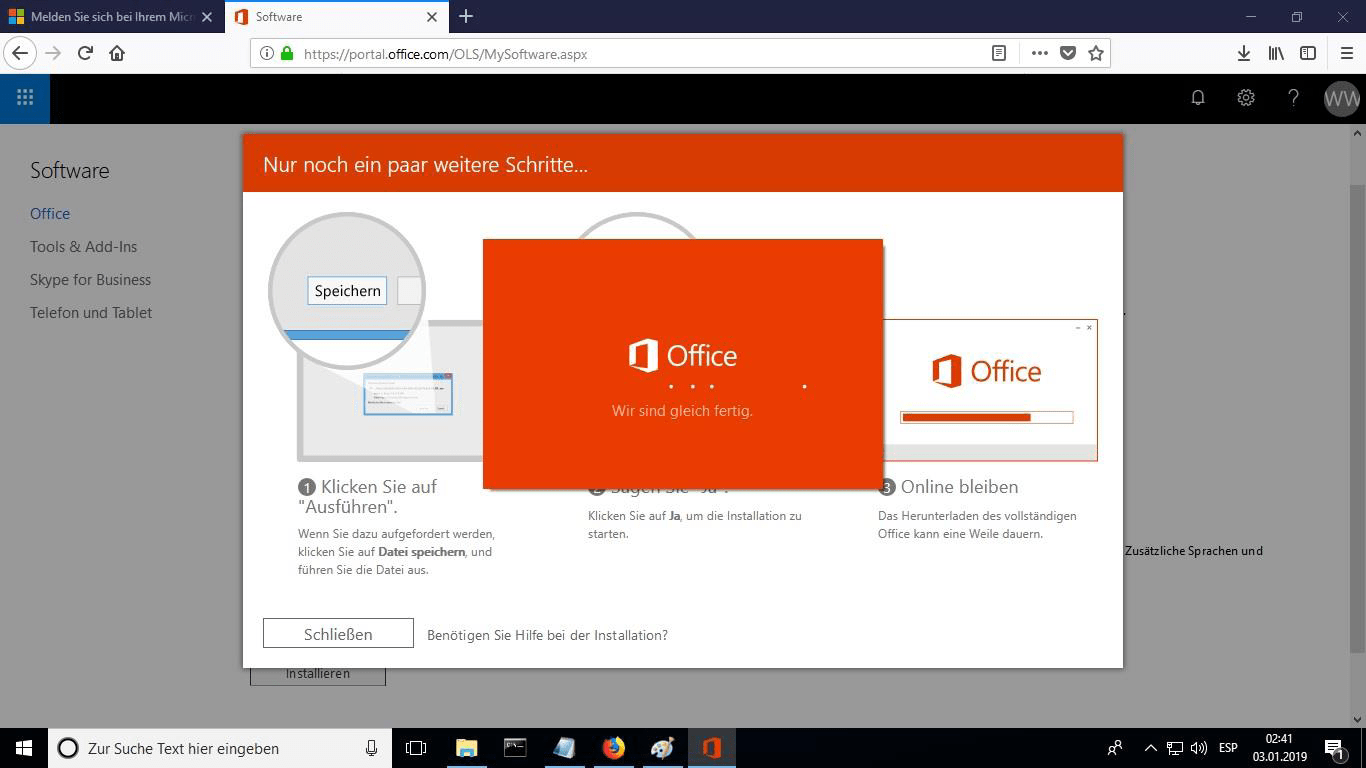
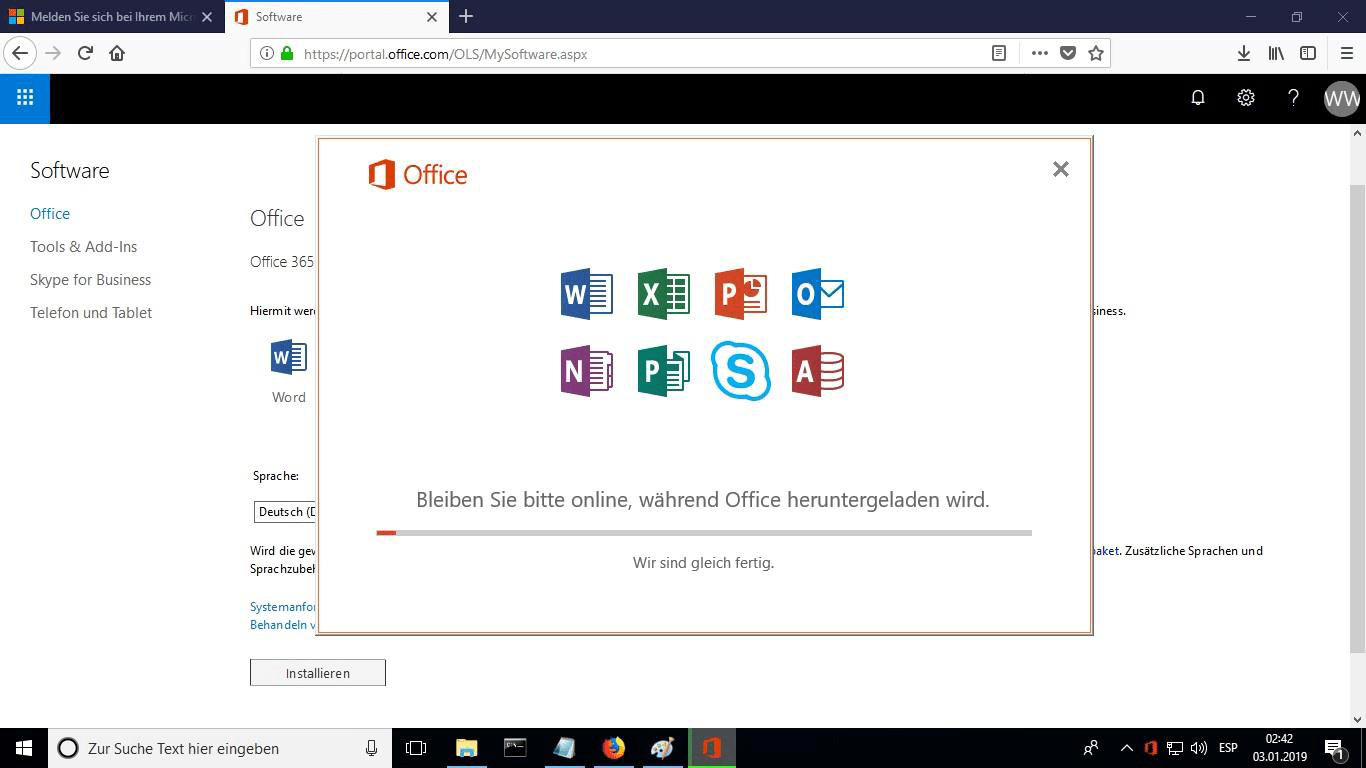
The online installation now begins. It can take 30 minutes or longer, depending on how fast your Internet connection is.
A progress bar shows how far the installation has come.
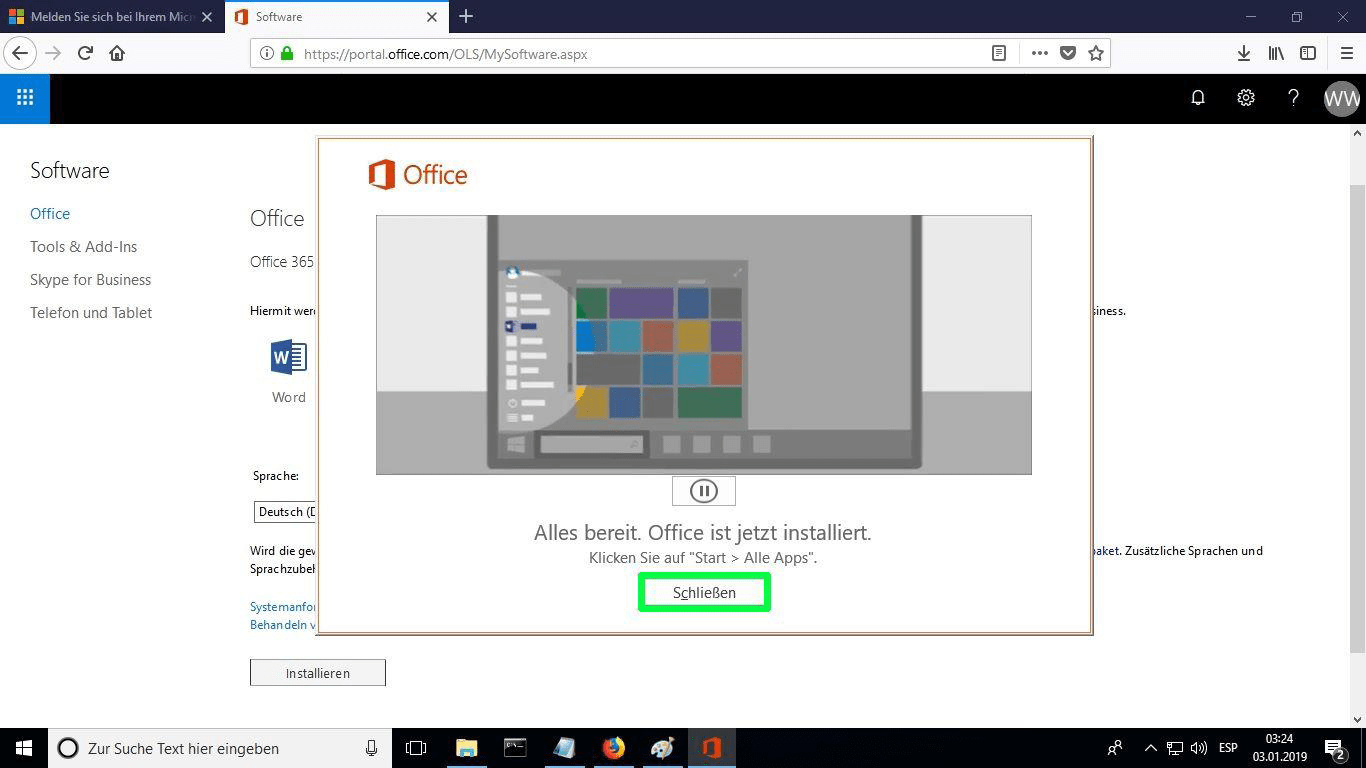
When installation finishes, select “Close”. The Microsoft Office apps are now available in your Start Menu or through Microsoft Windows search.
To confirm that activation worked, launch any Microsoft Office app, for example Excel, and open File-> Account ”. The Microsoft account linked to the product is displayed there.
Aktivér din licens
Vælg dit sprog
Installationsmediet er tilgængeligt på 0 sprog. Hvert er det originale medie — kun grænsefladsproget er forudindstillet.
Ofte stillede spørgsmål
Skal jeg afinstallere mit gamle Office før jeg installerer det nye?
+
Ja — afinstaller altid enhver tidligere version af Microsoft Office og genstart computeren før installation. Springer du dette trin over, bliver dit købte Office til en 30-dages prøveversion.
Udløber min Office-licens?
+
Nej. Det er en permanent licens — den udløber ikke. Du ejer denne version for altid. Du skal dog aktivere inden for 30 dage efter installation, ellers skifter den til prøvetilstand.
Kan jeg installere Office Pro Plus på en Mac?
+
Nej. Office Pro Plus og Standard er kun til Windows. Til macOS, kig på de dedikerede "Office til Mac"-udgaver i Microsoft Office-kategorien.
Hvor mange enheder kan jeg aktivere med én nøgle?
+
Standard retail-licenser aktiverer én enhed ad gangen. For at flytte licensen, deaktiver den først på den gamle maskine via Microsoft-kontoportalen, og aktiver derefter på den nye.
Hvordan indtaster jeg aktiveringsnøglen efter installation?
+
Åbn en hvilken som helst Office-app (Word, Excel, PowerPoint). Klik på Filer → Konto i nederste venstre hjørne. Klik på "Skift produktnøgle" og indtast din 25-tegns nøgle.
Brug for hjælp?
Microsoft tilbyder ikke længere telefonaktivering
Microsoft has been steadily ending support for certain older products, so activation by phone is no longer available. Should you run into problems or have questions while installing, please contact our support team.
Filer er hostet på vores sikre CDN. Klik på Download for at starte.