Microsoft Office 2016 for Mac Οδηγός εγκατάστασης
Αυτός ο δωρεάν οδηγός βήμα προς βήμα σας καθοδηγεί στη λήψη, εγκατάσταση και ενεργοποίηση του Microsoft Office 2016 for Mac — με πραγματικά στιγμιότυπα οθόνης σε κάθε βήμα, σε 12 γλώσσες.
Λήψη του προγράμματος εγκατάστασης
Κατεβάστε την επιθυμητή έκδοση με τον παρακάτω σύνδεσμο λήψης.
Διαθέσιμο σε 0 γλώσσες —
Διαβάστε αυτό πολύ προσεκτικά
- MacOS 10.12: Sierra (Fuji), macOS 10.13: High Sierra (Lobo), macOS 10.14: Mojave (Liberty)
- Microsoft Windows 7 (SP1) 8, 10, Microsoft Windows Server 2008, 2012 R2. Πλαίσιο .NET 3.5
- Επεξεργαστής 32-bit (x86) ή 64-bit (x64) 1 gigahertz (GHz) ή ταχύτερος
- 1 gigabyte (GB) RAM (32 bit) ή 4 GB RAM (64 bit)
- 4 GB διαθέσιμου χώρου στο σκληρό δίσκο
- Συσκευή γραφικών DirectX 9 με πρόγραμμα οδήγησης WDDM 1.0 ή ανώτερο
Εγκατάσταση βήμα προς βήμα
Click the link, then sign in with the account details and password we emailed you.
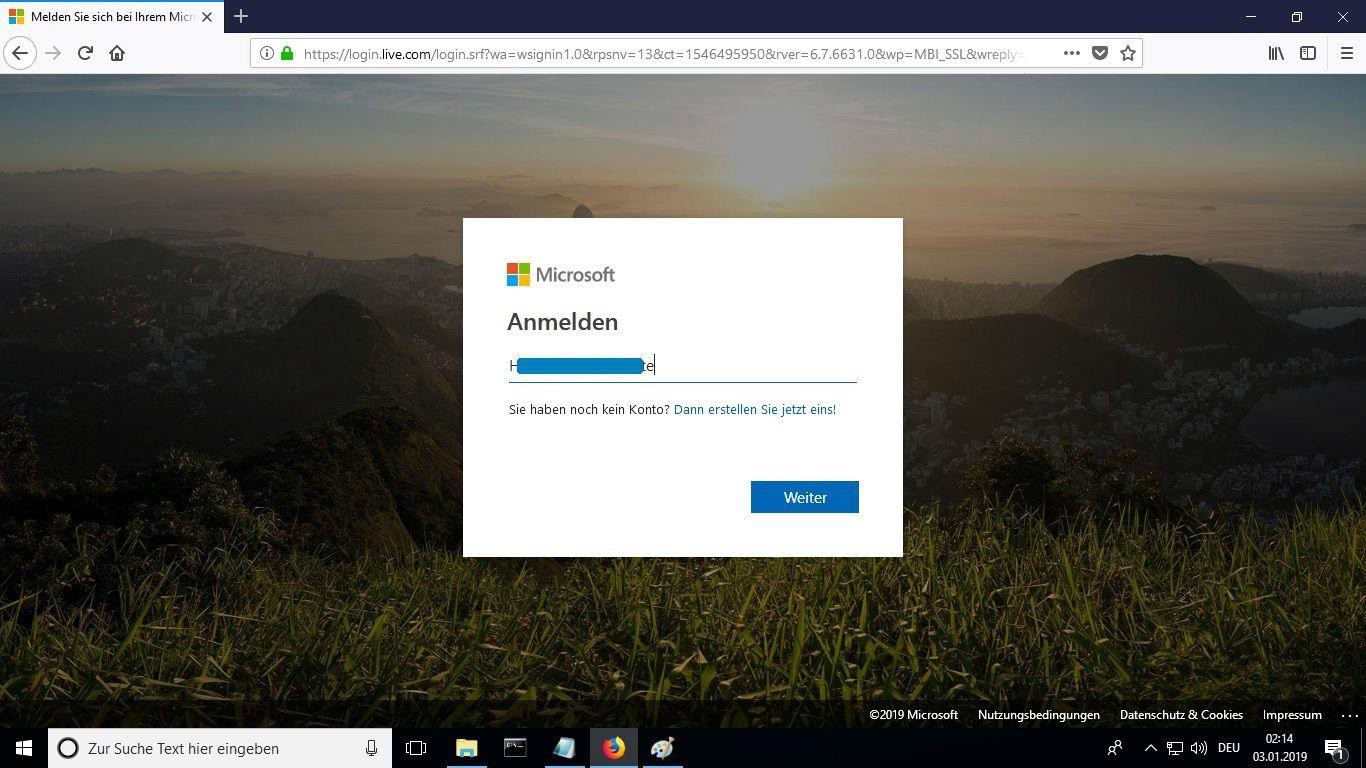
Set a new password so the product becomes yours. Type the password from your email in the first field, then enter your chosen new password in the other two. It needs at least 8 characters, including at least one uppercase letter.
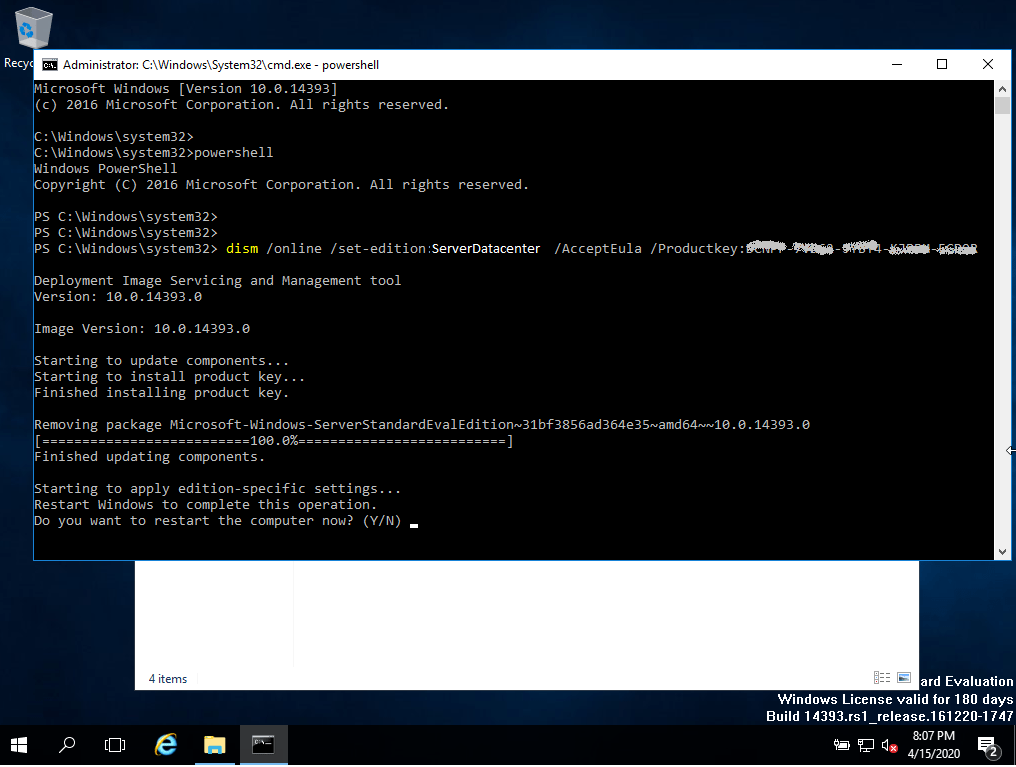
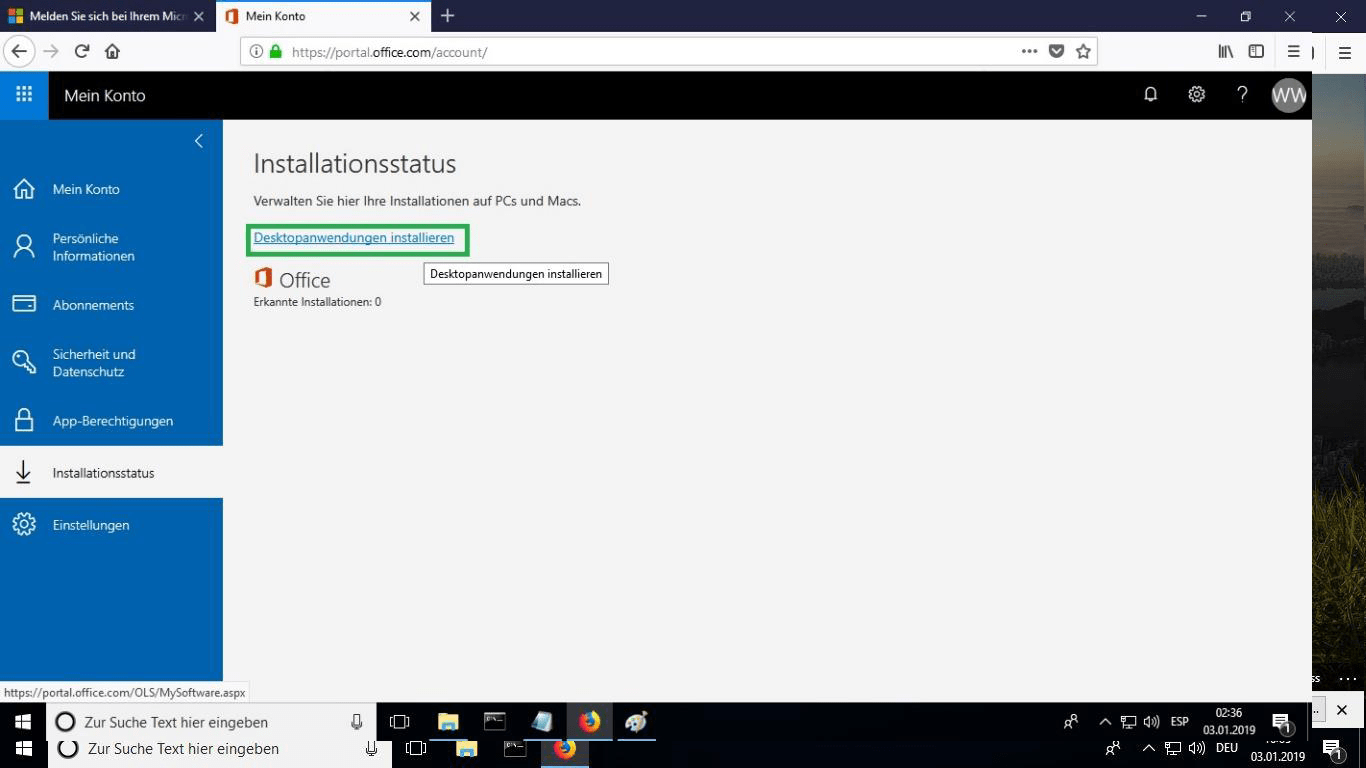
After signing in, go to the “My Account” section and select “Manage Installations” to start installing.
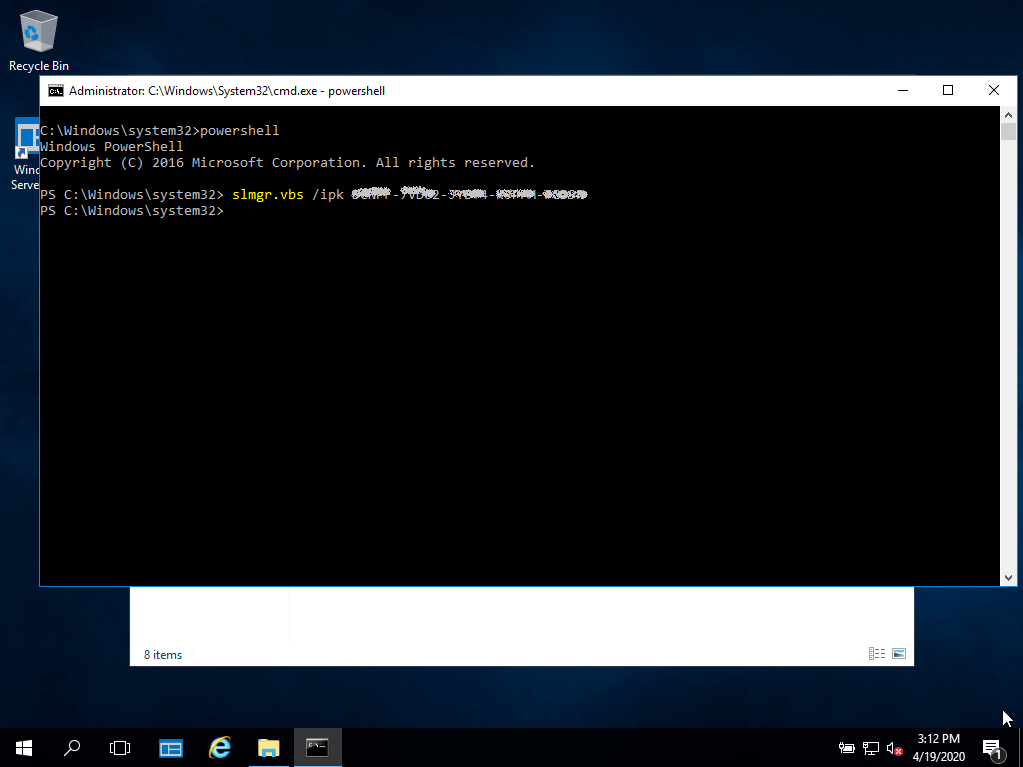
Locate the installer you downloaded (normally in your Downloads folder). Right-click it and pick “Run as administrator”. When Windows asks whether the app may make changes to your device, choose “Yes”.
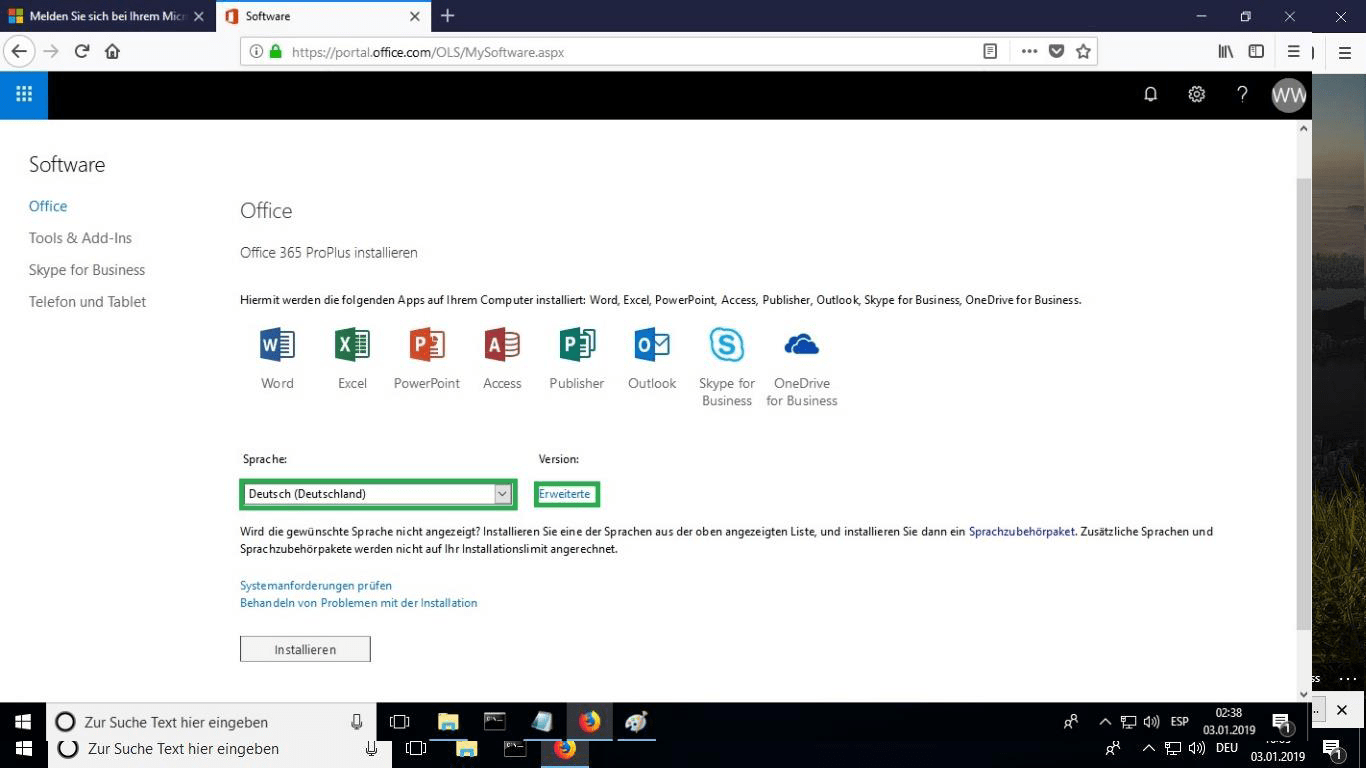
Pick your preferred language from the “language” drop-down list. By default, the 32-bit version is installed; to get the 64-bit version instead, select the “advanced” option.
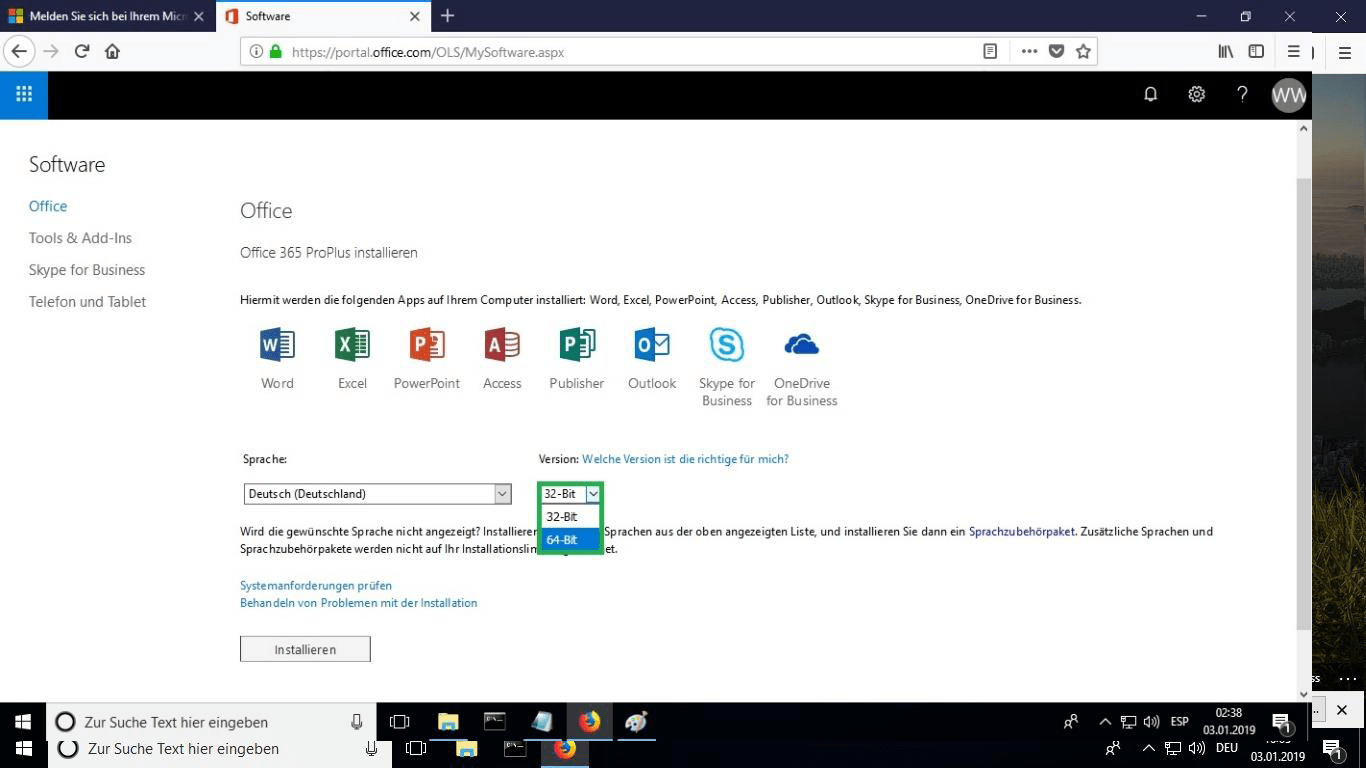
Choose whether you want the 32 or 64 bits version.
We suggest finishing the installation and activation of the product first, and only then signing in with your Microsoft account.
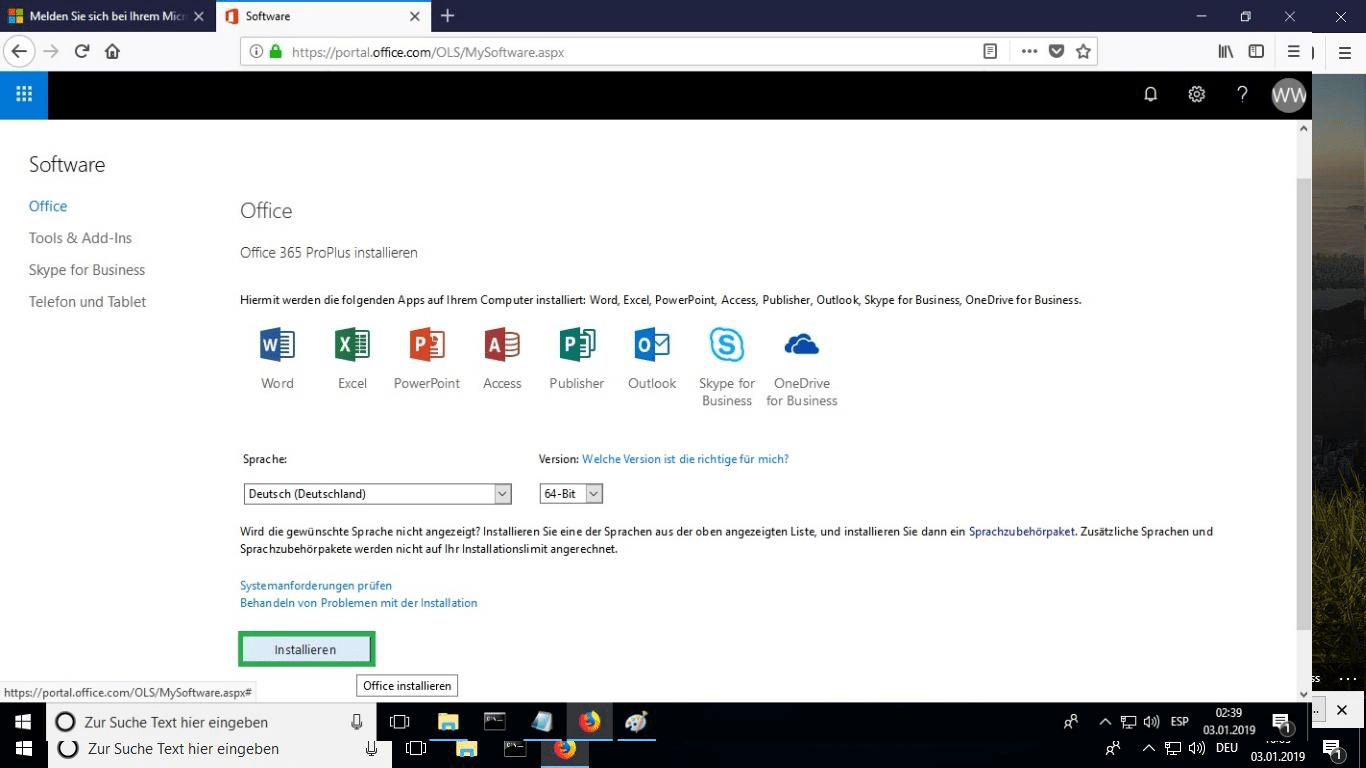
The setup file is downloaded; when prompted, select “burn file”.
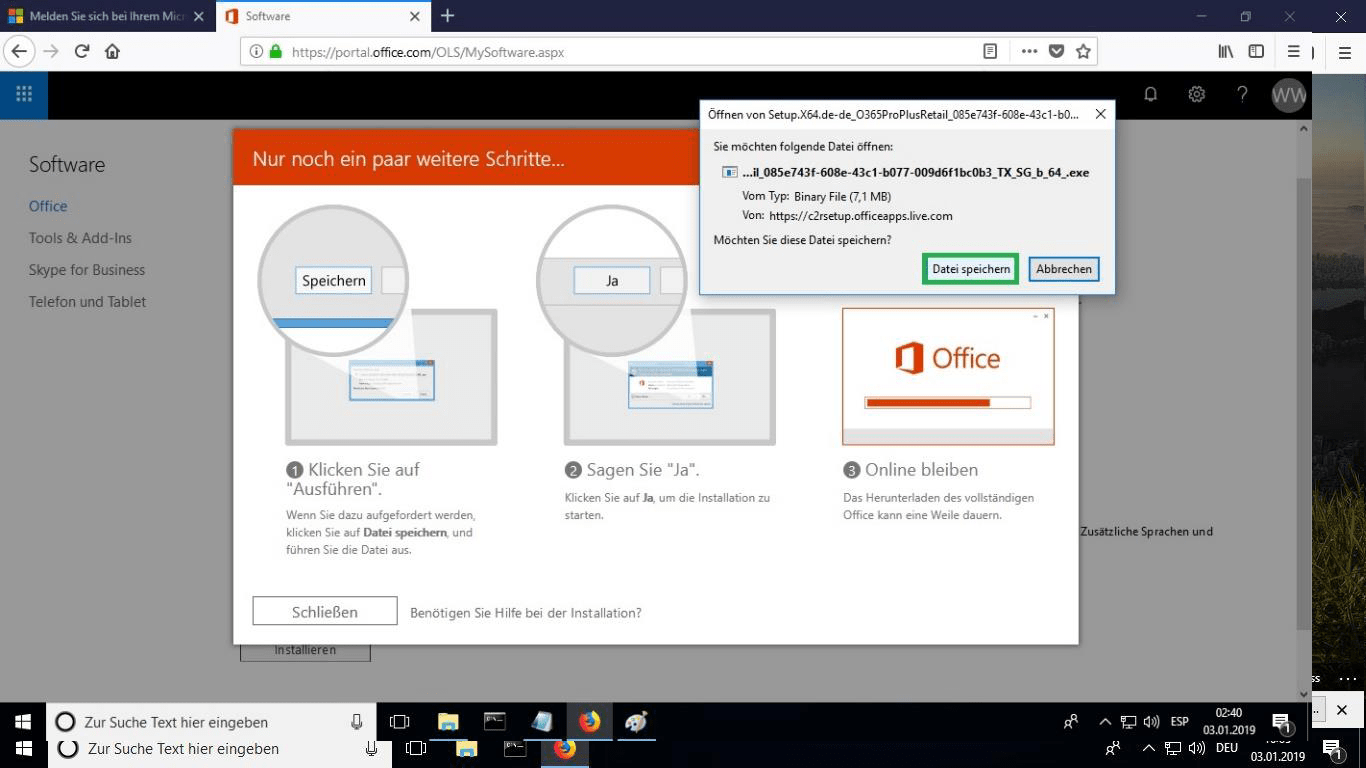
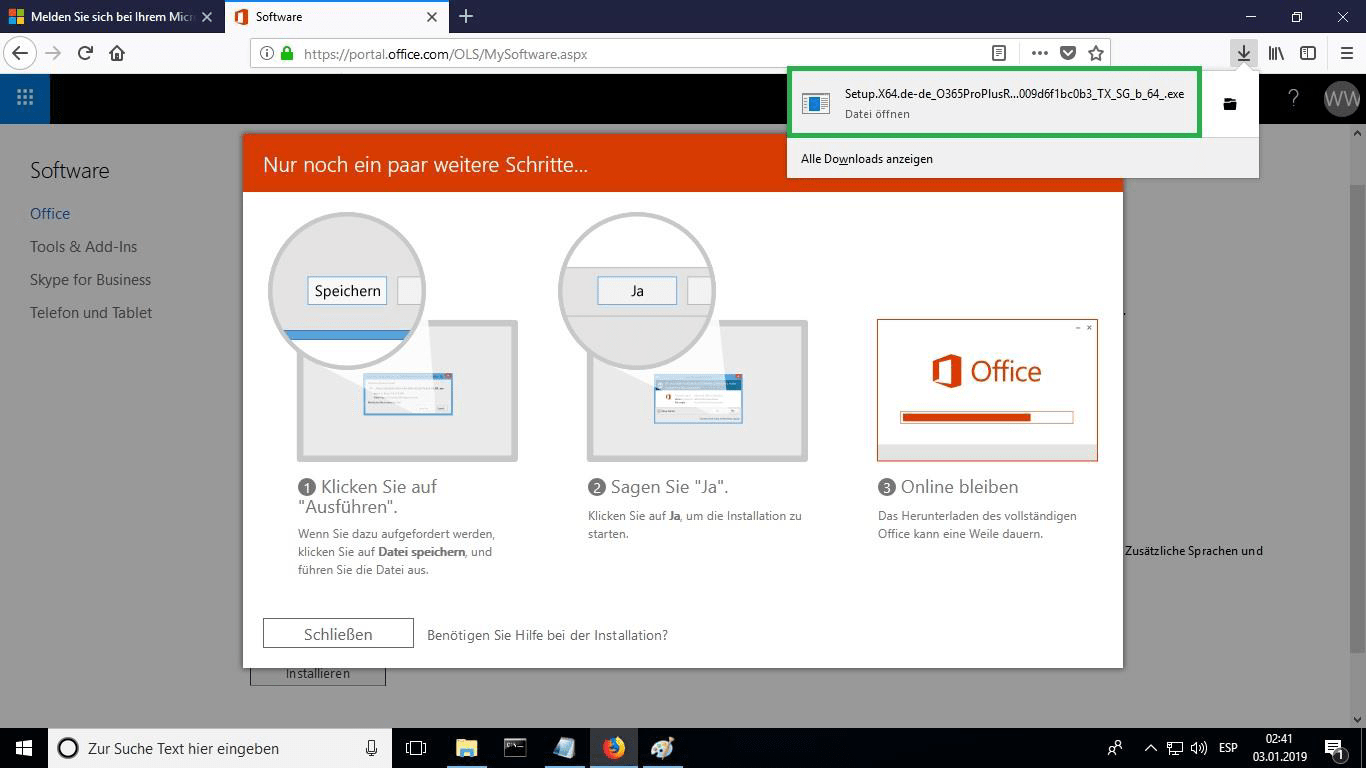
When the download is done, double-click the file to launch it. Where it is saved depends on the browser you use.
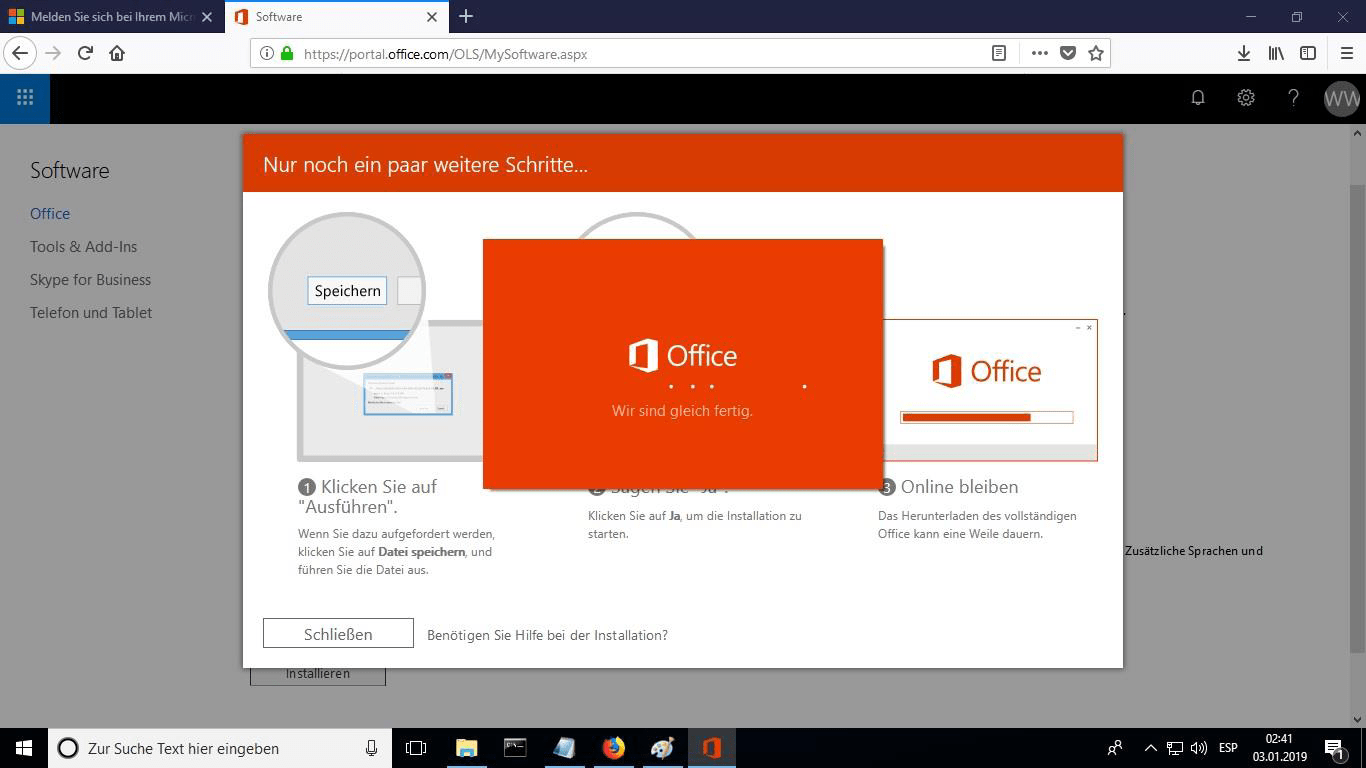
The online installation now begins. It can take 30 minutes or longer, depending on how fast your Internet connection is.
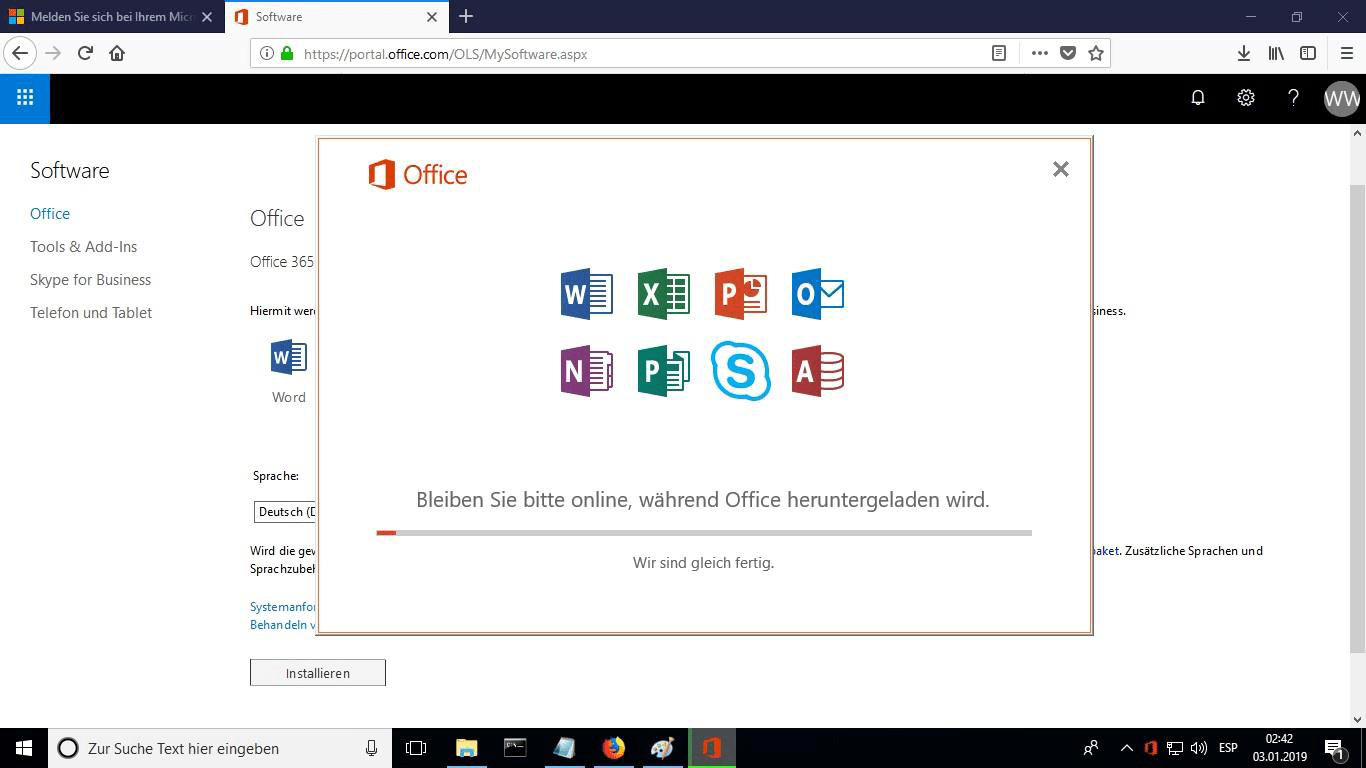
A progress bar shows how far the installation has come.
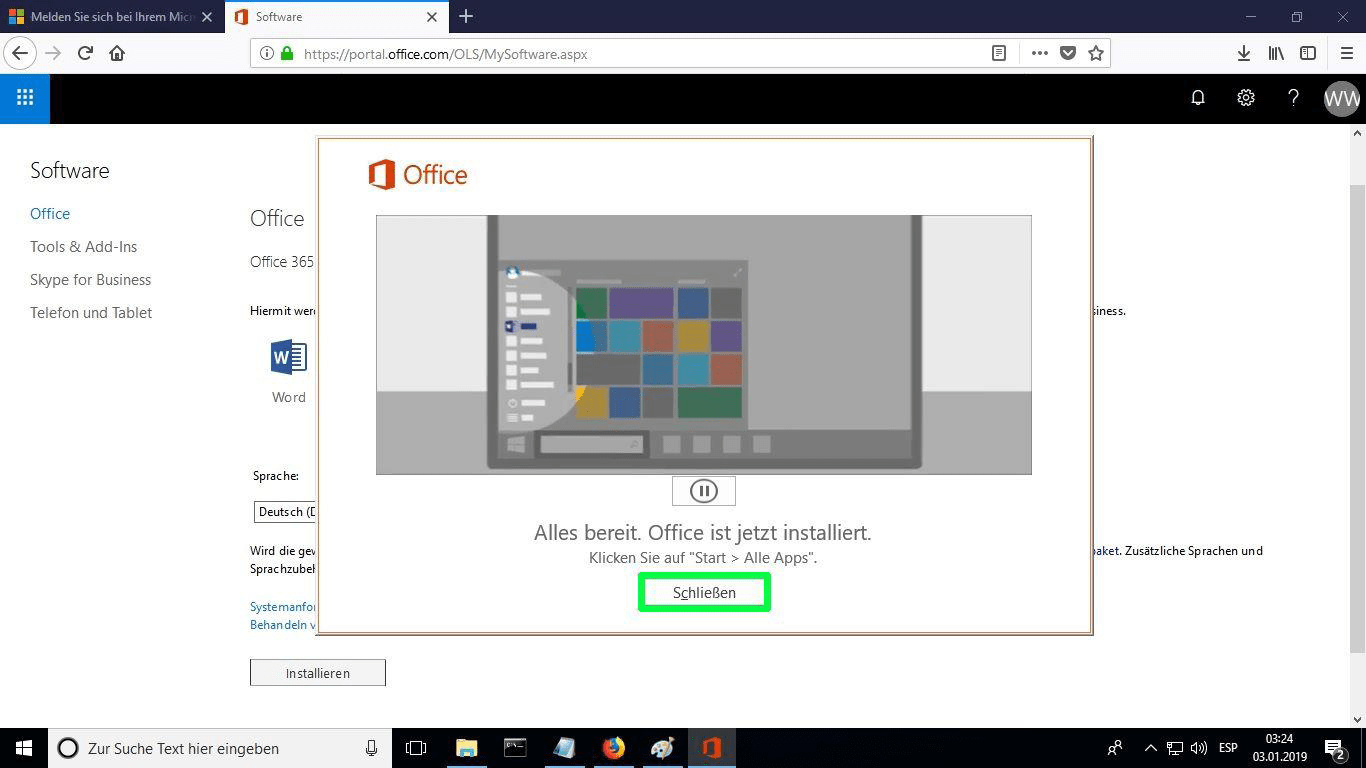
When installation finishes, select “Close”. The Microsoft Office apps are now available in your Start Menu or through Microsoft Windows search.
To confirm that activation worked, launch any Microsoft Office app, for example Excel, and open File-> Account ”. The Microsoft account linked to the product is displayed there.
Ενεργοποίηση άδειας
Επιλέξτε γλώσσα
Τα μέσα εγκατάστασης είναι διαθέσιμα σε 0 γλώσσες. Κάθε ένα είναι το αρχικό μέσο — μόνο η γλώσσα της διεπαφής είναι προεπιλεγμένη.
Συνηθισμένες ερωτήσεις
Πρέπει να απεγκαταστήσω το παλιό μου Office πριν εγκαταστήσω το νέο;
+
Ναι — απεγκαθιστά πάντα οποιαδήποτε προηγούμενη έκδοση του Microsoft Office και επανεκκινήστε τον υπολογιστή πριν την εγκατάσταση. Αν παραλείψετε αυτό το βήμα, το Office που αγοράσατε θα γίνει δοκιμαστική έκδοση 30 ημερών.
Λήγει η άδεια Office μου;
+
Όχι. Είναι μόνιμη άδεια — δεν λήγει. Κατέχετε αυτή την έκδοση για πάντα. Ωστόσο, πρέπει να ενεργοποιήσετε εντός 30 ημερών από την εγκατάσταση, διαφορετικά θα επανέλθει σε δοκιμαστική λειτουργία.
Μπορώ να εγκαταστήσω το Office Pro Plus σε Mac;
+
Όχι. Το Office Pro Plus και Standard είναι μόνο για Windows. Για macOS, δείτε τις ειδικές εκδόσεις "Office for Mac" στην κατηγορία Microsoft Office.
Σε πόσες συσκευές μπορώ να ενεργοποιήσω με ένα κλειδί;
+
Οι τυπικές εμπορικές άδειες ενεργοποιούν μία συσκευή κάθε φορά. Για να μεταφέρετε την άδεια, απενεργοποιήστε την πρώτα στο παλιό μηχάνημα μέσω της πύλης λογαριασμού Microsoft, μετά ενεργοποιήστε στο νέο.
Πώς εισάγω το κλειδί ενεργοποίησης μετά την εγκατάσταση;
+
Ανοίξτε οποιαδήποτε εφαρμογή Office (Word, Excel, PowerPoint). Κάντε κλικ στο Αρχείο → Λογαριασμός στην κάτω αριστερή γωνία. Κάντε κλικ στο "Αλλαγή κλειδιού προϊόντος" και εισάγετε το 25-χαρακτήρων κλειδί.
Χρειάζεστε βοήθεια;
Η Microsoft δεν προσφέρει πλέον ενεργοποίηση μέσω τηλεφώνου
Η Microsoft σταματά σταδιακά να υποστηρίζει ορισμένα παλαιότερα προϊόντα της, οπότε η τηλεφωνική ενεργοποίηση δεν υπάρχει πια. Αν συναντήσετε δυσκολίες ή έχετε απορίες κατά την εγκατάσταση, η ομάδα υποστήριξής μας είναι εδώ για να βοηθήσει.
Τα αρχεία φιλοξενούνται στο ασφαλές CDN μας. Κάντε κλικ στη Λήψη για να ξεκινήσετε.