Microsoft Office 2016 for Mac Asennusopas
Tämä ilmainen vaiheittainen opas opastaa sinut lataamaan, asentamaan ja aktivoimaan Microsoft Office 2016 for Mac — aitojen kuvakaappausten avulla joka vaiheessa, 12 kielellä.
Lataa asennusohjelma
Lataa haluamasi versio seuraavasta latauslinkistä.
Saatavilla 0 kielellä —
Lue tämä erittäin huolellisesti
- MacOS 10.12: Sierra (Fuji), macOS 10.13: High Sierra (Lobo), macOS 10.14: Mojave (Liberty)
- Microsoft Windows 7 (SP1) 8, 10, Microsoft Windows Server 2008, 2012 R2. .NET Framework 3.5
- 1 gigahertsin (GHz) tai nopeampi 32-bittinen (x86) tai 64-bittinen (x64) prosessori.
- 1 gigatavu (GB) RAM-muistia (32-bittinen) tai 4 GB RAM-muistia (64-bittinen).
- 4 Gt käytettävissä olevaa kiintolevytilaa
- DirectX 9 -grafiikkalaite, jossa on WDDM 1.0 tai uudempi ohjain.
Vaiheittainen asennus
Click the link, then sign in with the account details and password we emailed you.
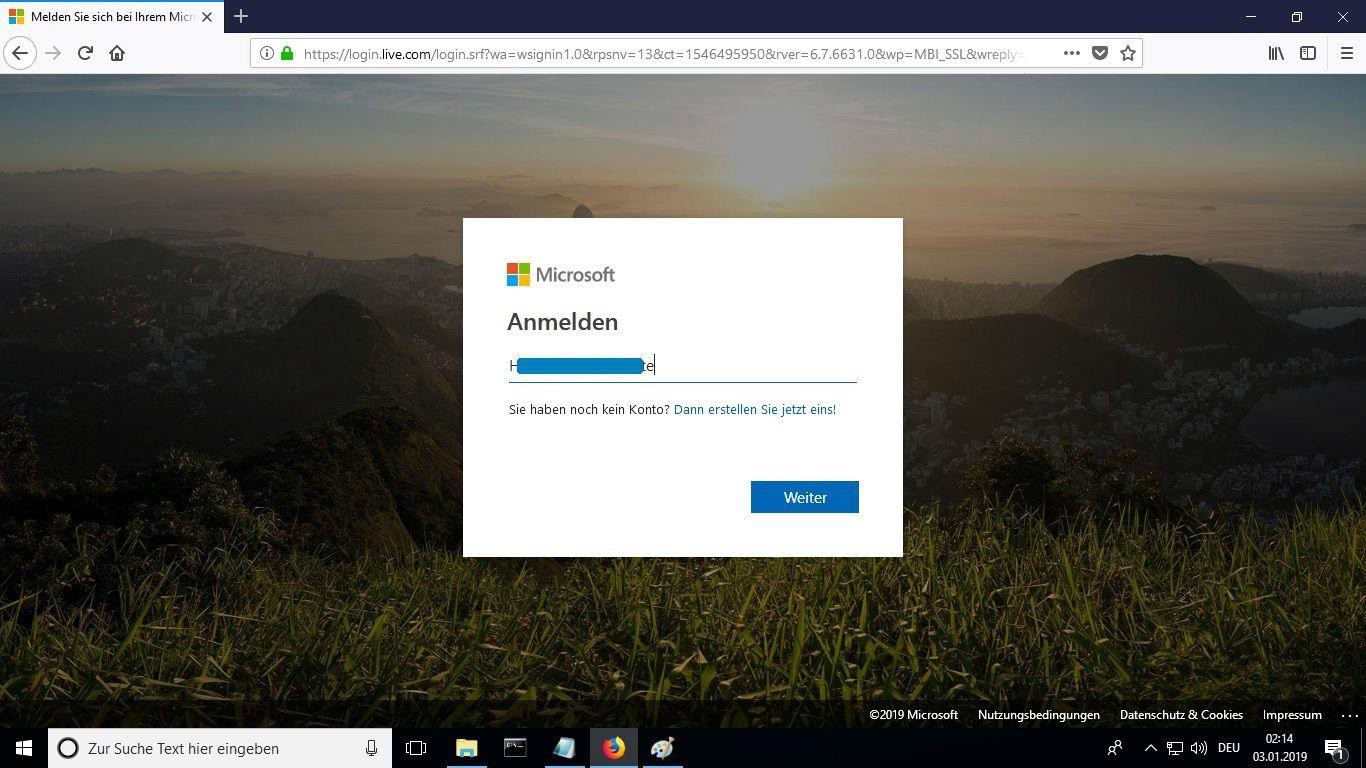
Set a new password so the product becomes yours. Type the password from your email in the first field, then enter your chosen new password in the other two. It needs at least 8 characters, including at least one uppercase letter.
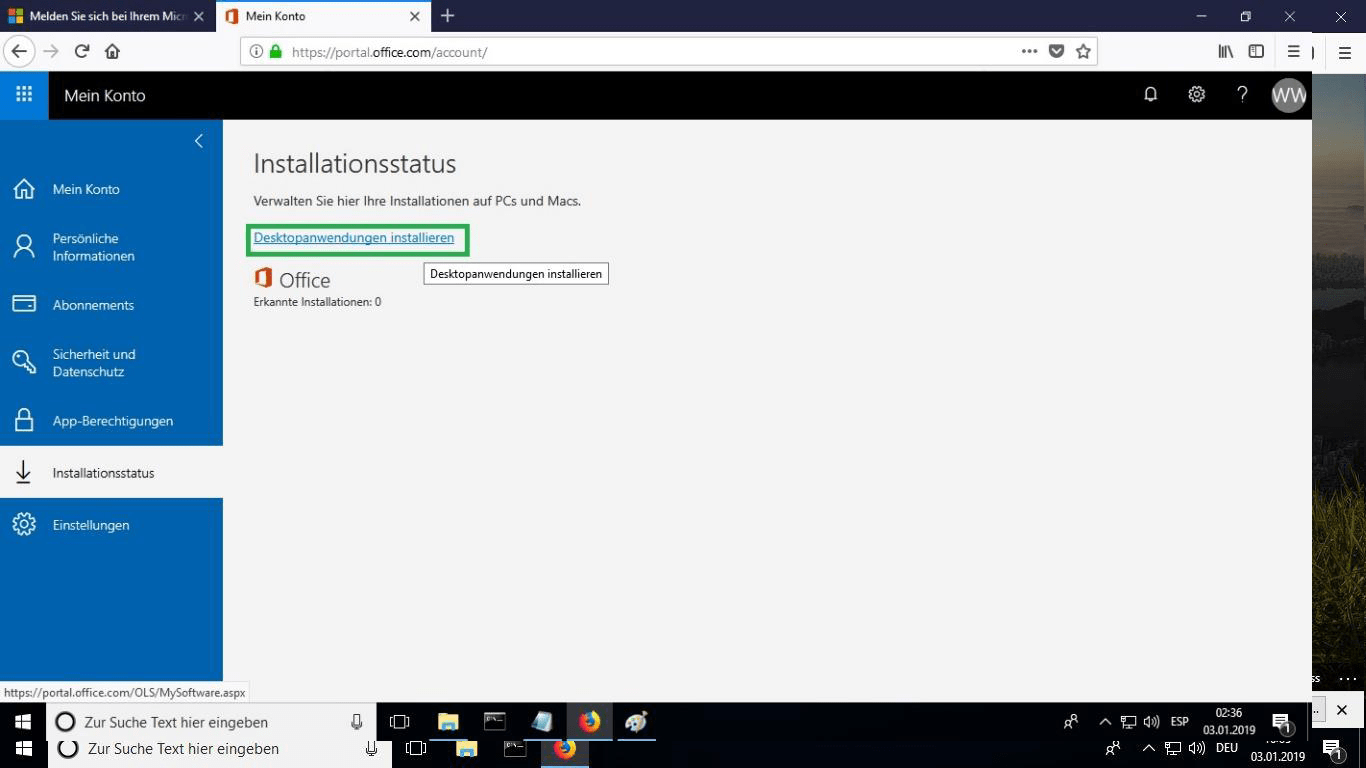
After signing in, go to the “My Account” section and select “Manage Installations” to start installing.
Locate the installer you downloaded (normally in your Downloads folder). Right-click it and pick “Run as administrator”. When Windows asks whether the app may make changes to your device, choose “Yes”.
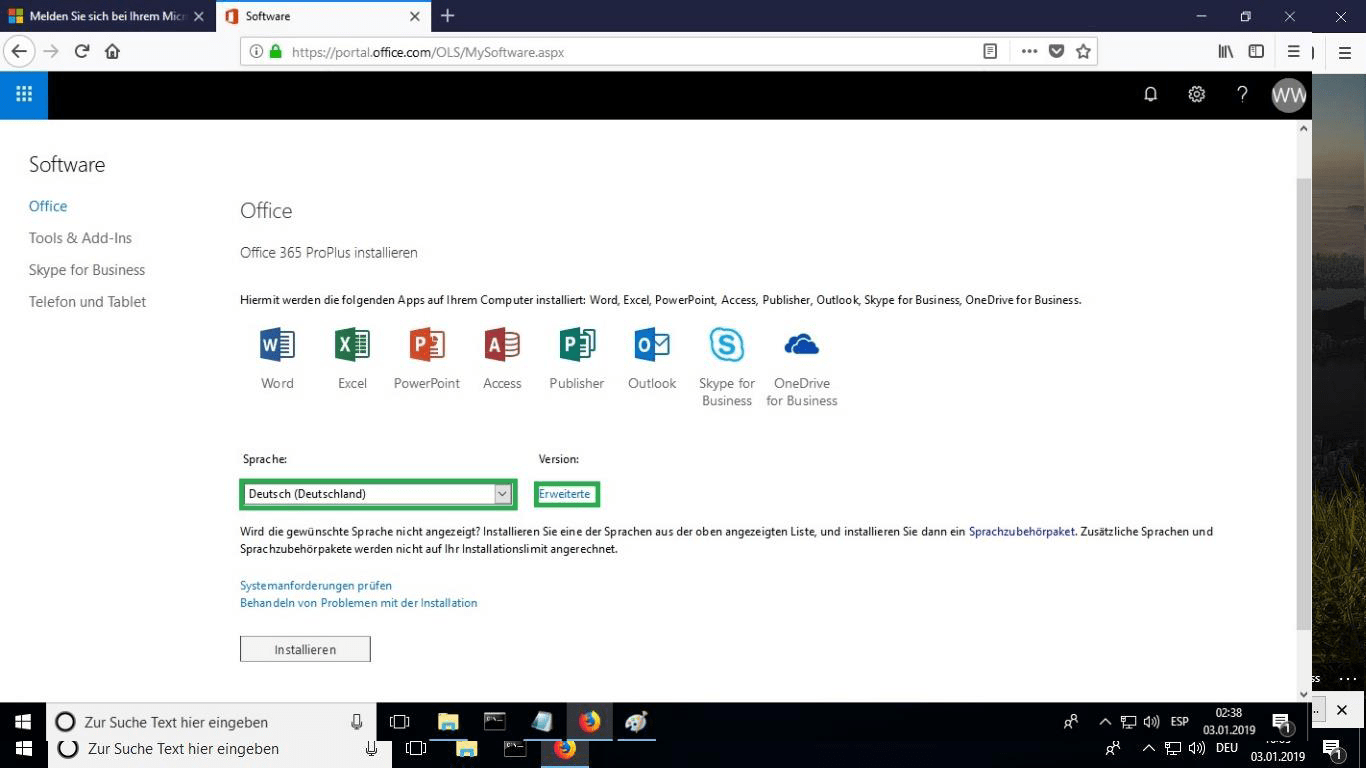
Pick your preferred language from the “language” drop-down list. By default, the 32-bit version is installed; to get the 64-bit version instead, select the “advanced” option.
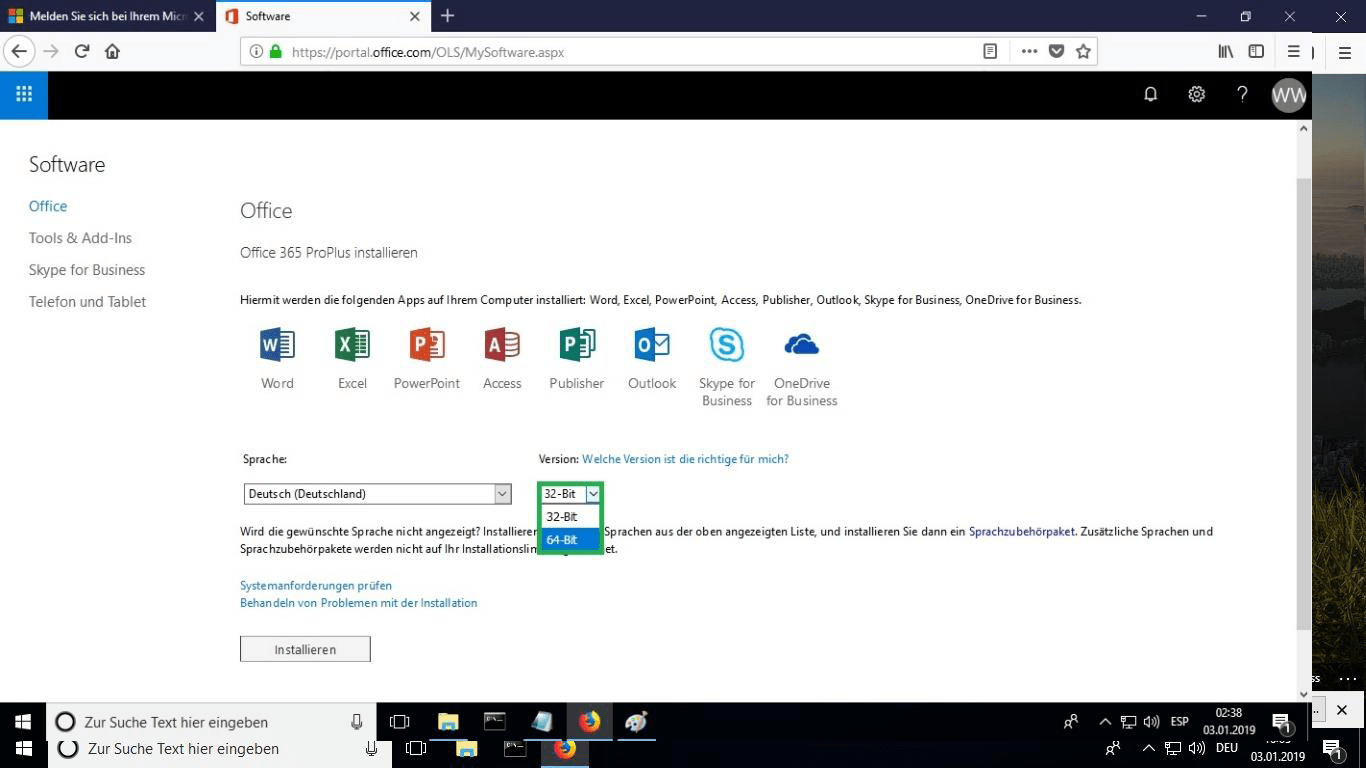
Choose whether you want the 32 or 64 bits version.
We suggest finishing the installation and activation of the product first, and only then signing in with your Microsoft account.
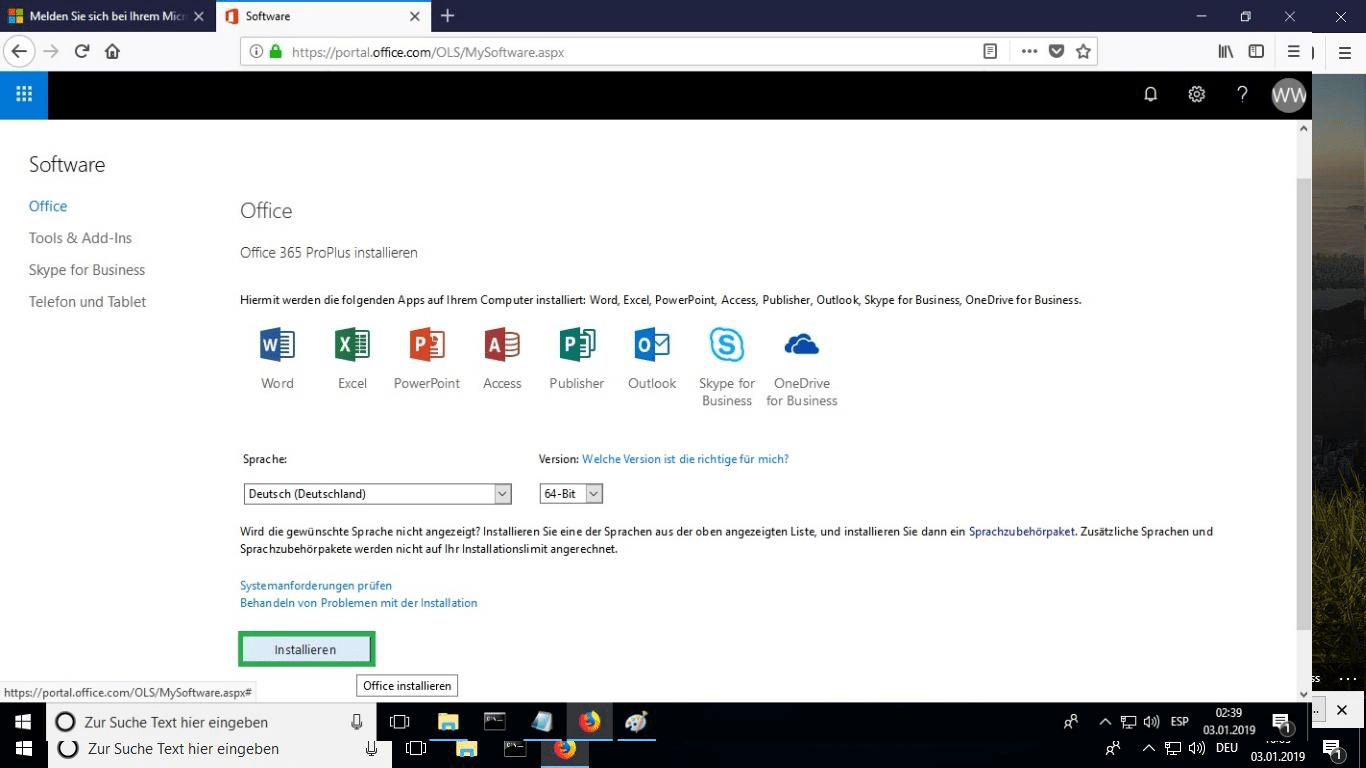
The setup file is downloaded; when prompted, select “burn file”.
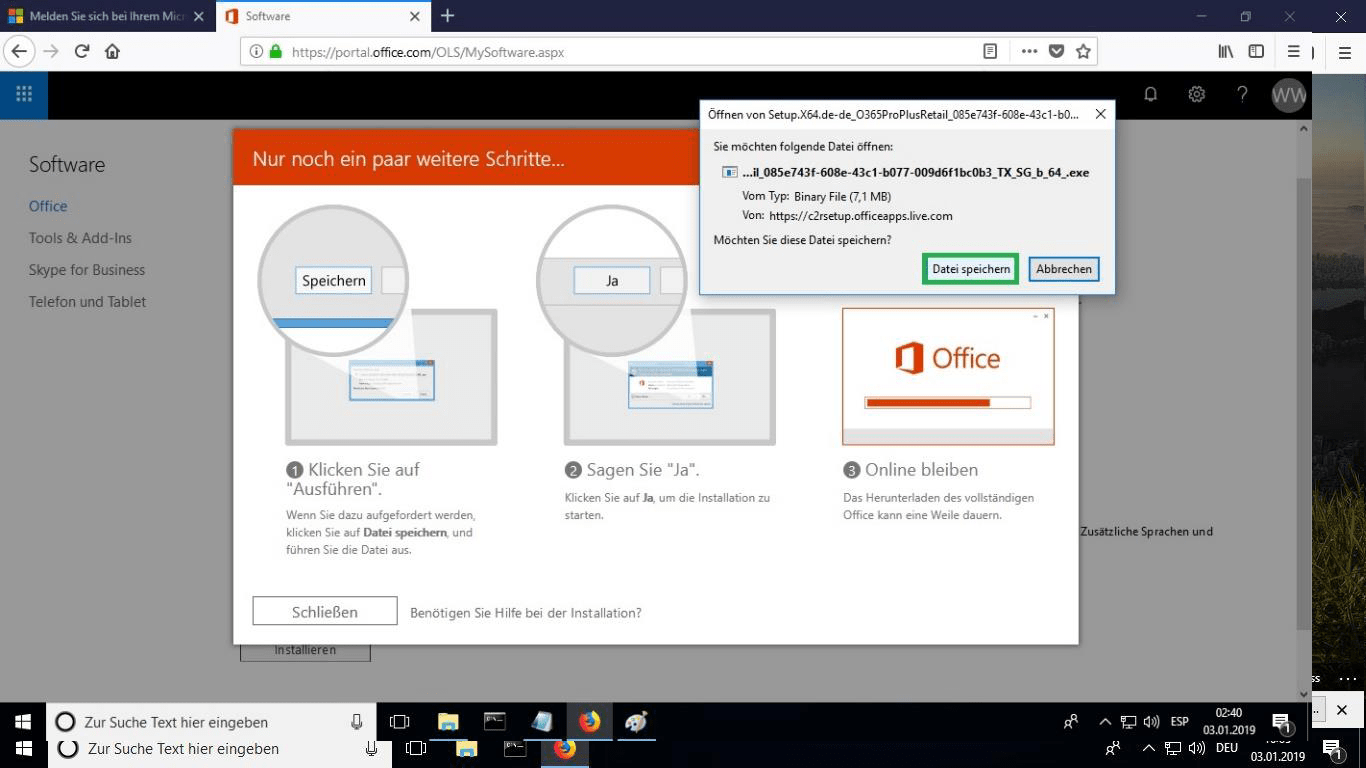
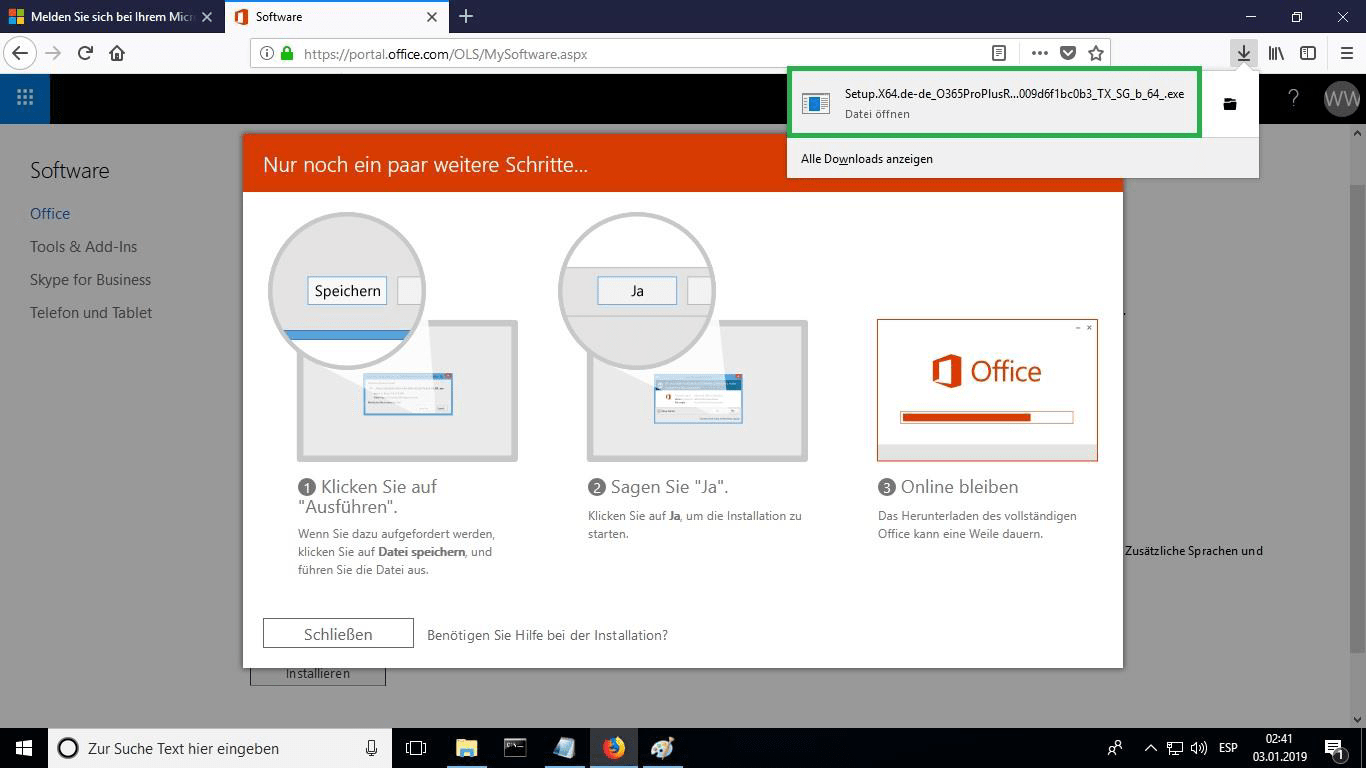
When the download is done, double-click the file to launch it. Where it is saved depends on the browser you use.
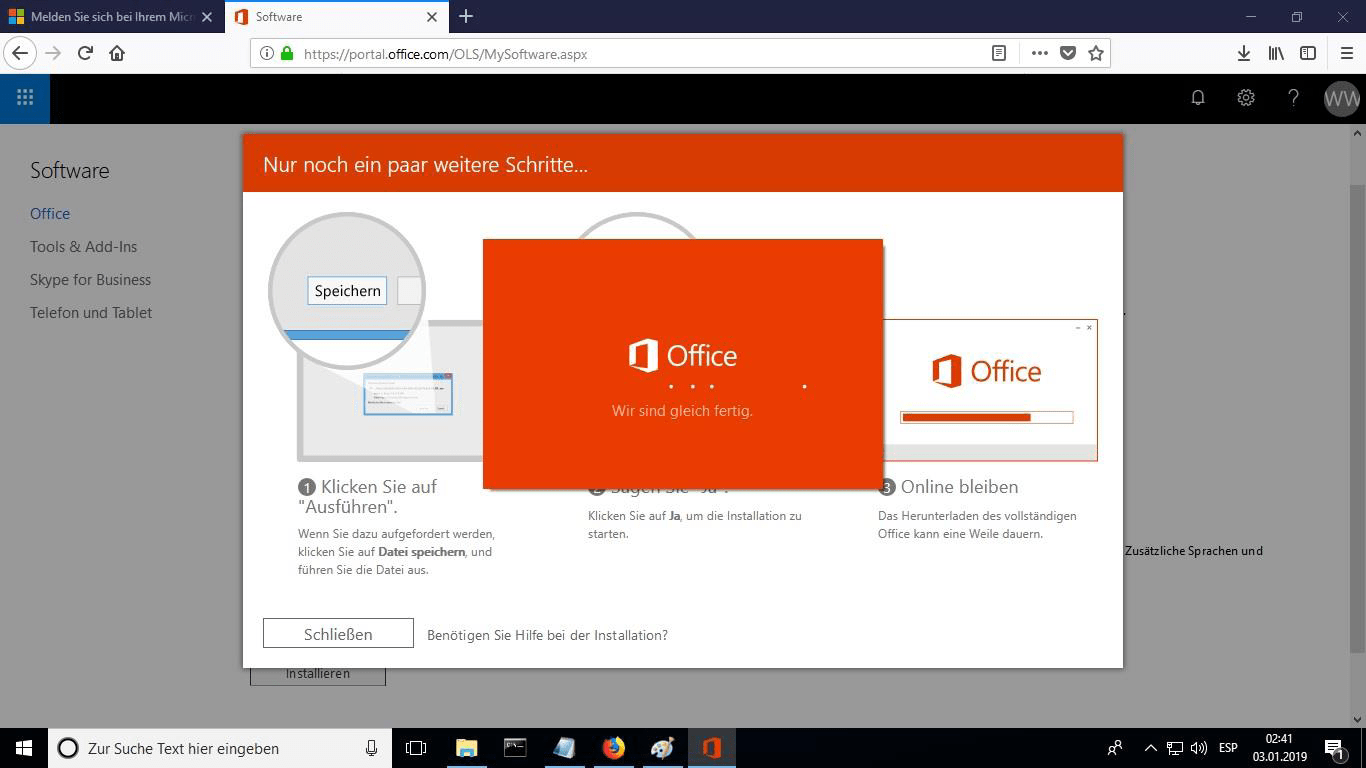
The online installation now begins. It can take 30 minutes or longer, depending on how fast your Internet connection is.
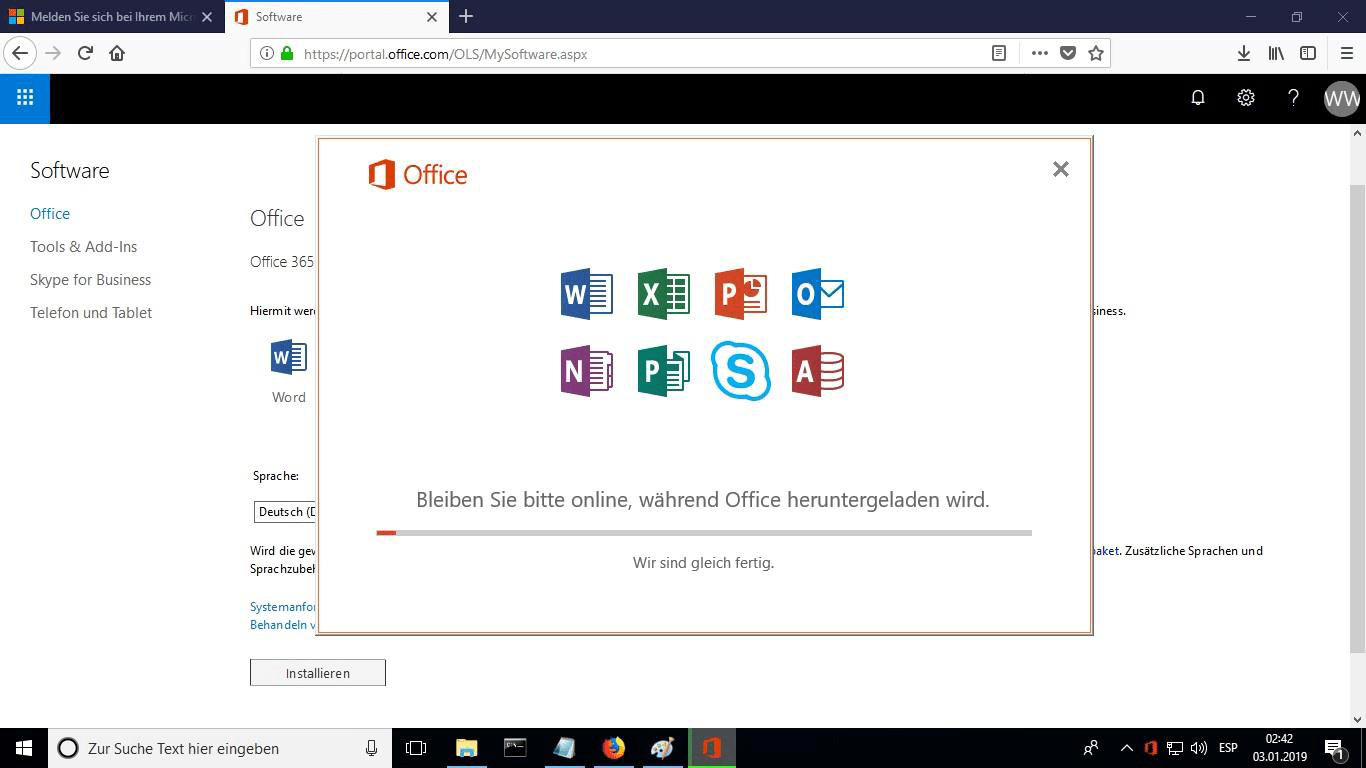
A progress bar shows how far the installation has come.
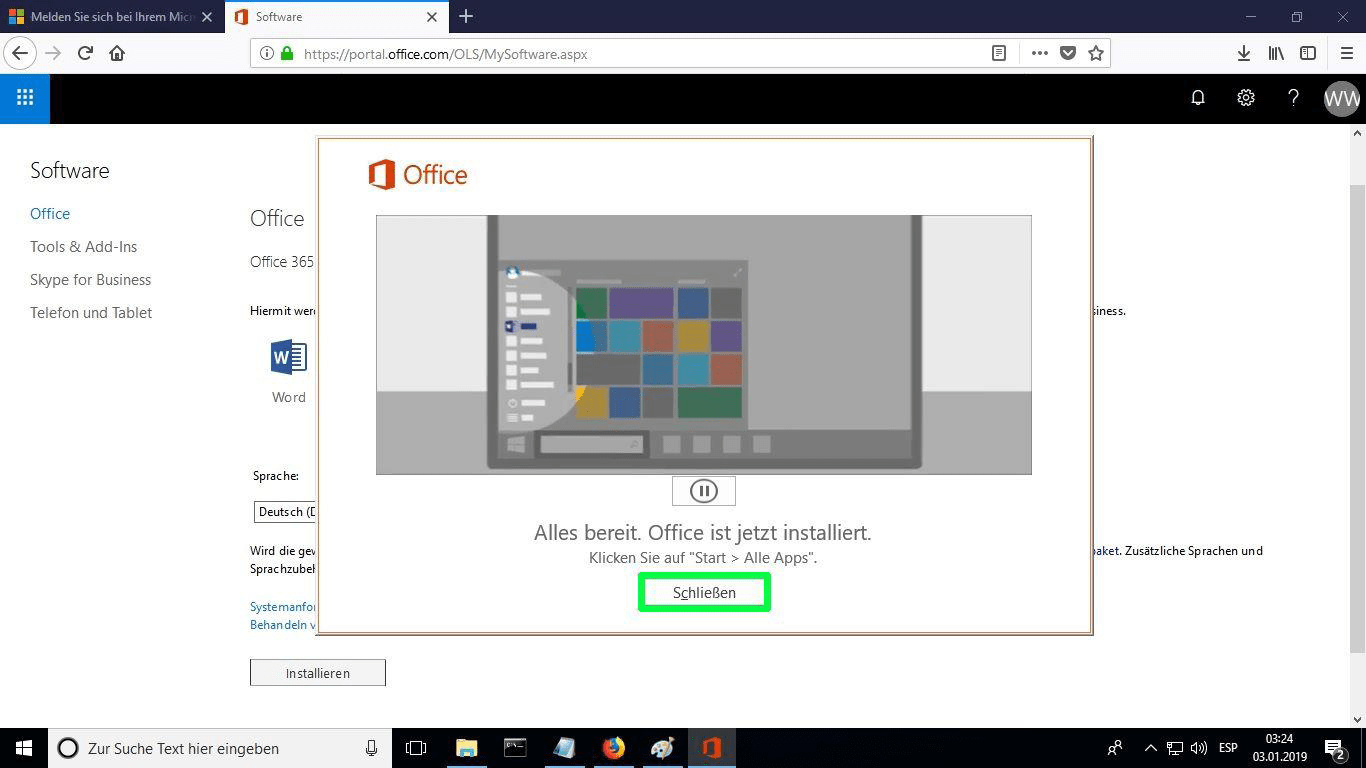
When installation finishes, select “Close”. The Microsoft Office apps are now available in your Start Menu or through Microsoft Windows search.
To confirm that activation worked, launch any Microsoft Office app, for example Excel, and open File-> Account ”. The Microsoft account linked to the product is displayed there.
Aktivoi lisenssisi
Valitse kielesi
Asennusmedia on saatavilla 0 kielellä. Jokainen on alkuperäinen media — vain käyttöliittymän kieli on esiasetettu.
Usein kysyttyä
Pitääkö vanha Office poistaa ennen uuden asennusta?
+
Kyllä — poista aina kaikki aiemmat Microsoft Office -versiot ja käynnistä tietokone uudelleen ennen asennusta. Jos ohitat tämän vaiheen, ostamastasi Officesta tulee 30 päivän kokeiluversio.
Vanheneeko Office-lisenssini?
+
Ei. Tämä on pysyvä lisenssi — se ei vanhene. Omistat tämän version pysyvästi. Sinun täytyy kuitenkin aktivoida 30 päivän kuluessa asennuksesta, muuten se palautuu kokeilutilaan.
Voinko asentaa Office Pro Plus -version Maciin?
+
Ei. Office Pro Plus ja Standard ovat vain Windowsille. macOS:lle katso erilliset "Office Macille" -versiot Microsoft Office -luokassa.
Kuinka monella laitteella voin aktivoida yhdellä avaimella?
+
Standardit vähittäismyyntilisenssit aktivoivat yhden laitteen kerrallaan. Lisenssin siirtämiseksi deaktivoi se ensin vanhalla koneella Microsoft-tiliportaalin kautta, sitten aktivoi uudella.
Kuinka syötän aktivointiavaimen asennuksen jälkeen?
+
Avaa mikä tahansa Office-sovellus (Word, Excel, PowerPoint). Napsauta vasemmassa alakulmassa Tiedosto → Tili. Napsauta "Vaihda tuoteavain" ja syötä 25-merkkinen avain.
Tarvitsetko apua?
Microsoft ei enää tarjoa puhelinaktivointia
Microsoft on asteittain lakkauttanut tuen osalle vanhemmista tuotteistaan, minkä vuoksi aktivointi puhelimitse ei enää onnistu. Jos asennuksessa ilmenee ongelmia tai kysyttävää, tukitiimimme auttaa mielellään.
Tiedostot on tallennettu suojatulle CDN:llemme. Aloita napsauttamalla Lataa.