Microsoft Office 2016 for Mac Guida all'installazione
Questa guida gratuita passo passo ti accompagna nel download, nell'installazione e nell'attivazione di Microsoft Office 2016 for Mac — con screenshot reali per ogni passaggio, in 12 lingue.
Scarica l'installer
Scarica la versione desiderata con il seguente link di download.
Disponibile in 0 lingue —
Leggi questo molto attentamente
- MacOS 10.12: Sierra (Fuji), macOS 10.13: High Sierra (Lobo), macOS 10.14: Mojave (Liberty)
- Microsoft Windows 7 (SP1) 8, 10, Microsoft Windows Server 2008, 2012 R2. Quadro .NET 3.5
- Processore da 1 gigahertz (GHz) o più veloce a 32 bit (x86) o 64 bit (x64)
- 1 gigabyte (GB) di RAM (32 bit) o 4 GB di RAM (64 bit)
- 4 GB di spazio disponibile su disco rigido
- Dispositivo grafico DirectX 9 con driver WDDM 1.0 o superiore
Installazione passo passo
Click the link, then sign in with the account details and password we emailed you.
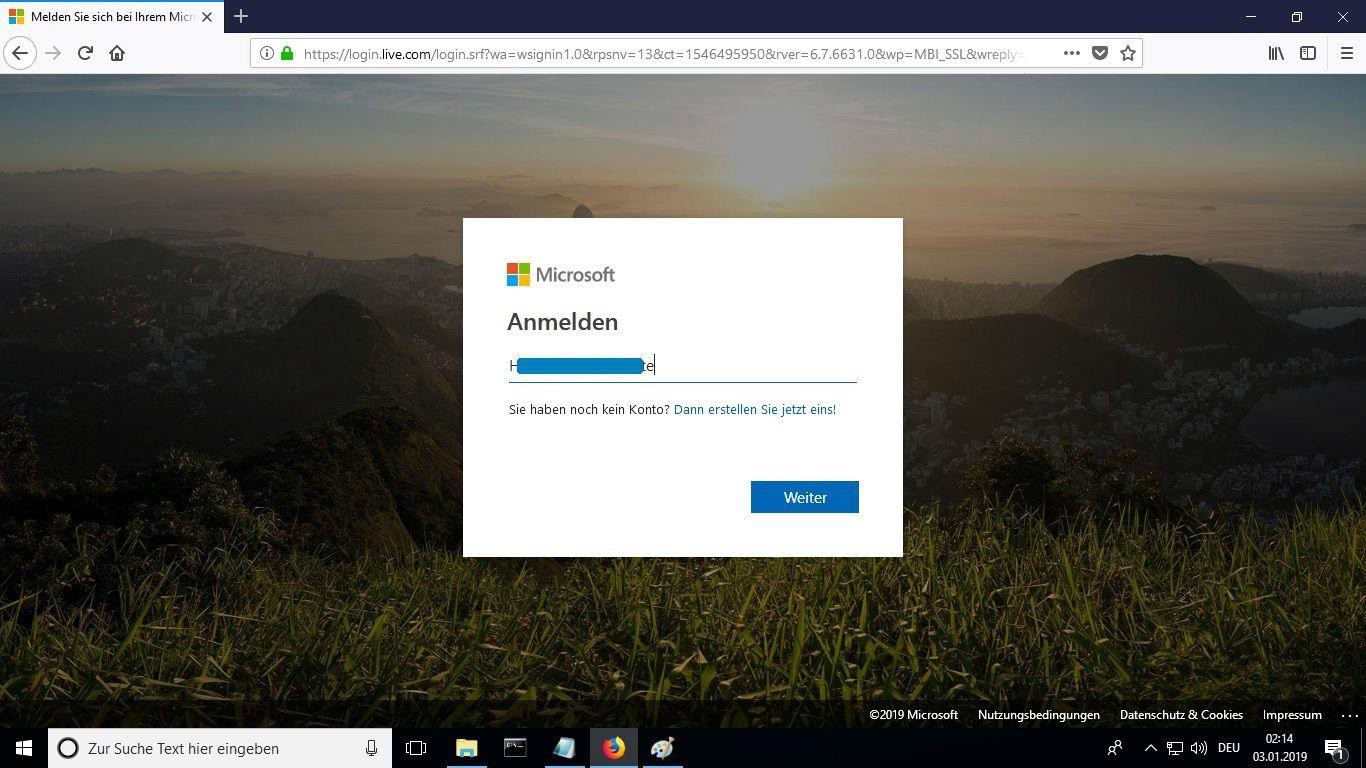
Set a new password so the product becomes yours. Type the password from your email in the first field, then enter your chosen new password in the other two. It needs at least 8 characters, including at least one uppercase letter.
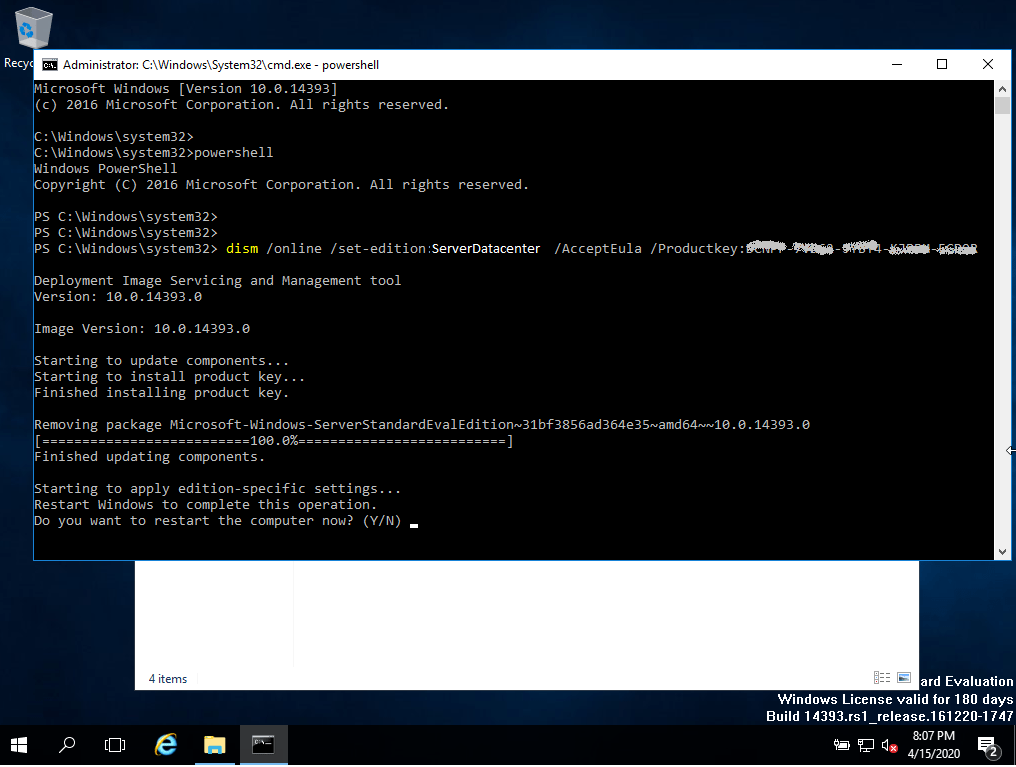
After signing in, go to the “My Account” section and select “Manage Installations” to start installing.
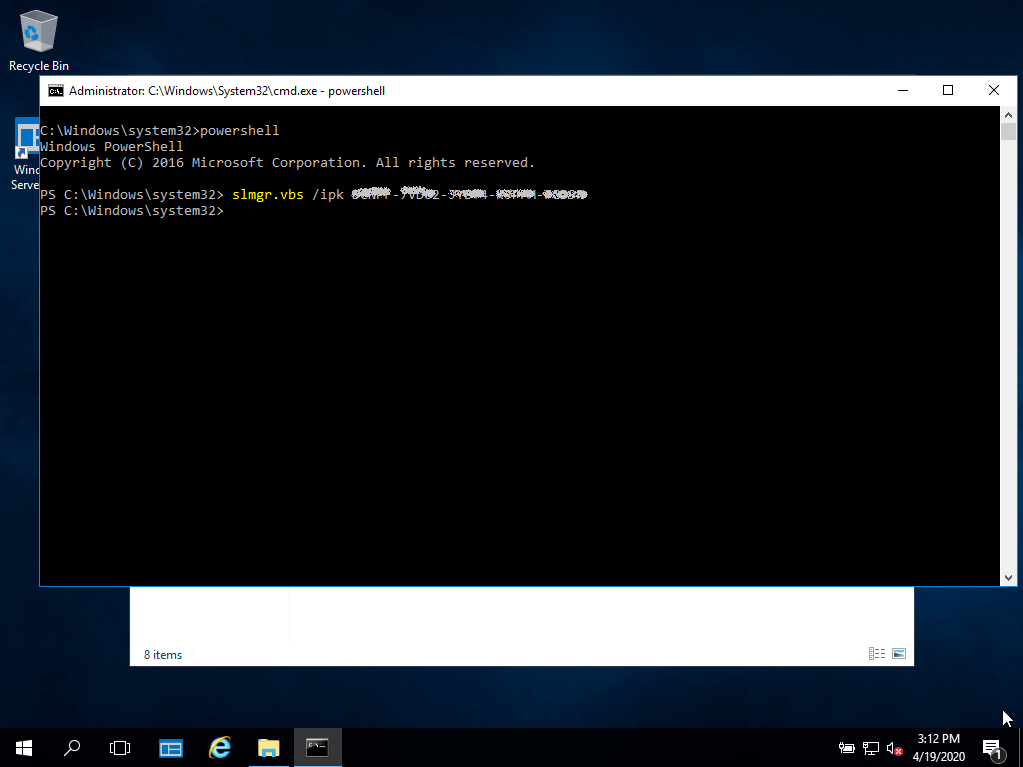
Locate the installer you downloaded (normally in your Downloads folder). Right-click it and pick “Run as administrator”. When Windows asks whether the app may make changes to your device, choose “Yes”.
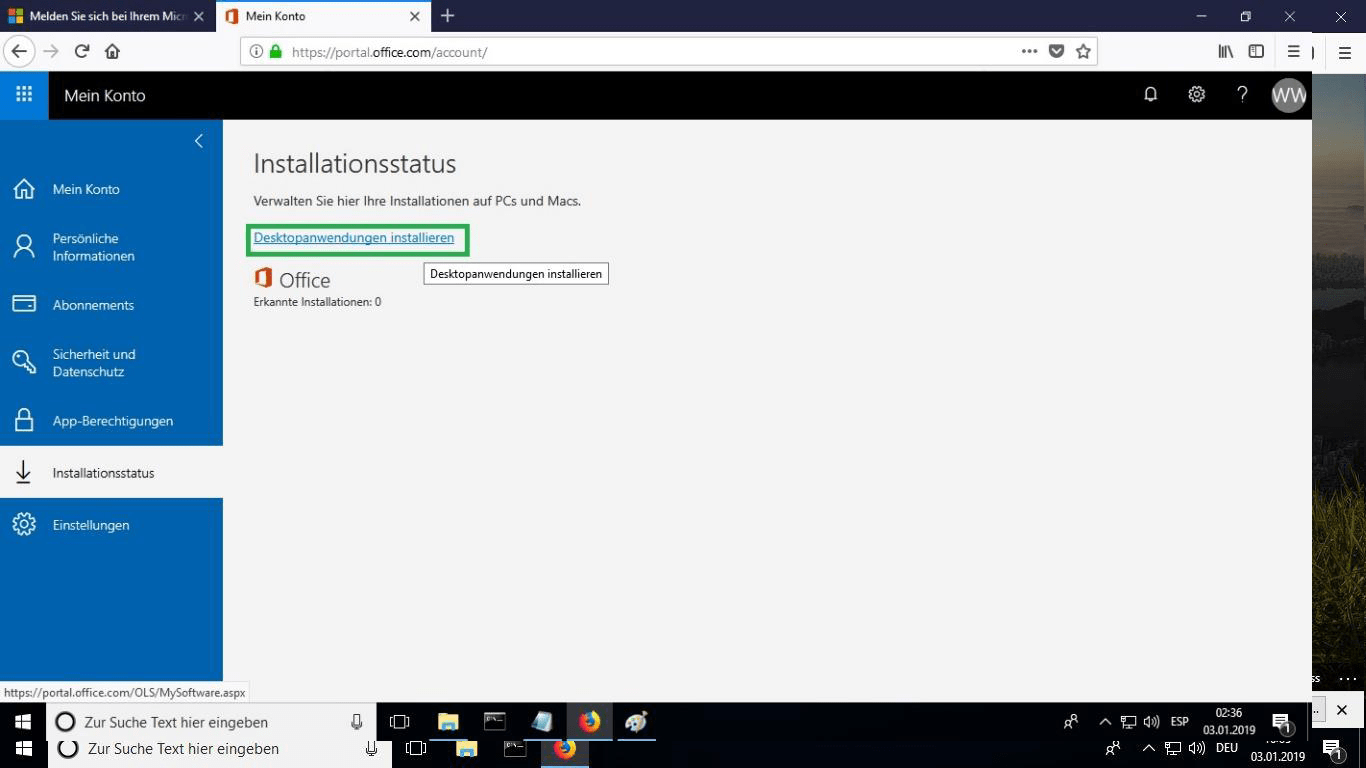
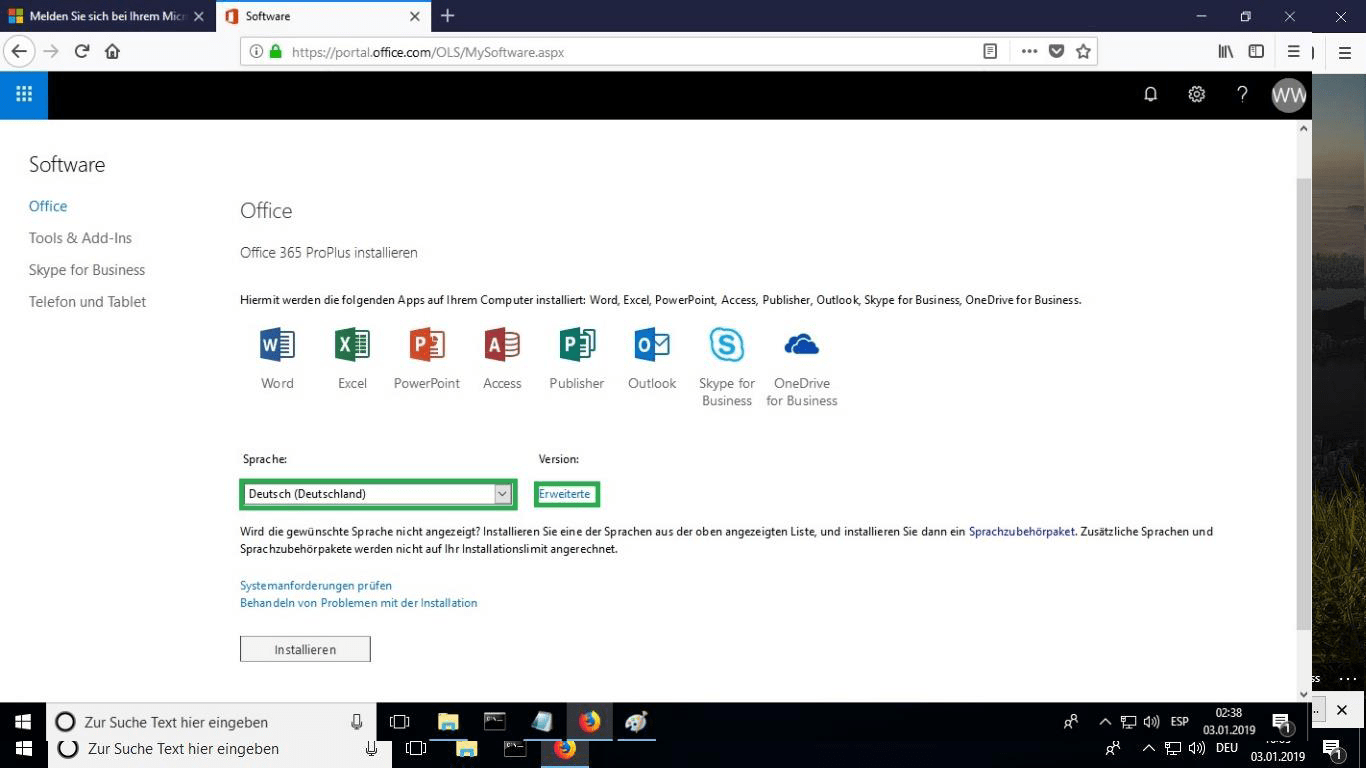
Pick your preferred language from the “language” drop-down list. By default, the 32-bit version is installed; to get the 64-bit version instead, select the “advanced” option.
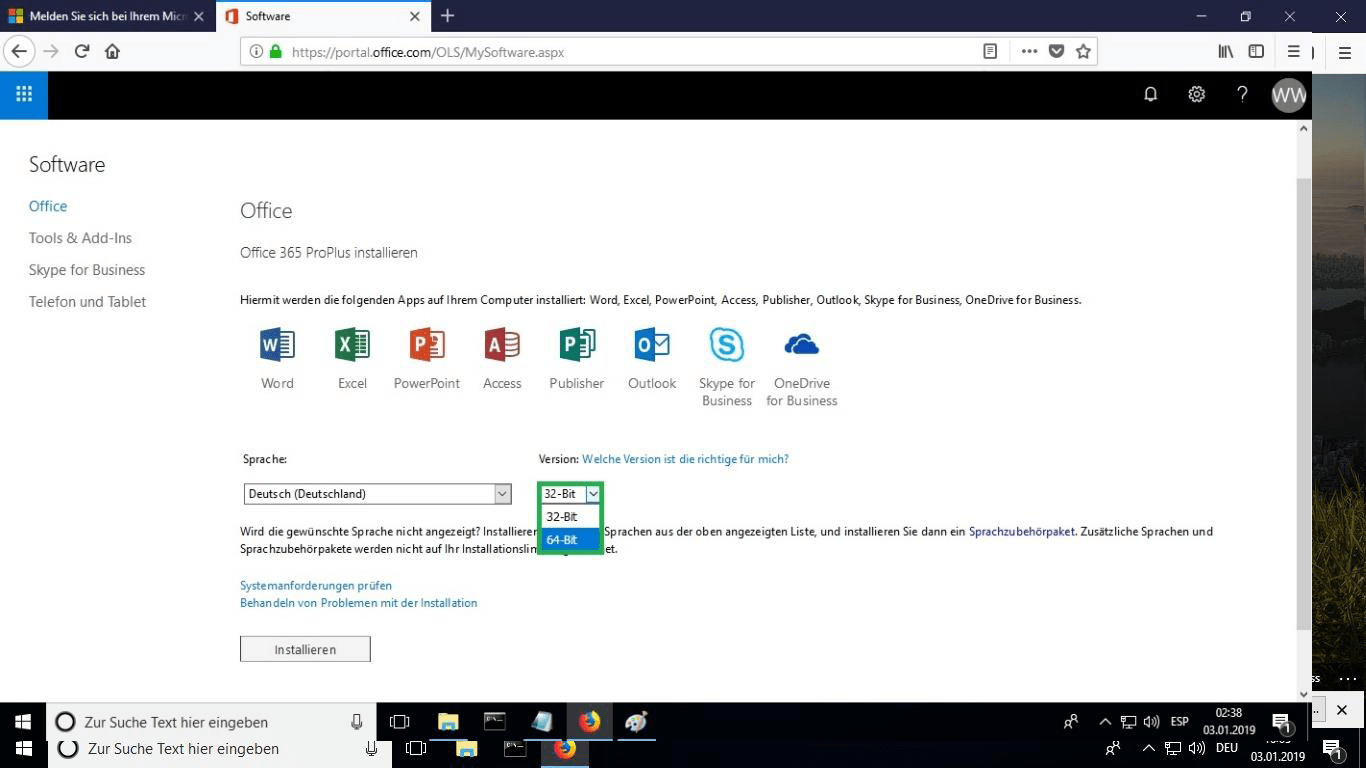
Choose whether you want the 32 or 64 bits version.
We suggest finishing the installation and activation of the product first, and only then signing in with your Microsoft account.
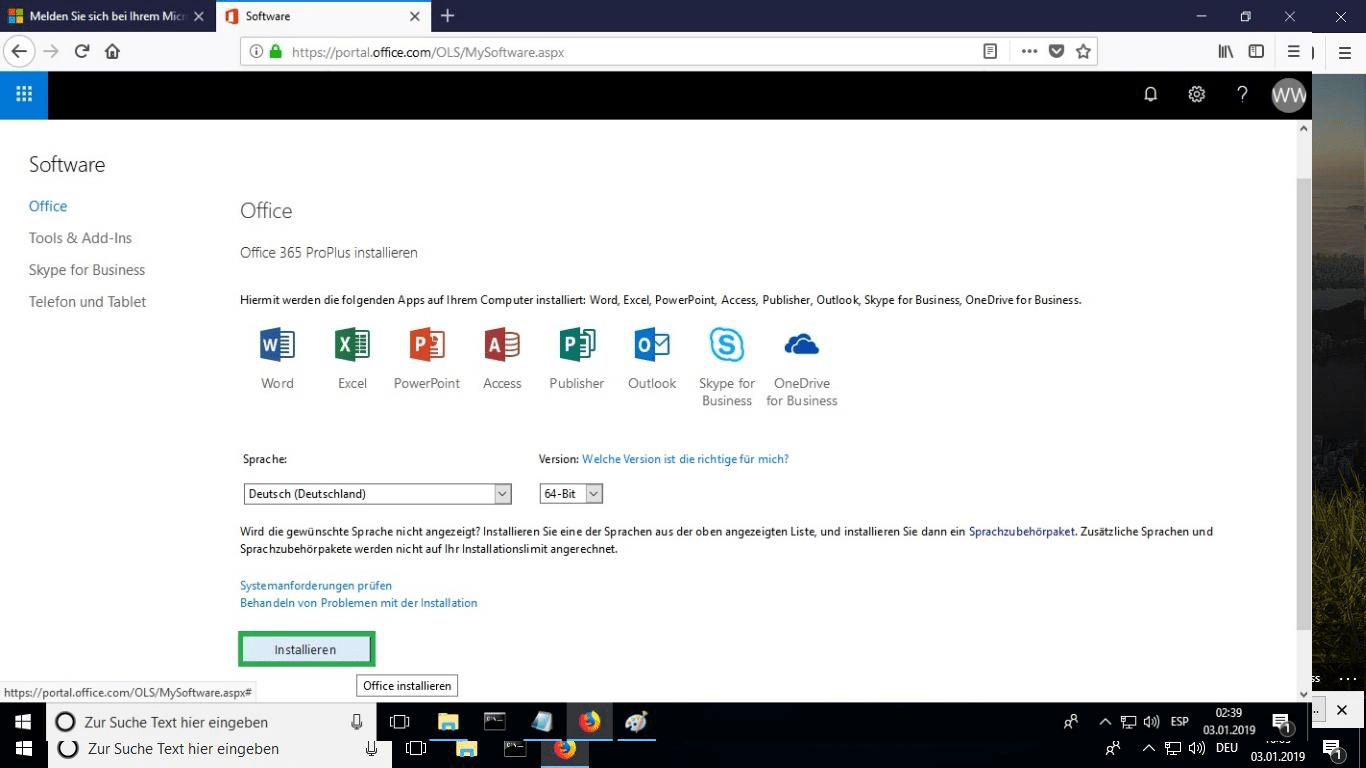
The setup file is downloaded; when prompted, select “burn file”.
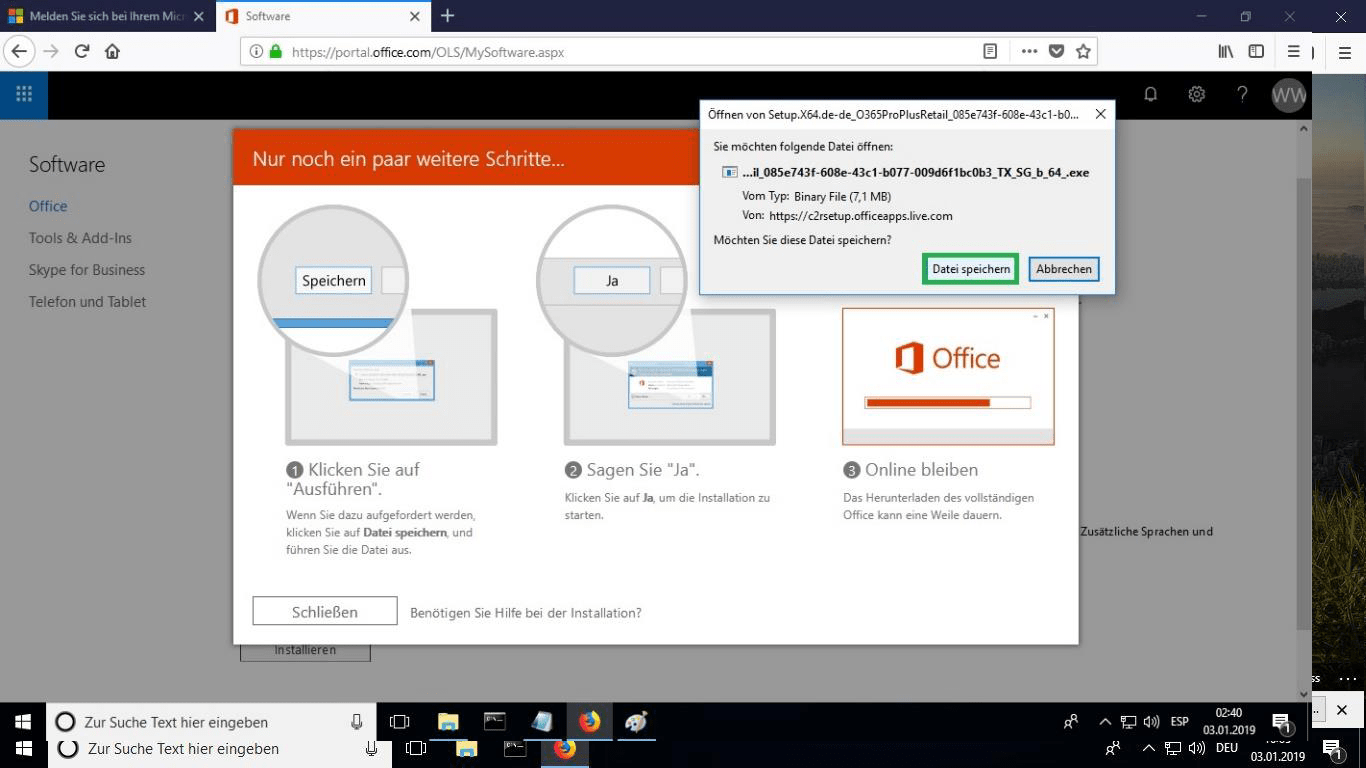
When the download is done, double-click the file to launch it. Where it is saved depends on the browser you use.
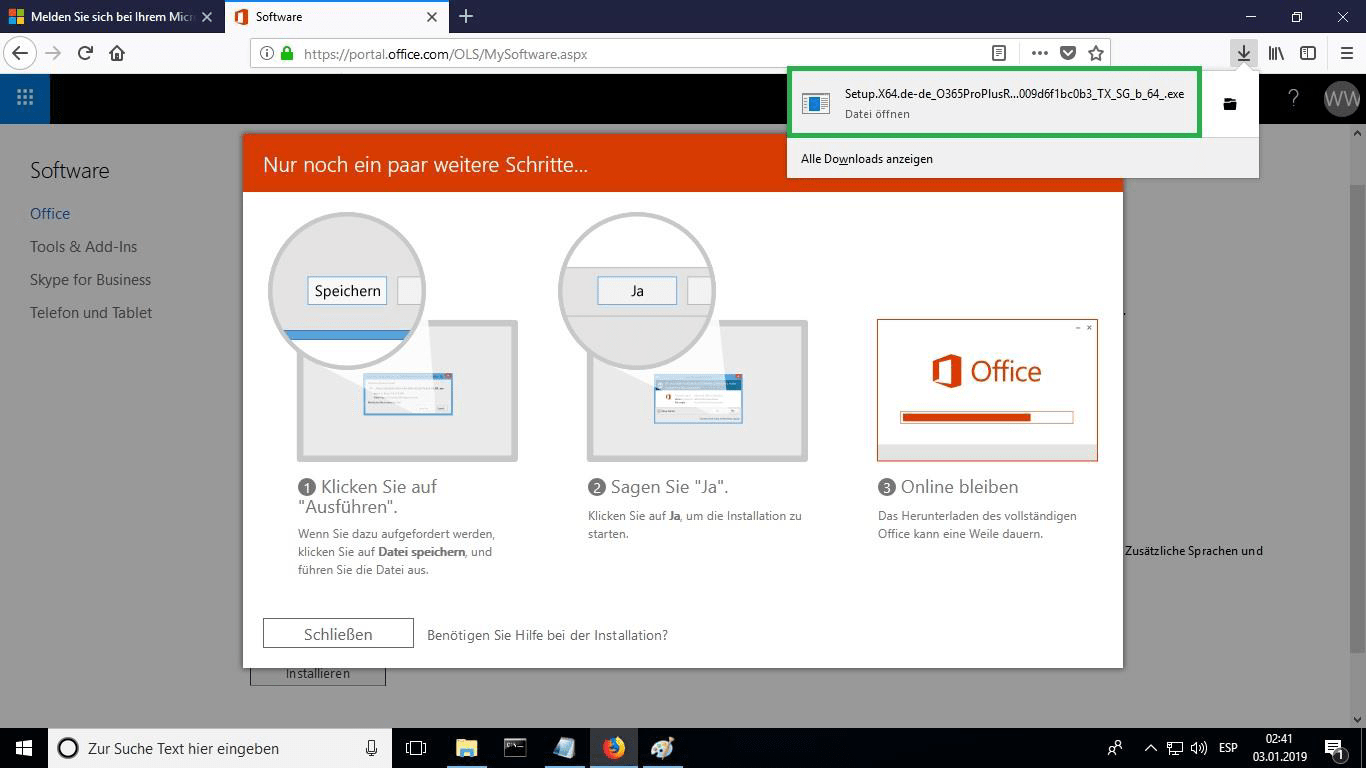
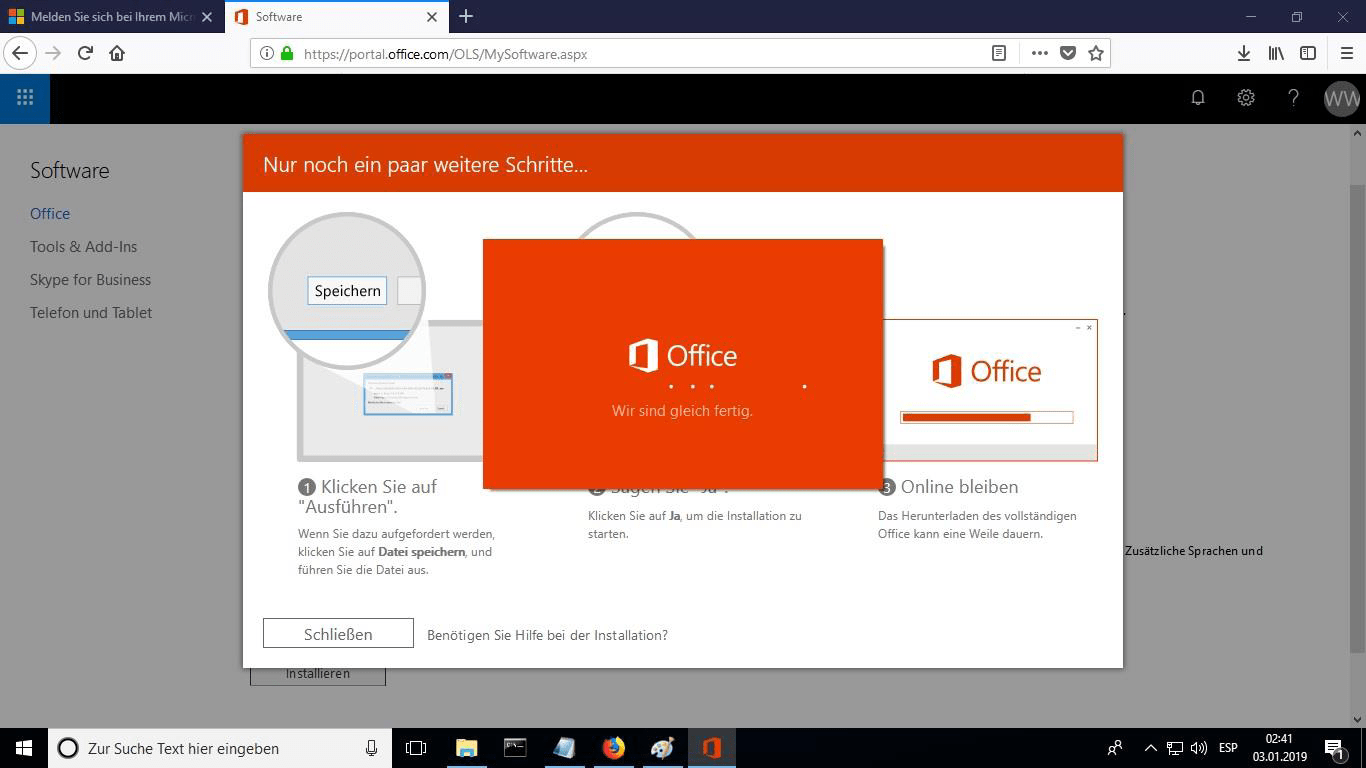
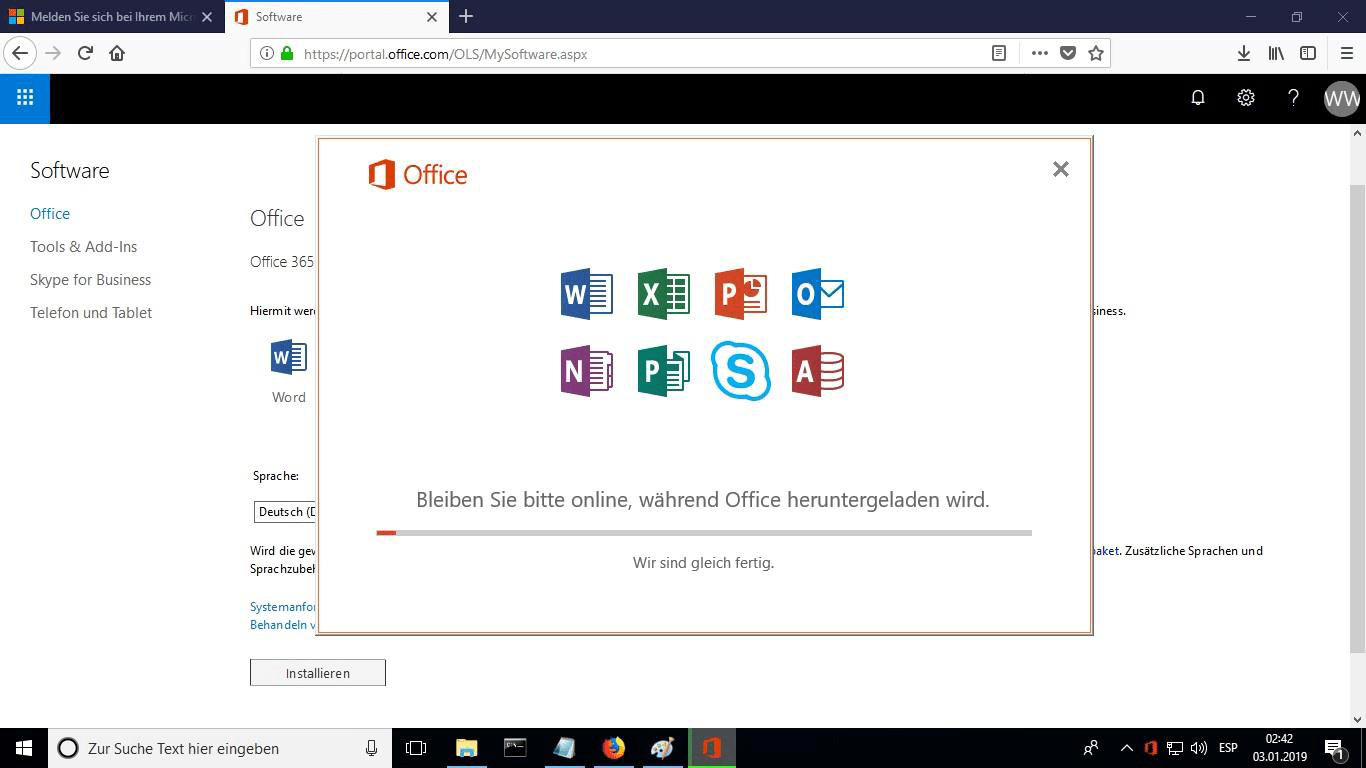
The online installation now begins. It can take 30 minutes or longer, depending on how fast your Internet connection is.
A progress bar shows how far the installation has come.
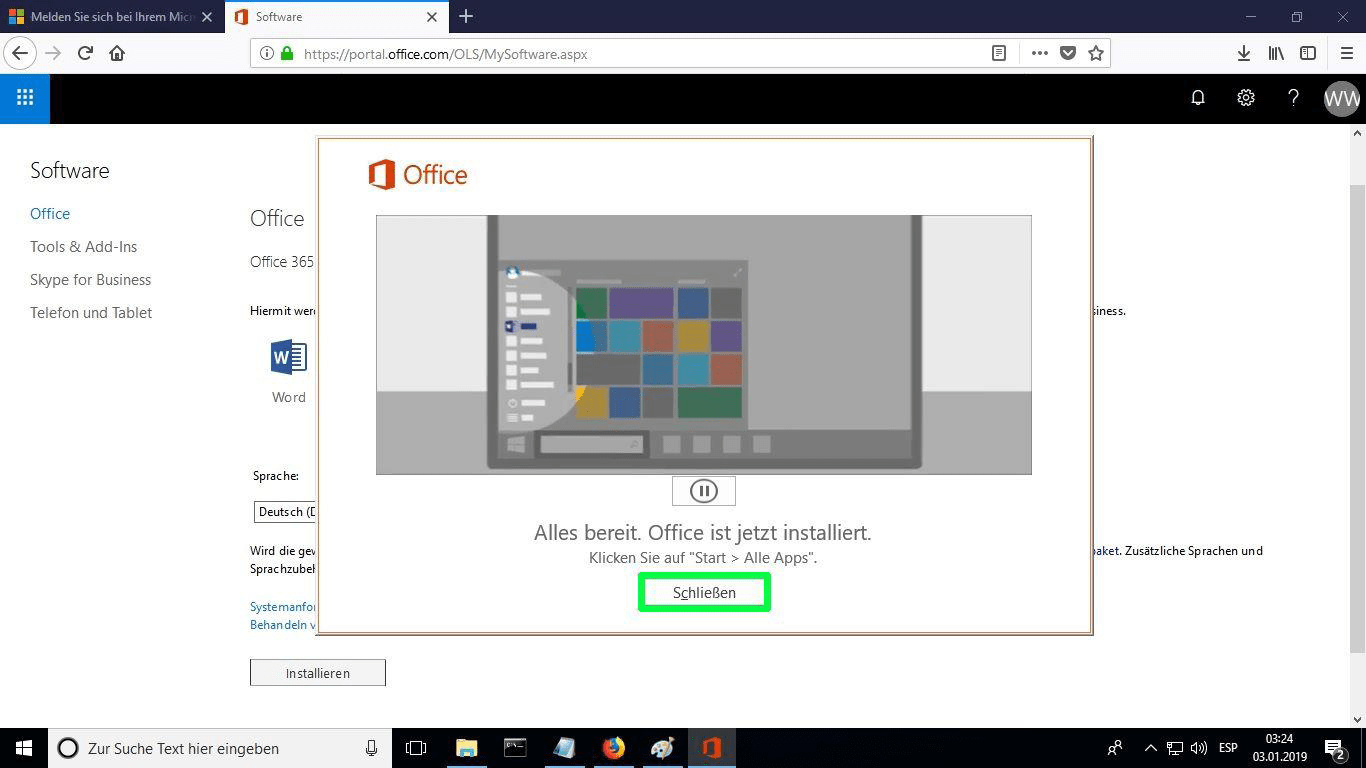
When installation finishes, select “Close”. The Microsoft Office apps are now available in your Start Menu or through Microsoft Windows search.
To confirm that activation worked, launch any Microsoft Office app, for example Excel, and open File-> Account ”. The Microsoft account linked to the product is displayed there.
Attiva la tua licenza
Scegli la tua lingua
I supporti di installazione sono disponibili in 0 lingue. Ognuno è il supporto originale — solo la lingua dell'interfaccia è preimpostata.
Domande frequenti
Devo disinstallare il vecchio Office prima di installare quello nuovo?
+
Sì — disinstalla sempre qualsiasi versione precedente di Microsoft Office e riavvia il computer prima di installare. Se salti questo passaggio, il tuo Office acquistato diventerà una versione di prova di 30 giorni.
La mia licenza Office scadrà?
+
No. È una licenza perpetua — non scade. Possiedi questa versione per sempre. Tuttavia, devi attivare entro 30 giorni dall'installazione, altrimenti passerà alla modalità di prova.
Posso installare Office Pro Plus su un Mac?
+
No. Office Pro Plus e Standard sono solo per Windows. Per macOS, guarda le edizioni dedicate "Office per Mac" nella categoria Microsoft Office.
Su quanti dispositivi posso attivare con una chiave?
+
Le licenze retail standard attivano un dispositivo alla volta. Per spostare la licenza, disattivala prima sulla vecchia macchina tramite il portale dell'account Microsoft, poi attiva sulla nuova.
Come inserisco la chiave di attivazione dopo l'installazione?
+
Apri qualsiasi app Office (Word, Excel, PowerPoint). Clicca su File → Account nell'angolo in basso a sinistra. Clicca su "Modifica chiave di prodotto" e inserisci la tua chiave di 25 caratteri.
Ti serve una mano?
Microsoft non offre più l'attivazione telefonica
Microsoft ha via via interrotto l'assistenza per alcuni prodotti meno recenti, perciò non è più possibile effettuare l'attivazione per telefono. Se durante l'installazione hai dubbi o incontri difficoltà, rivolgiti al nostro team di supporto.
I file sono ospitati sul nostro CDN sicuro. Clicca su Scarica per iniziare.