Microsoft Office 2016 for Mac Guía de instalación
Esta guía gratuita paso a paso te muestra cómo descargar, instalar y activar Microsoft Office 2016 for Mac — con capturas de pantalla reales en cada paso, en 12 idiomas.
Obtener el instalador
Descargue la versión deseada con el siguiente enlace de descarga.
Disponible en 0 idiomas —
Lea esto muy atentamente
- macOS 10.12: Sierra (Fuji), macOS 10.13: High Sierra (Lobo), macOS 10.14: Mojave (Liberty)
- Microsoft Windows 7 (SP1) 8, 10, Microsoft Windows Server 2008, 2012 R2. .NET Framework 3.5
- Procesador de 1 gigahercio (GHz) o más rápido de 32 bits (x86) o 64 bits (x64)
- 1 gigabyte (GB) de RAM (32 bits) o 4 GB de RAM (64 bits)
- 4 GB de espacio disponible en el disco duro
- Dispositivo gráfico DirectX 9 con controlador WDDM 1.0 o superior
Instalación paso a paso
Click the link, then sign in with the account details and password we emailed you.
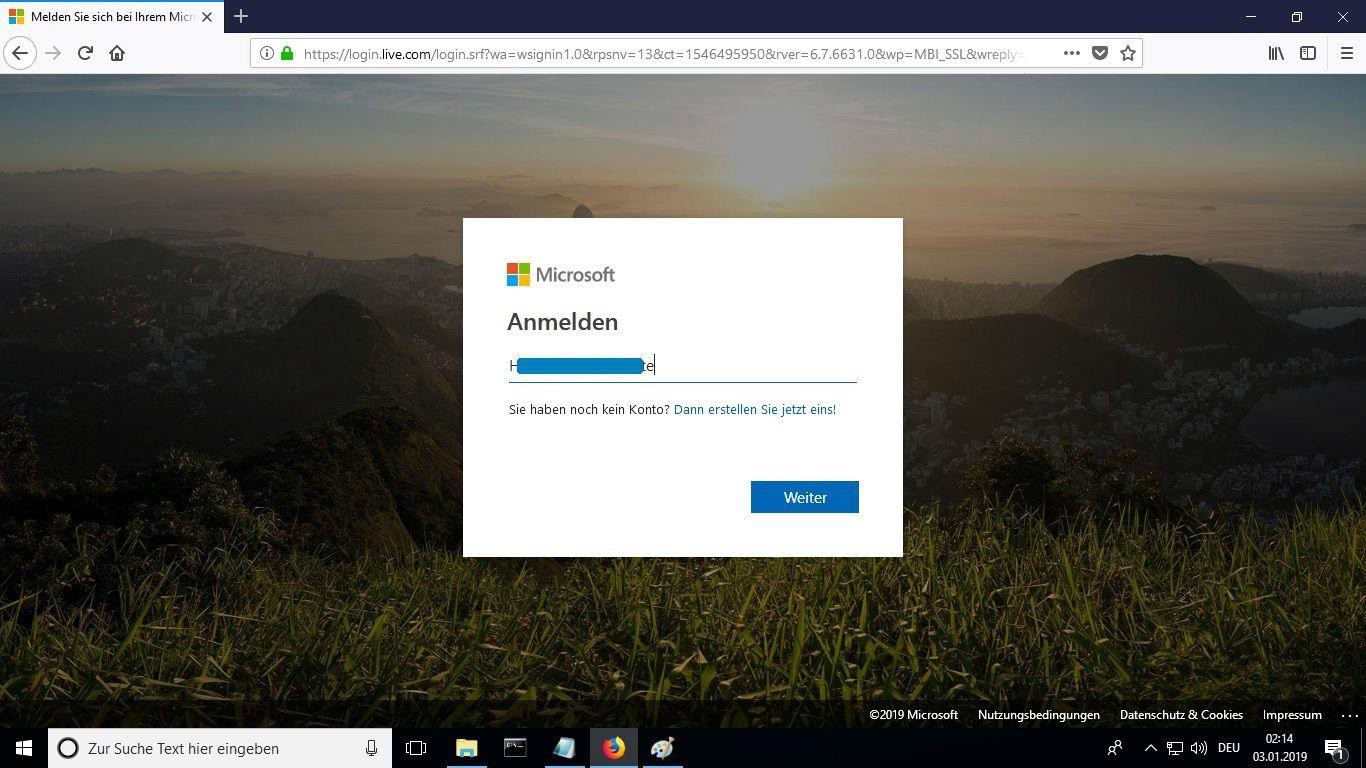
Set a new password so the product becomes yours. Type the password from your email in the first field, then enter your chosen new password in the other two. It needs at least 8 characters, including at least one uppercase letter.
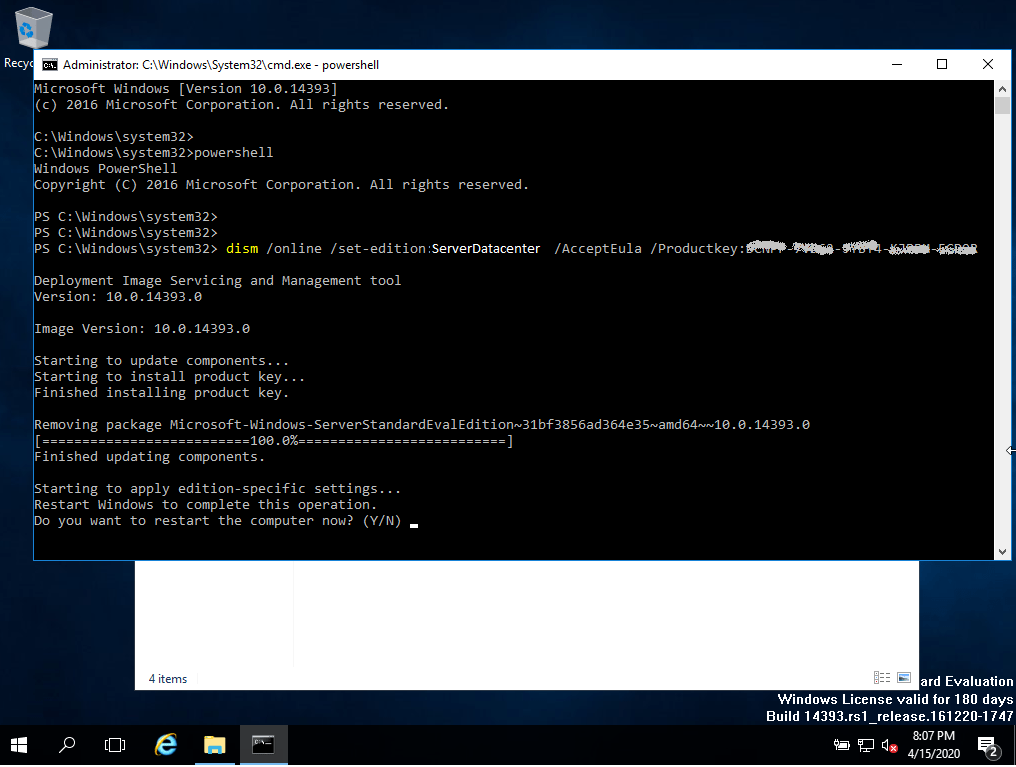
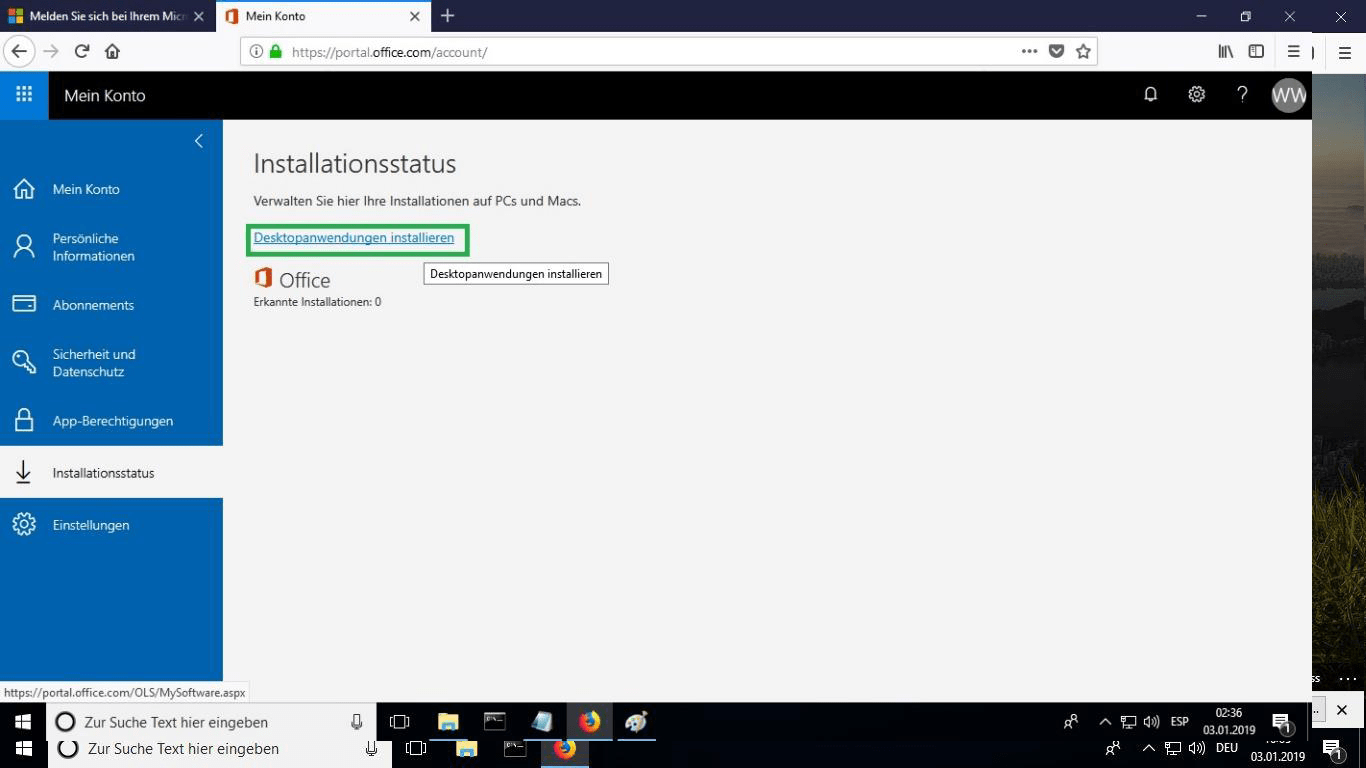
After signing in, go to the “My Account” section and select “Manage Installations” to start installing.
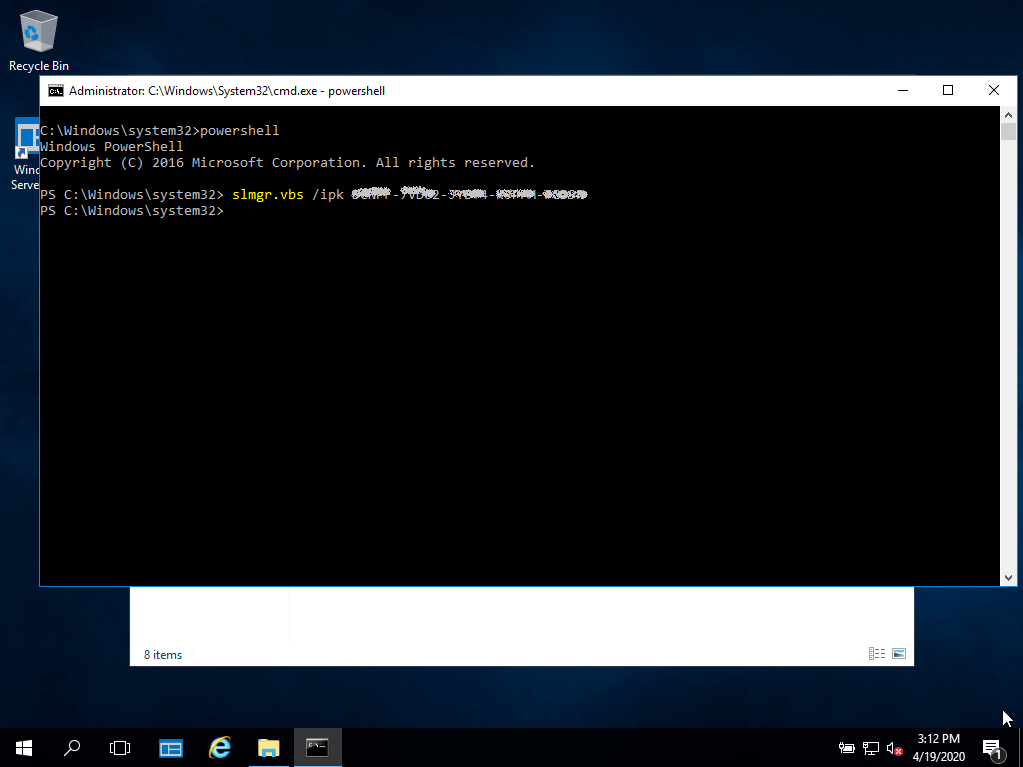
Locate the installer you downloaded (normally in your Downloads folder). Right-click it and pick “Run as administrator”. When Windows asks whether the app may make changes to your device, choose “Yes”.
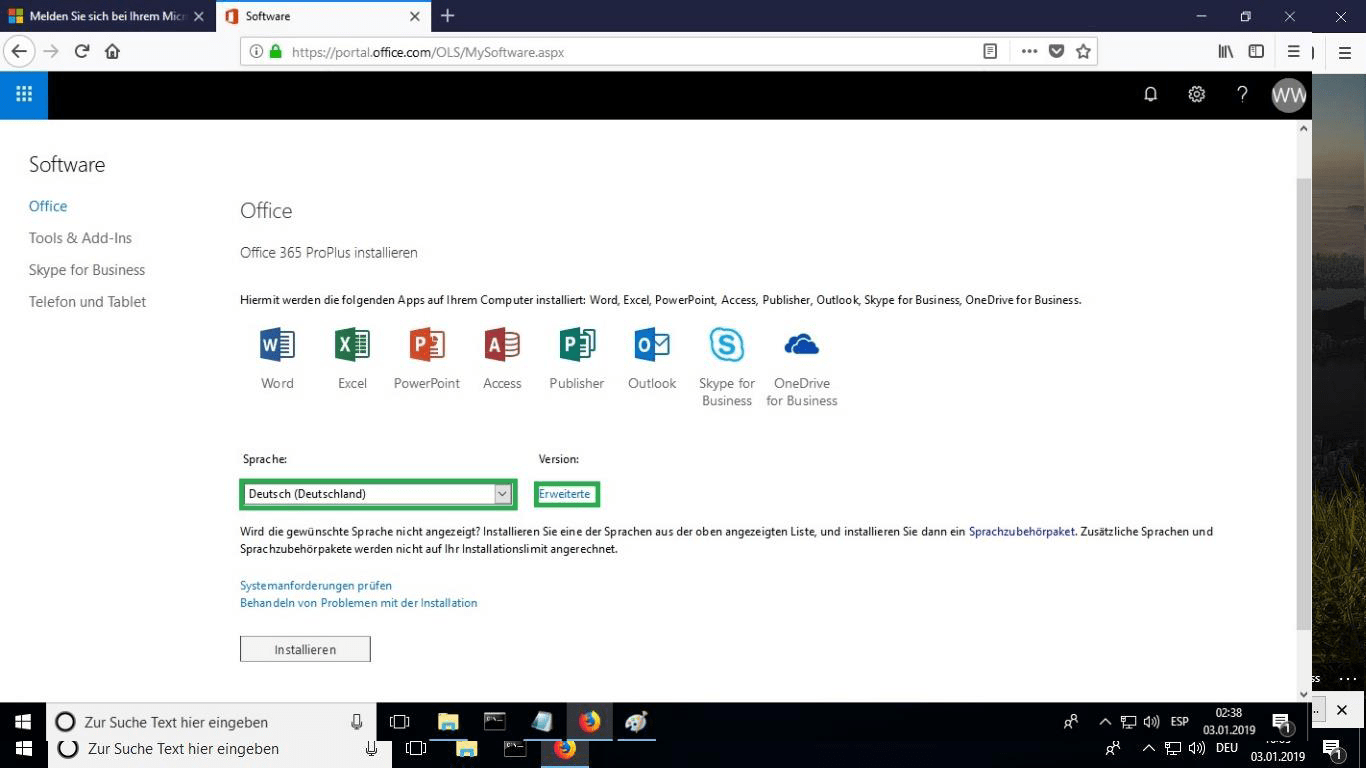
Pick your preferred language from the “language” drop-down list. By default, the 32-bit version is installed; to get the 64-bit version instead, select the “advanced” option.
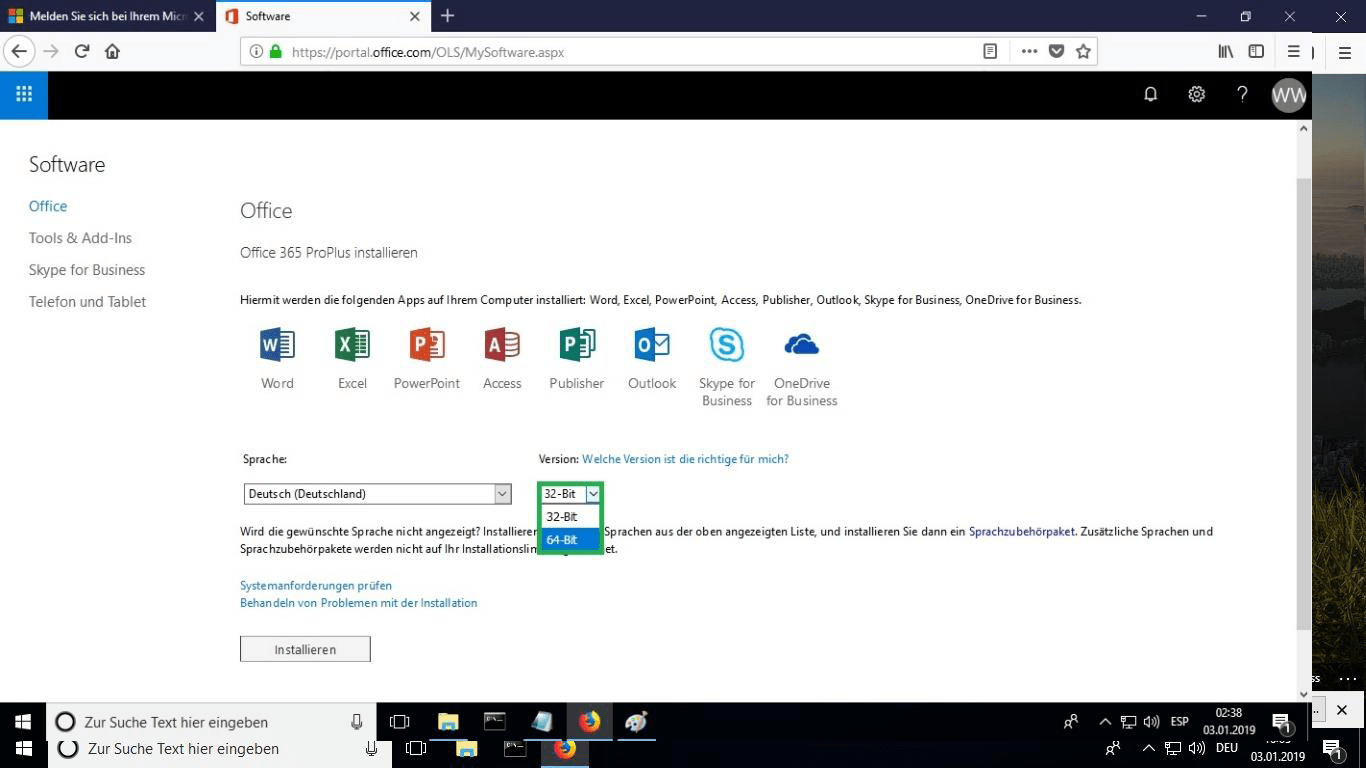
Choose whether you want the 32 or 64 bits version.
We suggest finishing the installation and activation of the product first, and only then signing in with your Microsoft account.
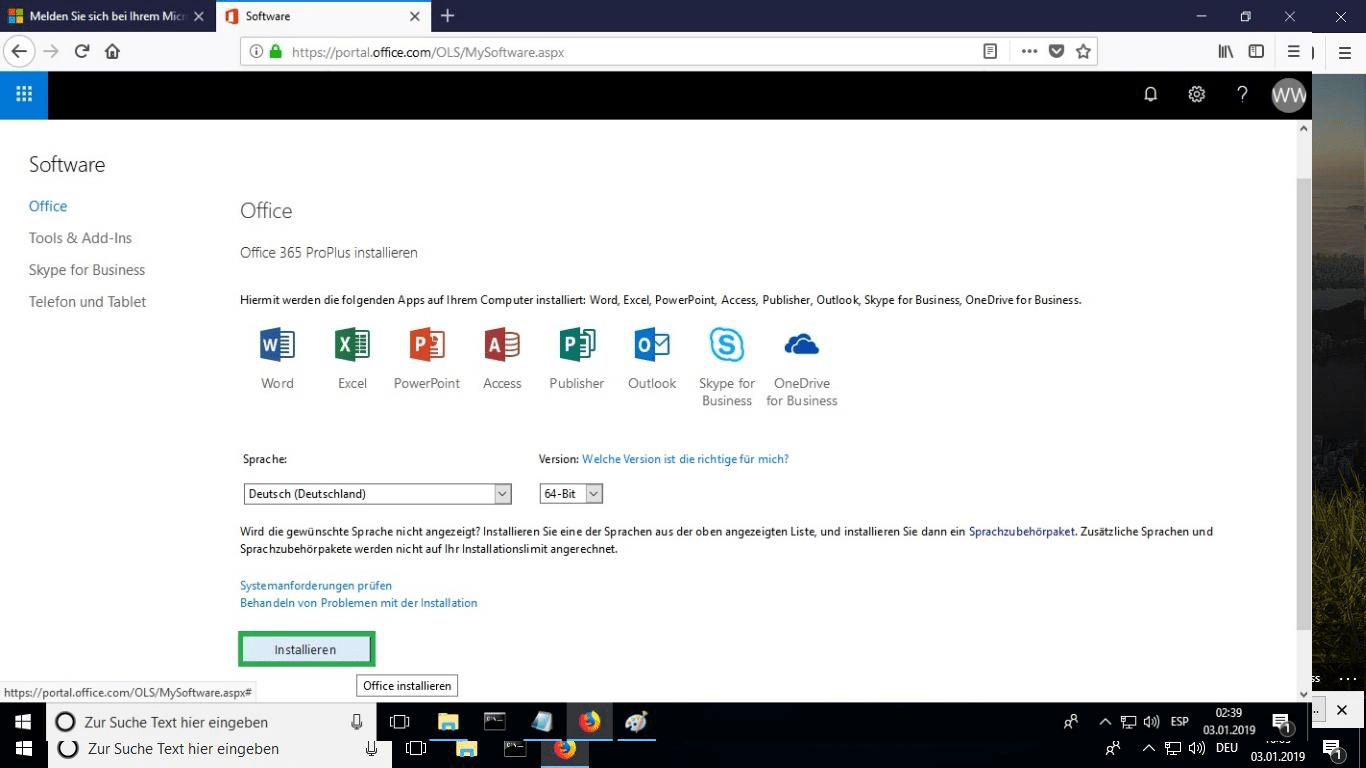
The setup file is downloaded; when prompted, select “burn file”.
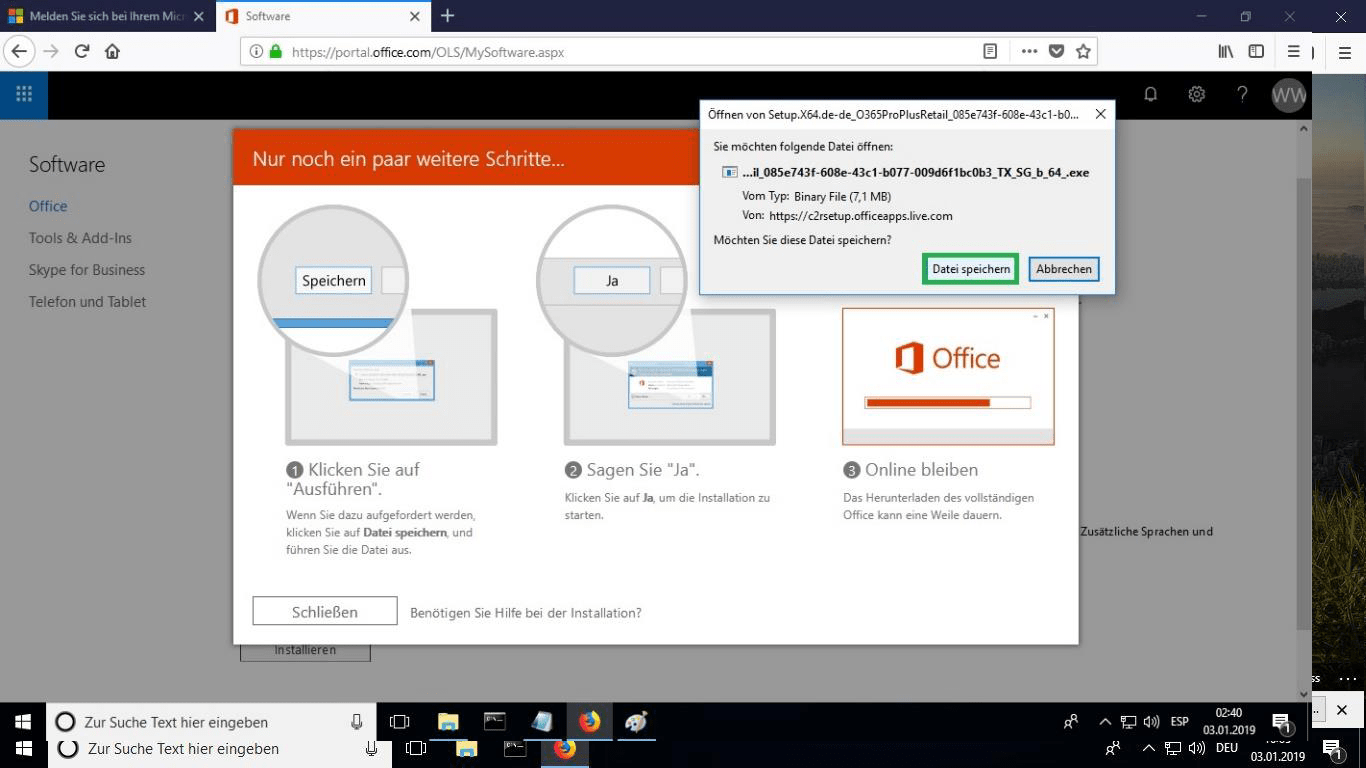
When the download is done, double-click the file to launch it. Where it is saved depends on the browser you use.
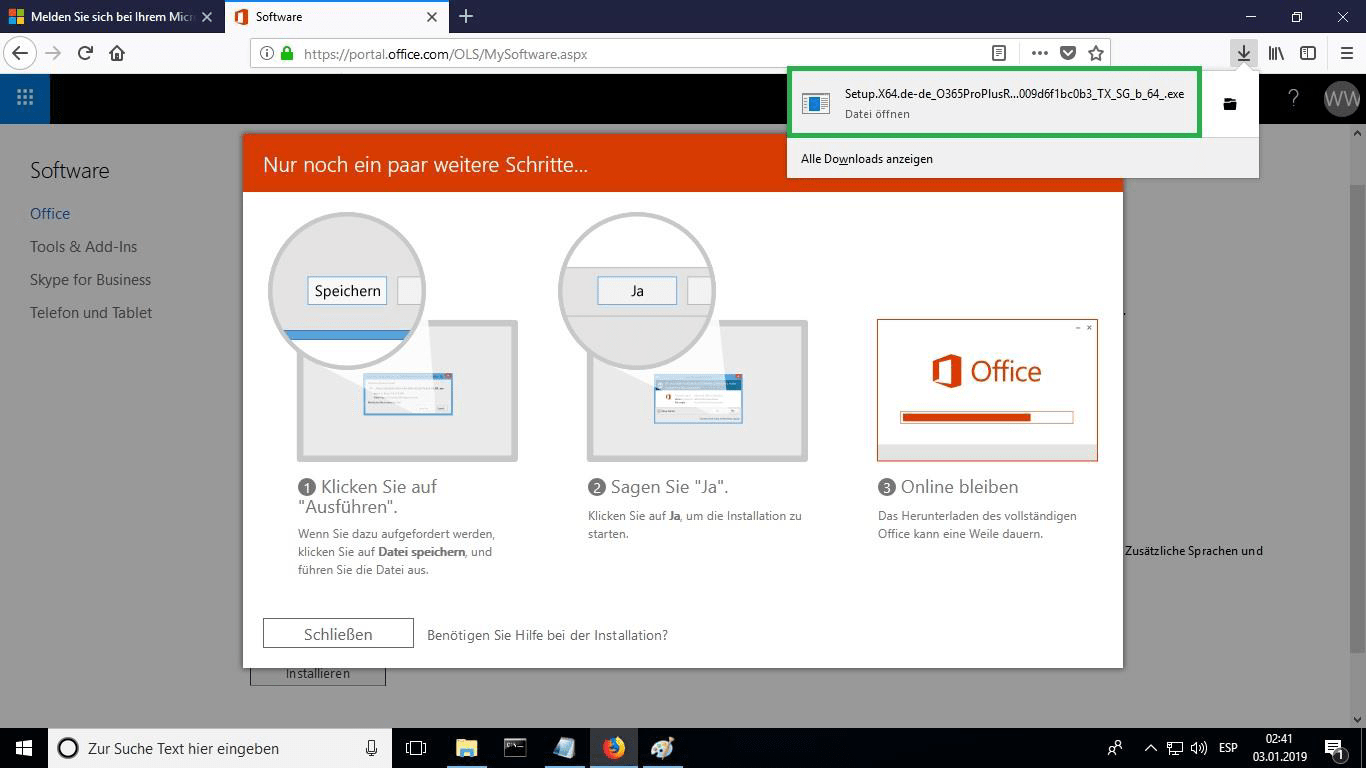
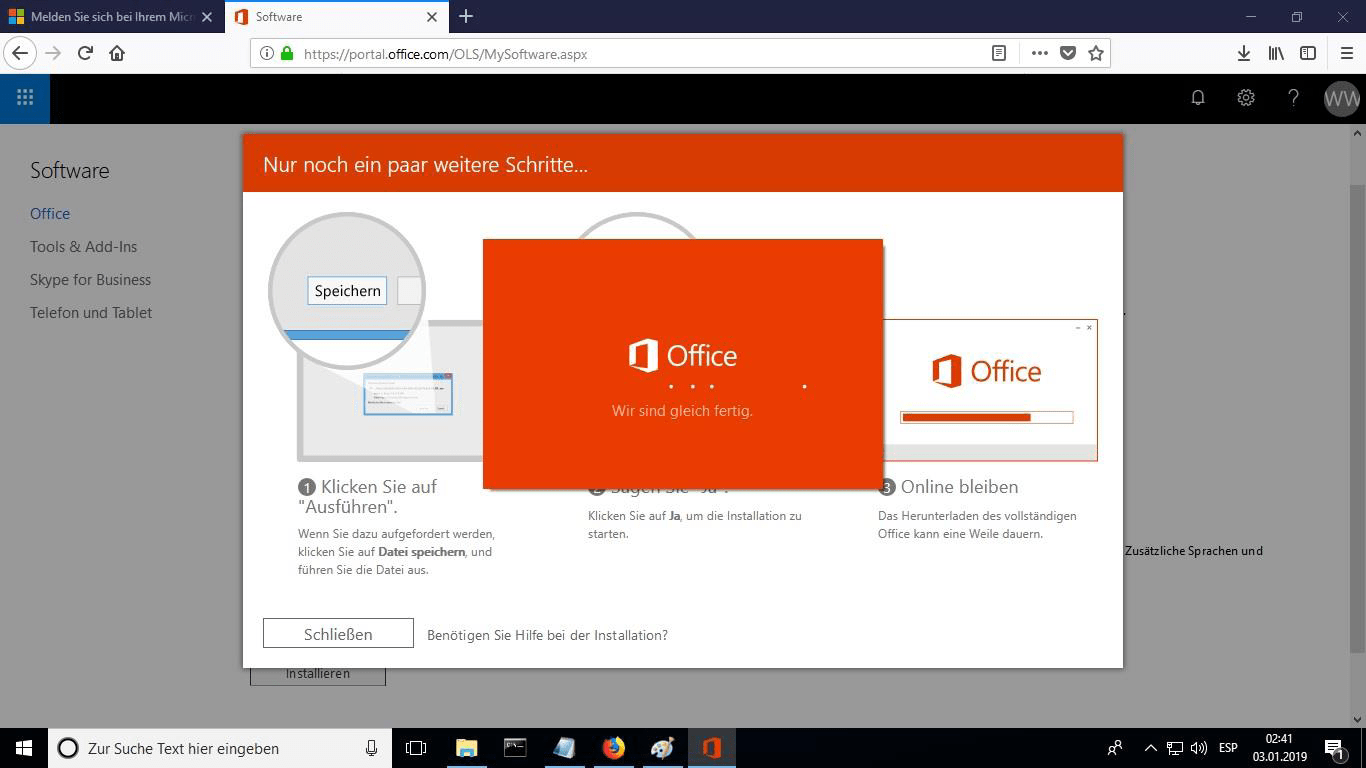
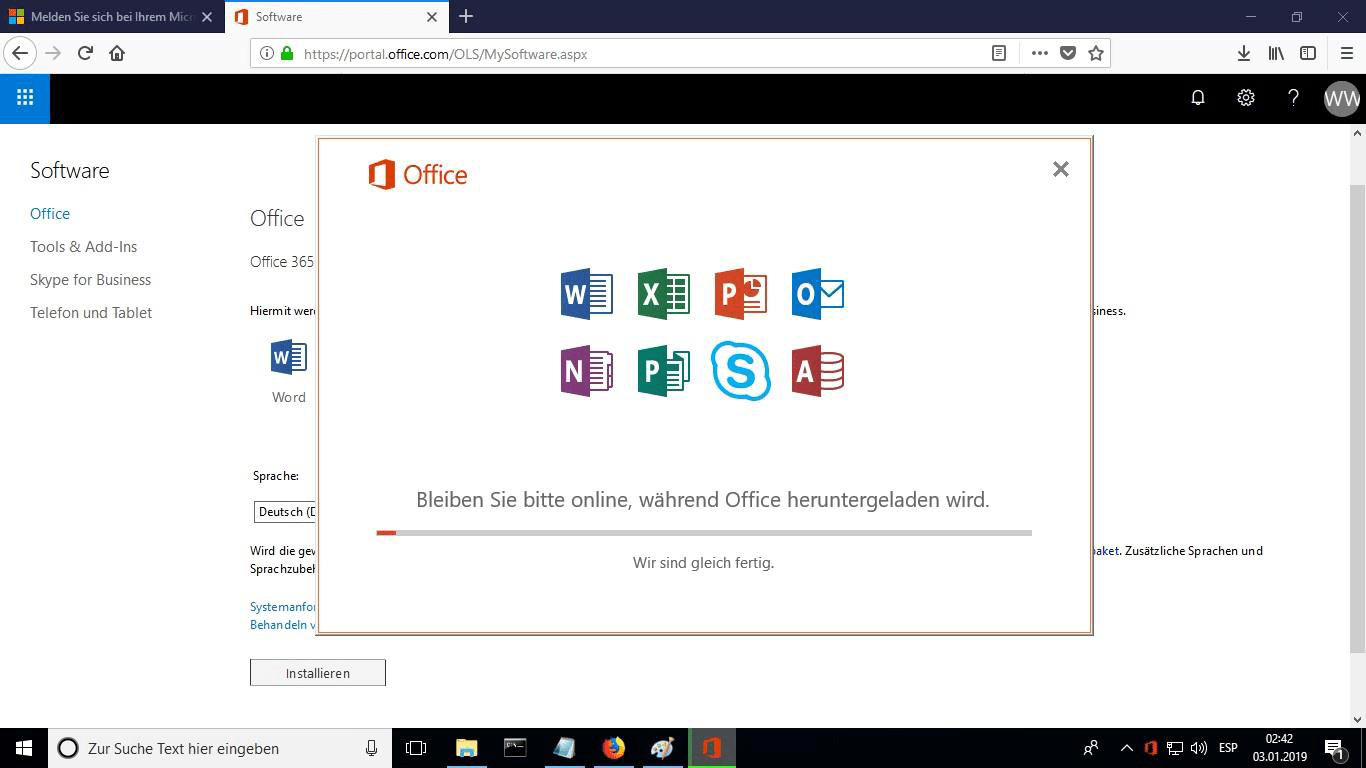
The online installation now begins. It can take 30 minutes or longer, depending on how fast your Internet connection is.
A progress bar shows how far the installation has come.
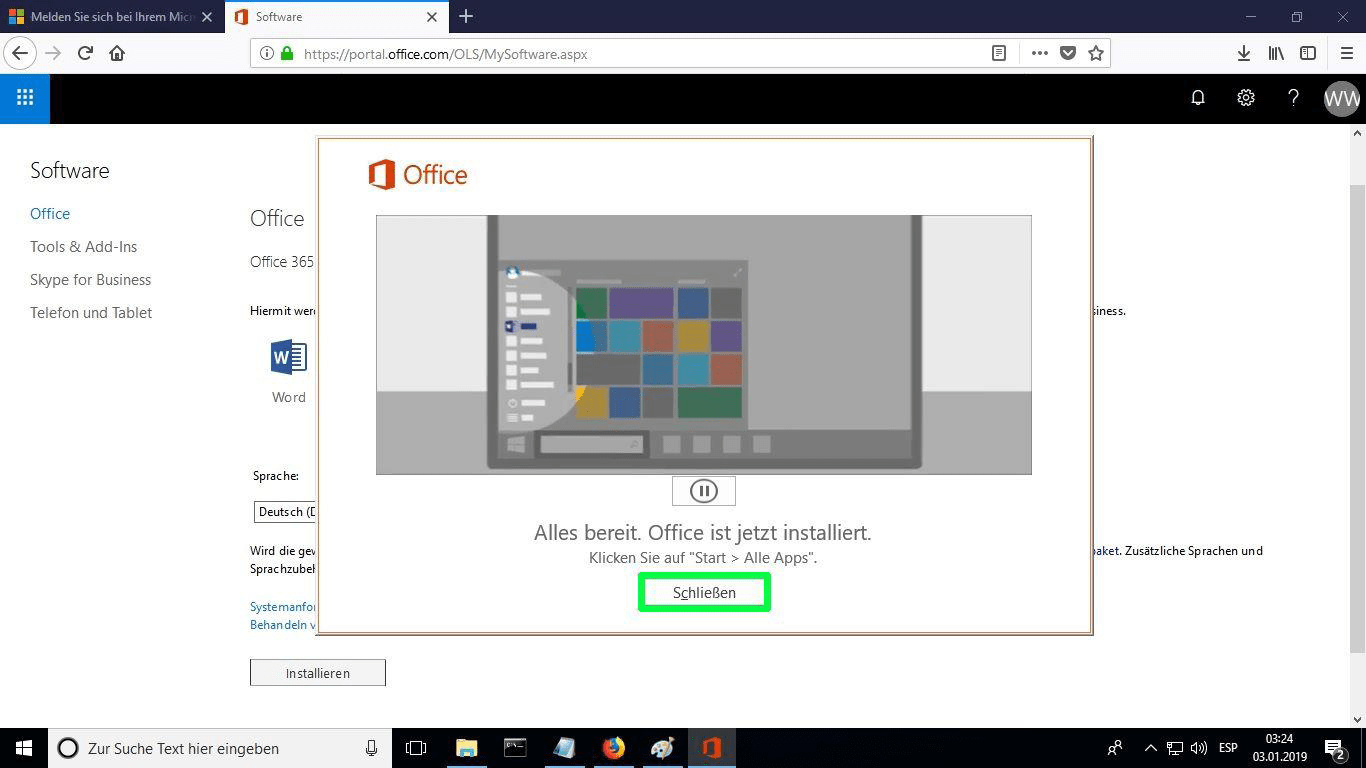
When installation finishes, select “Close”. The Microsoft Office apps are now available in your Start Menu or through Microsoft Windows search.
To confirm that activation worked, launch any Microsoft Office app, for example Excel, and open File-> Account ”. The Microsoft account linked to the product is displayed there.
Activa tu licencia
Elige tu idioma
Los medios de instalación están disponibles en 0 idiomas. Cada uno es el medio original; solo el idioma de la interfaz está preestablecido.
Preguntas frecuentes
¿Necesito desinstalar mi antiguo Office antes de instalar el nuevo?
+
Sí — desinstala siempre cualquier versión anterior de Microsoft Office y reinicia el ordenador antes de instalar. Si saltas este paso, tu Office comprado se convertirá en una versión de prueba de 30 días.
¿Caducará mi licencia de Office?
+
No. Es una licencia perpetua — no caduca. Posees esta versión para siempre. No obstante, debes activarla dentro de los 30 días tras la instalación o pasará a modo de prueba.
¿Puedo instalar Office Pro Plus en un Mac?
+
No. Office Pro Plus y Standard son solo para Windows. Para macOS, revisa las ediciones específicas "Office para Mac" en la categoría de Microsoft Office.
¿En cuántos dispositivos puedo activar con una clave?
+
Las licencias retail estándar activan un dispositivo a la vez. Para mover la licencia, desactívala primero en el equipo antiguo mediante el portal de cuenta de Microsoft y luego actívala en el nuevo.
¿Cómo introduzco la clave de activación tras la instalación?
+
Abre cualquier aplicación de Office (Word, Excel, PowerPoint). Haz clic en Archivo → Cuenta en la esquina inferior izquierda. Haz clic en "Cambiar clave de producto" e introduce tu clave de 25 caracteres.
¿Necesitas ayuda?
Microsoft ya no ofrece activación por teléfono
Microsoft ha ido retirando poco a poco el soporte de algunos productos más antiguos, de modo que ya no se puede activar por teléfono. Si surge alguna duda o incidencia al instalar, contacte con nuestro equipo de soporte.
Los archivos están alojados en nuestro CDN seguro. Haz clic en Descargar para comenzar.