
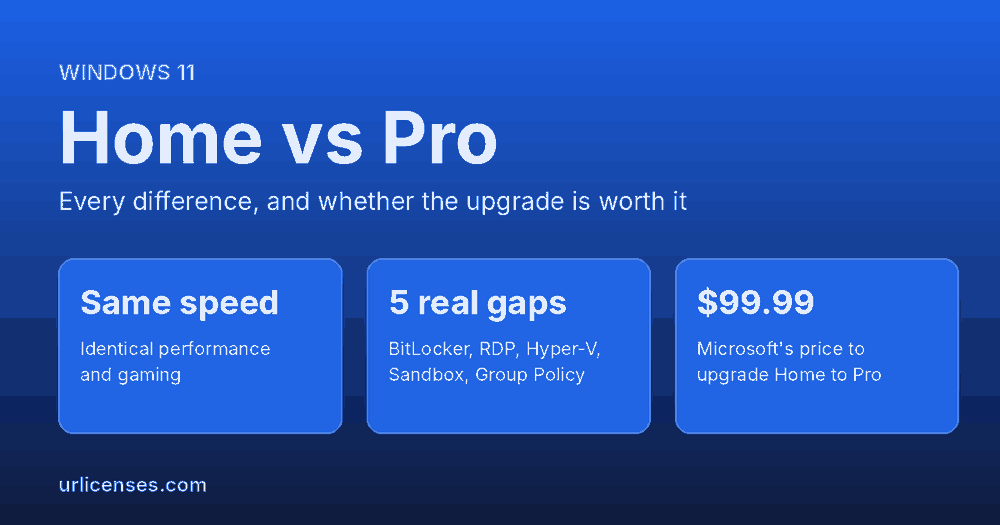
Windows 11 Home and Windows 11 Pro are the same operating system. Same kernel, same apps, same speed, same updates. Microsoft charges around $60 more for Pro, and the whole difference comes down to a short list of security, remote access and management features that most people never touch.
This Windows 11 Home vs Pro guide covers every difference between the two editions, what each one actually costs, which differences matter in daily use, and how to move from Home to Pro without reinstalling anything. If you only want the short version, it is in the next section.
On this page
- Quick answer: which one do you need?
- How much do Home and Pro cost?
- Every difference, side by side
- The five differences that actually matter
- Is Pro faster? Is it better for gaming?
- RAM and CPU limits
- Home vs Pro vs Enterprise
- How to check which edition you have
- How to upgrade without reinstalling
- So should you upgrade?
- Frequently asked questions
Quick answer: which one do you need?
| You should stay on Home if | You should move to Pro if |
|---|---|
| You browse, stream, game, study or do office work | You carry a laptop with client or personal data and want full BitLocker encryption |
| Only you use the machine, in one place | You need to reach this PC remotely from another computer |
| You have never heard of Hyper-V or Group Policy | You run virtual machines, or test software you do not trust |
| Your PC has 128 GB of RAM or less | Your employer requires a domain or Microsoft Entra ID join |
| You want to spend nothing | You want to control when Windows updates install |
The honest summary: most home users do not need Pro. If none of the right-hand column applies to you, Home is a complete operating system and upgrading buys you nothing you will notice.
How much do Windows 11 Home and Pro cost?
These are Microsoft’s own retail prices in the United States. Almost nobody pays them, because Windows comes preinstalled on nearly every PC sold, but they are the reference point.
| Licence | Microsoft Store price |
|---|---|
| Windows 11 Home (full licence) | $139.99 |
| Windows 11 Pro (full licence) | $199.99 |
| Home to Pro upgrade | $99.99 |
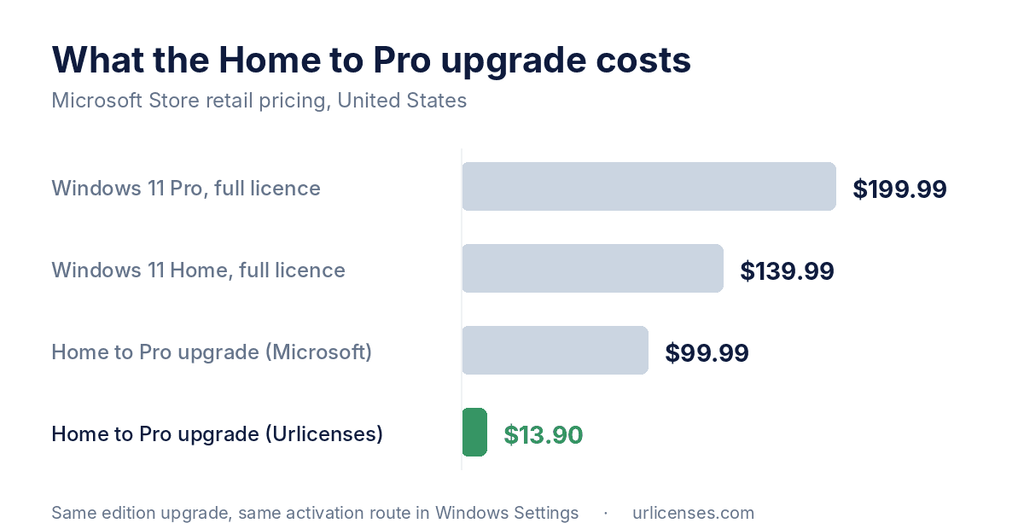
That $99.99 upgrade is the number worth knowing, because it is what Microsoft charges to flip the edition on a machine you already own. You are not buying a new copy of Windows, and nothing is reinstalled. We sell the same edition upgrade as a licence key from $13.90.
Windows 11 Home vs Pro: every difference, side by side
In the Windows 11 Home vs Pro line-up, everything in Home is also in Pro. Pro never removes anything. This table is the complete list of what changes.
| Feature | Windows 11 Home | Windows 11 Pro |
|---|---|---|
| BitLocker drive encryption | Device encryption only, on supported hardware | Full BitLocker, manual control, AES-256 |
| Remote Desktop host (incoming) | No | Yes |
| Hyper-V virtual machines | No | Yes |
| Windows Sandbox | No | Yes |
| Group Policy Editor (gpedit.msc) | No | Yes |
| Domain and Microsoft Entra ID join | No | Yes |
| Windows Update for Business | No | Yes |
| Mobile device management | No | Yes |
| Assigned Access (kiosk mode) | No | Yes |
| Maximum RAM | 128 GB | 2 TB |
| Maximum CPU sockets | 1 | 2 |
| Maximum CPU cores | 64 | 128 |
| Gaming performance | Identical | Identical |
| Windows Update security patches | Yes | Yes |
The five differences that actually matter
Most of the Windows 11 Home vs Pro table above is irrelevant to a home user. These five are the ones people genuinely upgrade for.
1. BitLocker drive encryption
This is the single most common reason to upgrade, and the one where the Home and Pro gap is most often misunderstood.
Windows 11 Home does include a feature called device encryption, and on recent hardware it is switched on automatically. But it is BitLocker with the controls removed: the recovery key is tied to your Microsoft account, you cannot choose the encryption strength, you cannot encrypt secondary drives, and you cannot manage it centrally.
Pro gives you the real thing: encrypt any drive including USB sticks with BitLocker To Go, pick AES-256, hold your own recovery keys, and suspend or resume protection when you need to. If you carry a laptop with client files, financial records or anything covered by a confidentiality clause, this alone usually justifies the upgrade.
2. Remote Desktop, incoming
Both editions can connect out to another machine. Only Pro can accept a connection in. So a Home PC can be the one you work from, but it cannot be the one you work on from somewhere else.
Third-party tools get around this, but they add an account, a subscription and another company holding a route into your desktop. If you regularly need your home or office machine from elsewhere, native Remote Desktop is cleaner and free once you have Pro.
3. Hyper-V virtual machines
Pro includes Microsoft’s own hypervisor, so you can run Linux, an older version of Windows, or an isolated test environment as a virtual machine with no extra software. Developers, IT staff and anyone who needs to test across operating systems will want this. Note that VirtualBox and VMware Workstation Player run fine on Home, so this matters most if you specifically want Hyper-V.
4. Windows Sandbox
A throwaway desktop that opens in seconds, shares nothing with your real system, and is destroyed the moment you close it. Perfect for opening an installer you are not sure about or an email attachment you do not trust. It is a genuinely useful security tool and it is Pro only.
5. Group Policy and domain join
The Group Policy Editor lets you change hundreds of Windows settings properly instead of editing the registry and hoping. Domain and Microsoft Entra ID join is what lets a company manage the machine centrally. If your employer hands you a laptop and asks you to join it to the company network, you need Pro. There is no workaround.
Is Windows 11 Pro faster? Is it better for gaming?
No, and no. This is the most common misconception in the whole Windows 11 Home vs Pro debate, so it is worth being blunt about it.
Home and Pro share the same kernel, the same scheduler, the same graphics stack and the same DirectX. Game Mode, Auto HDR and DirectStorage are all present in Home. Your frame rate will be identical, your boot time will be identical, and your applications will open at the same speed. Nobody has ever gained an FPS by upgrading edition.
If anything, Pro can feel marginally heavier out of the box, because some of its security features such as virtualisation-based security add a small overhead. The difference is not something you will notice, but it certainly does not run the other way. Buy Pro for the features, never for performance.
RAM and CPU limits
Windows 11 Home caps out at 128 GB of RAM, one physical processor and 64 cores. Pro goes to 2 TB of RAM, two processors and 128 cores.
For almost everyone the Windows 11 Home vs Pro memory gap is academic. A typical desktop has 16 to 32 GB and a single CPU, so Home’s ceiling is nowhere in sight. It only becomes real if you are building a workstation for video rendering, large simulations or heavy virtualisation. If that is you, check the limits before you buy the memory, not after.
Windows 11 Home vs Pro vs Enterprise
Enterprise comes up often in the Windows 11 Home vs Pro comparison, so briefly: you cannot buy it the way you buy Home or Pro. It is sold only through volume licensing agreements and Microsoft 365 E3 or E5 subscriptions, with a minimum seat count, and it is installed on top of an existing Pro licence.
What it adds over Pro is aimed squarely at large IT departments: AppLocker, Credential Guard and Application Guard, DirectAccess, BranchCache, and the long-term servicing channel. None of it is relevant to an individual or a small business. For practical purposes the real choice is Home or Pro.
How to check which edition you have
Settle the Windows 11 Home vs Pro question for your own machine before you buy anything. Plenty of machines already ship with Pro, especially business laptops, so the Windows 11 Home vs Pro choice may already be made for you.
- Press Windows + I to open Settings.
- Go to System, then About.
- Read the Edition line under Windows specifications.
Faster still: press Windows + R, type winver and press Enter. The same screen also shows whether Windows is activated, under System > Activation, which matters because an edition upgrade needs an activated copy of Home to start from.
How to upgrade from Home to Pro without reinstalling
This is an edition upgrade, not a reinstall. Windows does not format your drive, create a new profile or remove your programs. Your files, applications, drivers and settings all survive, and the whole thing takes a few minutes and one restart.
- Go to Settings > System > Activation and check that Windows 11 Home is activated.
- Next to Change product key, select Change.
- Enter your 25-character Windows 11 Pro key and select Next.
- Select Start when Windows offers the upgrade, then let it restart once.
Microsoft documents the same route on its upgrade from Home to Pro support page. Afterwards, System > About will read Windows 11 Pro and the Pro features appear in Settings.
One important caveat if you are still on Windows 10 Home: entering a Pro key performs an edition upgrade, not a version upgrade. It will take you to Windows 10 Pro, not Windows 11 Pro. Take the free Windows 11 upgrade first, confirm you are on Windows 11 Home, then apply the key. Our Windows 11 upgrade guide covers that step.
If you need the licence itself, we sell the Windows 11 Pro upgrade key for machines already running Home, and a full Windows 11 Pro licence for clean installs on a blank drive.
So should you upgrade?
The Windows 11 Home vs Pro decision comes down to one test: upgrade if you can point at a specific feature you will use. BitLocker on a laptop that leaves the house. Remote Desktop into your own machine. Hyper-V for development. A domain join your employer requires. Those are real reasons and the upgrade pays for itself quickly.
Do not upgrade because Pro sounds more capable. If you read this whole comparison and nothing in the Pro column described something you actually do, Home is the right edition and you should keep your money. Windows 11 Home is not a cut-down or trial version of Windows. It is the full operating system with the business tooling left out.
Frequently asked questions
Why choose Windows 11 Pro instead of Home?
Four reasons account for almost every Windows 11 Home vs Pro upgrade: full BitLocker encryption, the ability to accept incoming Remote Desktop connections, Hyper-V and Windows Sandbox for virtualisation and safe testing, and domain or Microsoft Entra ID join for work machines. If none of those apply, Home is the better buy.
How much does Windows 11 Pro cost?
Microsoft charges $199.99 for a full Windows 11 Pro licence and $99.99 to upgrade an existing Home installation. Our upgrade key starts at $13.90.
Can Windows 11 Home join a domain?
No. Domain join and Microsoft Entra ID join are Pro features and there is no supported workaround. If your employer needs the machine on the company network, you need Pro.
Will I lose my files if I upgrade from Home to Pro?
No. An edition upgrade keeps your files, applications, drivers and settings. Nothing is formatted and no installation media is needed. Windows restarts once and comes back as Pro.
Is Windows 11 Pro worth it for gaming?
No. Gaming performance is identical between Home and Pro. Game Mode, Auto HDR and DirectStorage are in both. Spend the money on hardware instead.
Does Windows 11 Home have BitLocker?
Partly. Home has device encryption, which is BitLocker with the controls removed. You get automatic encryption on supported hardware with the key held in your Microsoft account, but you cannot encrypt extra drives, choose AES-256, or manage recovery keys yourself. Pro gives you all of that.
Can I downgrade from Pro back to Home?
Not through a product key change. Going from Pro to Home requires a clean installation with Home media, which wipes the drive. Upgrading is one-directional in practice.
Does Windows 11 Home let me use a local account?
It is harder than on Pro. Home pushes you to sign in with a Microsoft account during setup and recent builds have closed most of the old workarounds. Pro still offers a straightforward path to a local account by choosing the work or school setup option.
Need the tier above this one? See Windows 11 Pro vs Enterprise. Still weighing it up? Read our Office 2024 vs Microsoft 365 comparison for the same treatment of the Office side, or browse every Windows licence we stock.